
1. Introduzzjoni
This manual provides essential information for setting up, operating, maintaining, and troubleshooting your Lenovo ThinkPad L14 Gen 2 laptop. Please read this manual thoroughly to ensure proper use and to maximize the performance and longevity of your device.
2. Kontenut tal-Pakkett
Ivverifika li l-oġġetti kollha huma preżenti fil-pakkett tiegħek:
- Lenovo ThinkPad L14 Gen 2 Laptop
- Adapter tal-Enerġija AC u Korda tal-Enerġija
- Dokumentazzjoni (Gwida ta' Bidu Mgħaġġel, Informazzjoni dwar il-Garanzija)
- Dockstorm USB Hub (if included with your purchase)
3. Prodott Aktarview
Familiarize yourself with the components of your Lenovo ThinkPad L14 Gen 2 laptop.

Figura 3.1: Quddiem view of the Lenovo ThinkPad L14 Gen 2 laptop with the screen displaying the Windows desktop and a blue 'Dockstorm' hub connected to the left side. This image illustrates the laptop's overall appearance and the included accessory.

Figura 3.2: Left-side angled view of the Lenovo ThinkPad L14 Gen 2 laptop, showcasing the various ports available. From left to right, these include a USB-C port (supporting Thunderbolt 4), another USB 3.2 Gen1 port, an HDMI output, and an Ethernet (RJ-45) port for wired network connections.
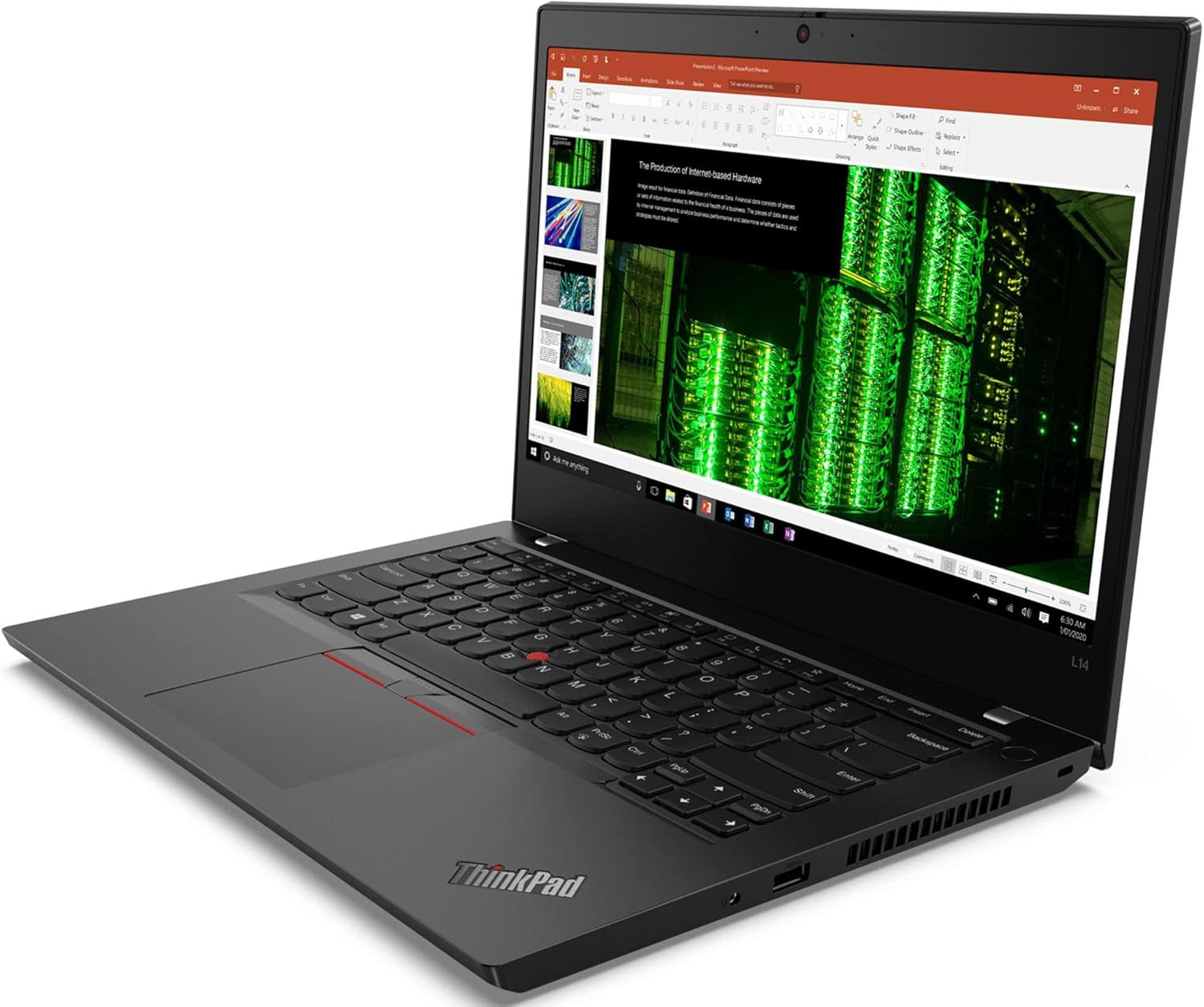
Figura 3.3: Right-side angled view of the Lenovo ThinkPad L14 Gen 2 laptop. This side features a USB 3.2 Gen1 port, a headphone/microphone combo audio jack, and a security lock slot for physical device protection.
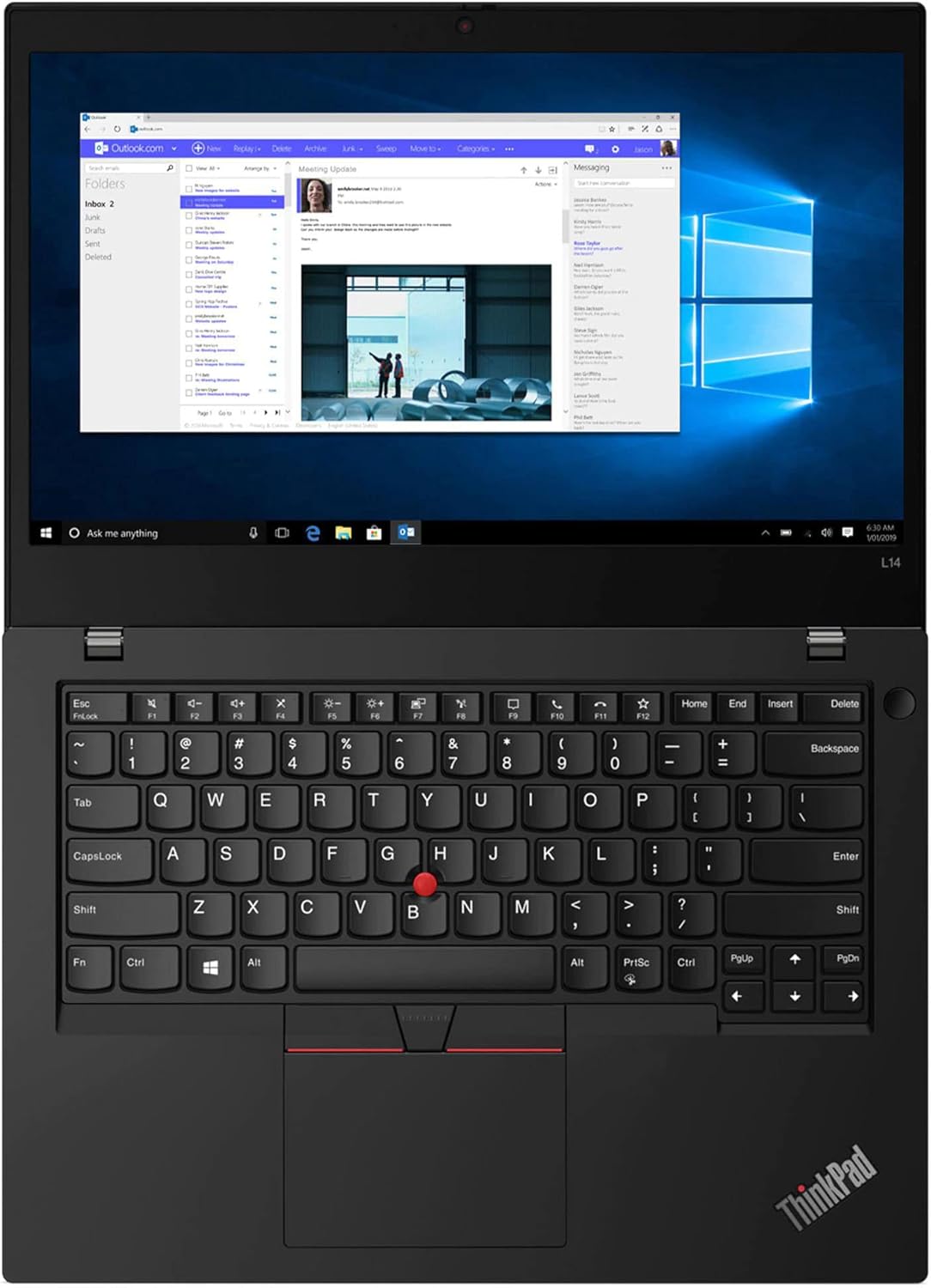
Figura 3.4: Minn fuq għal isfel view of the open Lenovo ThinkPad L14 Gen 2 laptop, highlighting the full-sized keyboard, the iconic red TrackPoint pointing device located in the center of the keyboard, and the multi-touch touchpad below the spacebar.

Figura 3.5: Close-up view of the blue 'Dockstorm' USB hub. This accessory expands the connectivity options of your laptop, providing additional USB ports for peripherals.
4. Setup
4.1. L-Ewwel Tixgħil
- Qabbad l-Enerġija: Plug the AC power adapter into the laptop's power input port (USB-C port on the left side) and then into a wall outlet.
- Qawwa Mixgħul: Open the laptop lid and press the power button, typically located on the top-right side of the keyboard deck.
- Konfigurazzjoni Inizjali tal-Windows: Follow the on-screen instructions to complete the Windows 11 Pro setup, including language selection, network connection, user account creation, and privacy settings.
4.2. Konnessjoni Periferali
- Apparat USB: Connect USB devices such as external drives, mice, or keyboards to the available USB 3.2 Gen1 ports or via the included Dockstorm USB hub.
- Display Estern: Use the HDMI port or the Thunderbolt 4 (USB-C) port to connect an external monitor or projector.
- Netwerk: For a wired connection, plug an Ethernet cable into the RJ-45 port. For wireless, connect to a Wi-Fi network during the initial setup or via Windows settings.
5. Istruzzjonijiet Operattivi
5.1. Ġestjoni tal-Enerġija
- Qawwa Mixgħul: Agħfas il-buttuna tal-qawwa.
- Modalità Sleep: Agħlaq l-għatu jew agħżel 'Sleep' mill-Menu Start.
- Itfi: Mur fil-Menu tal-Bidu > Enerġija > Itfi.
- Ibda mill-ġdid: Mur fil-Menu tal-Bidu > Enerġija > Irristartja.
5.2. Using Input Devices
- Tastiera: Standard QWERTY layout with function keys (Fn) for system controls.
- TrackPoint: Use the red TrackPoint in the center of the keyboard for precise cursor control. The associated buttons below the spacebar function as left, right, and middle-click.
- Touchpad: The multi-touch touchpad supports gestures for navigation and control.
5.3. Konnettività
- Wi-Fi: Access Wi-Fi settings via the taskbar icon to connect to available wireless networks.
- Bluetooth: Enable Bluetooth in Windows settings to pair with compatible devices like headphones or mice.
- Wirjiet Esterni: Agħfas Ċavetta tal-Windows + P to cycle through display modes (Duplicate, Extend, Second screen only).
6. Manutenzjoni
6.1. Tindif tal-Laptop
- Uża drapp ratba u mingħajr ħelu ftit dampNaddaf bl-ilma jew b'tindif tal-iskrin għall-wiri.
- Għat-tastiera u x-chassis, uża drapp artab. Evita kimiċi ħarxa.
- Periodically clean the fan vents to prevent dust buildup.
6.2. Kura tal-batterija
- Evita li tiċċarġja l-batterija kompletament ta' spiss.
- Aħżen il-laptop f'post frisk u niexef jekk ma tużahx għal perjodi twal.
- Use only the original Lenovo power adapter.
6.3. Aġġornamenti tas-Software
- Iċċekkja regolarment għal aġġornamenti tal-Windows permezz ta' Settings > Windows Update.
- Install driver updates from the official Lenovo support websit biex tiżgura l-aħjar prestazzjoni u sigurtà.
7 Issolvi l-problemi
7.1. Kwistjonijiet Komuni u Soluzzjonijiet
- Il-laptop mhux qed jixgħel:
Ensure the AC adapter is securely connected and the power outlet is functional. Try a different outlet. If the battery is removable, ensure it is properly seated. - Ebda konnessjoni Wi-Fi:
Iċċekkja jekk il-Wi-Fi huwiex attivat fis-settings tal-Windows. Erġa' ibda r-router u l-laptop tiegħek. Kun żgur li s-sewwieqa huma aġġornati. - Problemi bil-wiri (l-ebda immaġni, teptip):
Ensure external monitors are properly connected. Try updating graphics drivers. If using an external display, press Ċavetta tal-Windows + P to cycle display modes. - Prestazzjoni bil-mod:
Close unnecessary applications. Check for background processes consuming high resources (Task Manager). Ensure sufficient free storage space. Run a malware scan. - Keyboard or TrackPoint not responding:
Restart the laptop. Check for driver updates. If an external keyboard is connected, test if it works.
8. Speċifikazzjonijiet
| Karatteristika | Speċifikazzjoni |
|---|---|
| Proċessur | Intel Core i5-1135G7 (11th Gen, up to 4.2GHz, 4 Cores, 8 Threads) |
| Wiri | 14.0" Full HD (1920x1080) 60Hz IPS Display |
| Memorja (RAM) | 16GB DDR4 SO-DIMM |
| Ħażna | 1TB PCIe SSD (Solid State Drive) |
| Grafika | Intel Iris Xe Integrated Graphics |
| Sistema Operattiva | Windows 11 Pro-64 |
| Konnettività bla fili | 802.11ax Wi-Fi (Wi-Fi 6), Bluetooth 5.2 |
| Konnettività bil-fili | LAN Ethernet (RJ-45) |
| Webcam | 720p HD Webcam |
| Portijiet | 2x USB 3.2 Gen1, 1x HDMI, 1x Thunderbolt 4 (Type-C), 1x USB 3.2 Type-C Gen1, Micro SD Reader, Headphone/Microphone Combo Jack |
| Batterija | 3-cell 45WHr Battery |
| Provvista tal-Enerġija | 65W PSU |
| Dimensjonijiet (W x L x H) | 13.03 IN x 9.25 IN x 0.8 IN |
| Piż | 3.49 lb |
9. Garanzija u Appoġġ
Your Lenovo ThinkPad L14 Gen 2 laptop comes with a 1-Year Manufacturer Warranty provided by GreatPriceTech. For warranty claims or technical support, please refer to the documentation included with your purchase or visit the official Lenovo support website for comprehensive resources, drivers, and service information.
Appoġġ onlajn: For the latest drivers, software, and troubleshooting guides, visit the official Lenovo Support websit.