
1. Introduzzjoni
This manual provides detailed instructions for the installation, setup, and operation of your OHMAX Smart Light Switch with Remote Control, Model SWS10-1. Please read this manual thoroughly before installation and use to ensure proper functionality and safety.

Image 1.1: OHMAX Smart Light Switch and Remote Control packaging. The image shows the product box containing the smart light switch and a separate wireless remote control.
2. Informazzjoni dwar is-Sigurtà
- Sigurtà Elettrika: Installation must be performed by a qualified electrician or a person with a thorough understanding of electrical wiring. Always turn off power at the circuit breaker before installation.
- Wajer Newtrali Meħtieġa: This device requires a neutral wire for operation. If your electrical box does not have a neutral wire, consult a qualified electrician.
- Wi-Fi ta' 2.4GHz Biss: This device operates on a 2.4GHz Wi-Fi network. It is not compatible with 5GHz Wi-Fi networks.
- Pol Uniku Biss: This switch is designed for single-pole applications only. It is not compatible with 3-way or multi-way switch configurations unless used with the included remote as a virtual 3-way.
- Tagħbija Massima: Do not exceed the maximum power rating of 1800W or current rating of 15A.
3. Kontenut tal-Pakkett
The OHMAX Smart Light Switch kit includes:
- OHMAX Smart Light Switch (Model SWS10-1)
- SM04 RF Wireless Remote Control
- Detentur tal-ħajt għal Remote
- Pjanċa tal-wiċċ
- Viti
- Tejp li jwaħħal 3M
- Manwal għall-Utent (dan id-dokument)
4. Setup u Installazzjoni
4.1 Installazzjoni Elettrika
- Itfi l-Enerġija: Sib is-circuit breaker tiegħek u itfi l-enerġija lis-swiċċ tad-dawl li qed tissostitwixxi. Ivverifika li l-enerġija hija mitfija billi tuża voltagtester.
- Neħħi s-Swiċċ il-Qadim: Neħħi bir-reqqa l-pjanċa tal-ħajt eżistenti u ħoll is-swiċċ il-qadim mill-kaxxa tal-elettriku. Skonnettja l-wajers.
- Identifika l-Wajers: Identify the following wires in your electrical box:
- Wajer newtrali: Often white and capped together. This is essential for the smart switch.
- Wajer tal-Linja: Often black, providing constant power. Use an electric pen to confirm it's live when power is on (before turning off for installation).
- Wajer tat-Tagħbija: Connects to the light fixture. May be red or black.
- Wajer tal-art: Always green or bare copper.
- Qabbad Swiċċ Ġdid: Connect the wires from your electrical box to the corresponding terminals on the OHMAX Smart Light Switch. Ensure connections are secure.
- Connect the Neutral wire to the 'Neutral' terminal.
- Connect the Line wire to the 'Line' terminal.
- Connect the Load wire to the 'Load' terminal.
- Connect the Ground wire to the 'Ground' terminal.
Note: If the switch does not function after installation, try reversing the Line and Load connections.
- Swiċċ tal-Immuntar: Gently push the wired switch into the electrical box and secure it with screws. Attach the face plate.
- Irrestawra l-Enerġija: Ixgħel il-qawwa lura fis-circuit breaker.

Image 4.1: Step-by-step wiring diagram. This image illustrates how to replace an old switch, identify neutral, line, load, and ground wires, and connect them to the new smart switch.
4.2 Konfigurazzjoni tal-App u Konnessjoni Wi-Fi
The OHMAX Smart Light Switch uses the Smart Life app for smart control. Ensure your Wi-Fi network is 2.4GHz.
- Niżżel l-App: Niżżel l-app "Smart Life" mill-App Store (iOS) jew mill-Google Play Store (Android).
- Reġistrazzjoni/Idħol: Iftaħ l-app u rreġistra kont ġdid jew idħol b'wieħed eżistenti.
- Żid Apparat: Tap "Add Device" or the "+" icon in the app.
- Agħżel it-Tip ta' Apparat: Choose "Light Switch" or the appropriate category.
- Qabbad ma' 2.4GHz Wi-Fi: Agħżel in-netwerk Wi-Fi 2.4GHz tiegħek u daħħal il-password.
- Irrisettja l-Apparat: On the smart switch, press and hold the main switch button for approximately 5 seconds until the indicator light blinks rapidly. This puts the switch into pairing mode.
- Ikkonferma t-Teptip: In the app, confirm that the indicator light on the switch is blinking rapidly.
- Qabbad: The app will begin searching for and connecting to the device. Once connected, you can rename the switch.
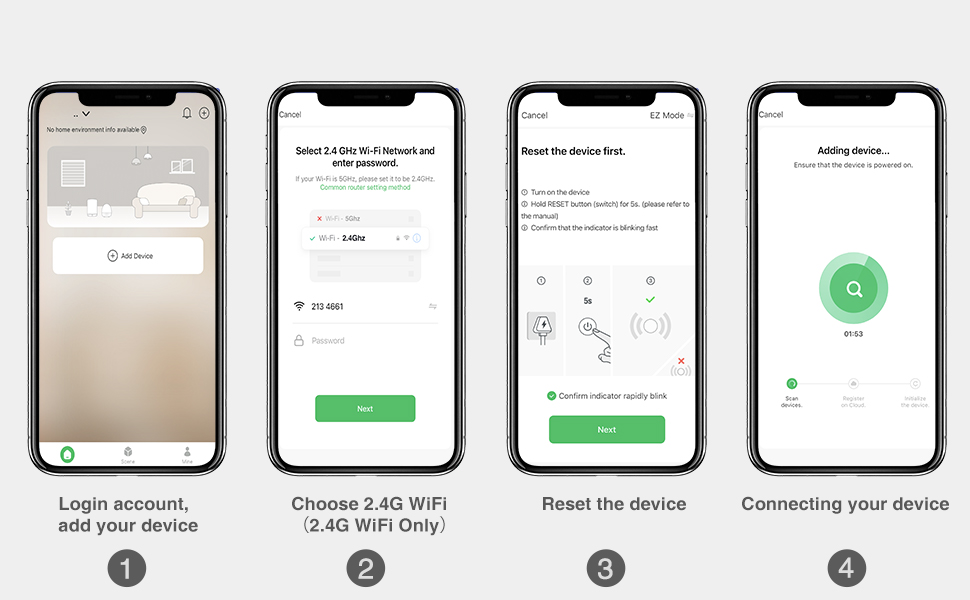
Image 4.2: Smart Life app setup steps. This image shows the four main steps: logging in and adding a device, selecting the 2.4G Wi-Fi network, resetting the device, and connecting the device.
4.3 Tqabbil tal-Kontroll mill-Bogħod
The included SM04 RF remote control needs to be paired with the smart light switch.
- Enter Pairing Mode on Switch: Quickly press the main smart switch button 3 times. The indicator light on the switch will flash green.
- Par Remote: While the switch indicator is flashing, press the "ON" button on the wireless remote control.
- Konferma: The remote will blink green, and the switch indicator light will slow down its flashing, indicating successful pairing.
Note: The remote control can be mounted to a wall using the provided wall holder, screws, or 3M adhesive tape. It uses a replaceable CR2032 coin cell battery.
5. Istruzzjonijiet Operattivi
5.1 Multiple Control Methods
The OHMAX Smart Light Switch offers several ways to control your lights:
- Manwal ON/OFF: Press the physical button on the smart light switch.
- Kontroll mill-bogħod mingħajr fili: Use the included SM04 RF remote control to turn lights ON or OFF from anywhere within range (up to 260ft).
- Kontroll tal-App: Use the Smart Life app on your smartphone to control lights remotely, set schedules, and manage settings.
- Kontroll tal-Vuċi: Integrate with Amazon Alexa or Google Home for hands-free operation.

Image 5.1: Control Your Lights in Multiple Ways. This image visually demonstrates control via the remote, manual switch, voice commands through smart speakers, and the Smart Life mobile application.
5.2 Integrazzjoni tal-Kontroll tal-Vuċi
To enable voice control, link your Smart Life account to Amazon Alexa or Google Home through their respective apps.
- Għal Amazon Alexa:
- Iftaħ l-app Alexa.
- Go to "Skills & Games".
- Fittex għal "Smart Life" and enable the skill.
- Link your Smart Life account.
- Skopri apparati.
- Għal Google Home:
- Iftaħ l-app Google Home.
- Tektek "Żid" > "Issettja apparat" > "Jaħdem ma' Google".
- Fittex għal "Smart Life" and link your account.
Once linked, you can use commands such as: "Alexa, turn on Kitchen Light" or "Hey Google, turn off Bedroom Light."

Image 5.2: Hands-free Voice Control. A person is shown interacting with a smart speaker to control lights, demonstrating the convenience of voice commands.
5.3 Funzjonijiet tat-Tajmer u l-Iskeda
Utilize the Smart Life app to set up schedules and timers for automated lighting control.
- Timer: Set a countdown timer for the light to turn ON or OFF after a specified duration.
- Skeda: Create daily or weekly schedules for lights to turn ON or OFF at specific times. This can simulate occupancy when you are away from home.

Image 5.3: Light Scheduling. This image illustrates the timer and scheduling capabilities, showing a countdown for turning off and a scheduled time for turning on.
6. Manutenzjoni
- Tindif: To clean the switch and face plate, gently wipe with a soft, dry cloth. Do not use abrasive cleaners or solvents.
- Sostituzzjoni tal-Batterija mill-Bogħod: The wireless remote control is powered by a CR2032 coin cell battery. Replace the battery when the remote's indicator light no longer illuminates or its range decreases significantly.
- Aġġornamenti tal-Firmware: Periodically check the Smart Life app for available firmware updates for your smart switch to ensure optimal performance and security.
7 Issolvi l-problemi
7.1 Kwistjonijiet Komuni u Soluzzjonijiet
- Switch Not Turning On/Off Manually:
- Kun żgur li l-enerġija terġa' lura fis-circuit breaker.
- Verify all wires are securely connected.
- Check if the Line and Load wires are correctly identified and connected. If unsure, try reversing them.
- Il-Kontroll mill-bogħod Mhux Jaħdem:
- Ensure the remote is paired with the switch (refer to Section 4.3).
- Check the remote's battery (CR2032). Replace if necessary.
- Ensure the remote is within range of the smart switch.
- Unable to Connect to Wi-Fi / App Control Not Working:
- Confirm your Wi-Fi network is 2.4GHz. The switch is not compatible with 5GHz networks.
- Ensure your Wi-Fi signal is strong at the switch's location.
- Verify the Wi-Fi password entered in the Smart Life app is correct.
- Try resetting the smart switch to pairing mode (press and hold the main button for 5 seconds until it blinks rapidly) and attempt to connect again via the app.
- Erġa' ibda r-router tal-Wi-Fi tiegħek.
- Il-Kontroll tal-Vuċi Mhux Jirrispondi:
- Ensure your Smart Life account is correctly linked to Alexa or Google Home (refer to Section 5.2).
- Check if the smart speaker is online and functioning correctly.
- Verify the device name in the Smart Life app matches the name you are using in voice commands.
8. Speċifikazzjonijiet
| Numru tal-Mudell | SWS10-1 |
| Brand | OHMAXX |
| Dimensjonijiet tal-Prodott | 2.3 x 1.5 x 2.1 pulzieri |
| Piż tal-oġġett | 8.64 uqija |
| Mod ta' Operazzjoni | ON-OFF-ON |
| Klassifikazzjoni kurrenti | 15 Amps |
| Vol Operattivtage | 120 Volts |
| Tip ta' Kuntatt | Normalment Miftuħ |
| Tip ta' Konnettur | Ipplaggja |
| Terminal | Invita |
| Tip ta 'Ċirkwit | Direzzjoni waħda (Pol Uniku) |
| Kuntatt Materjal | Ram |
| Kompatibilità Wi-Fi | 2.4GHz biss |
| Max Power | 1800W |
9. Garanzija u Appoġġ
9.1 Informazzjoni dwar Garanzija
OHMAX products typically come with a 12-month warranty from the date of purchase. Please refer to the product packaging or contact customer support for specific warranty terms and conditions.
9.2 Appoġġ għall-Klijent
If you encounter any difficulties during installation or operation, or have questions about your OHMAX Smart Light Switch, please do not hesitate to contact our customer support team. We are available to assist you.
For support, please refer to the contact information provided on the product packaging or the OHMAXX brand store on Amazon: OHMAXX Store