
inkBOOK Calypso Plus
Manwal tal-Utent tal-E-Reader tal-inkBOOK Calypso Plus
Model: Calypso Plus
1. Introduzzjoni
Welcome to the user manual for your new inkBOOK Calypso Plus E-Reader. This guide provides essential information on setting up, operating, and maintaining your device to ensure a seamless reading experience. The inkBOOK Calypso Plus is designed for comfortable and extensive digital reading, featuring a high-resolution, anti-glare screen and ample storage for your entire e-book library.
2. Prodott Aktarview
2.1 Karatteristiċi ewlenin
- Seamless reading experience with the Skoobe application.
- Intuitive and easy-to-navigate menu system.
- Perfectly readable text with 212 pixels per inch screen resolution.
- Storage capacity for up to 10,000 e-books.
- Anti-glare, paper-like screen for comfortable reading in various lighting conditions, including direct sunlight.
2.2 Komponenti tal-Apparat

Figura 2.1: Quddiem View. This image shows the front of the inkBOOK Calypso Plus E-Reader, featuring its display with a book cover depicting a tropical island scene. The inkBOOK logo is visible at the top and bottom of the bezel.

Figura 2.2: Wara View. This image displays the back of the inkBOOK Calypso Plus E-Reader, showcasing its distinctive green casing and the inkBOOK branding.

Figura 2.3: Ġenb View with Buttons. Din l-immaġni tipprovdi vantaġġ sekondarjufile of the inkBOOK Calypso Plus E-Reader, highlighting the physical page-turn buttons located on the side for convenient navigation.
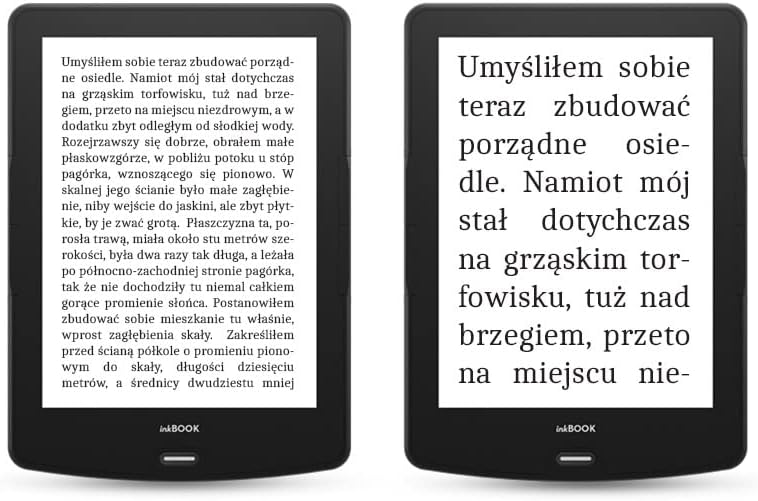
Figure 2.4: Text Clarity Comparison. This image shows two inkBOOK Calypso Plus E-Readers side-by-side, demonstrating the clarity and readability of text on the screen. One device displays a full page of text, while the other shows a zoomed-in view to emphasize the sharp character rendering.
3. Setup
3.1 Iċċarġjar tal-Apparat
Before first use, fully charge your inkBOOK Calypso Plus. Connect the included USB cable to the device's USB port and the other end to a compatible USB power adapter (not included) or a computer's USB port. The charging indicator will show the charging status.
3.2 L-Ewwel Tixgħil u s-Setup
- Agħfas u żomm il-buttuna tal-qawwa sakemm l-iskrin jixgħel.
- Segwi l-istruzzjonijiet fuq l-iskrin biex tagħżel il-lingwa preferuta tiegħek.
- Connect to a Wi-Fi network to access online features and download content.
- Complete any initial registration or account setup as prompted.
4. Istruzzjonijiet Operattivi
4.1 Navigazzjoni tal-Interfaċċja
The inkBOOK Calypso Plus features an intuitive touchscreen interface. Tap to select items, swipe to turn pages or scroll through lists. Physical page-turn buttons are also available on the side for quick navigation within books.
4.2 Qari ta' Kotba Elettroniċi
- From the home screen, tap on a book cover to open it.
- Tap the left or right side of the screen, or use the physical buttons, to turn pages.
- Tap the center of the screen to bring up reading options, such as font size, line spacing, and brightness settings.
4.3 Using the Skoobe Application
The inkBOOK Calypso Plus supports the Skoobe application for unlimited reading. Ensure you are connected to Wi-Fi, then locate and open the Skoobe app from your device's applications menu. Log in with your Skoobe account credentials to access their extensive library.
4.4 Konnessjoni mal-Wi-Fi
- Mur fuq Settings mill-iskrin tad-dar.
- Agħżel Wi-Fi.
- Agħżel in-netwerk mixtieq tiegħek mil-lista u daħħal il-password jekk tintalab.
5. Manutenzjoni
5.1 Tindif tal-Apparat
Use a soft, lint-free cloth to gently wipe the screen and body of the e-reader. Do not use liquid cleaners or abrasive materials, as they may damage the screen or finish.
5.2 Kura tal-Batterija
To prolong battery life, avoid exposing the device to extreme temperatures. For long-term storage, it is recommended to charge the battery to about 50% before turning off the device.
5.3 Aġġornamenti tas-Software
Periodically check for software updates in the device's settings menu to ensure optimal performance and access to the latest features. Connect to Wi-Fi before attempting any updates.
6 Issolvi l-problemi
6.1 L-Apparat Mhux Qed Jinxtegħel
Ensure the device is sufficiently charged. Connect it to a power source and wait a few minutes before attempting to power it on again. If the issue persists, try holding the power button for an extended period (e.g., 10-15 seconds) for a forced restart.
6.2 Screen Display Issues (Ghosting/Pixelation)
E-ink screens may occasionally show faint remnants of previous images (ghosting) or appear pixelated. This is often normal for e-ink technology. The device typically performs a full screen refresh every few pages to clear ghosting. If ghosting is excessive or persistent, ensure your software is up to date. For pixelation, verify that the font settings are appropriate for the screen resolution.
6.3 Problemi ta' Konnettività tal-Wi-Fi
Check if other devices can connect to your Wi-Fi network. Restart your router and the e-reader. Ensure you are entering the correct Wi-Fi password. If the problem continues, try forgetting the network on your e-reader and reconnecting.
6.4 Unresponsive Touchscreen
If the touchscreen is unresponsive, try restarting the device. If a restart does not resolve the issue, ensure the screen is clean and free of debris. Avoid using sharp objects on the screen.
7. Speċifikazzjonijiet
| Karatteristika | Speċifikazzjoni |
|---|---|
| Brand | inkBOOK |
| Mudell | Calypso Plus |
| Kulur | Aħdar |
| Daqs tal-Iskrin | 6 Pulzier |
| Teknoloġija tal-Wiri | E-Linka |
| Teknoloġija tal-Konnettività | USB |
| Input tal-Interface tal-Bniedem | Touchscreen |
| Kompatibilità Bluetooth | Nru |
| ASIN | B09SBFWR1N |
8. Garanzija u Appoġġ
For warranty information and customer support, please refer to the documentation included with your purchase or visit the official inkBOOK website. Information regarding spare parts availability and guaranteed software updates is not available at this time.
For further assistance, please contact inkBOOK customer service through their official channels.
Ask a question about this manual
Ask about setup, troubleshooting, compatibility, parts, safety, or missing instructions. Manuals+ will review the question and use this page’s manual context to help answer it.