
1. Introduzzjoni
This manual provides essential information for the safe and efficient use of your Lenovo ThinkVision P27u-20 monitor. Please read this manual thoroughly before operating your device and retain it for future reference. The Lenovo ThinkVision P27u-20 is a 27-inch 4K UHD (3840 x 2160) IPS display, featuring Thunderbolt 4, HDMI, and DisplayPort connectivity, designed for professional use.
2. Informazzjoni dwar is-Sigurtà
- Dejjem poġġi l-monitor fuq wiċċ stabbli u livellat.
- Twaqqafx il-fetħiet tal-ventilazzjoni.
- Uża biss l-adapter tal-enerġija u l-kejbils fornuti mill-manifattur.
- Żomm il-monitor 'il bogħod mill-ilma, l-umdità, u temperaturi estremi.
- Skonnettja l-kejbil tal-enerġija qabel ma tnaddaf jew jekk il-monitor se ma jintużax għal perjodu estiż.
3. Kontenut tal-Pakkett
Ivverifika li l-oġġetti kollha huma preżenti fil-pakkett tiegħek:
- Lenovo ThinkVision P27u-20 Monitor
- Stand tal-Monitor (Bażi u Għonq)
- Kejbil tal-Enerġija
- USB-C Cable
- Cable HDMI
- DisplayPort Cable
- Gwida ta 'Twaqqif Quick
4. Setup
4.1 L-Immuntar tal-Istand tal-Monitor
- Oħroġ il-monitor u l-komponenti tal-istand mill-imballaġġ bir-reqqa.
- Waħħal l-għonq tal-istand mal-pannell tal-monitor. Kun żgur li jikklikkja sew f'postu.
- Attach the stand base to the stand neck. Tighten the captive screw on the underside of the base to secure it.
- Poġġi l-monitor immuntat fuq skrivanija jew wiċċ stabbli.

Figura 1: Wara view tal-monitor, li turi l-punt tat-twaħħil tal-istand.
4.2 Kejbils tal-Konnessjoni
Connect the necessary cables to the appropriate ports on the rear of the monitor and your computer.
- Konnessjoni tal-Enerġija: Qabbad il-kejbil tal-enerġija mad-dħul tal-enerġija tal-monitor u mbagħad ma' sokit tal-enerġija.
- Konnessjoni tal-vidjo: Agħżel waħda mill-għażliet li ġejjin:
- Thunderbolt 4: Connect a USB-C to USB-C cable from your computer's Thunderbolt 4 port to the monitor's Thunderbolt 4 port. This cable can also provide power delivery and USB data.
- HDMI: Connect an HDMI cable from your computer's HDMI output to one of the monitor's HDMI ports.
- DisplayPort: Qabbad kejbil DisplayPort mill-output DisplayPort tal-kompjuter tiegħek mal-input DisplayPort tal-monitor.
- USB Upstream (if not using Thunderbolt 4): If you are using HDMI or DisplayPort for video, connect a USB-B to USB-A cable from the monitor's USB upstream port to your computer to enable the monitor's USB hub functionality.
- USB Downstream: Connect USB devices (e.g., keyboard, mouse, external drives) to the USB-A ports on the monitor.

Figura 2: Dettaljat view of the monitor's rear connectivity ports.
4.3 Qawwa Inizjali
Press the power button, usually located on the front or bottom right side of the monitor, to turn it on. The monitor should automatically detect the active video input. If not, you may need to manually select the input source using the On-Screen Display (OSD) menu.
5. It-tħaddim tal-Monitor
5.1 Power On/Off
Press the power button once to turn the monitor on or off. The power indicator light will illuminate when the monitor is active.
5.2 Menù tal-Wiri fuq l-Iskrin (OSD)
The OSD menu allows you to adjust various monitor settings. Access the OSD by pressing the OSD menu button (refer to your monitor's physical buttons for exact location). Navigate through the menu using the directional buttons and confirm selections with the enter button.
5.3 Għażla tal-Input
To switch between connected video sources (Thunderbolt 4, HDMI 1, HDMI 2, DisplayPort), access the OSD menu and navigate to the 'Input' or 'Source' section. Select your desired input.
5.4 Settings tal-Istampa
Within the OSD menu, you can adjust:
- Luminożità/Kuntrast: Aġġusta l-luminanza ġenerali u d-differenza bejn iż-żoni mdawla u dawk mudlama.
- Settings tal-Kulur: Immodifika t-temperatura tal-kulur, il-gamma, u l-livelli individwali tal-RGB.
- Proporzjon tal-aspett: Select between various display modes (e.g., Full, Original, 1:1).
- Riżoluzzjoni: The native resolution is 3840 x 2160 (4K UHD) at 60 Hz. Ensure your computer's display settings match this for optimal clarity.
5.5 Settings tal-awdjo
The monitor includes integrated speakers. You can adjust the volume through the OSD menu or your computer's operating system.
5.6 Aġġustamenti Ergonomiċi
L-istand tal-monitor jippermetti diversi aġġustamenti biex jottimizza tiegħek viewesperjenza:
- Aġġustament Għoli: Għolli jew baxxi l-monitor sal-livell tal-għajnejn.
- Mejjel: Aġġusta l-angolu vertikali tal-iskrin ('il quddiem/lura).
- Dawwar: Dawwar il-monitor orizzontalment fuq il-bażi tiegħu.
- Pivot: Dawwar l-iskrin 90 grad għall-modalità ritratt viewing.
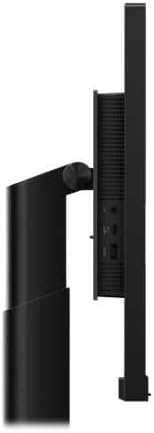
Figura 3: Ġenb view demonstrating the monitor's ergonomic adjustments.
6. Manutenzjoni
6.1 Tindif tal-Iskrin
Imsaħ l-iskrin bil-mod b'ċarruta ratba u mingħajr suf. Għal marki persistenti, nixxef bil-modampen the cloth with water or a non-abrasive screen cleaner. Never spray liquid directly onto the screen.
6.2 Tindif tas-Casing
Uża drapp artab u niexef biex timsaħ il-monitor casing. Evita li tuża deterġenti qawwija jew prodotti tat-tindif li joborxu.
7 Issolvi l-problemi
Jekk tiltaqa' ma' problemi bil-monitor tiegħek, irreferi għall-problemi u s-soluzzjonijiet komuni li ġejjin:
| Problema | Soluzzjoni Possibbli |
|---|---|
| L-ebda immaġni fuq l-iskrin | Ensure the power cable is securely connected and the monitor is turned on. Check that the video cable (Thunderbolt 4, HDMI, or DisplayPort) is firmly connected to both the monitor and the computer. Verify the correct input source is selected in the OSD menu. |
| L-immaġni hija distorta jew imċajpra | Ensure your computer's display resolution is set to the monitor's native resolution (3840 x 2160). Check the video cable for damage. |
| L-ebda ħoss mill-kelliema | Check the volume settings in the OSD menu and on your computer. Ensure the audio source is correctly configured on your computer. If using HDMI or DisplayPort, verify your computer is sending audio through that connection. |
| Il-portijiet tal-USB ma jaħdmux | If not using Thunderbolt 4, ensure the USB upstream cable is connected from the monitor to your computer. Check your computer's device manager for any USB driver issues. |
8. Speċifikazzjonijiet
| Karatteristika | Speċifikazzjoni |
|---|---|
| Isem tal-Mudell | ThinkVision P27u-20 |
| Numru tal-Mudell tal-Oġġett | 62CBRAT6EU |
| Daqs tal-Wiri | 27 Pulzier (68.6 ċm) |
| Tip ta' Panel | IPS |
| Riżoluzzjoni | 3840 x 2160 (4K UHD) |
| Riffriskar Rata | 60 Hz |
| Luminożità | 450 cd/m² |
| Proporzjon ta' Kuntrast | 1000:1 |
| Ħin ta' Rispons | 4 ms (Modalità Estrema) |
| Proporzjon ta' l-aspett | 16:9 |
| Wiċċ tal-Iskrin | Tleqq |
| Inputs tal-Vidjo | 1x Thunderbolt 4, 2x HDMI, 1x DisplayPort |
| Portijiet USB | 4x USB-A (downstream), 1x USB-B (upstream, if not using Thunderbolt 4) |
| Awdjo | Kelliem Integrat |
| Dimensjonijiet (bl-istand) | 8.66 x 24.17 x 21.91 pulzieri (220 x 614 x 556.5 mm) |
| Piż (bl-istand) | 23.3 liri (10.57 kg) |
| Manifattur | Lenovo |
9. Garanzija u Appoġġ
Your Lenovo ThinkVision P27u-20 monitor is covered by a limited warranty. For detailed warranty information, technical support, or service requests, please visit the official Lenovo support website or contact your local Lenovo representative.
Appoġġ Lenovo Websit: https://support.lenovo.com