
ELECOM TK-FDM116SKTBK
ELECOM Wireless Full Keyboard User Manual
Model: TK-FDM116SKTBK
Introduzzjoni
Grazzi tax-xiriasing the ELECOM Wireless Full Keyboard. This manual provides detailed instructions on how to set up, operate, and maintain your new keyboard. Designed for quiet environments, this full-size keyboard features a silent design, antimicrobial properties, and a convenient numeric keypad to enhance your productivity.
Jekk jogħġbok aqra dan il-manwal bir-reqqa qabel ma tuża l-prodott biex tiżgura tħaddim xieraq u sikur.
Setup
1. Kontenut tal-Pakkett
- ELECOM Wireless Full Keyboard (TK-FDM116SKTBK)
- Riċevitur USB
- AAA Alkaline Batteries (x2, for operation check)
2. Installazzjoni tal-batterija
- Sib il-kompartiment tal-batterija fuq in-naħa ta’ taħt tat-tastiera.
- Iftaħ l-għatu tal-kompartiment tal-batterija.
- Daħħal żewġ batteriji alkalini AAA, waqt li tiżgura l-polarità korretta (+/-).
- Agħlaq l-għatu tal-kompartiment tal-batterija sew.
3. Konnessjoni tar-Riċevitur USB
- Take the USB receiver out of its storage slot, usually located within the battery compartment.
- Ipplaggja r-riċevitur USB f'port USB-A disponibbli fuq il-kompjuter tiegħek.
- The keyboard will automatically connect to your computer. No special drivers are required for installation.

Image: The keyboard supports 2.4GHz wireless connection and is compatible with Windows, macOS, and Chrome OS. It features a compact USB receiver.

Image: The micro USB receiver can be left plugged into your computer or conveniently stored inside the keyboard's battery compartment to prevent loss and for easy portability.
Istruzzjonijiet Operattivi
1. Power On/Off
Locate the power switch on the keyboard. Slide the switch to the 'ON' position to power on the keyboard. Slide it to 'OFF' when not in use to conserve battery life. An LED lamp indicates the remaining battery level.
2. Silent Design and Typing
This keyboard features a silent design with silicone rubber installed on each keycap, significantly reducing typing noise. This makes it ideal for quiet environments such as offices, libraries, or during late-night use.
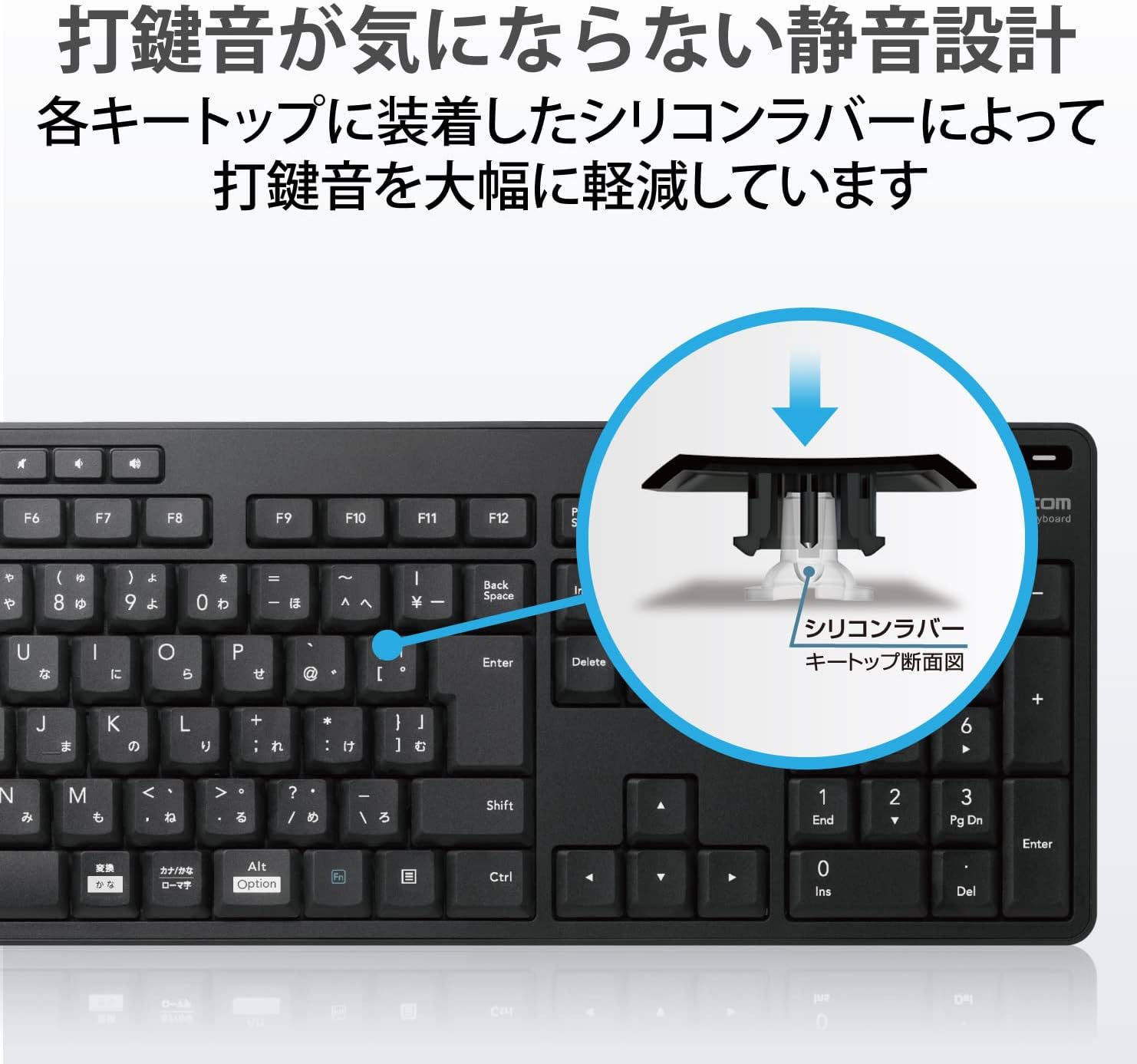
Image: The silent design is achieved by silicone rubber installed under each keycap, reducing typing sound by over 90%.
3. Hotkeys
The upper row of the keyboard includes 9 dedicated hotkeys for quick access to various functions. These include media player controls (play/pause, next/previous track), volume adjustment, and screen brightness control.

Image: The keyboard features dedicated hotkeys at the top for quick access to media playback, volume, and other system functions.
4. Key Layout and Typing Comfort
The keyboard features a 109-key Japanese layout with a comfortable 19mm key pitch and 2mm key stroke. It includes a large Enter key and independently placed special keys like Delete and Insert to minimize input errors and provide a comfortable typing experience. The keycaps use a stylish and easy-to-read original font.

Image: The keyboard's layout includes a large Enter key and independently positioned special keys (like Delete, Insert) to reduce input errors and improve typing comfort.
5. Angle Adjustment Stand
The keyboard is equipped with an adjustable stand that allows you to set the tilt angle in two stages to suit your preferred typing posture. The stand also has non-slip pads to ensure stability during use.

Image: The keyboard features a two-stage adjustable stand, allowing users to customize the typing angle for ergonomic comfort.
Manutenzjoni
1. Tindif
The keyboard features antimicrobial processing on its casing and printed parts, which suppresses bacterial growth and helps keep it clean. For general cleaning, gently wipe the surface with a soft, dry cloth. Avoid using harsh chemicals or abrasive materials.

Image: The keyboard is treated with antimicrobial processing to inhibit bacterial growth on its surface, ensuring a cleaner user experience.
2. Spill Management
The keyboard is equipped with a drainage mechanism. If liquids are accidentally spilled on the keyboard, they can be quickly discharged through drain holes on the back of the unit. Please note that this product is not waterproof and should not be submerged in water.

Image: The keyboard features a drainage mechanism, allowing spilled liquids to be quickly discharged through holes on the underside. This is not a waterproof design.
Issolvi l-problemi
1. It-Tastiera Ma Tirrispondix
- Ensure the power switch on the keyboard is in the 'ON' position.
- Check the battery level. If the LED lamp indicates low battery, replace the batteries.
- Kun żgur li r-riċevitur tal-USB huwa mdaħħal sew f'port USB li jaħdem fuq il-kompjuter tiegħek. Ipprova port USB differenti jekk meħtieġ.
- Ibda mill-ġdid il-kompjuter tiegħek.
2. Unexpected Key Input or Repetition
- Check for any foreign objects or debris stuck under the keycaps.
- Ensure the keyboard is on a stable, flat surface.
- Verify that the keyboard is within the effective wireless range (approx. 3m on magnetic surfaces, 10m on non-magnetic surfaces).
- Interference from other 2.4GHz wireless devices might occur. Try moving the keyboard or receiver away from other wireless devices.
3. Hotkeys Not Working
- Kun żgur li s-sistema operattiva u s-softwer tal-media player tiegħek huma aġġornati.
- Some hotkey functions may require specific software or settings on your computer. Refer to your operating system's documentation for media key functionality.
Speċifikazzjonijiet
| Karatteristika | Deskrizzjoni |
|---|---|
| Numru tal-Mudell | TK-FDM116SKTBK |
| Interface | USB |
| Tip ta' Konnettur | USB-A Male |
| OS kompatibbli | Windows 11, Windows 10, Windows 8.1, macOS Big Sur (11), Chrome OS |
| Kulur | Iswed |
| Metodu ta' Komunikazzjoni | GFSK |
| Frekwenza tar-Radju | Faxxa ta '2.4GHz |
| Radio Range (Magnetic Surface) | Appross. 3m |
| Radio Range (Non-Magnetic Surface) | Appross. 10m |
| Tip taċ-ċavetta | Membrana |
| Tqassim Ewlenin | 109 keys + 9 hotkeys (Japanese layout) |
| Żift Ewlenin | 19mm |
| Stroke Ewlenin | 2mm |
| Number of Hotkeys | 9 ċwievet |
| Provvista tal-Enerġija | 2 x AAA batteries (alkaline, manganese, or Ni-MH) |
| Ħajja Stima tal-Batterija | Approx. 2 years (with alkaline batteries, assuming 8 hours/day PC operation) |
| Dimensjonijiet Esterni (Tastiera) | W 442.8mm × D 139.8mm × H 26.8mm (without stand) W 442.8mm × D 139.8mm × H 35.3mm (with stand) |
| Klassifikazzjoni tad-Daqs | Daqs sħiħ |
| Piż (Tastiera) | Madwar 440g (esklużi l-batteriji) |
| Dimensjonijiet Esterni (Riċevitur) | W 19.0mm × D 14.5mm × H 6.0mm |
| Piż (Riċevitur) | Appross. 1g |
| Aċċessorji | 2 x AAA alkaline batteries (for operation check) |
Garanzija u Appoġġ
1. Perjodu ta 'Garanzija
Dan il-prodott jiġi b'garanzija ta' sena mid-data tax-xiri. Jekk jogħġbok żomm il-prova tax-xiri tiegħek għal talbiet ta' garanzija.
2. Online User Manual
In an effort to reduce paper waste, the comprehensive user manual for this product is available online. Please refer to the official ELECOM website for the latest version and additional support resources.