
1. Introduzzjoni
Welcome to the user manual for your ASUS E410 14-inch laptop. This guide provides essential information to help you set up, operate, maintain, and troubleshoot your device. Please read this manual thoroughly to ensure proper use and to maximize the performance and longevity of your laptop.
The ASUS E410 is designed for productivity and portability, featuring an Intel Celeron N4020 processor, 4GB DDR4 RAM, and 320GB storage, running on Windows 11.
2. Nibdew
2.1 Kontenut tal-Pakkett
Qabel ma tibda, kun żgur li l-oġġetti kollha huma preżenti fil-pakkett tiegħek:
- Laptop ASUS E410
- Adapter tal-Enerġija
- Drapp tal-Mikrofibra
- Manwal għall-Utent (dan id-dokument)
2.2 Laptop Overview
Familiarize yourself with the main components of your ASUS E410 laptop.

Figura 2.2.1: Quddiem view of the ASUS E410 laptop displaying the Windows 11 desktop and Start Menu. This image shows the full keyboard, touchpad, and screen.
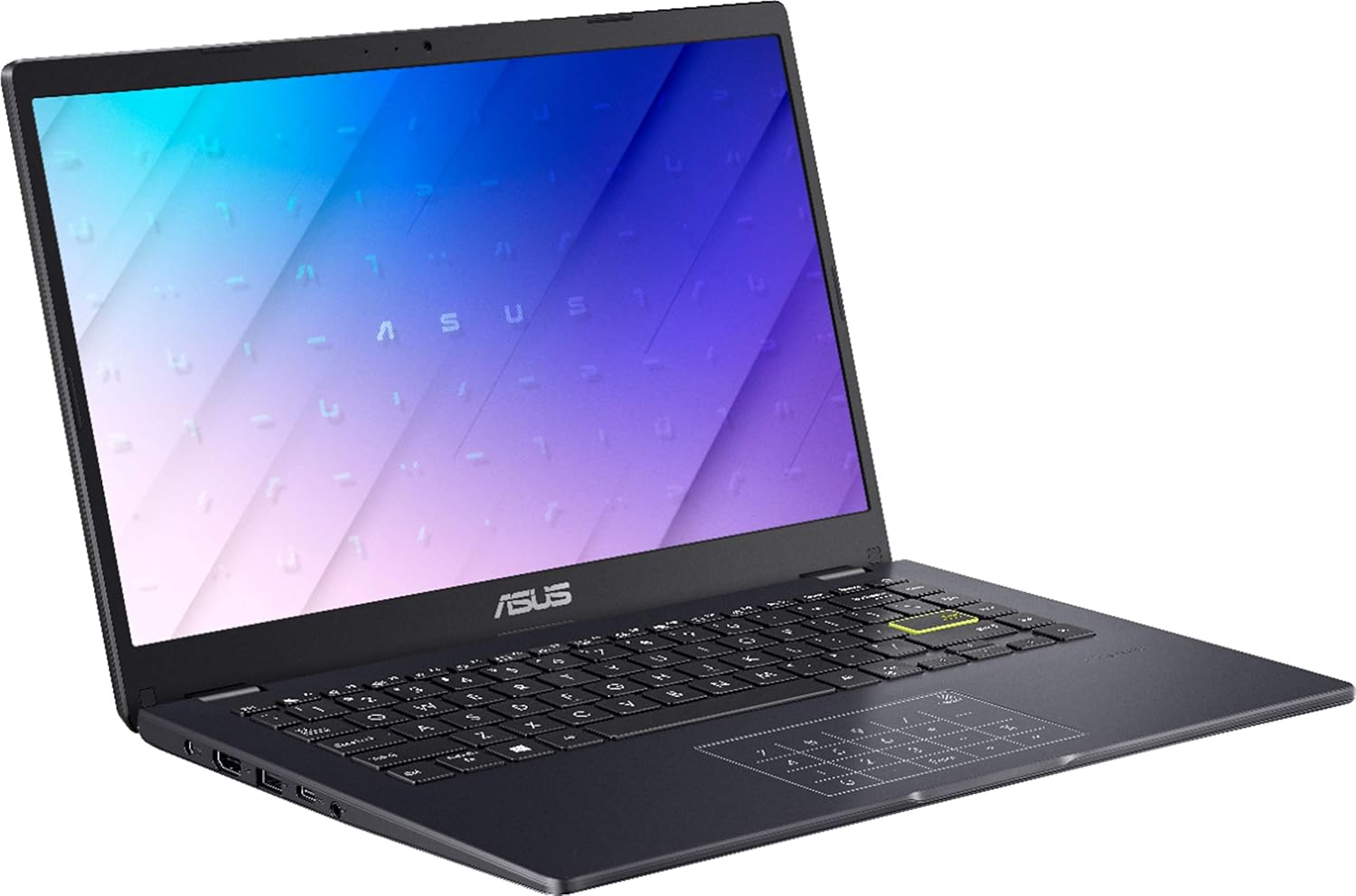
Figura 2.2.2: Ġenb view of the ASUS E410 laptop, highlighting the various ports available for connectivity.
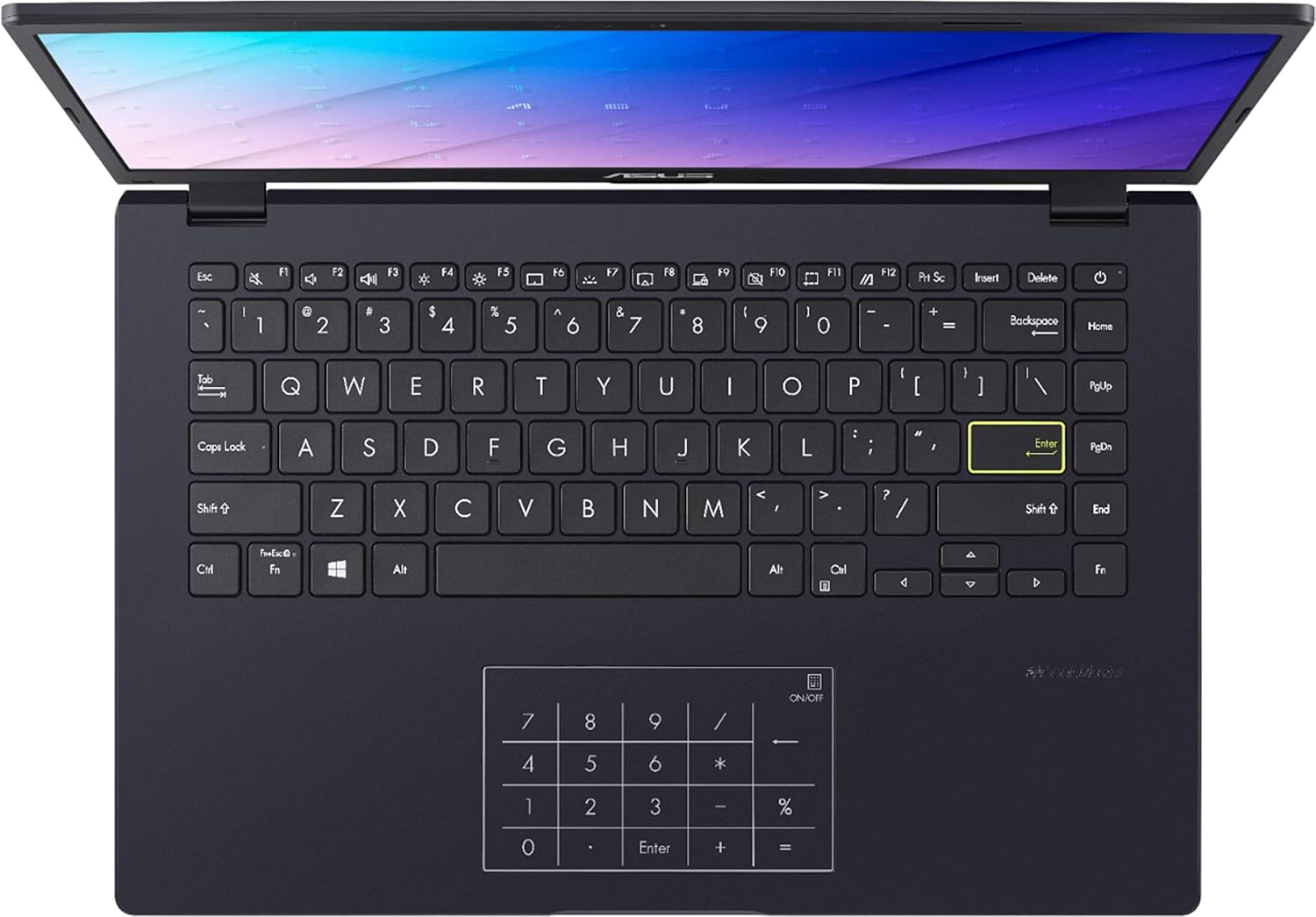
Figura 2.2.3: Minn fuq għal isfel view of the ASUS E410 keyboard and touchpad, which features an integrated numeric keypad.
3. Setup
3.1 Tixgħel Inizjali
- Qabbad l-adapter tal-enerġija mal-port tal-iċċarġjar tal-laptop u mbagħad ma' sokit tal-enerġija.
- Iftaħ l-għatu tal-laptop.
- Agħfas il-buttuna tal-qawwa, li tipikament tinsab fin-naħa ta' fuq tal-lemin tat-tastiera jew fuq il-ġenb.
- Segwi l-istruzzjonijiet fuq l-iskrin biex tlesti s-setup inizjali tal-Windows 11, inkluż il-lingwa, ir-reġjun, il-konnessjoni tan-netwerk, u l-ħolqien tal-kont tal-utent.
3.2 Konnessjoni tal-Periferali
Il-laptop ASUS E410 tiegħek jinkludi diversi portijiet għall-konnessjoni ta' apparati esterni:
- USB 3.2 Type-C Gen 1: Għat-trasferiment tad-dejta b'veloċità għolja.
- USB Standard Port (x2): Għall-konnessjoni ta' apparati USB bħal ġurdien, tastieri, jew drives esterni.
- HDMI: Għall-konnessjoni ma' displays jew projetturi esterni.
- Micro SD Connectivity: For reading Micro SD cards.
Simply plug your peripheral devices into the appropriate ports. The operating system will typically detect and install necessary drivers automatically.
3.3 Switching Out of Windows 11 S Mode
Windows 11 in S mode is designed for security and performance, exclusively running apps from the Microsoft Store. If you need to install apps from outside the Microsoft Store, you can switch out of S mode. This is a one-way switch.
- On your PC running Windows 11 in S mode, open Settings.
- Innaviga lejn Aġġornament u Sigurtà, imbagħad agħżel Attivazzjoni.
- Fit-taqsima "Aqleb għal Windows 11 Home" jew "Aqleb għal Windows 11 Pro", agħżel Mur fil-Ħanut.
(Note: If you also see an "Upgrade your edition of Windows" section, be careful not to click the "Go to the Store" link that appears there.) - On the "Switch out of S mode (or similar)" page that appears in the Microsoft Store, select the Get buttuna.
- After you see a confirmation message, you will be able to install apps from outside of the Microsoft Store.
4. It-Tħaddim tal-Laptop Tiegħek
4.1 Tastiera u Touchpad
The laptop features a full-sized keyboard and a multi-touch touchpad. The touchpad also integrates a numeric keypad for convenient data entry.
- Ċwievet tal-Funzjoni (Fn): Uża l- Fn key in combination with the function keys (F1-F12) to access special features like adjusting screen brightness, volume, or enabling/disabling Wi-Fi.
- Ġesti tat-touchpad: The touchpad supports various multi-touch gestures for navigation and control within Windows 11. Refer to Windows settings for customization.
4.2 Ġestjoni tal-batterija
Your ASUS E410 is equipped with a Lithium Polymer battery, offering an average battery life of up to 12 hours under optimal conditions.
- Iċċarġjar: Connect the power adapter to fully charge the battery before first use and whenever the battery level is low.
- Saħħa tal-batterija: To prolong battery life, avoid frequently discharging the battery completely. It is recommended to keep the battery level between 20% and 80% when possible.
- Modi ta' enerġija: Utilize Windows 11 power settings to optimize battery life or performance based on your needs.
4.3 Konnettività bla fili
The laptop supports Wi-Fi 5 (802.11ac) for wireless network connections.
- Ikklikkja l-ikona tal-Wi-Fi fit-tray tas-sistema (fil-kantuniera t'isfel tal-lemin tal-iskrin).
- Agħżel in-netwerk Wi-Fi mixtieq tiegħek mil-lista.
- Daħħal il-password tan-netwerk jekk tintalab u kklikkja Qabbad.
5. Manutenzjoni
5.1 Tindif tal-Laptop Tiegħek
- Skrin: Uża drapp artab u mingħajr suf, ftit imxarrabampImlaħlaħ bl-ilma jew b'tindif tal-iskrin, biex timsaħ bil-mod id-displej. Evita kimiċi ħarxa.
- Tastiera u Chassis: Use a soft cloth to wipe surfaces. A can of compressed air can remove dust from between keys.
- Portijiet: Kun żgur li l-portijiet huma ħielsa mit-trab u l-fdalijiet. Uża arja kkompressata jekk meħtieġ.
Dejjem itfi u aqla’ l-laptop qabel ma tnaddaf.
5.2 Aġġornamenti tas-Software
Aġġorna s-sistema operattiva u d-drivers tal-Windows tiegħek regolarment biex tiżgura prestazzjoni, sigurtà u kompatibilità ottimali.
- Aġġornament tal-Windows: Mur fuq Settings > Aġġornament tal-Windows biex tiċċekkja u tinstalla aġġornamenti.
- Aġġornamenti tas-sewwieq: ASUS may provide specific driver updates. Visit the official ASUS support websit għall-mudell tiegħek.
6 Issolvi l-problemi
Din it-taqsima tindirizza kwistjonijiet komuni li tista’ tiltaqa’ magħhom bil-laptop tiegħek.
- Il-laptop ma jixgħelx:
- Kun żgur li l-adapter tal-enerġija huwa konness sew kemm mal-laptop kif ukoll ma' sokit tal-enerġija li jaħdem.
- Iċċekkja jekk is-sokit tal-enerġija hux qed jaħdem billi tqabbad apparat ieħor.
- Ipprova żomm il-buttuna tal-qawwa għal 15-20 sekonda biex tagħmel hard reset.
- Ebda konnessjoni Wi-Fi:
- Ivverifika li l-Wi-Fi huwa attivat fis-settings tal-Windows.
- Erġa' ibda r-router u l-modem tiegħek.
- Kun żgur li tinsab fil-firxa ta' netwerk Wi-Fi.
- Check for updated network drivers.
- Prestazzjoni bil-mod:
- Agħlaq l-applikazzjonijiet bla bżonn li jkunu qed jaħdmu fl-isfond.
- Iċċekkja u installa kwalunkwe aġġornament pendenti tal-Windows.
- Run a disk cleanup. For SSDs, ensure TRIM is enabled (usually automatic).
- Skennja għal malware jew viruses.
- Consider if you are running many demanding applications simultaneously.
- External display not working:
- Ensure the HDMI cable is securely connected to both the laptop and the external display.
- Check the input source on your external display.
- Agħfas Ċavetta tal-Windows + P and select a display option (e.g., Duplicate, Extend).
7. Speċifikazzjonijiet
Below are the detailed technical specifications for the ASUS E410 laptop:
| Karatteristika | Speċifikazzjoni |
|---|---|
| Isem tal-Mudell | E410 |
| Daqs tal-Iskrin | 14 Pulzier |
| Riżoluzzjoni tal-Iskrin | 1366 x 768 pixel |
| Proċessur | Intel Celeron N4020 (1.1 GHz, up to 2.8 GHz Burst Frequency) |
| RAM | 4 GB DDR4 |
| Ħażna | 320 GB SSD (64GB eMMC + 256GB PCIe SSD) |
| Koproċessur tal-Grafika | Grafika Intel UHD 600 |
| Sistema Operattiva | Windows 11 |
| Tip bla fili | 802.11ac (Wi-Fi 5) |
| Ħajja Medja tal-Batterija | 12 Sigħat |
| Portijiet | 1x USB 3.2 Type-C Gen 1, 2x USB Standard Port, 1x HDMI, 1x Micro SD |
| Piż tal-oġġett | 2.87 liri |
| Dimensjonijiet tal-Prodott | 12.81 x 8.56 x 0.74 pulzieri |
| Kulur | Blu |
8. Appoġġ u Garanzija
8.1 Appoġġ għall-Klijent
For further assistance, technical support, or service inquiries, please visit the official ASUS support website. You can find drivers, FAQs, and contact information there.
Appoġġ Uffiċjali tal-ASUS Websit
8.2 Informazzjoni dwar Garanzija
Your ASUS laptop comes with a limited warranty. Please refer to the warranty card included in your product packaging or visit the ASUS support website for detailed warranty terms and conditions specific to your region and product model. Keep your proof of purchase for warranty claims.