1. Introduzzjoni
This manual provides essential information for setting up, operating, maintaining, and troubleshooting your Lenovo IdeaPad 1 Laptop. Please read this guide thoroughly to ensure optimal performance and longevity of your device.
The Lenovo IdeaPad 1 is a versatile laptop designed for daily computing tasks, featuring a 15.6-inch Full HD display, an Intel Celeron N4500 processor, 8GB DDR4 RAM, and a 1TB PCIe SSD. It comes pre-installed with Windows 11 Professional.

Image 1.1: Lenovo IdeaPad 1 Laptop highlighting core specifications.
2. Gwida ta' Setup
2.1 Żpakkjar u Spezzjoni Inizjali
Oħroġ il-laptop u l-aċċessorji kollha mill-imballaġġ bir-reqqa. Ivverifika li l-komponenti kollha huma preżenti:
- Laptop Lenovo IdeaPad 1
- Adapter tal-Enerġija u Cable
- Dokumentazzjoni (dan il-manwal, informazzjoni dwar il-garanzija)
Inspect the laptop for any physical damage. If any damage is found or components are missing, contact your retailer or Lenovo support immediately.
2.2 Konnessjoni mal-Enerġija
- Qabbad il-kejbil tal-enerġija mal-adapter tal-enerġija.
- Plug the power adapter into the power connector on the side of your laptop.
- Ipplaggja l-kejbil tad-dawl fi żbokk elettriku ertjat.
Huwa rakkomandat li l-batterija tiġi ċċarġjata kompletament qabel l-ewwel użu.
2.3 First Boot-Up and Windows 11 Setup
Open the laptop lid. The laptop features a Flip-to-Start function, which may power on the device automatically when the lid is opened. If not, press the power button located on the side or keyboard deck.

Image 2.1: The IdeaPad 1's design, emphasizing portability and the Flip-to-Start function.
Follow the on-screen instructions to complete the Windows 11 Professional setup. This includes selecting your region, keyboard layout, connecting to a Wi-Fi network, and creating a user account.
2.4 Konnessjoni tal-Periferali
Your IdeaPad 1 laptop offers various ports for connecting external devices:
- Portijiet USB: Connect USB devices such as mice, keyboards, or external storage drives to the USB 2.0, USB 3.2 Gen 1, or USB-C 3.2 Gen 1 ports. Note that the USB-C port supports data transfer only.
- Port HDMI: Use the HDMI 1.4b port to connect to an external monitor or TV.
- Qarrej tal-Karta: Daħħal memory cards kompatibbli għat-trasferiment tad-dejta.
- Jack tal-Headphone/Mikrofonu Combo: Connect a headset with a 3.5mm jack for audio input and output.

Image 2.2: Connectivity options on the IdeaPad 1.
3. Istruzzjonijiet Operattivi
3.1 Modalità Mixgħul/Mitfi u Modalità Sleep
- Qawwa Mixgħul: Iftaħ l-għatu jew agħfas il-buttuna tal-qawwa.
- Itfi: Ikklikkja l-buttuna Start fil-Windows, imbagħad Power > Shut down.
- Modalità Sleep: Agħlaq l-għatu jew ikklikkja l-buttuna Start, imbagħad Power > Sleep.
3.2 Użu tal-Wiri
The 15.6-inch Full HD (1920x1080) Anti-glare display provides clear visuals. Adjust brightness using the function keys (usually F5 and F6) or through Windows display settings.

Image 3.1: The IdeaPad 1's display quality for multimedia.
3.3 Tastiera u Touchpad
The laptop features a full-size, non-backlit English keyboard. The integrated touchpad supports multi-touch gestures for navigation. Refer to Windows settings for customizing touchpad sensitivity and gestures.
3.4 Audio and Communication
The IdeaPad 1 includes Dolby Audio™ speakers for enhanced sound. For video calls, the integrated webcam and Smart Noise Cancelling feature help reduce background noise, improving communication clarity.
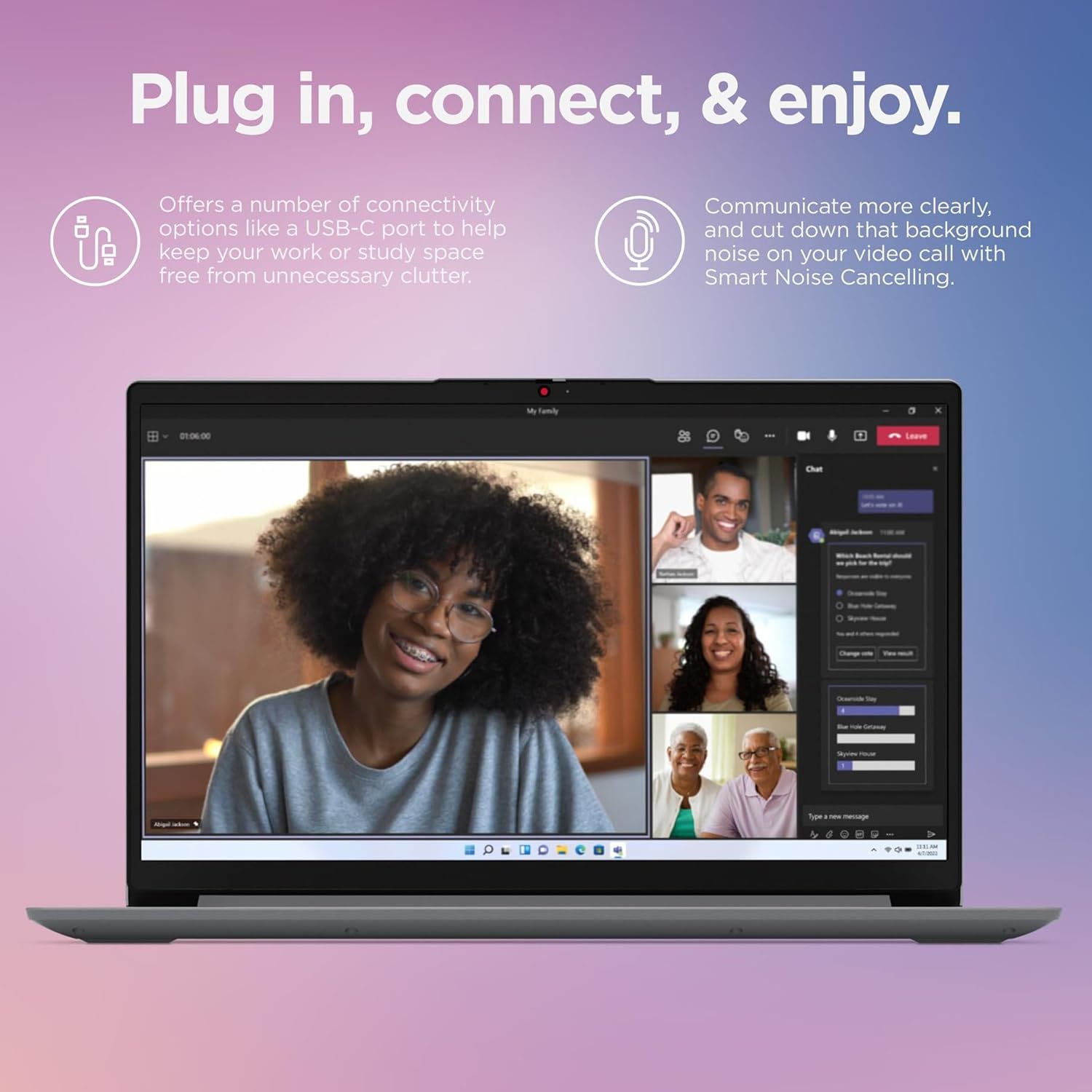
Image 3.2: The IdeaPad 1 in use for video conferencing.
3.5 Webcam Privatezza Shutter
For enhanced privacy, your laptop is equipped with a physical privacy shutter for the 720p webcam. Slide the shutter to cover or uncover the camera lens as needed.
3.6 Rapid Charge Boost
The IdeaPad 1 supports Rapid Charge Boost, allowing you to quickly recharge your battery. This feature can provide up to 2 hours of battery life with just 15 minutes of charging.

Image 3.3: Features for productivity on the go, including rapid charging and webcam privacy.
4. Manutenzjoni
4.1 Tindif tal-Laptop
- Skrin: Uża ċarruta ratba u mingħajr ħelu dampLaħlaħ bl-ilma jew b'tindif tal-iskrin. Tisprejjax likwidu direttament fuq l-iskrin.
- Tastiera u Chassis: Uża drapp artab u niexef. Għal ħmieġ iebes, neħħi ftit drapp.amp Jista' jintuża drapp b'soluzzjoni ta' sapun ħafif, biex tiżgura li l-ebda likwidu ma jidħol fil-fetħiet.
- Portijiet: Uża arja kkompressata biex tneħħi t-trab bil-mod mill-portijiet.
Dejjem itfi u aqla’ l-laptop qabel ma tnaddaf.
4.2 Kura tal-Batterija
- Evita temperaturi estremi.
- Tneħħix il-batterija kompletament ta' spiss.
- Jekk se taħżen il-laptop għal perjodu estiż, kun żgur li l-batterija tkun iċċarġjata għal madwar 50-60%.
4.3 Aġġornamenti tas-Software
Iċċekkja u installa regolarment aġġornamenti tal-Windows u aġġornamenti tas-sewwieqa Lenovo biex tiżgura prestazzjoni, sigurtà u kompatibilità ottimali.
4.4 Ġestjoni tal-Ħażna
Perjodikament mill-ġdidview u ħassar bla bżonn files to maintain free space on your 1TB PCIe SSD. Utilize cloud storage or external drives for large files to optimize system performance.
5 Issolvi l-problemi
This section addresses common issues you might encounter with your Lenovo IdeaPad 1 laptop.
5.1 Kwistjonijiet tal-Enerġija
- Il-laptop ma jixgħelx: Ensure the power adapter is securely connected to both the laptop and a working electrical outlet. Try a different outlet. If the battery is completely drained, allow it to charge for at least 30 minutes before attempting to power on.
- Il-batterija mhix qed tiċċarġja: Verify the power adapter and cable are not damaged. Check the power indicator light on the laptop.
5.2 Problemi tal-Wiri
- L-iskrin huwa vojt: Ensure the laptop is powered on. Adjust screen brightness using function keys. If an external monitor is connected, try disconnecting it or switching display modes (Fn + F7, or similar key combination).
- Wirja teptip jew distorta: Aġġorna s-sewwieqa tal-grafika tiegħek. Jekk qed tuża monitor estern, iċċekkja l-konnessjoni tal-kejbil.
5.3 Kwistjonijiet ta' Konnettività
- Il-Wi-Fi mhux qed jikkonnettja: Ensure Wi-Fi is enabled (check Windows settings or airplane mode). Restart your router and laptop. Update Wi-Fi drivers.
- Apparat Bluetooth mhux qed jitqabbad: Kun żgur li l-Bluetooth huwa attivat fuq iż-żewġ apparati. Kun żgur li l-apparat jinsab fil-modalità ta' tqabbil u fil-medda tiegħu.
5.4 Kwistjonijiet ta' Prestazzjoni
- Il-laptop huwa bil-mod: Close unnecessary applications. Check Task Manager for processes consuming high CPU or RAM. Ensure sufficient free space on the SSD. Run a malware scan.
- Applications freezing: Try restarting the application. If the system is unresponsive, perform a forced shutdown by holding the power button for several seconds.
6. Speċifikazzjonijiet
Below are the technical specifications for the Lenovo IdeaPad 1 Laptop (Model B09CB87TZ1):
| Karatteristika | Dettall |
|---|---|
| Proċessur | Intel Celeron N4500 (2 Cores, 4MB Cache, Up to 2.8GHz) |
| Wiri | 15.6-inch Full HD (1920x1080) Anti-glare |
| Grafika | Grafika Intel UHD integrata |
| RAM | 8GB DDR4 |
| Ħażna | 1TB PCIe SSD |
| Sistema Operattiva | Windows 11 Professjonali |
| Konnettività bla fili | Wi-Fi 6 (11ax 2x2), Bluetooth 5.2 |
| Portijiet | 1x USB 2.0, 1x USB 3.2 Gen 1, 1x USB-C 3.2 Gen 1 (data transfer only), 1x HDMI 1.4b, Card reader, 1x Headphone/microphone combo jack (3.5mm), 1x Power connector |
| Tastiera | Mhux illuminat minn wara, Ingliż |
| Webcam | 720p with Physical Privacy Shutter |
| Awdjo | Dolby Audio™ Speakers, Smart Noise Cancelling |
| Kulur | Sħab griż |
| Karatteristiċi Speċjali | Flip-to-Start, Rapid Charge Boost |
7. Garanzija u Appoġġ
7.1 Garanzija tal-Prodott
Your Lenovo IdeaPad 1 Laptop is covered by a standard manufacturer's warranty. For detailed information regarding warranty terms, duration, and coverage, please refer to the warranty card included with your product or visit the official Lenovo support websit.
7.2 Appoġġ Tekniku
If you encounter issues that cannot be resolved using the troubleshooting steps in this manual, or require further assistance, please contact Lenovo technical support. You can find contact information and additional resources on the official Lenovo support websit:
Please have your laptop's serial number ready when contacting support, as this will help expedite the service process.