
1. Introduzzjoni
The ZKTeco LX50 is a compact and efficient fingerprint time attendance device designed for small to medium-sized businesses. It utilizes advanced biometric technology to accurately record employee attendance, providing a reliable solution for workforce management. This manual will guide you through the setup, operation, and maintenance of your LX50 device.
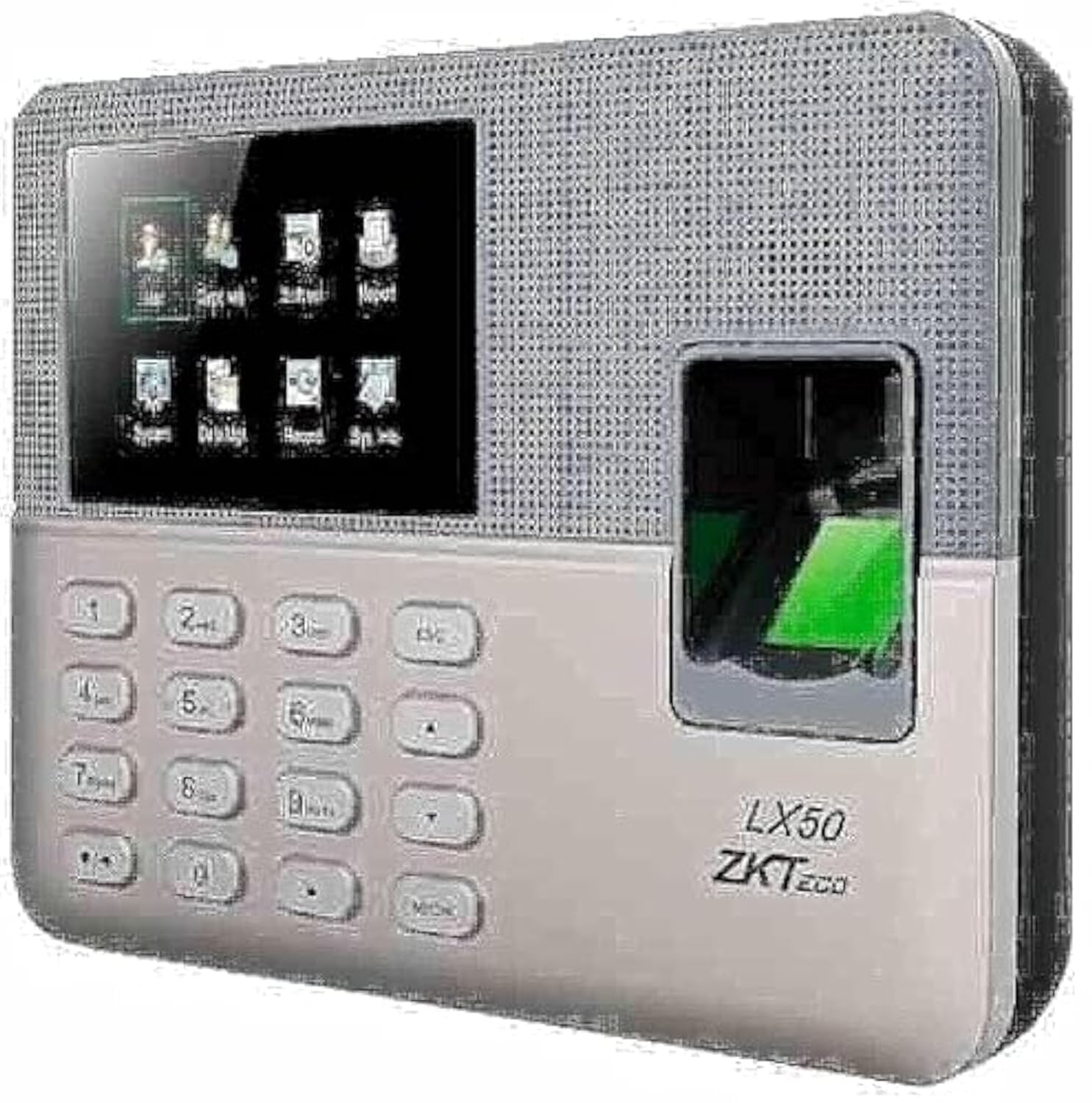
Figure 1: ZKTeco LX50 Fingerprint Time Attendance Device. This image shows the front view of the device, highlighting its compact design and fingerprint sensor.
2. Kontenut tal-Pakkett
Qabel ma tibda, jekk jogħġbok iċċekkja l-kontenut tal-pakkett biex tiżgura li l-oġġetti kollha huma preżenti:
- ZKTeco LX50 Device
- Adapter tal-Enerġija
- Aċċessorji tal-Immuntar (viti, tappijiet tal-ħajt)
- Gwida Quick Start
- Cable USB
3. Setup
3.1 Immuntar tal-Apparat
- Choose a suitable location for installation, ensuring it is easily accessible for users and protected from direct sunlight or moisture.
- Use the provided mounting template (if available) to mark the drilling points on the wall.
- Drill toqob u daħħal plugs tal-ħajt.
- Waħħal l-apparat mal-ħajt billi tuża l-viti pprovduti.
3.2 Konnessjoni tal-Enerġija
Connect the power adapter to the device's power input port and then plug it into a standard electrical outlet. The device will power on automatically.
3.3 Konfigurazzjoni Inizjali
Upon first power-on, the device may prompt you to set the date, time, and administrator fingerprint. Follow the on-screen instructions.
- Setting Administrator: It is crucial to register at least one administrator fingerprint for device management.
- Data u Ħin: Ensure the date and time are set correctly for accurate attendance records.
4. Istruzzjonijiet Operattivi
4.1 Reġistrazzjoni tal-Utent
Biex tirreġistra utent ġdid:
- Access the main menu using the administrator fingerprint or password.
- Innaviga lejn Ġestjoni tal-Utenti > Utent Ġdid.
- Enter the user's 9-digit ID. The device supports T9 input for alphanumeric characters if needed.
- Register the user's fingerprint by placing their finger on the sensor multiple times as prompted.
- Save the user information. The device has a capacity for 500 users and 500 fingerprints.
4.2 Reġistrazzjoni tal-Attendenza
Users can record their attendance by simply placing their registered finger on the fingerprint sensor. The device will confirm the successful punch with an audible and visual indicator.
- The device uses the ZKFinger VX 10.0 algorithm for fast and accurate fingerprint recognition.
- It can store up to 50,000 transaction records.
4.3 Data Download
Attendance data can be downloaded via the USB host port.
- Insert a USB flash drive into the device's USB port.
- Access the main menu using the administrator fingerprint or password.
- Innaviga lejn Ġestjoni tad-Data > Download Attendance Data.
- Select the desired date range and confirm the download.
- The data will be saved to the USB flash drive in a compatible format (e.g., Excel).
4.4 Scheduled Bell
The LX50 features a scheduled bell function. You can configure specific times for the device to sound an alarm, useful for marking shift changes or breaks.
- Aċċess għall-menu prinċipali.
- Innaviga lejn Issettjar tas-Sistema > Qanpiena Skeda.
- Set the desired times and days for the bell to ring.
5. Manutenzjoni
- Tindif: Regularly clean the fingerprint sensor and screen with a soft, dry cloth. Avoid using abrasive cleaners or liquids directly on the device.
- Backup tad-Data: Periodically download and back up attendance data to prevent loss.
- Aġġornamenti tas-Software: Iċċekkja l-manifattur webis-sit għal kwalunkwe aġġornament tal-firmware disponibbli biex tiżgura prestazzjoni u sigurtà ottimali.
- Kundizzjonijiet Ambjentali: Keep the device in a dry environment, away from extreme temperatures and direct sunlight.
6 Issolvi l-problemi
- Apparat mhux mixgħul:
Ensure the power adapter is securely connected to both the device and a working power outlet. Verify the power outlet is functional.
- Marka tas-swaba' mhux rikonoxxuta:
Ensure the finger is clean and dry. Place the finger flat on the sensor, covering the entire surface. If issues persist, re-register the fingerprint.
- Cannot download data to USB:
Ensure the USB flash drive is formatted correctly (FAT32 is recommended) and has sufficient free space. Try a different USB flash drive. Ensure you are performing the download operation from the administrator menu.
- Device not connecting to network:
The ZKTeco LX50 model primarily uses a USB host for data communication and does not support direct network (Ethernet/Wi-Fi) connectivity for data transfer. Data must be manually pulled via a USB flash drive.
7. Speċifikazzjonijiet
| Karatteristika | Dettall |
|---|---|
| Manifattur | ZKTeco |
| Brand | ZKTeco |
| Mudell | LX50 |
| Verżjoni tal-Algoritmu | ZKFinger VX 10.0 |
| Kapaċità tal-Utent | 500 |
| Kapaċità tal-marki tas-swaba' | 500 |
| Kapaċità ta' Transazzjoni | 50,000 |
| Komunikazzjoni | Ospitanti USB |
| Funzjonijiet Standard | Scheduled Bell, Self-Learning Report, 9-digit User Registration, T9 Input |
| Dimensjonijiet tal-Pakkett | 30.2 x 21.7 x 7.6 ċm |
| Piż tal-oġġett | 680 g |
| Kulur | Multicolor |
| Data L-Ewwel Disponibbli | 27 ta’ Lulju, 2021 |
8. Garanzija u Appoġġ
The ZKTeco LX50 device comes with a standard manufacturer's warranty against defects in materials and workmanship. Please refer to the warranty card included in your package for specific terms and conditions, including the warranty period and coverage details.
For technical support, troubleshooting assistance, or warranty claims, please contact ZKTeco customer service or your local distributor. Contact information can typically be found on the manufacturer's official websit jew fl-ippakkjar tal-prodott.
Importanti: Żomm l-irċevuta tax-xiri tiegħek bħala prova tax-xiri għal skopijiet ta' garanzija.