
Introduzzjoni
This manual provides detailed instructions for the safe and efficient operation of your Prixton Picasso Portable Projector. Please read this manual thoroughly before using the device and retain it for future reference.
X'hemm fil-Kaxxa
Meta tiftaħ il-pakkett, jekk jogħġbok kun żgur li l-oġġetti kollha li ġejjin huma preżenti:
- Prixton Picasso Portable Projector
- Kontroll mill-bogħod
- Cable HDMI
- Cable USB
- (Optional: 100" Projection Screen, if included in your package)

Image: Prixton Picasso portable projector with a projection screen.
Informazzjoni dwar is-Sigurtà
- Tħarisx direttament fil-lenti tal-proġettazzjoni meta tkun qed taħdem.amp hija mixgħula.
- Żgura ventilazzjoni xierqa biex tevita sħana żejda.
- Żomm l-apparat 'il bogħod mill-ilma jew likwidi oħra.
- Uża biss l-adapter tal-enerġija pprovdut.
- Tippruvax tiżżarma jew issewwi l-proġettur int stess. Ikkuntattja persunal tas-servizz kwalifikat.
Prodott Overview
The Prixton Picasso is a portable Full HD projector designed for versatile use. It features a high-quality LED lamp and multiple connectivity options.
Karatteristiċi ewlenin:
- Full HD 1920 x 1080 native resolution.
- 9000 lumens brightness (260 ANSI lumens).
- 3000:1 contrast ratio.
- LED lamp life of over 50,000 hours.
- Projection distance: 1 to 7 meters.
- Projection size: 30" to 210".
- Wireless connectivity for Android and iOS devices.
- Multiple input ports: 2x HDMI, USB 2.0, TF card, Jack, AV IN, DC IN.

Image: Prixton Picasso projector shown with its remote control.

Immaġni: Fuq view of the projector, highlighting the lens and control buttons.
Setup
1 Tqegħid
Place the projector on a stable, flat surface. Ensure there is adequate space around the projector for ventilation. The optimal projection distance is between 1 and 7 meters, allowing for a screen size from 30 to 210 inches.

Image: Visual guide for projection distance and screen size.
2. Konnessjoni tal-Enerġija
Connect the power adapter to the DC IN port on the projector and then plug it into a power outlet.
3. L-Ewwel Tixgħil
Agħfas il-buttuna tal-qawwa fuq il-proġettazzjoni jew il-kontroll remot biex tixgħel l-apparat. Id-dawl indikatur se jixgħel.

Image: Projector displaying its brightness specification.

Image: Projector powered on and projecting light.
4. Aġġustament tal-Fokus u l-Keystone
Adjust the focus ring on the projector lens until the image is clear. Use the keystone correction dial (if available) to correct any trapezoidal distortion of the image.

Image: Projector emphasizing Full HD compatibility, relevant for image clarity.
Istruzzjonijiet Operattivi
1. Għażla tas-Sors tal-Input
Use the "Source" button on the remote control or the projector to select your desired input: HDMI 1, HDMI 2, USB, TF Card, or AV.
2. Mezzi ta 'Konnessjoni
- HDMI: Connect your laptop, gaming console, or other HDMI-enabled devices using an HDMI cable.
- Karta USB/TF: Insert a USB drive or TF card into the respective port to play media files direttament.
- TA’: Use the AV input for older devices with composite video output.
3. Konnessjoni bla fili (Screen Mirroring)
The projector supports wireless screen mirroring for both Android and iOS devices.
- Select the "Screen Mirroring" or "Wireless Display" option from the projector's main menu.
- For iOS devices, enable "Screen Mirroring" or "AirPlay" on your device and select the projector from the list.
- Għal apparati Android, attiva "Wireless Display," "Smart View," or "Cast" on your device and select the projector.
- Ensure both the projector and your mobile device are connected to the same Wi-Fi network for optimal performance.
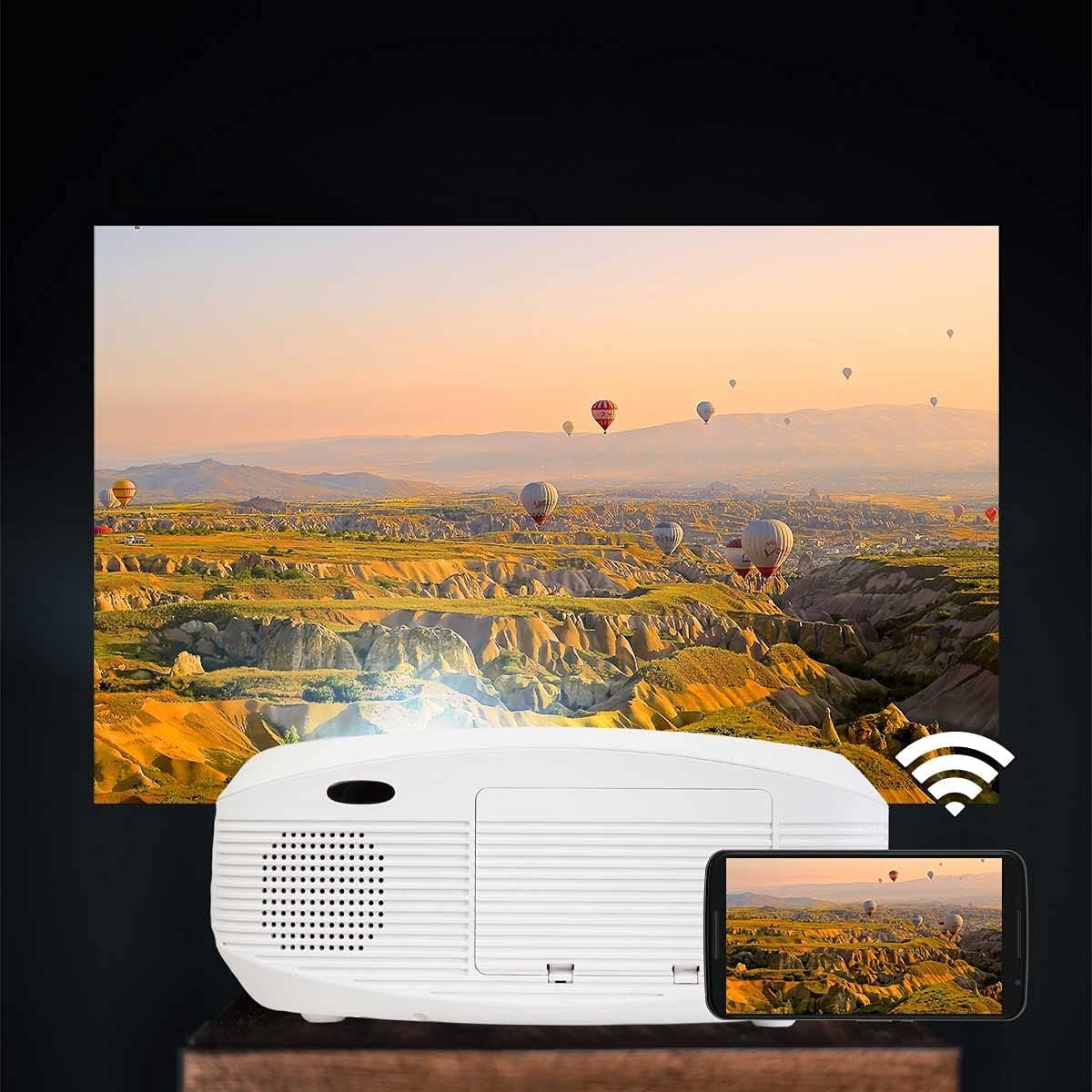
Image: Projector connected wirelessly to a smartphone.

Image: Wireless connectivity icon and smartphone mirroring.
4. Output tal-Awdjo
The projector has built-in speakers. You can also connect external speakers or headphones via the 3.5mm audio jack for enhanced sound.
Manutenzjoni
- Tindif tal-Lenti: Use a soft, lint-free cloth specifically designed for optical lenses to gently wipe the projector lens. Avoid using abrasive cleaners.
- Tindif tas-Casing: Wipe the projector's exterior with a soft, dry cloth. Do not use liquid or aerosol cleaners.
- Ventilazzjoni: Regularly check that the ventilation openings are not blocked by dust or debris to ensure proper airflow and prevent overheating.
- Ħażna: Meta ma tkunx qed tużah għal perjodi twal, aħżen il-proġettur f'post frisk u niexef, protett mit-trab.
Issolvi l-problemi
| Problema | Kawża Possibbli | Soluzzjoni |
|---|---|---|
| Ebda immaġini murija | Power not connected; incorrect input source; cable not connected properly. | Check power connection; select correct input source; ensure HDMI/USB/AV cables are securely connected. |
| L-immaġni hija mċajpra | Il-fokus mhux aġġustat; il-proġettazzjoni hija qrib/bogħod wisq mill-iskrin. | Adjust the focus ring on the lens. Adjust projection distance. |
| L-immaġni hija distorta (forma ta' trapeżojde) | Il-proġettur mhux perpendikolari mal-iskrin. | Adjust keystone correction dial. Reposition the projector. |
| L-ebda ħoss | Volume too low; audio cable not connected; source device muted. | Increase projector volume; check audio cable connections; unmute source device. |
| Cannot connect to Wi-Fi / Screen Mirroring issues | Incorrect Wi-Fi password; devices not on the same network; device compatibility issues. | Verify Wi-Fi password; ensure both devices are on the same 2.4GHz Wi-Fi network; restart both devices. |
| Spot on the lens / projected image | Dust or debris on the lens or inside the projector. | Gently clean the lens with a soft, lint-free cloth. If the spot is internal, contact customer support. |
Speċifikazzjonijiet
| Karatteristika | Dettall |
|---|---|
| Brand | Prixton |
| Isem tal-Mudell | Picasso |
| Użu Rakkomandat | Ċinema tad-dar |
| Karatteristika Speċjali | Portable, Wireless Connection |
| Teknoloġija tal-Konnettività | HDMI, USB |
| Riżoluzzjoni tal-Wiri | 1920 x 1080 (Full HD) |
| Riżoluzzjoni Massima tal-Wiri | 1920 x 1080 |
| Tip ta 'Wiri | LCD |
| Fattur tal-Formola | Portabbli |
| Tip ta 'Immuntar | Mount Mount |
| Luminożità | 9000 Lumens (260 ANSI Lumens) |
| Wattage | 85 Watts |
| Control Device Type | Kontroll mill-bogħod |
| Apparati Kompatibbli | Laptop, Smartphone |
| Proporzjon ta' Kuntrast | 3000:1 |
| Maximum Projection Distance | 7 Meters |
| Ħajja Sors tad-Dawl | 50,000 Sigħat |
| Daqs Massimu tal-Immaġni | 210 Pulzier |
| Distanza Minima ta' Projezzjoni | 1 Meter |
| Daqs Minimu tal-Immaġni | 30 Pulzier |
| Kodifikazzjoni tal-vidjo | H.264 |
| Pajjiż ta' Oriġini | Iċ-Ċina |
Garanzija u Appoġġ
Your Prixton Picasso Portable Projector is covered by a standard manufacturer's warranty. Please refer to the specific warranty terms provided at the time of purchase for details on coverage duration and conditions.
For technical support, troubleshooting assistance, or warranty claims, please contact Prixton customer service. Contact information can typically be found on the official Prixton webis-sit jew fuq id-dokumentazzjoni tax-xiri tiegħek.
Politika ta' Ritorn: This product is eligible for return or replacement within 30 days of purchase, subject to the retailer's return policy.