
Introduzzjoni
This manual provides detailed instructions for setting up, operating, maintaining, and troubleshooting your ASUS TUF Gaming VG247Q1A 24-inch 1080P Monitor. Please read this manual thoroughly before using the monitor to ensure proper operation and to prevent damage.

Image: ASUS TUF Gaming VG247Q1A Monitor, front view.
Setup
Kontenut tal-Pakkett
Ivverifika li l-oġġetti kollha huma preżenti fil-pakkett qabel ma tipproċedi bis-setup.
- VG247Q1A Monitor
- Korda tal-enerġija
- Karta tal-garanzija
- Gwida għall-Bidu Mgħaġġel (QSG)
- Cable HDMI
- Cable DisplayPort

Image: Illustration of the items included in the monitor package, including the monitor, cables, and documentation.
Monitor Assemblea
- Oħroġ il-monitor u l-komponenti tiegħu mill-imballaġġ bir-reqqa.
- Attach the stand base to the stand neck, then secure it to the monitor panel. Refer to the Quick Start Guide for specific instructions and diagrams.
- Poġġi l-monitor immuntat fuq wiċċ stabbli u ċatt.
Konnessjoni tal-Monitor
Qabbad il-monitor mal-kompjuter tiegħek jew apparat ieħor billi tuża l-kejbils xierqa.
- Konnessjoni tal-Enerġija: Qabbad il-korda tal-enerġija mad-dħul tal-enerġija tal-monitor u mbagħad ma' sokit tal-enerġija.
- Konnessjoni tal-vidjo:
- For optimal performance, use the included DisplayPort cable to connect the monitor to your graphics card's DisplayPort output.
- Alternatively, use an HDMI cable to connect to an HDMI port on your device. The monitor has two HDMI (v1.4) ports.
- Konnessjoni tal-Awdjo: If desired, connect headphones or external speakers to the 3.5mm earphone jack on the monitor.

Immaġni: Wara view of the monitor highlighting the DisplayPort, HDMI (x2), and earphone jack connections.
Il-monitor jappoġġja wkoll muntatura VESA (100x100mm) għal soluzzjonijiet alternattivi ta' muntatura.
Istruzzjonijiet Operattivi
Tixgħel/Jitfi
Agħfas il-buttuna tal-qawwa li tinsab fuq il-monitor biex tixgħelu jew titfih. Id-dawl indikatur tal-qawwa jixgħel meta l-monitor ikun attiv.
Menu tal-Wiri fuq l-Iskrin (OSD).
Access the OSD menu using the joystick or buttons on the back/bottom of the monitor to adjust various settings.
- Navigazzjoni: Use the joystick to navigate through menu options.
- Għażla: Press the joystick or corresponding button to select an option.
- Ħruġ: Use the designated button or move the joystick to exit the menu.
Karatteristiċi u Settings Ewlenin
- Rata ta' Aġġornament (165Hz): The monitor supports a high refresh rate of 165Hz for smoother motion. Ensure your graphics card settings are configured to utilize this refresh rate.
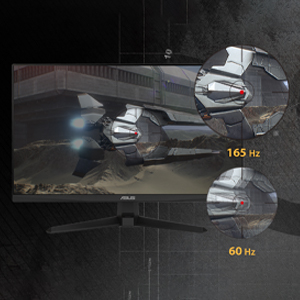
Immaġni: Paragun viżwali li juri l-intoppi tar-rata ta' aġġornament ta' 165Hz kontra s-60Hz.
- ASUS Extreme Low Motion Blur (ELMB): This technology provides a 1ms Moving Picture Response Time (MPRT) to reduce motion blur. Activate it through the OSD menu for clearer fast-paced visuals.
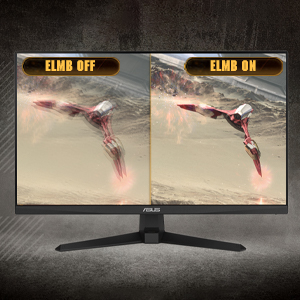
Image: Side-by-side comparison of ELMB off and ELMB on, showing reduced motion blur with ELMB active.
- AMD FreeSync™ Premium: This technology synchronizes the monitor's refresh rate with your AMD graphics card's frame rate to eliminate screen tearing and stuttering. Ensure it is enabled in both the monitor OSD and your graphics card software.
Image: Comparison of screen tearing with FreeSync Premium off versus smooth gameplay with FreeSync Premium on.
- Spinta Shadow: Enhances image details in dark areas without over-exposing bright areas, providing better visibility in dimly lit game scenes.
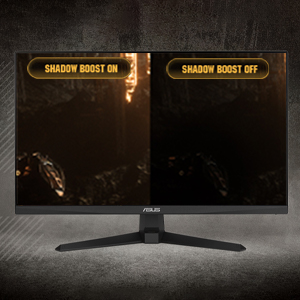
Image: Side-by-side comparison of a dark game scene with Shadow Boost off and Shadow Boost on, showing improved visibility in dark areas.
- Karatteristiċi tal-Kura tal-Għajnejn:
- Ultra-Low Blue Light: Reduces harmful blue light emissions to protect your eyes during long viewing sessions. Adjust the blue light filter level in the OSD menu.

Image: Graphic illustrating the effect of Ultra-Low Blue Light technology on screen output.
- Teknoloġija Ħieles Flikkjaturi: Eliminates screen flickering to minimize eye strain. This feature is always active.

Image: Side-by-side comparison of a screen with and without flicker-free technology, demonstrating reduced flickering.
- Ultra-Low Blue Light: Reduces harmful blue light emissions to protect your eyes during long viewing sessions. Adjust the blue light filter level in the OSD menu.
- GamePlus: Provides in-game enhancements such as crosshairs, timers, FPS counters, and display alignment tools. Access these features via the OSD menu.
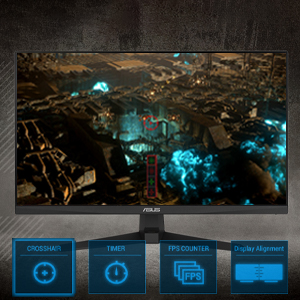
Image: Monitor screen displaying various GamePlus overlays like crosshair, timer, and FPS counter.
- GameVisual: Offers several preset display modes optimized for different content types (e.g., Scenery, Racing, Cinema, RTS/RPG, FPS, sRGB, MOBA). Select the appropriate mode for your current activity.

Image: Side-by-side comparison of a game scene with GameVisual off and GameVisual on, showing optimized visual settings.
Manutenzjoni
Manutenzjoni xierqa tiżgura l-lonġevità u l-prestazzjoni ottimali tal-monitor tiegħek.
- Tindif tal-Iskrin:
- Itfi l-monitor u aqla l-korda tad-dawl.
- Uża ċarruta ratba u mingħajr ħelu dampMaħsul bl-ilma jew b'tindif tal-iskrin li ma jobrox.
- Wipe the screen gently. Avoid applying pressure or using harsh chemicals.
- Tindif tas-Casing:
- Uża drapp artab u niexef biex timsaħ il-monitor casing.
- Evita li tuża cleaners li joborxu jew solventi li jistgħu jagħmlu ħsara lill-finitura.
- Ħażna:
- If storing the monitor for an extended period, unplug all cables and pack it in its original packaging if possible.
- Aħżen f'post frisk u niexef 'il bogħod mix-xemx diretta u temperaturi estremi.
Issolvi l-problemi
If you encounter issues with your monitor, refer to the following common solutions.
| Problema | Soluzzjoni Possibbli |
|---|---|
| L-ebda immaġni fuq l-iskrin |
|
| L-immaġni hija mċajpra jew distorta |
|
| L-ebda ħoss mill-ispikers/headphones |
|
| Screen tearing or stuttering during gaming |
|
Jekk il-problema tippersisti wara li tipprova dawn is-soluzzjonijiet, jekk jogħġbok ikkuntattja l-appoġġ għall-klijenti tal-ASUS.
Speċifikazzjonijiet
| Karatteristika | Dettall |
|---|---|
| Brand | ASUS |
| Numru tal-Mudell | VG247Q1A |
| Daqs tal-Iskrin | 24 Pulzier |
| Riżoluzzjoni | FHD 1080p (1920 x 1080 Pixel) |
| Proporzjon ta' l-aspett | 16:9 |
| Riffriskar Rata | 165 Hz |
| Ħin ta' Rispons | 1 Milliseconds (MPRT) |
| Tip ta 'Wiri | LCD |
| Tip ta' Panel | VA (Note: Not explicitly stated, but common for these specifications) |
| ViewIng Angolu | 170 Grad |
| Luminożità | 350 Kandela għal kull Metru Kwadru |
| Proporzjon ta' Kuntrast | 1000:1 |
| Screen Finish | Tleqq |
| Konnettività | 2x HDMI (v1.4), 1x DisplayPort (v1.2), 1x Earphone Jack |
| Teknoloġija ta' Sinkronizzazzjoni Adattiva | Premium FreeSync |
| Karatteristiċi Speċjali | ASUS Extreme Low Motion Blur (ELMB), Shadow Boost, Blue Light Filter, Built-In Speakers, Flicker-Free, GamePlus, GameVisual |
| Dimensjonijiet tal-oġġett (D x W x H) | 15.53"D x 21.3"W x 6.85"H |
| Piż tal-oġġett | 7.3 Liri |
| Immuntar VESA | 100x100mm compatible (Mount not included) |
| Konsum tal-Enerġija | 14.52 Watts |
| Voltage | 240 Volts |
Garanzija u Appoġġ
Your ASUS TUF Gaming VG247Q1A monitor comes with a manufacturer's warranty.
- Tip ta' Garanzija: Garanzija tal-Manifattur ta' sentejn
- Deskrizzjoni tal-garanzija: 3 Year Warranty with ARR (Advanced Replacement Service)
For technical support, warranty claims, or further assistance, please visit the official ASUS support website or contact their customer service. Refer to the warranty card included in your package for specific contact details and terms.