
1. Introduzzjoni
This manual provides detailed instructions for the installation, operation, and maintenance of the VIVOTEK ND9323P H.265 8-Channel Embedded PoE Network Video Recorder (NVR). Please read this manual thoroughly before using the product to ensure proper and safe operation. Keep this manual for future reference.
2. Informazzjoni dwar is-Sigurtà
Observe the following safety precautions to prevent damage to the NVR and to ensure user safety:
- Provvista tal-Enerġija: Use only the power adapter supplied with the NVR. Ensure the power source matches the NVR's voltage rekwiżiti.
- Ventilazzjoni: Do not block any ventilation openings. Install the NVR in a well-ventilated area to prevent overheating.
- Ambjent: Avoid exposing the NVR to water, moisture, extreme temperatures, or direct sunlight. Do not place heavy objects on the NVR.
- Servizzi: Tippruvax isservi dan il-prodott int stess. Irreferi l-manutenzjoni kollha lil persunal tas-servizz kwalifikat.
- Immaniġġjar: Handle the NVR with care. Avoid dropping or subjecting it to strong impacts.
3. Kontenut tal-Pakkett
Carefully unpack the box and ensure all items are present and in good condition. If any items are missing or damaged, contact your vendor immediately.
- Unità NVR VIVOTEK ND9323P
- Adapter tal-Enerġija
- Ġurdien USB
- Gwida ta 'Installazzjoni Mgħaġġla
- Accessory Pack (Screws for HDD installation, Ethernet cable)
- Case (referring to the NVR enclosure itself)
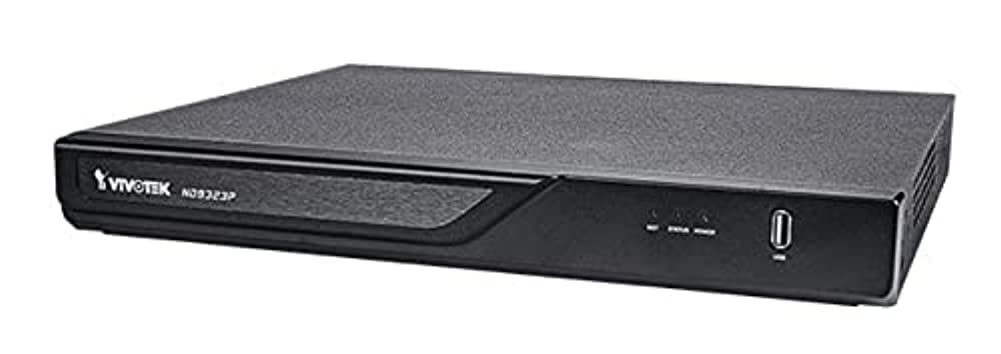
Figure 3.1: VIVOTEK ND9323P NVR unit. This image shows the front panel of the NVR, typically featuring status indicators and USB ports.
4. Prodott Aktarview
The VIVOTEK ND9323P is an 8-channel embedded Network Video Recorder designed for IP surveillance systems. It supports H.265 video compression for efficient storage and bandwidth usage. With its integrated Power over Ethernet (PoE) ports, it simplifies camera installation by providing both power and data connectivity through a single Ethernet cable.
4.1 Karatteristiċi ewlenin
- 8-Channel Video Input
- H.265/H.264 Video Compression
- 8 x 802.3at/af PoE Ports
- Local Display Output (HDMI/VGA)
- Remote Access via VIVOTEK VIVOCloud App or VMS
- Supports up to 16TB HDD storage (HDD not included)
4.2 Pannelli ta 'quddiem u ta' wara
Refer to the Quick Installation Guide for detailed diagrams of the front and rear panels, indicating ports and indicators.
- Panel ta' quddiem: Power LED, HDD LED, Network LED, USB ports.
- Panel ta 'wara: Power input, LAN port, PoE ports (1-8), HDMI output, VGA output, Audio I/O, USB ports.
5. Setup
5.1 Installazzjoni tal-Hard Drive (Mhux obbligatorja)
The NVR does not typically include a pre-installed hard drive. Follow these steps to install a 3.5-inch SATA hard drive:
- Ħoll u neħħi l-għatu ta' fuq tal-NVR.
- Connect the SATA data and power cables from the NVR to the hard drive.
- Waħħal il-hard drive max-chassis tal-NVR billi tuża l-viti pprovduti.
- Erġa' poġġi l-għatu ta' fuq u waħħalha bil-viti.
Nota: Ensure the NVR is powered off and unplugged before installing or removing a hard drive.
5.2 Konnessjonijiet Fiżiċi
- Qabbad il-Kameras: Connect your IP cameras to the NVR's PoE ports (1-8) using Ethernet cables. The NVR will provide power and network connectivity to the cameras.
- Qabbad man-Netwerk: Connect the NVR's LAN port to your local network router or switch using an Ethernet cable.
- Qabbad id-Displej: Qabbad monitor mal-port tal-ħruġ HDMI jew VGA tal-NVR.
- Qabbad il-ġurdien: Ipplaggja l-maws USB f'wieħed mill-portijiet USB tal-NVR.
- Qawwa Mixgħul: Qabbad l-adapter tal-enerġija mad-dħul tal-enerġija tal-NVR u mbagħad daħħalha f'sokit tal-enerġija. L-NVR jixgħel awtomatikament.
5.3 Konfigurazzjoni Inizjali
Upon first boot, the NVR will guide you through a setup wizard on the connected monitor:
- Għażla tal-Lingwa: Agħżel il-lingwa ppreferuta tiegħek.
- Setup tal-Password: Create a strong password for the administrator account. This is crucial for security.
- Issettjar tan-Netwerk: Configure network settings (DHCP or Static IP). DHCP is recommended for most home users.
- Ħin u Data: Set the correct time zone, date, and time.
- Inizjalizzazzjoni tal-Hard Drive: If you installed a new hard drive, the NVR will prompt you to format it. Confirm to proceed. Twissija: Formatting will erase all data on the drive.
- Camera Search and Add: The NVR will automatically search for connected VIVOTEK cameras. Select and add them to the NVR.
- Temm: Complete the wizard to access the NVR's live view.
6. It-tħaddim tal-NVR
6.1 Accessing the NVR
You can access and manage the NVR through various methods:
- Wirja Lokali: Directly via the connected monitor and USB mouse.
- Web Browser: Daħħal l-indirizz IP tal-NVR f' web browser fuq kompjuter konness mal-istess netwerk.
- VIVOTEK VIVOCloud App: Download the mobile app for remote viewing u ġestjoni.
- VIVOTEK VAST 2 VMS: For advanced management and multi-NVR systems.
6.2 Ħaj View
Il-ħaj view displays real-time video feeds from all connected cameras. You can switch between single-camera view, grilja b'ħafna kameras view, and customize the display layout.
6.3 Settings tar-Reġistrazzjoni
Configure recording schedules and modes for each camera:
- Reġistrazzjoni Kontinwa: Rekords 24/7.
- Reġistrazzjoni ta 'Sejbien tal-Moviment: Jirrekordja biss meta jinstab moviment.
- Reġistrazzjoni Skedata: Records during specific time periods.
- Reġistrazzjoni ta' Avvenimenti: Records based on external triggers or alarms.
Access these settings through the NVR's main menu: Configuration > Recording > Schedule.
6.4 Daqq
Biex terġa 'view irreġistrat footage:
- Mill-menu prinċipali, agħżel Daqq.
- Choose the camera(s) and the date/time range you wish to review.
- Use the timeline and playback controls (play, pause, fast forward, rewind) to navigate through the footage.
6.5 Event Management and Notifications
Configure the NVR to respond to events such as motion detection, camera tampering, or network disconnection. The NVR can send email notifications, trigger alarms, or start recording.
Access these settings via: Configuration > Event.
7. Manutenzjoni
7.1 Aġġornamenti tal-Firmware
Regularly check for and install firmware updates to ensure optimal performance, security, and access to new features. Firmware can be updated via the NVR's web interface or local display menu: Configuration > System > Firmware Upgrade.
Attenzjoni: Do not power off the NVR during a firmware upgrade. This can cause permanent damage.
7.2 Ġestjoni tal-Hard Drive
Monitor the health of your hard drive(s) and ensure sufficient storage space. The NVR will automatically overwrite the oldest recordings when the disk is full, based on your settings.
Access HDD status and settings via: Configuration > Storage > HDD Management.
7.3 Tindif
Żomm l-unità NVR nadifa u ħielsa mit-trab. Uża drapp artab u niexef għat-tindif. Tużax prodotti tat-tindif likwidi jew aerosols.
8 Issolvi l-problemi
This section addresses common issues you might encounter with your VIVOTEK ND9323P NVR.
8.1 No Video Display on Monitor
- Iċċekkja Kejbils: Ensure the HDMI/VGA cable is securely connected to both the NVR and the monitor.
- Input tal-monitor: Verify the monitor is set to the correct input source (HDMI/VGA).
- NVR Power: Confirm the NVR is powered on and its power LED is illuminated.
8.2 Cameras Not Showing Up / No Image
- Konnessjoni PoE: Ensure cameras are properly connected to the NVR's PoE ports. Check if the PoE port LEDs on the NVR are active.
- Qawwa tal-Kamera: If not using PoE, ensure cameras are receiving power from their own power adapters.
- Konnettività tan-Netwerk: Verify the NVR and cameras are on the same network segment if not directly connected via PoE.
- Status tal-kamera: Check the camera's own status indicators.
- NVR Camera Management: Mur fuq Configuration > Camera > Camera Management to ensure cameras are added and enabled. Try rescanning for cameras.
8.3 Cannot Access NVR via Web Browser
- Indirizz IP: Confirm the NVR's IP address is correct and that your computer is on the same network.
- Cable tan-Netwerk: Ensure the NVR's LAN port is connected to your network.
- Firewall: Temporarily disable your computer's firewall to check if it's blocking access.
- Kompatibbiltà tal-browser: Use a recommended web brawżer (eż., Chrome, Firefox).
8.4 Insejt il-Password
If you forget the administrator password, you may need to perform a factory reset. Refer to the VIVOTEK support website or contact technical support for the specific procedure for your model, as this often involves a physical reset button or a specific utility.
9. Speċifikazzjonijiet
The following table lists the key specifications for the VIVOTEK ND9323P NVR:
| Karatteristika | Speċifikazzjoni |
|---|---|
| Numru tal-Mudell | ND9323P |
| Brand | VIVOTEK |
| Numru ta 'Kanali | 8 |
| Teknoloġija tal-Konnettività | Ethernet |
| Apparati Kompatibbli | Camera, Mobile Device |
| Kompressjoni tal-vidjo | H.265, H.264 |
| Portijiet PoE | 8 x 802.3at/af |
| Dimensjonijiet tal-Prodott | 19.69 x 19.69 x 11.02 pulzieri |
| Piż tal-oġġett | 0.01 uqija |
| Manifattur | Vivotek |
10. Garanzija u Appoġġ
Il-prodotti VIVOTEK huma koperti minn garanzija limitata. Għal termini u kundizzjonijiet dettaljati tal-garanzija, jekk jogħġbok irreferi għall-karta tal-garanzija inkluża mal-prodott tiegħek jew żur is-sit uffiċjali ta' VIVOTEK. websit.
For technical support, product registration, or to download the latest firmware and software, please visit the VIVOTEK support portal:
VIVOTEK Official Support Websit
When contacting support, please have your NVR's model number (ND9323P) and serial number ready.