
Introduzzjoni
This manual provides essential information for setting up, operating, maintaining, and troubleshooting your CyberpowerPC Gamer Xtreme Gaming PC. This system is designed for high-performance gaming and multitasking, featuring an AMD Ryzen 7 3700X processor, NVIDIA GeForce RTX 3060 graphics, 16GB DDR4 RAM, and a combination of SSD and HDD storage, running on Windows 10 Home 64-Bit.
1. Setup
1.1 Disimballaġġ
Carefully remove the PC from its packaging. Ensure all accessories, including the power cable, keyboard, and mouse, are present. Retain the original packaging for future transport or service needs.

Figura 1: Quddiem view of the CyberpowerPC Gamer Xtreme, highlighting its design and RGB lighting.
1.2 Konnessjoni tal-Periferali
Qabbad il-monitor, it-tastiera, il-maws, u periferali oħra tiegħek mal-portijiet xierqa fuq wara u fuq nett tal-PC. Kun żgur li l-konnessjonijiet kollha huma siguri.
- Monitor: Qabbad il-monitor tiegħek mal-output HDMI jew DisplayPort tal-karta grafika.
- Tastiera u maws: Connect to any available USB ports (USB 2.0 or USB 3.0).
- Qawwa: Qabbad il-kejbil tal-enerġija mal-unità tal-provvista tal-enerġija (PSU) tal-PC u mbagħad ma' sokit elettriku ertjat.
- Netwerk: Għal internet bil-fili, qabbad kejbil Ethernet mal-port LAN. Għal internet mingħajr fili, kun żgur li l-antenna Wi-Fi (jekk inkluża) hija mwaħħla.

Figura 2: Angolat view of the CyberpowerPC Gamer Xtreme, highlighting the front panel design and side ventilation.

Figura 3: Fuq view of the PC, illustrating the accessible front I/O ports and top ventilation.
1.3 Tixgħel Inizjali u Setup tal-Windows
Press the power button located on the top panel of the PC. The system will boot up. Follow the on-screen instructions to complete the Windows 10 Home setup, including language selection, network connection, and user account creation.
2. Istruzzjonijiet Operattivi
2.1 Power On/Off
- Biex Tixgħel: Agħfas il-buttuna tal-qawwa fuq il-pannell ta' fuq.
- Biex tagħlaq: Ikklikkja l-buttuna Start fil-Windows, imbagħad agħżel Power > Shut down.
- Biex terġa' tibda: Ikklikkja l-buttuna Start, imbagħad agħżel Power > Restart.
- Biex torqod: Click the Start button, then select Power > Sleep.
2.2 Konnessjoni ma' Netwerk
Your PC supports both wired (Ethernet) and wireless (Wi-Fi) network connections.
- Wajer: Connect an Ethernet cable from your router/modem to the LAN port on the rear of the PC.
- Wireless: In Windows, click the network icon in the taskbar, select your Wi-Fi network, enter the password, and click Connect.
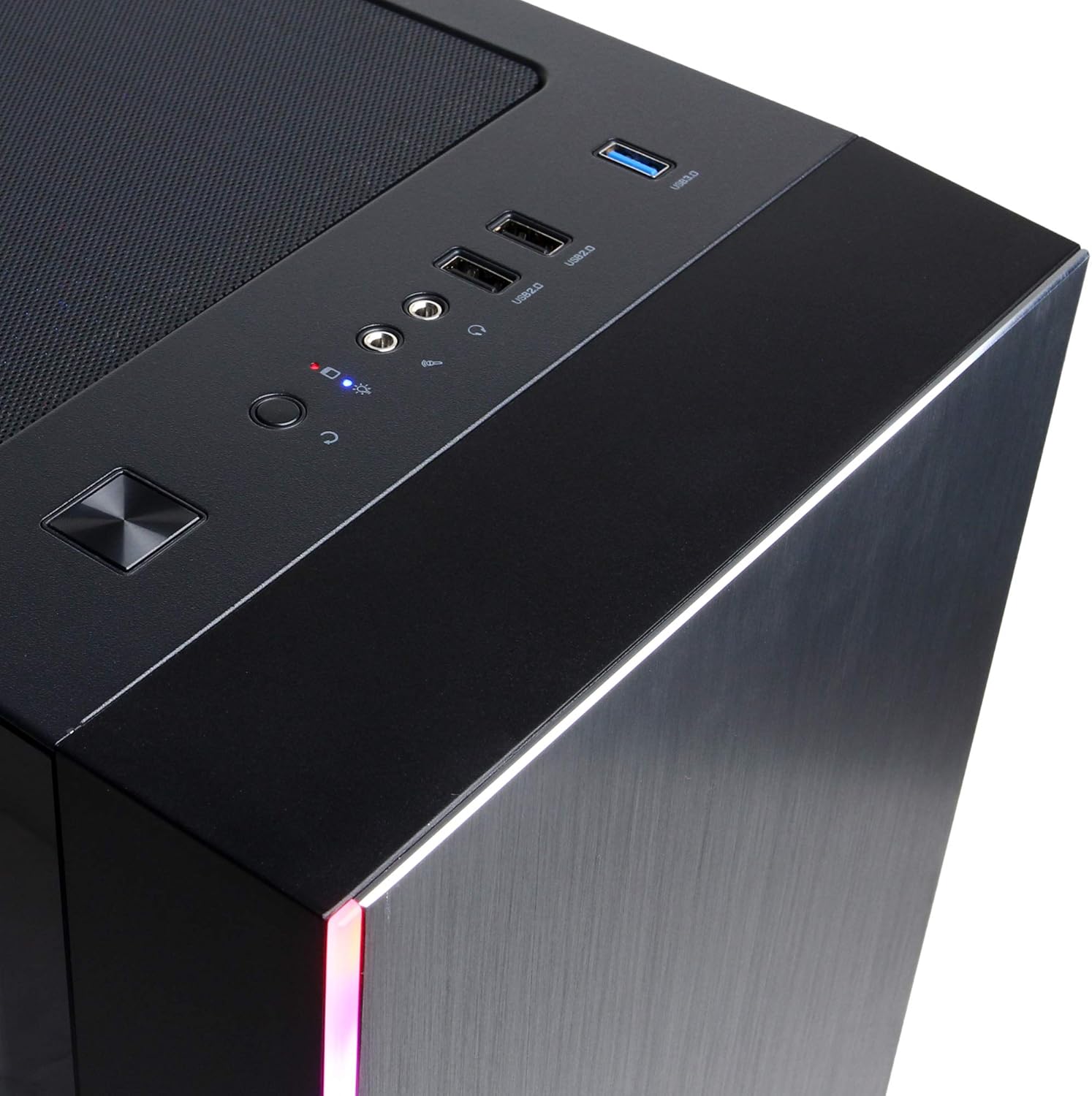
Figure 4: Detail of the top I/O panel, providing easy access to USB and audio connections.
3. Manutenzjoni
3.1 Tindif
Tindif regolari jgħin biex iżomm prestazzjoni ottimali u jestendi l-ħajja tal-PC tiegħek.
- Barra: Uża artab, damp cloth to wipe down the exterior. Avoid harsh chemicals.
- Trab: Periodically use compressed air to clear dust from ventilation grilles and internal components. Ensure the PC is powered off and unplugged before cleaning.
3.2 Aġġornamenti tas-Software
Keep your operating system, drivers, and applications updated to ensure security, stability, and performance.
- Aġġornamenti tal-Windows: Mur Settings > Aġġornament u Sigurtà > Windows Update.
- Sewwieqa tal-Grafika: Download the latest drivers directly from NVIDIA's official websit.
4 Issolvi l-problemi
4.1 Ebda Qawwa
- Kun żgur li l-kejbil tal-enerġija huwa konness sew kemm mal-PC kif ukoll mas-sokit tal-ħajt.
- Ivverifika li s-sokit tal-ħajt jaħdem billi tqabbad apparat ieħor.
- Check the power switch on the PSU (if present) is in the 'On' position.
4.2 Ebda Display
- Ikkonferma li l-monitor huwa mixgħul u konness mal-output tal-karta grafika, mhux mal-portijiet grafiċi integrati tal-motherboard (jekk applikabbli).
- Ipprova kejbil tad-displej jew monitor differenti jekk disponibbli.
- Kun żgur li s-sors tad-dħul tal-monitor huwa magħżul b'mod korrett.
4.3 Tnaqqis jew Iffriżar tas-Sistema
- Iċċekkja t-Task Manager (Ctrl+Shift+Esc) għal użu għoli tas-CPU, RAM, jew diska minn applikazzjonijiet speċifiċi.
- Kun żgur li l-Windows u s-sewwieqa huma aġġornati.
- Mexxi skennjar tal-virus u l-malware.
- Ensure adequate ventilation and check for excessive dust buildup.
5. Speċifikazzjonijiet
| Karatteristika | Dettall |
|---|---|
| Brand | CyberpowerPC |
| Isem tal-Mudell | Gamer Xtreme |
| Sistema Operattiva | Windows 10 Home |
| Mudell tas-CPU | AMD Ryzen 7 3700X |
| Veloċità tas-CPU | 3.6 GHz (Bażi) |
| Koproċessur tal-Grafika | NVIDIA GeForce RTX 3060 |
| RAM tal-Karta tal-Grafika | 12 GB GDDR6 |
| Memorja RAM Installata | 16 GB DDR4 |
| Ħażna | 240 GB SSD, 1 TB HDD |
| Konnettività | HDMI, Wi-Fi (802.11ab), USB 2.0, USB 3.0 |
| Dimensjonijiet tal-oġġett (LxWxH) | 18.6 x 17.4 x 8.9 pulzieri |
| Metodu tat-tkessiħ | Arja |
| UPC | 811842073769 |
6. Informazzjoni dwar Garanzija
Your CyberpowerPC Gamer Xtreme Gaming PC is covered by a manufacturer's limited warranty. Specific terms and conditions, including warranty duration and coverage details, are typically provided with your purchase documentation or can be found on the official CyberpowerPC websit. Jekk jogħġbok żomm il-prova tax-xiri tiegħek għal talbiet ta' garanzija.
7. Appoġġ
For technical assistance, troubleshooting, or further inquiries, please visit the official CyberpowerPC support website or contact their customer service. You may need your product model number (GMA3088W) and serial number for support.
- Uffiċjali Websit: www.cyberpowerpc.com
- Taqsima ta' Appoġġ: Look for a "Support" or "Contact Us" link on their websit.