
1. Introduzzjoni
This manual provides detailed instructions for the installation, configuration, and operation of your TOTOLINK N9 300Mbps Wireless POE Access Point. Please read this manual thoroughly before using the device to ensure proper setup and optimal performance.
The TOTOLINK N9 is a 300Mbps Wireless POE Access Point designed to extend wireless network coverage. It features a 10/100 Mbps RJ-45 adaptive port and supports wireless standards IEEE802.11n, IEEE 802.11g, and IEEE 802.11b. With MIMO 2Tx-2Rx technology, it provides 300Mbps input on the 2.4 GHz band. Transmission technologies include OFDM, CCK, BPSK, and QPSK. Key features include Wireless WDS bridge, wireless signal distribution, WPS encryption, and SOFT AC support. It also allows for configuration file resets and router software updates. Power requirements are 48 Volts, 0.6 Amps.
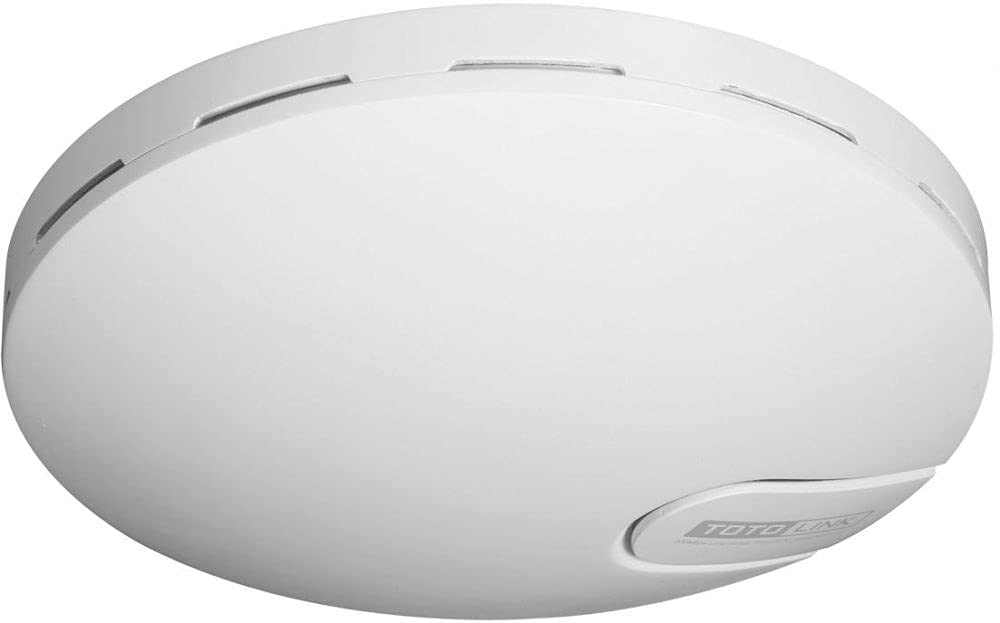
Figure 1: TOTOLINK N9 300Mbps Wireless POE Access Point device overview.
2. Kontenut tal-Pakkett
Ivverifika li l-pakkett tiegħek fih l-oġġetti li ġejjin:
- TOTOLINK N9 Wireless POE Access Point
- Injettur PoE (Enerġija fuq Ethernet)
- Cable Ethernet
- Adapter tal-Enerġija
- Kit tal-Immuntar (viti, tappijiet tal-ħajt)
- Gwida ta 'Installazzjoni Mgħaġġla
Jekk xi oġġetti huma nieqsa jew bil-ħsara, jekk jogħġbok ikkuntattja lill-bejjiegħ tiegħek għall-għajnuna.
3. Gwida ta' Setup
3.1 Installazzjoni Fiżika
- Agħżel Post: Select a central location for optimal wireless coverage, away from obstructions and interference sources.
- Immonta l-Apparat: Use the provided mounting kit to securely attach the N9 to a wall or ceiling. Ensure proper ventilation.
- Qabbad il-Kejbil tal-Ethernet: Connect one end of an Ethernet cable to the LAN port of the N9.
- Connect PoE Injector: Connect the other end of the Ethernet cable from the N9 to the 'POE' port on the PoE injector.
- Qabbad man-Netwerk: Connect another Ethernet cable from the 'LAN' port on the PoE injector to your router or network switch.
- Qawwa Mixgħul: Connect the power adapter to the PoE injector and plug it into a power outlet. The N9 will power on automatically.
3.2 Konfigurazzjoni Inizjali
- Qabbad man-Netwerk: Ensure your computer is connected to the same network as the N9 (either via Ethernet to the router/switch or wirelessly to the N9's default SSID).
- Aċċess Web Interface: Iftaħ a web browser u daħħal l-indirizz IP default (eż. http://192.168.1.1 or check the Quick Installation Guide for the exact default IP).
- Idħol: Enter the default username and password (typically 'admin' for both, refer to the device label or guide).
- Mexxi l-Wizard tas-Setup: Follow the on-screen setup wizard to configure basic wireless settings such as SSID (Wi-Fi name) and password.
- Ibdel il-Password Predefinita: For security, change the default login password for the web interface.
4. Istruzzjonijiet Operattivi
4.1 Basic Wireless Configuration
- Xandira SSID: Enable or disable the broadcasting of your Wi-Fi network name.
- Modalità tas-Sigurtà: Select a strong encryption method like WPA2-PSK for your wireless network.
- Password bla fili: Set a strong, unique password for your Wi-Fi network.
4.2 Karatteristiċi Avvanzati
- WDS (Sistema ta' Distribuzzjoni mingħajr Fili): Configure the N9 to act as a wireless bridge to extend your network without cables. Refer to the online user manual for detailed WDS setup.
- Modalità Ripetitur: Extend the range of an existing wireless network by configuring the N9 as a repeater.
- WPS (Wi-Fi Protetta Setup): Use the WPS button or PIN method for quick and easy connection of WPS-compatible devices.
- SOFT AC Support: Utilize the centralized management features if you have multiple TOTOLINK devices supporting SOFT AC.
5. Manutenzjoni
5.1 Aġġornament tal-Firmware
Regularly check the TOTOLINK official websit għall-aħħar aġġornamenti tal-firmware. L-aġġornamenti tal-firmware jistgħu jtejbu l-prestazzjoni, iżidu karatteristiċi ġodda, u jirranġaw vulnerabbiltajiet tas-sigurtà.
- Niżżel il-firmware korrett file for your N9 model from the TOTOLINK websit.
- Access the N9's web interface ta 'ġestjoni.
- Navigate to the 'System Tools' or 'Firmware Upgrade' section.
- Tella l-firmware mniżżel file u segwi l-istruzzjonijiet fuq l-iskrin. Titfix l-apparat waqt il-proċess ta' aġġornament.
5.2 Irrisettja għall-Defaults tal-Fabbrika
If you encounter persistent issues or forget your login password, you can reset the device to its factory default settings.
- Irrisettja l-Hardware: With the device powered on, press and hold the 'Reset' button (usually a small pinhole button) for about 5-10 seconds until the indicators flash. Release the button, and the device will restart with factory settings.
- Irrisettja s-Software: Aċċess għall- web management interface, navigate to 'System Tools' > 'Factory Defaults' or 'Backup & Restore', and select the option to restore factory settings.
Note: Resetting to factory defaults will erase all your custom configurations.
6 Issolvi l-problemi
| Problema | Soluzzjoni |
|---|---|
| Ebda enerġija għall-apparat. | Ensure the power adapter is securely connected to the PoE injector and a working power outlet. Check the Ethernet cable connection between the PoE injector and the N9. |
| Ma jistax jaċċessa l- web interface ta 'ġestjoni. | Verify your computer is connected to the network. Ensure the N9 is powered on. Check if your computer's IP address is in the same subnet as the N9's default IP. Try clearing your browser's cache or using a different browser. Reset the device to factory defaults if necessary. |
| No internet access through the N9. | Check the connection between the PoE injector's LAN port and your main router/modem. Verify that your main router has internet connectivity. Ensure the N9's settings (e.g., WAN settings if applicable, or gateway/DNS) are correctly configured. |
| Weak or unstable Wi-Fi signal. | Relocate the N9 to a more central position. Avoid placing it near large metal objects, concrete walls, or other electronic devices that may cause interference. Adjust the wireless channel in the settings to avoid interference from neighboring networks. |
7. Speċifikazzjonijiet
| Karatteristika | Deskrizzjoni |
|---|---|
| Mudell | TOTOLINK 11N Wireless POE Access Point - N9 |
| Interface Fiżiku | 1 x 10/100 Mbps RJ-45 adaptive port |
| Standards bla fili | IEEE 802.11n, IEEE 802.11g, IEEE 802.11b |
| Konfigurazzjoni tal-MIMO | 2Tx - 2Rx (300Mbps input) |
| Banda ta' Frekwenza | 2.4 GHz |
| Teknoloġija tat-Trażmissjoni | OFDM, CCK, BPSK, QPSK |
| Karatteristiċi Speċjali | WPS, Wireless WDS bridge, Wireless signal distributor, SOFT AC support |
| Apparati Kompatibbli | Laptop, Kompjuter Personali, Televiżjoni Intelliġenti, Tablet |
| Teknoloġija tal-Konnettività | Wireless |
| Sistema Operattiva | RouterOS |
| Protokoll ta 'Sigurtà | WPS |
| Wisa' tal-Banda tal-Port LAN | 10/100 megabits kull sekonda |
| Rekwiżiti ta' Enerġija | 48 Volts, 0.6 Amps |
| Manifattur | TOTOLINK |
| ASIN | B0968YSLH9 |
8. Garanzija u Appoġġ
This product comes with a standard manufacturer's warranty. Please refer to the warranty card included in your package or visit the official TOTOLINK websit għal termini u kundizzjonijiet dettaljati tal-garanzija speċifiċi għar-reġjun tiegħek.
For technical support, firmware downloads, or frequently asked questions, please visit the official TOTOLINK support website or contact their customer service. Contact information can typically be found on the product packaging or the official websit.