
1. Introduzzjoni
This manual provides essential information for the proper setup, operation, maintenance, and troubleshooting of your Datalogic PowerScan M8500 Wireless Barcode Scanner. Please read this manual thoroughly before using the device to ensure optimal performance and longevity.
2. Prodott Aktarview
The Datalogic PowerScan M8500 is a robust wireless barcode scanner designed for industrial applications. It features USB connectivity for its cradle and wireless communication for the scanner unit, allowing for flexible operation.

Figura 2.1: Quddiem view of the Datalogic PowerScan M8500 wireless barcode scanner, highlighting the scanning window and trigger button.
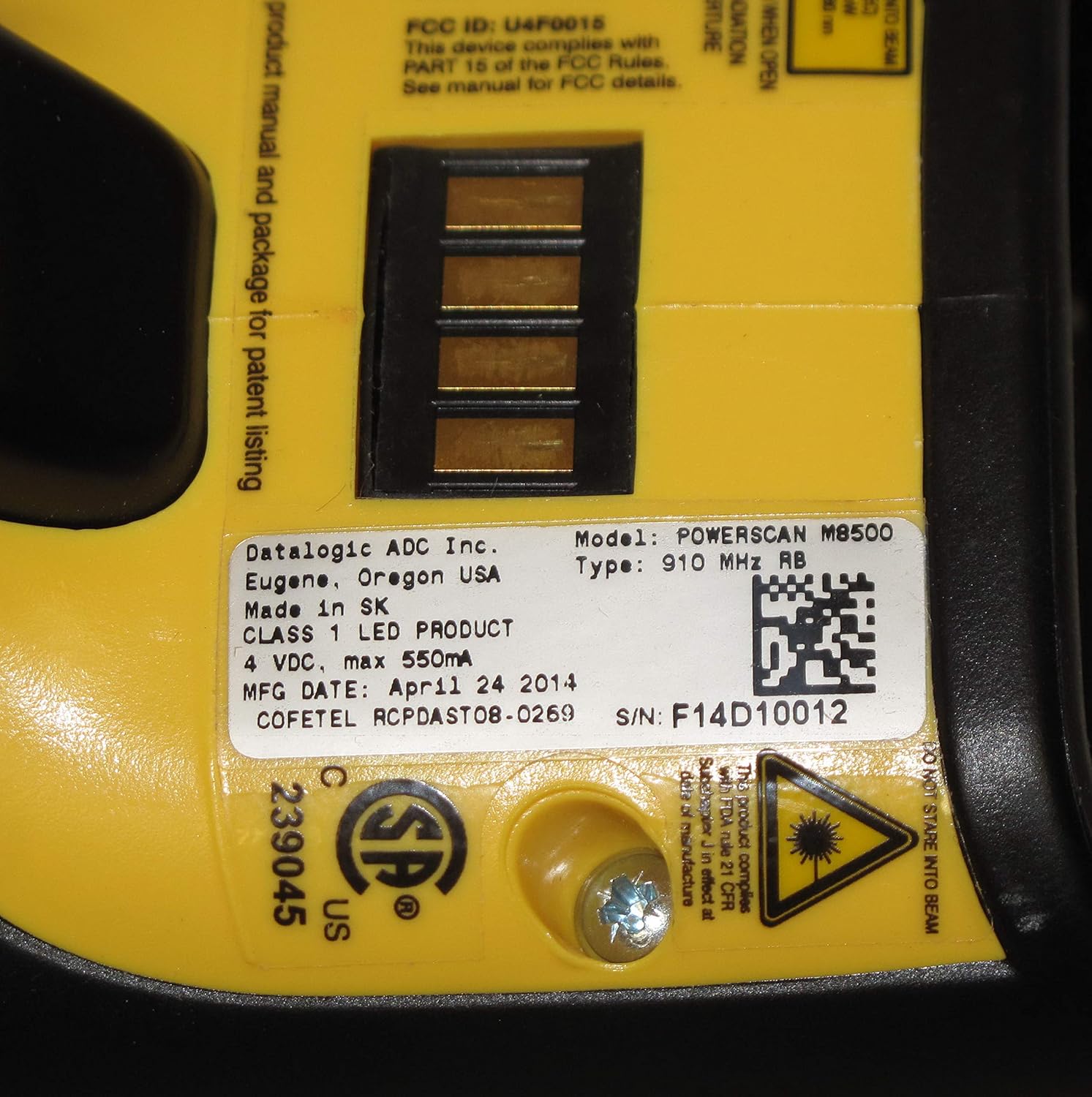
Figura 2.2: Wara view of the Datalogic PowerScan M8500 barcode scanner, displaying the product label with essential information such as model number, FCC ID, and electrical specifications.
3. Setup
3.1 Disimballaġġ
Carefully remove all components from the packaging. Verify that all items are present: the PowerScan M8500 scanner, its charging/communication cradle, and a USB cable.
3.2 Cradle Connection
- Connect one end of the provided USB cable to the USB port on the cradle.
- Connect the other end of the USB cable to an available USB port on your desktop or laptop computer.
- Ensure the cradle receives power. An indicator light on the cradle should illuminate.
3.3 Initial Scanner Charging and Pairing
- Place the PowerScan M8500 scanner into the cradle. Ensure it is seated correctly.
- The scanner will begin charging. Allow sufficient time for a full charge before initial use.
- The scanner and cradle are typically pre-paired. If pairing is required, refer to the full Datalogic PowerScan M8500 programming manual for specific barcode sequences.
4. Istruzzjonijiet Operattivi
4.1 Skennjar ta' Barcodes
- Hold the scanner with the scanning window facing the barcode.
- Press and hold the trigger button. A red aiming pattern will project from the scanner.
- Align the aiming pattern over the barcode you wish to scan.
- Once the barcode is successfully read, the scanner will emit an audible beep and/or a visual indicator (e.g., green light).
- Itlaq il-buttuna tal-grillu.

Figura 4.1: The Datalogic PowerScan M8500 scanner in operation, showing the red aiming pattern used for precise barcode targeting.
4.2 Tħaddim bla Fili
The PowerScan M8500 communicates wirelessly with its cradle, allowing for freedom of movement within the specified range. Ensure the scanner remains within range of the cradle for uninterrupted data transmission.
5. Manutenzjoni
5.1 Tindif tal-Iskaner
To maintain optimal scanning performance, keep the scanning window clean. Use a soft, lint-free cloth lightly dampened with water or a mild, non-abrasive cleaning solution. Do not use harsh chemicals or abrasive materials, as these can damage the scanning window.
5.2 Kura tal-Batterija
For models with removable batteries, ensure proper insertion and removal. If the scanner is not used for an extended period, it is recommended to fully charge the battery before storage and periodically recharge it to prevent deep discharge.
5.3 Immaniġġjar Ġenerali
The PowerScan M8500 is designed for durability, but avoid dropping the device or exposing it to extreme temperatures, excessive moisture, or direct sunlight for prolonged periods.
6 Issolvi l-problemi
6.1 L-iskaner mhux qed jaqra l-barcodes
- Check aiming: Ensure the aiming pattern is correctly centered over the barcode.
- Barcode quality: Iċċekkja li l-barcode mhux bil-ħsara, imtebba’, jew stampat ħażin.
- Distanza: Aġġusta d-distanza bejn l-iskaner u l-barcode.
- Livell tal-batterija: Ensure the scanner has sufficient battery charge.
- Symbology enabled: Confirm that the barcode symbology (e.g., Code 128, QR Code) is enabled in the scanner's configuration. Refer to the full programming manual.
6.2 No Data Transmission to Computer
- Cradle connection: Ensure the USB cable is securely connected to both the cradle and the computer.
- Cradle power: Verify the cradle is powered on.
- Scanner-cradle link: Confirm the scanner is properly linked (paired) with its cradle. Re-pairing may be necessary.
- Installazzjoni tas-sewwieq: Ensure the necessary USB drivers for the cradle are installed on your computer.
6.3 L-iskaner mhux qed jixgħel
- Ċarġ tal-batterija: Place the scanner in the cradle to charge for at least 30 minutes.
- Kundizzjoni tal-batterija: If the battery is old or damaged, it may need replacement.
7. Speċifikazzjonijiet
| Karatteristika | Speċifikazzjoni |
|---|---|
| Mudell | PowerScan M8500 |
| Manifattur | Datalogic |
| Teknoloġija tal-Konnettività | USB Cable (for cradle), Wireless (for scanner) |
| Sors tal-Enerġija | Corded Electric (for cradle) |
| Apparati Kompatibbli | Desktop, Laptop |
| UPC / GTIN | 649661723868 |
8. Informazzjoni dwar Garanzija
This Datalogic PowerScan M8500 unit is a renewed product. It comes with a Garanzija limitata ta '90 jum from the seller. Additionally, renewed products purchased through Amazon are typically eligible for replacement or refund under the Amazon Renewed Guarantee if you are not satisfied with the purchase. Please refer to your purchase documentation for specific terms and conditions.
9. Appoġġ
For further assistance, technical support, or warranty claims, please contact the seller from whom you purchased this renewed product. You may also visit the official Datalogic website for product documentation and general support resources for the PowerScan M8500 series.