
1. Prodott Aktarview
The Keychron K3 Version 2 is an ultra-slim 75% layout wireless mechanical keyboard designed for productivity and a tactile typing experience. It features low-profile Gateron mechanical switches and white LED backlighting. The keyboard supports both Bluetooth 5.1 wireless and USB wired connectivity, making it versatile for various devices and operating systems, including Mac and Windows.

Immaġni: Minn fuq għal isfel view of the Keychron K3 Version 2 mechanical keyboard, showcasing its compact 75% layout and dark grey keycaps with an orange Esc key.
2. X'hemm fil-Kaxxa
- 1 x Keychron K3 Version 2 Mechanical Keyboard
- 1 x USB-A to USB Type-C Cable
- 1 x Keycap Puller
- 1 x Manwal tal-Utent (dan id-dokument)
- Extra keycaps for Windows and Mac operating systems
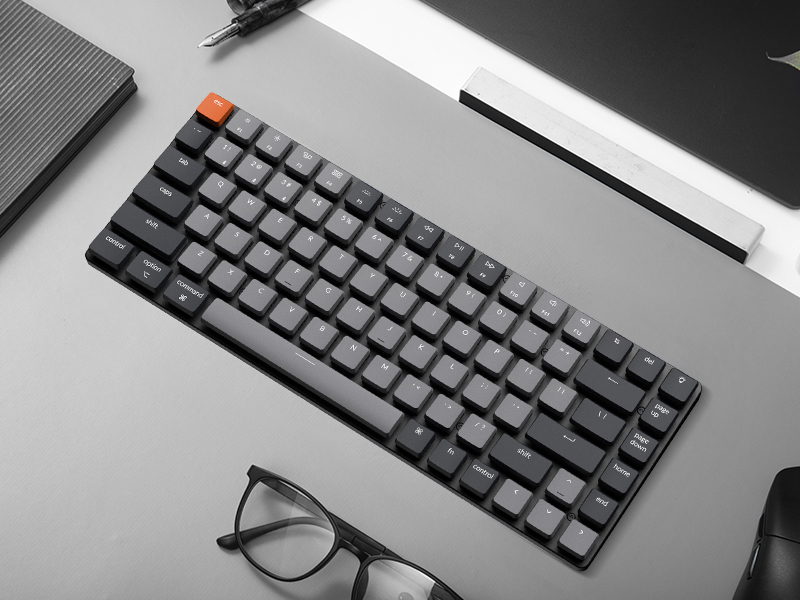
Image: Illustration showing the keyboard, USB-C cable, keycap puller, and additional keycaps included in the product packaging.
3. Setup
3.1 Setup Inizjali
Before first use, ensure the keyboard is fully charged. Connect the provided USB-A to USB Type-C cable to the keyboard and a power source (e.g., computer USB port, USB wall adapter). The LED indicator will show charging status.
3.2 Konnessjoni permezz tal-Bluetooth
- Locate the mode switch on the side of the keyboard. Slide it to the "BT" (Bluetooth) position.
- Press and hold the "Fn" + "1" (or "2" or "3") keys for 4 seconds until the LED indicator under the "1" key (or "2" or "3") flashes rapidly. This indicates the keyboard is in pairing mode.
- Fuq l-apparat tiegħek (kompjuter, tablet, smartphone), attiva l-Bluetooth u fittex apparati ġodda.
- Select "Keychron K3" from the list of available devices.
- Segwi kwalunkwe struzzjonijiet fuq l-iskrin biex tlesti l-proċess ta' tqabbil. L-indikatur LED jieqaf iteptep u jibqa' solidu meta jkun imqabbad b'suċċess.
- To switch between paired devices, simply press "Fn" + "1", "Fn" + "2", or "Fn" + "3".

Image: Diagram illustrating the Bluetooth connectivity options (BT1, BT2, BT3) and USB wired connection for the Keychron K3 keyboard.
3.3 Connecting via USB Wired
To use the keyboard in wired mode, slide the mode switch on the side of the keyboard to the "Cable" position. Connect the USB-A to USB Type-C cable from the keyboard to your computer's USB port. The keyboard will be recognized automatically.
3.4 Operating System Layout Switch
The Keychron K3 is compatible with both Mac and Windows operating systems. Use the OS switch located on the side of the keyboard to select the appropriate layout for your system (Mac/iOS or Win/Android). This ensures correct key mapping for modifier keys like Command/Alt and Option/Windows key.

Image: Visual representation of the Keychron K3 keyboard highlighting its compatibility with both Mac OS and Windows, showing the respective keycap legends.
4. Istruzzjonijiet Operattivi
4.1 Key Functions and Multimedia Keys
The K3 features a 75% layout with dedicated function keys (F1-F12) that double as multimedia keys. To access the multimedia functions, press the 'Fn' key along with the desired function key. For example, 'Fn + F7' typically controls play/pause.
- Fn + F1/F2: Decrease/Increase screen brightness (Mac only)
- Fn+F3: Mission Control (Mac only)
- Fn+F4: Launchpad (Mac only)
- Fn + F7/F8/F9: Previous/Play-Pause/Next track
- Fn + F10/F11/F12: Mute/Volume Down/Volume Up
- Fn + L/R Arrow: Adjust backlight color (if applicable)
- Fn + Vleġġa 'l fuq/'l isfel: Aġġusta l-luminożità tad-dawl ta 'wara
4.2 Kontroll tad-dawl ta' wara
The Keychron K3 features white LED backlighting. You can adjust the brightness and change lighting effects using the dedicated keys or Fn combinations.
- Light Bulb Key (top right): Cycle through different backlight effects.
- Fn + Vleġġa 'l fuq: Żid il-luminożità tad-dawl ta' wara.
- Fn + Vleġġa 'l isfel: Naqqas il-luminożità tad-dawl ta' wara.

Immaġni: Close-up view of the Keychron K3 keyboard showing the white LED backlighting illuminating the keycaps.
4.3 Iċċarġjar tat-Tastiera
When the battery is low, the LED indicator will flash red. Connect the USB Type-C cable to the keyboard and a USB power source. The LED will turn solid red while charging and turn off when fully charged. The keyboard can be used while charging in wired mode.
5. Manutenzjoni
5.1 Tindif tat-Tastiera
To clean your Keychron K3, first disconnect it from all power sources and turn off the keyboard. Use a soft, lint-free cloth slightly dampened with water or a mild cleaning solution. Avoid spraying liquids directly onto the keyboard. For dust and debris between keycaps, use compressed air or a small brush.
5.2 Tneħħija u Sostituzzjoni tal-Għatu taċ-Ċwievet
The Keychron K3 comes with a keycap puller for easy removal and replacement of keycaps. To remove a keycap, gently place the puller over the keycap and pull upwards. To replace, align the keycap with the switch stem and press down firmly until it clicks into place. Be gentle to avoid damaging the switch.
Immaġni: Close-up view of a low-profile Gateron mechanical blue switch, showing its internal mechanism. This type of switch is used in the Keychron K3 keyboard.
6 Issolvi l-problemi
- It-tastiera mhux qed tikkonnettja permezz tal-Bluetooth:
- Ensure the keyboard is in "BT" mode and pairing mode (Fn + 1/2/3 for 4 seconds).
- Iċċekkja jekk il-Bluetooth huwiex attivat fuq it-tagħmir tiegħek.
- Remove "Keychron K3" from your device's Bluetooth list and try pairing again.
- Kun żgur li t-tastiera hija ċċarġjata.
- Try connecting to a different Bluetooth slot (1, 2, or 3).
- Iċ-ċwievet ma jirrispondux:
- Aqleb għall-modalità bil-fili biex tiċċekkja jekk il-problema tippersistix.
- Kun żgur li t-tastiera hija ċċarġjata.
- If specific keys are not responding, try removing and re-seating their keycaps.
- Id-dawl ta' wara mhux qed jaħdem:
- Kun żgur li t-tastiera tkun mixgħula.
- Press the Light Bulb key or Fn + Up Arrow to increase brightness.
- Check battery level; low battery might disable backlighting.
- Keyboard randomly disconnects:
- Ensure the keyboard is within reasonable range of your device.
- Minimize signal interference from other wireless devices.
- Kun żgur li t-tastiera hija ċċarġjata kompletament.
- Consider updating the keyboard's firmware if available from the manufacturer's websit.
Għal aktar dettalji dwar is-soluzzjoni tal-problemi, jekk jogħġbok irreferi għall-uffiċjal Gwida għas-Soluzzjoni tal-Problemi (PDF).
7. Speċifikazzjonijiet
| Karatteristika | Dettall |
|---|---|
| Numru tal-Mudell | K3A2 |
| Tqassim | 75% (84 Ċwievet) |
| Konnettività | Bluetooth 5.1, USB Type-C Wired |
| Swiċċijiet | Baxx-Profile Gateron Mechanical (Blue, Brown, Red options) |
| Dawl ta' wara | LED abjad |
| Dimensjonijiet (L x W x H) | 11.81 x 4.57 x 0.79 pulzieri (306 x 116 x 20 mm) |
| Piż | 13.7 uqija (388 g) |
| Batterija | 1 batterija tal-polimer tal-litju (inkluża) |
| OS kompatibbli | Mac, Windows, Android, iOS |

Image: Diagram showing the dimensions of the Keychron K3 keyboard (306mm / 12.05 inches length, 116mm / 4.57 inches width) compared to a full-size keyboard.

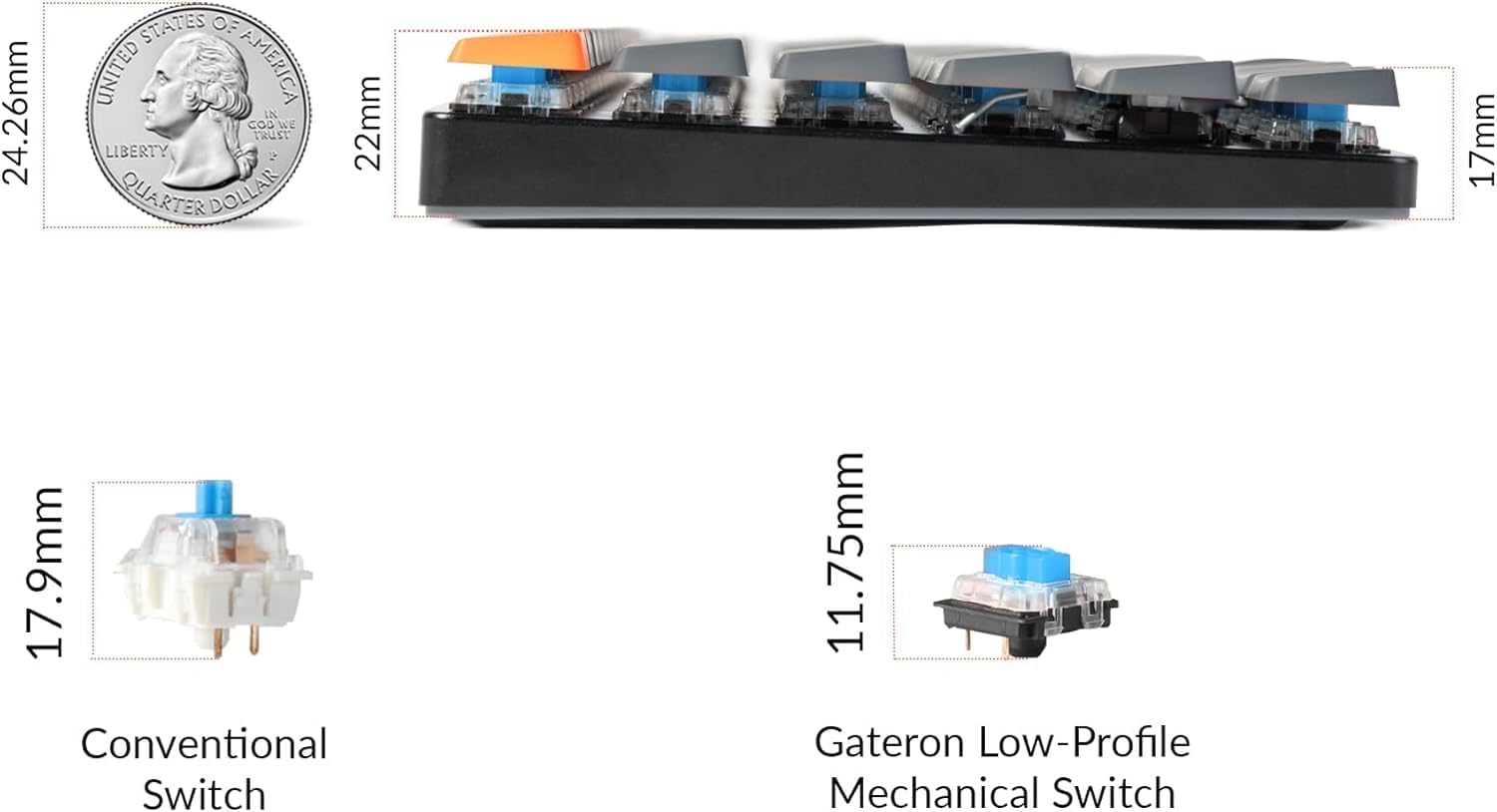
Immaġni: Ġenb view of the Keychron K3 illustrating its ultra-slim profile (0.79 inches) compared to a US quarter, and a comparison of conventional switches versus low-profile Gateron mechanical switches.
8. Garanzija u Appoġġ
Keychron products typically come with a manufacturer's warranty. For specific warranty terms and conditions, please refer to the official Keychron webis-sit jew l-informazzjoni dwar il-garanzija inkluża max-xiri tiegħek.
For further assistance, technical support, or to download the latest firmware and drivers, please visit the official Keychron support page. You can also refer to the comprehensive PDF documents provided: