
AKIA SCREENS AK-MOTORIZE104VW
Akia Screens Motorized Projector Screen User Manual
Model: AK-MOTORIZE104VW (104 inch, White Casing)
Marka: AKIA SCREENS
1. Prodott Aktarview
This manual provides comprehensive instructions for the installation, operation, and maintenance of your Akia Screens 104-inch Motorized Electric Remote Controlled Drop Down Projector Screen. Designed for optimal viewing experience, this screen features a MaxWhite 2 material, 1.1 gain, and is compatible with 4K Ultra HD and Active 3D projection. It is suitable for both ceiling and wall mounting in various environments such as offices and home theaters.

Image: The Akia Screens 104-inch motorized projector screen, showcasing its sleek design and compatibility with 4K, 8K, 3D, and HDR content.
2. Informazzjoni dwar is-Sigurtà
- Aqra l-istruzzjonijiet kollha bir-reqqa qabel l-installazzjoni u t-tħaddim.
- Kun żgur li l-provvista tal-enerġija taqbel mar-rekwiżiti speċifikati fuq it-tikketta tal-prodott.
- Do not attempt to disassemble or modify the screen. Refer all servicing to qualified personnel.
- Keep the screen away from heat sources, direct sunlight, and moisture.
- Use caution when mounting. Ensure ladders or step stools are on solid footing. Two people are recommended for hoisting the screen overhead.
3. Kontenut tal-Pakkett
Iċċekkja li l-komponenti kollha huma preżenti qabel tibda l-installazzjoni:
- Motorized Projector Screen Unit
- Kontroll mill-bogħod infra-aħmar (IR).
- Wall Box Controller with built-in IR sensor
- RJ50 Port for wired 12-volt trigger feature
- Installation Kit (mounting hardware for wall or ceiling)
- Manwal għall-Utent (dan id-dokument)
4. Setup u Installazzjoni
Follow these steps for proper installation of your projector screen. For a visual guide, please refer to the official installation video below.
Video: Official Akia Electric Motorized Projector Screen Installation Guide. This video demonstrates the unboxing, measuring, hardware installation, hanging, and initial operation of the screen.
4.1 Unboxing
Carefully open the packaging and remove the screen unit and accessories. Inspect for any visible damage before proceeding.
Immaġni: A view of the projector screen components after unboxing, including the screen unit and accessories.
4.2 Measuring and Mounting Points
Determine the desired location for your screen. The screen can be mounted on a wall or ceiling. Identify the flush wall mounting points and ceiling suspended loops on the screen casing. Measure the distance between these points to accurately mark your installation location.

Image: Close-up of the screen casing showing flush wall mounting points and ceiling suspended loops, along with a tape measure indicating dimensions.
4.3 Install Hardware
Using the provided installation kit, securely attach the mounting hardware to your wall or ceiling at the marked locations. Ensure the hardware is firmly anchored to studs or appropriate structural supports.
4.4 Hanging the Screen
With assistance, carefully lift the screen unit and attach it to the installed mounting hardware. Ensure the screen is level and securely fastened. Two people are recommended for this step to prevent injury or damage to the screen.
4.5 Konnessjoni tal-Enerġija
Plug the screen's power cord into a standard electrical outlet. The screen is designed for plug-and-play operation.
4.6 Initial Screen Lowering
Using the remote control, press the 'down' button to fully lower the screen for the first time. This will set the initial lower limit. The screen features user-friendly programmable vertical drop position for easy adjustment.
5. Istruzzjonijiet Operattivi
5.1 Operazzjoni tal-Kontroll mill-bogħod
The screen comes with an Infrared (IR) remote control and a wall box controller. Use the remote to raise or lower the screen. The wall box controller has a built-in IR sensor for convenient control.

Image: The remote control and wall box controller for the projector screen, illustrating the control system.
5.2 12-Volt Trigger Feature
The 12V trigger feature allows the screen's UP/DOWN operation to synchronize with your projector's power cycle via the wall box controller. Connect your projector's 12V trigger output to the RJ50 port on the wall box controller using a compatible cable (not included). When the projector powers on, the screen will automatically lower; when it powers off, the screen will retract.

Image: Diagram illustrating the 12-volt trigger feature, showing how the screen's movement synchronizes with the projector's power state.
6. Karatteristiċi u Komponenti
- Materjal tal-iskrin: MaxWhite 2, 1.1 Gain. Multi-layer weave with a 180-degree wide viewing angle. Fully black-backed front projection screen with a textured surface.
- Appoġġ għar-Riżoluzzjoni: 4K Ultra HD and Active 3D Projection Ready.
- Ċertifikazzjonijiet: GreenGuard and GreenGuard GOLD Certified | UL 2818.
- Casing: Durable metal housing for wall or ceiling installations.
- Masking Borders: Standard black-masking borders provide an increase in picture contrast.
- Sistema tal-Mutur: Tubular motor for swift operation and product longevity.

Immaġni: Dettaljata view of the screen's casing and black masking borders, highlighting the 4:3 aspect ratio.

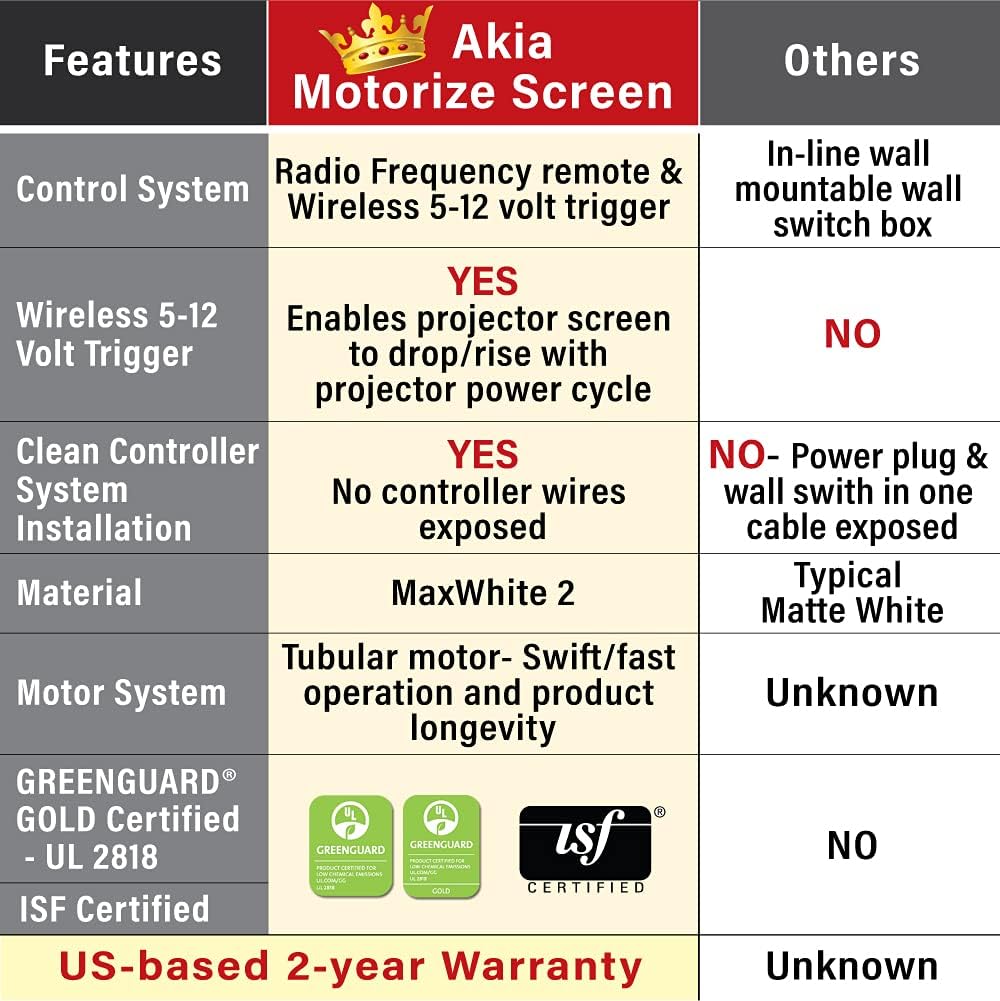
Image: A comparison table highlighting key features of the Akia Motorize Screen, including control system, 12-volt trigger, material, motor system, and certifications.
7. Manutenzjoni
To ensure the longevity and optimal performance of your projector screen, follow these maintenance guidelines:
- Tindif: The screen surface is easy to clean with mild soap and water. Use a soft, damp cloth and gently wipe the surface. Avoid abrasive cleaners or harsh chemicals.
- It-tfarfir: Regularly dust the screen casing and surface with a soft, dry cloth to prevent dust buildup.
- Ħażna: When not in use for extended periods, ensure the screen is fully retracted into its casing to protect the screen material.
8 Issolvi l-problemi
If you encounter issues with your projector screen, consider the following common troubleshooting steps:
- L-iskrin mhux qed jirrispondi:
- Iċċekkja jekk il-korda tal-enerġija hijiex imdaħħla sew f'sokit li jaħdem bil-kurrent.
- Kun żgur li l-batteriji tal-kontroll remot mhumiex eżawriti.
- Verify that the IR sensor on the wall box controller is not obstructed.
- Screen Not Fully Extending/Retracting:
- Check for any physical obstructions preventing the screen's movement.
- The screen has a programmable vertical drop position. If it's not extending fully, you may need to reset or adjust the lower limit setting (refer to specific instructions in the full product manual if available).
- Wrinkles or Creases on Screen:
- Minor creases from shipping may naturally smooth out over time with regular use.
- Ensure the screen is properly installed and tensioned.
For persistent issues, please contact customer support as detailed in the Warranty & Support section.
9. Speċifikazzjonijiet
| Karatteristika | Dettall |
|---|---|
| Daqs Djagonali | 104-il pulzier |
| Viewing Size (H x W) | 62.2-inch H x 83.1-inch W |
| Proporzjon ta' l-aspett | 4:3 HD Format |
| Overall Extended Size (H x W) | 71.7-inch H x 94.5-inch W (with Black Metal Housing) |
| Piż tal-Prodott | 19.07 liri |
| Materjal | Metal (casing), MaxWhite 2 (screen) |
| Tip ta 'Immuntar | Muntaġġ tal-ħajt u Muntatura tas-Saqaf |
| Kompatibilità | Not compatible with UST (Ultra Short Throw) Projectors |
Image: Diagram showing the overall and viewing dimensions of the 104-inch Akia motorized projector screen.
10. Garanzija u Appoġġ
Akia Screens provides comprehensive support for its products:
- Garanzija: 2-Year Manufacturer's Warranty by ISO9001 manufacturer since 2004.
- Appoġġ Tekniku: Lifetime Technical Support available via Email, Web Chat, or Toll-Free phone call by a U.S. Based Professional Service Team.
For assistance, please visit the official Akia Screens webis-sit jew ikkuntattja lit-tim ta' appoġġ tagħhom direttament.

Image: Visual representation of Akia Screens' US-based stock, service, and lifetime tech support, along with the 2-year warranty badge.
Ask a question about this manual
Ask about setup, troubleshooting, compatibility, parts, safety, or missing instructions. Manuals+ will review the question and use this page’s manual context to help answer it.