
1. Introduzzjoni
The Vimar 19593 Arké Connected IoT Actuator is an electronic control device designed for smart home environments. It features a NO 16 A relay output and supports dual IoT technology: Bluetooth 5.0 for the Vimar VIEW wireless mesh system and Zigbee 3.0 for broader compatibility. This actuator allows for both local control via a physical button and remote control through dedicated applications. It also includes instantaneous power measurement and energy consumption monitoring capabilities, along with an RGB LED for status indication and adjustable intensity.
This manual provides essential information for the safe installation, operation, and maintenance of your Vimar 19593 Arké Connected IoT Actuator.
2. Informazzjoni dwar is-Sigurtà
- Installazzjoni Elettrika: Installation must be performed by qualified personnel in compliance with local electrical codes and regulations.
- Provvista tal-Enerġija: Ensure the power supply (100-240 V ~ 50/60 Hz) matches the device specifications before installation.
- Skonnettja l-Enerġija: Always disconnect power at the main circuit breaker before performing any installation, wiring, or maintenance.
- Użu fuq ġewwa biss: This device is intended for indoor use in dry environments. Do not expose to moisture or extreme temperatures.
- Evita tagħbija żejda: Do not exceed the maximum load rating of 16 A for the relay output.
- Tfal u Pets: Żomm l-apparat u l-komponenti tiegħu fejn ma jintlaħqux mit-tfal u l-annimali domestiċi.
3. Prodott Aktarview
The Vimar 19593 Arké Connected IoT Actuator is a compact module designed for integration into standard electrical systems. It features a physical button for local control and pairing, and an RGB LED indicator for status feedback.

Figura 1: Quddiem view of the Vimar 19593 Arké Connected IoT Actuator. It is a dark gray rectangular module with a small indicator light and a circular button at the bottom.

Figura 2: Close-up of the actuator showing a symbol for wireless connectivity and the control button.
Komponenti Ewlenin:
- Buttuna tal-Kontroll: Used for local ON/OFF control and initiating the pairing process.
- Indikatur LED RGB: Provides visual feedback on device status, pairing mode, and can be adjusted for intensity.
- Ħruġ tar-Relay: Connects to the load (e.g., lights, appliances) for switching ON/OFF.
- Moduli bla fili: Integrated Bluetooth 5.0 and Zigbee 3.0 for smart home connectivity.
4. Setup
4.1 Installazzjoni Fiżika
- Skonnettja l-Enerġija: Qabel tibda, kun żgur li l-provvista ewlenija tal-enerġija għaż-żona tal-installazzjoni tkun mitfija mis-circuit breaker.
- Wiring: Connect the actuator according to the provided wiring diagram (typically found on the device itself or in the packaging). Ensure correct connection of live, neutral, and load wires to the appropriate terminals. This device is designed for modular, flush-mounted, or wall-mounted installations.
- Apparat Sikur: Mount the actuator securely within the electrical box or housing.
- Irrestawra l-Enerġija: Ladarba l-installazzjoni tkun tlestiet u l-konnessjonijiet kollha jkunu siguri, erġa' daħħal l-enerġija fis-circuit breaker.
4.2 Installazzjoni u Tqabbil tal-App
The Vimar 19593 supports two primary wireless technologies for smart home integration: Bluetooth 5.0 (via Vimar VIEW Wireless app) and Zigbee 3.0 (via compatible Zigbee hubs and apps).

Figura 3: Il-Vimar VIEW App icon, used for managing the actuator.
- Niżżel l-App: Niżżel il- Vimar VIEW Wireless app from your device's app store (for Bluetooth control) or a compatible Zigbee hub app (e.g., Amazon Alexa app for Zigbee).
- Oħloq Kont: Iftaħ l-app u oħloq kont jekk għadek m'għandekx wieħed.
- Ibda l-Modalità ta' Tqabbil: Press and hold the physical control button on the actuator for approximately 5 seconds. The RGB LED will begin to pulse blue, indicating it is in pairing mode.
- Żid Apparat fl-App: Follow the on-screen instructions in your chosen app to add a new device. The app should detect the Vimar 19593 actuator.
- Select Technology: Within the Vimar VIEW Wireless app, you can switch between Bluetooth and Zigbee modes if needed. For Zigbee, ensure your Zigbee hub is also in pairing mode.
- Imla Setup: Assign a name to your device and configure any initial settings as prompted by the app.
5. Istruzzjonijiet Operattivi
5.1 Kontroll Lokali
- ON/OFF: Briefly press the physical control button on the actuator to toggle the connected load ON or OFF.
5.2 Kontroll mill-Bogħod permezz tal-App
Once paired, you can control the actuator remotely using the Vimar VIEW Wireless app (for Bluetooth) or a compatible Zigbee app.
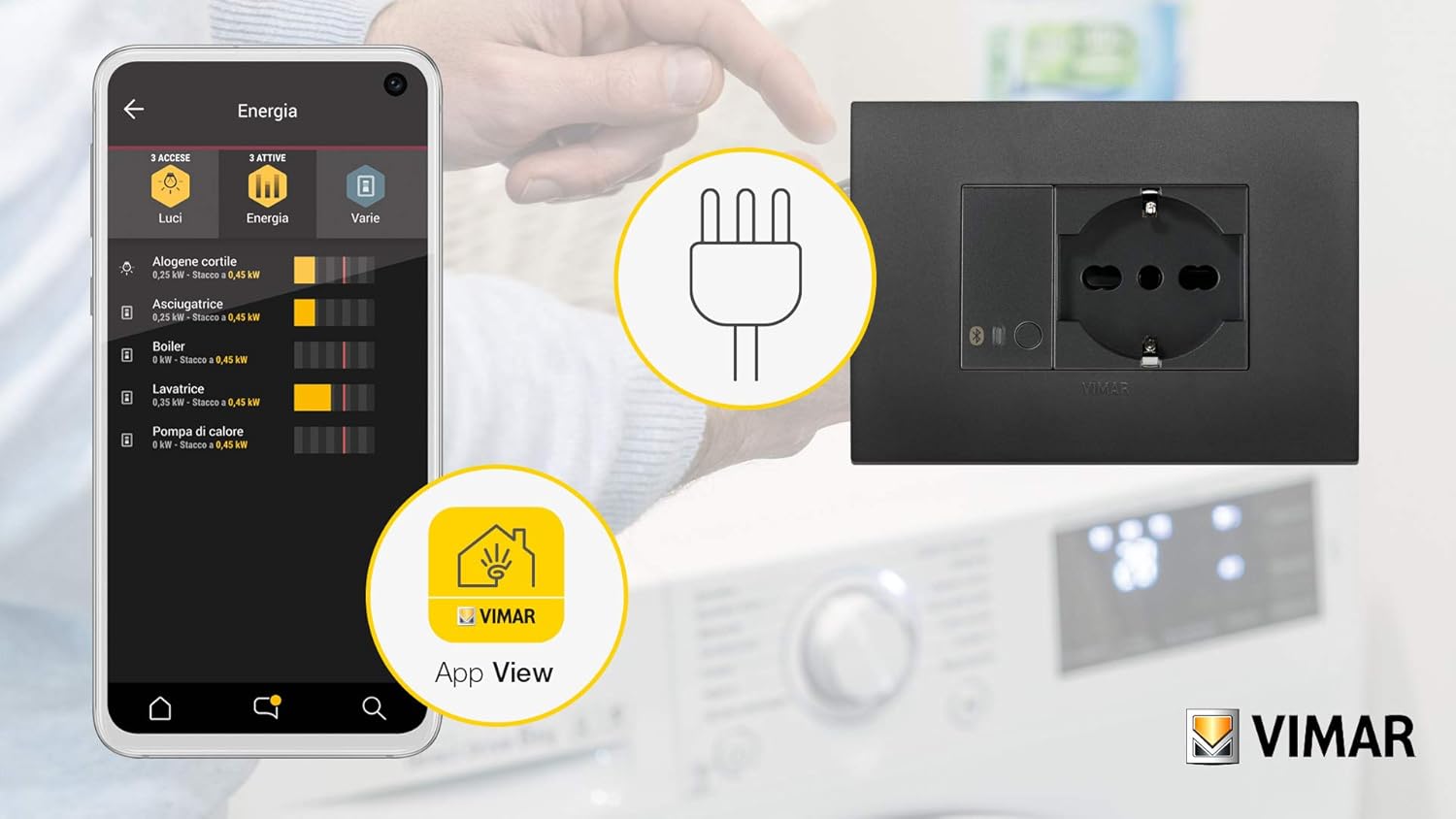
Figura 4: Example of the Vimar app interface showing energy monitoring for connected devices.
- Toggle Load: Open the app, select your Vimar 19593 actuator, and use the virtual button to switch the connected load ON or OFF.
- Monitoraġġ tal-Enerġija: The app provides real-time instantaneous power measurement and tracks consumed energy. This feature allows you to monitor the power usage of the connected appliance.
- RGB LED Adjustment: Adjust the intensity and potentially the color (if supported by the app) of the RGB LED indicator through the app settings.
5.3 Integrazzjoni tal-Kontroll tal-Vuċi
The actuator can be integrated with voice assistants through compatible smart home hubs (e.g., Amazon Alexa for Zigbee). Refer to your voice assistant's setup guide for integration steps.

Figura 5: Illustration of a smart plug (similar to actuator function) being controlled via voice commands and a smartphone app.
6. Manutenzjoni
- Tindif: Disconnect power before cleaning. Use a soft, dry cloth to wipe the device. Do not use liquid cleaners or abrasive materials.
- Aġġornamenti tal-Firmware: Periodically check the Vimar VIEW Wireless app for available firmware updates to ensure optimal performance and security. Follow the app's instructions for any update procedures.
- Kontrolli regolari: Occasionally inspect the device for any signs of damage or loose connections. If any issues are found, disconnect power and consult a qualified electrician.
7 Issolvi l-problemi
- Apparat mhux Jirrispondi:
- Iċċekkja jekk il-provvista tal-enerġija hijiex attiva.
- Ensure the device is properly wired.
- If using a Vimar Gateway, confirm it has an active internet (CLOUD) connection, as loss of connection may prevent operation.
- Kwistjonijiet ta' Tqabbil:
- Ensure the actuator's LED is pulsing blue, indicating pairing mode.
- Verify your smartphone or Zigbee hub is within range.
- If re-associating, you may need to switch the device to Bluetooth mode via the Vimar Arké app, then back to Zigbee. If this fails, temporarily remove power from the actuator and restore it to attempt a reset before re-pairing.
- LED Not Functioning as Expected (Zigbee Hub):
- When associated with a generic Zigbee hub, direct control over the LED's function and color may be limited. The LED typically reflects the actuator's ON (blue) or OFF (off) state.
- Power Consumption Readings Missing (Zigbee Hub):
- Some Zigbee integrations (e.g., ZHA) might not fully support reading power consumption data from this device. Verify compatibility with your specific Zigbee coordinator and integration.
- Irrisettjar tal-Fabbrika: To perform a factory reset, remove power from the device for a few seconds, then restore it. This may clear all pairing information.
8. Speċifikazzjonijiet
| Manifattur | Vimar |
| Numru tal-Mudell | 19593 |
| Dimensjonijiet tal-Prodott | 4.9 x 2.22 x 5.01 ċm |
| Piż | 40 gramma |
| Kulur | Griż |
| Voltage | 100-240 Volts AC |
| Frekwenza | 50/60 Hz |
| Output Relay | NO 16 A |
| Teknoloġija bla fili | Bluetooth 5.0, Zigbee 3.0 |
| Batteriji Meħtieġa | Nru |
| Pajjiż ta' Oriġini | l-Italja |
9. Garanzija
For information regarding the warranty period and terms for your Vimar 19593 Arké Connected IoT Actuator, please refer to the official Vimar website or the warranty documentation included with your purchase. Warranty policies may vary by region and retailer.
10. Appoġġ
For additional instructions, tutorials, and technical support, please visit the official Vimar support websit:
You can also contact Vimar customer service directly for assistance with product inquiries, troubleshooting, or warranty claims.