
Lenovo L24q-30
Lenovo L24q-30 23.8-inch QHD Monitor User Manual
Model: L24q-30
1. Introduzzjoni
This manual provides essential information for setting up, operating, and maintaining your Lenovo L24q-30 23.8-inch QHD monitor. The L24q-30 is designed to deliver a superior visual experience with its QHD (2560 x 1440) resolution, IPS panel, and >99% sRGB color gamut. It features AMD FreeSync technology, a 75Hz refresh rate, and a 4ms response time for smooth visuals. The monitor is TüV Eye Comfort certified, reducing blue light and flicker for extended viewing comfort. Connectivity options include HDMI 1.4 and DisplayPort 1.2, along with a 3.5mm audio output.
2. Informazzjoni dwar is-Sigurtà
Please read this section carefully before using your monitor to ensure safe and proper operation.
- Dejjem poġġi l-monitor fuq wiċċ stabbli u ċatt biex tevita li jaqa'.
- Aċċerta ruħek li jkun hemm ventilazzjoni xierqa madwar il-monitor. Timblokkax il-fetħiet tal-ventilazzjoni.
- Use only the power adapter and cables supplied with the monitor.
- Tesponix il-monitor għax-xita jew għall-umdità biex tevita xokk elettriku.
- Aqla 'l-monitor mill-iżbokk tad-dawl qabel it-tindif.
- Evita li tmiss l-iskrin b'oġġetti li jaqtgħu.
- If any unusual smoke, noise, or odor occurs, immediately unplug the monitor and contact customer support.
3. Kontenut tal-Pakkett
Ivverifika li l-oġġetti kollha huma preżenti fil-pakkett tiegħek:
- Lenovo L24q-30 Monitor
- Monitor Stand Base
- Għonq tal-Stand tal-Monitor
- Kejbil tal-Enerġija
- Cable HDMI
- Quick Setup Guide / Warranty Card
4. Setup
4.1 L-Immuntar tal-Istand tal-Monitor
- Carefully remove the monitor from its packaging, placing it face down on a soft, clean cloth to protect the screen.
- Waħħal l-għonq tal-istand mal-pannell tal-monitor billi tallinja t-tabs u timbotta sakemm tikklikkja f'postu.
- Waħħal il-bażi tal-istand mal-għonq tal-istand. Waħħalha bil-kamin captive li jinsab fuq in-naħa ta’ taħt tal-bażi.
- Gently lift the assembled monitor and place it upright on a stable surface.

Figura 4.1: Ġenb view of the monitor with the stand attached, showing its slim profile.
4.2 Kejbils tal-Konnessjoni
Refer to the image below for port locations on the back of the monitor.
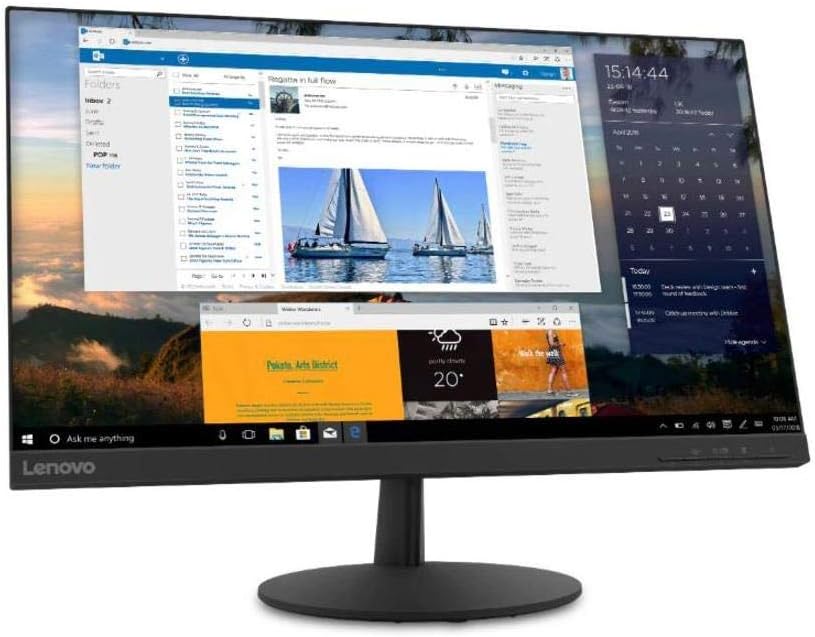
Figura 4.2: Wara view of the monitor, highlighting the power input, HDMI, DisplayPort, and audio output ports.
- Konnessjoni tal-Enerġija: Connect the power cable to the monitor's power input port, then plug the other end into a grounded electrical outlet.
- Konnessjoni tal-vidjo:
- For HDMI: Connect one end of the HDMI cable to the monitor's HDMI port and the other end to the HDMI output port on your computer.
- For DisplayPort: Connect one end of the DisplayPort cable to the monitor's DisplayPort and the other end to the DisplayPort output on your computer.
- Ħruġ tal-Awdjo (Mhux obbligatorju): If you wish to connect external speakers or headphones directly to the monitor, plug them into the 3.5mm audio out port.
4.3 Tixgħel Inizjali
Press the power button located on the front or bottom bezel of the monitor. The power indicator light will illuminate. If no image appears, ensure all cables are securely connected and your computer is powered on.
5. It-tħaddim tal-Monitor
5.1 Kontrolli tal-Wiri fuq l-Iskrin (OSD)
The monitor features control buttons, typically located on the bottom right bezel, to access and navigate the On-Screen Display (OSD) menu. These buttons allow you to adjust various monitor settings.
- Buttuna tal-Qawwa: Ixgħel jew jitfi l-monitor.
- Buttuna tal-menu: Jiftaħ il-menu OSD.
- Buttuni tan-Navigazzjoni ('il fuq/'l isfel/'il fuq/'il fuq/'il fuq): Użat biex tinnaviga fl-għażliet tal-menù u taġġusta l-valuri.
- Buttuna Enter/Select: Jikkonferma għażla jew jidħol f'submenù.
- Buttuna tal-Ħruġ: Exits the current menu or returns to the previous level.
5.2 Aġġustament tas-Settings
Biex taġġusta s-settings tal-monitor:
- Agħfas il- Menu buttuna biex tiftaħ l-OSD.
- Use the navigation buttons to select a category (e.g., Picture, Color, Input).
- Agħfas Daħħal/Agħżel to enter the category.
- Use navigation buttons to adjust values (e.g., Brightness, Contrast, Color Temperature) or select sub-options.
- Agħfas Daħħal/Agħżel biex tikkonferma l-bidliet.
- Agħfas Ħruġ biex tħalli l-menu OSD.
5.3 Activating AMD FreeSync
To utilize AMD FreeSync technology, ensure your graphics card supports FreeSync and that it is enabled in your graphics card's control panel. Then, navigate to the OSD menu on your monitor, typically under a 'Gaming' or 'Display' section, and enable the FreeSync option.
5.4 Adjusting Refresh Rate
The monitor supports a 75Hz refresh rate. To set this, you may need to adjust the display settings within your operating system (e.g., Windows Display Settings or macOS System Preferences) after connecting the monitor. Select the highest available refresh rate for optimal performance.
6. Manutenzjoni
6.1 Tindif tal-Monitor
- Skrin: Imsaħ l-iskrin bil-mod b'ċarruta ratba u mingħajr suf. Għal marki persistenti, nixxef bil-modampLaħlaħ id-drapp bl-ilma jew b'tindif tal-iskrin mingħajr ammonja u mingħajr alkoħol. Tisprejjax it-tindif direttament fuq l-iskrin.
- Casing: Uża drapp artab u niexef biex timsaħ il-monitor casing. Evita prodotti tat-tindif jew solventi li joborxu.
- Dejjem aqla l-monitor qabel it-tindif.
6.2 Ħażna
If storing the monitor for an extended period, disconnect all cables and pack it in its original packaging if possible. Store in a cool, dry place away from direct sunlight and extreme temperatures.
7 Issolvi l-problemi
Jekk tiltaqa' ma' problemi bil-monitor tiegħek, irreferi għall-problemi u s-soluzzjonijiet komuni li ġejjin:
| Problema | Soluzzjoni Possibbli |
|---|---|
| Ebda enerġija / LED tal-enerġija mitfi | Ensure the power cable is securely connected to both the monitor and the electrical outlet. Check the power outlet with another device. |
| Ebda immaġni / messaġġ "Ebda Sinjal" | Verify the video cable (HDMI/DisplayPort) is securely connected to both the monitor and the computer. Ensure the correct input source is selected in the OSD menu. Check if the computer is powered on and not in sleep mode. |
| L-immaġni hija mċajpra jew distorta | Ensure the monitor's native resolution (2560x1440) is selected in your computer's display settings. Adjust brightness, contrast, and sharpness settings in the OSD menu. |
| Teptip tal-iskrin | Check the video cable for damage or loose connections. Ensure the refresh rate is set correctly (75Hz). Disable FreeSync temporarily to see if it resolves the issue. |
| Il-kuluri mhumiex korretti | Adjust color settings (Color Temperature, Gamma) in the OSD menu. Reset color settings to factory defaults. |
8. Speċifikazzjonijiet
| Karatteristika | Dettall |
|---|---|
| Isem tal-Mudell | Lenovo L24q-30 |
| Daqs tal-Iskrin | 23.8 Pulzier |
| Tip ta' Panel | IPS (Qlib fil-Pjan) |
| Riżoluzzjoni | QHD (2560 x 1440) |
| Proporzjon ta' l-aspett | 16:9 |
| Riffriskar Rata | 75 Hz |
| Ħin ta' Rispons | 4 ms |
| Gamut tal-Kulur | > 99% sRGB |
| Proporzjon ta' Kuntrast Dinamika | 3M:1 |
| ViewIng Angolu | 178° (H/V) |
| Konnettività | 1x HDMI 1.4, 1x DisplayPort 1.2, 1x Ħruġ tal-Awdjo (3.5mm) |
| Kompatibilità tal-Immonta VESA | 100 mm x 100 mm |
| Eye Comfort Certification | TüV Rheinland Eye Comfort |
| Dimensjonijiet (bl-istand) | Approx. 21 x 38 x 49 inches (W x D x H) - Note: These dimensions may refer to packaging. Refer to product documentation for exact monitor dimensions. |
| Piż (bl-istand) | Approx. 1 pound - Note: This weight appears to be incorrect for a monitor. Refer to product documentation for exact weight. |
| Kulur | Iswed |
9. Garanzija u Appoġġ
For detailed warranty information, please refer to the warranty card included in your product package or visit the official Lenovo support website. The warranty covers manufacturing defects under normal use conditions.
For technical support, driver downloads, or service inquiries, please visit the Lenovo Support website or contact their customer service department. Have your monitor's model number (L24q-30) and serial number ready when contacting support.
Appoġġ Lenovo Websit: support.lenovo.com