
1. Introduzzjoni
The SUNTRSI Y-BD 4-in-1 Multi-Port SD Card Reader is a versatile device designed for seamless data transfer between various platforms. It supports SD and Micro SD (TF) cards and features multiple connectors including USB, USB-C, Micro USB, and Lightning for broad compatibility with iPhone, iPad, Android devices, Mac, and Windows computers. This reader facilitates efficient management of photos, videos, and other files, offering a convenient solution for expanding storage and sharing content.
2. Prodott Aktarview
The SUNTRSI Y-BD card reader integrates multiple connection types and card slots into a single compact unit. This design ensures compatibility with a wide range of devices and memory card formats.

Figura 1: Aktarview of the SUNTRSI 4-in-1 Multi-Port SD Card Reader, highlighting its various connectors and card slots for universal compatibility.
Komponenti Ewlenin:
- Konnettur USB 3.0: For connecting to computers and laptops.
- Konnettur USB-C: For modern Android devices, MacBooks, and other USB-C enabled computers.
- Konnettur Mikro USB: For older Android devices and other compatible peripherals.
- Konnettur tas-Sajjetti: Specifically designed for iPhone and iPad devices.
- Slot tal-Kard SD: Supports standard SD, SDHC, and SDXC cards.
- Slott tal-Kard Mikro SD (TF): Supports Micro SD, Micro SDHC, and Micro SDXC cards.
- Port tal-Iċċarġjar: Allows simultaneous charging of iOS devices while transferring data.
3. Setup
The SUNTRSI Y-BD card reader is designed for plug-and-play functionality, requiring no additional drivers or applications for most operating systems (iOS 8.0+, Android OTG, Mac OS, Windows).
Konnessjoni Inizjali:
- Identify the appropriate connector on the card reader for your device (USB, USB-C, Micro USB, or Lightning).
- Insert your SD or Micro SD (TF) card into the corresponding slot on the reader. Ensure the card is inserted correctly until it clicks into place.
- Connect the card reader to your smartphone, tablet, or computer.
- For Android users, ensure that the OTG (On-The-Go) function is enabled in your device settings if you encounter connection issues.

Figure 2: The card reader offers plug-and-play functionality, eliminating the need for additional applications for quick setup.
4. Istruzzjonijiet Operattivi
Data Transfer (iOS Devices - iOS 13 and Later):
For iPhone/iPad with iOS 13 or later, use the built-in 'Files' app for two-way data transfer.
Transfer from SD Card to iPhone/iPad:
- Connect the card reader with an inserted SD card to your iPhone/iPad.
- Iftaħ il-'Files' app. The SD card will appear under 'Locations' (e.g., 'Untitled').
- Navigate to the desired folder (e.g., DCIM) and select the photos/videos you wish to transfer.
- Tap the 'Share' icon, then select 'Save Image' or 'Save to Files' to save them to your device's Photos app or a specific folder.
Video 1: User guidance for transferring files from an SD card to an iPhone/iPad using the SUNTRSI 4-in-1 SD Card Reader.
Transfer from iPhone/iPad to SD Card:
- Connect the card reader with an inserted SD card to your iPhone/iPad.
- Open the 'Photos' app on your iPhone/iPad.
- Select the photos/videos you wish to transfer.
- Tap the 'Share' icon, then select 'Save to Files'.
- Choose the connected SD card (e.g., 'Untitled') as the destination and tap 'Save'.

Figure 3: Visual guide for transferring selected photos from an iPhone/iPad to an inserted SD card via the Files app.
Simultaneous Charging (iOS Devices):
The card reader features a dedicated charging port for iOS devices. This allows you to charge your iPhone or iPad concurrently while transferring data, preventing power interruptions during large file trasferimenti.
- Connect the card reader to your iOS device.
- Plug your iOS charging cable into the charging port on the card reader.
- Proceed with data transfer as usual. Your device will charge simultaneously.

Figure 4: The card reader supports simultaneous charging of your device while data transfer is in progress.
Data Transfer (Android/Mac/Computer):
For Android devices (with OTG support), Mac, and Windows computers, the card reader functions as a standard external storage device.
- Connect the card reader with an inserted SD/TF card to your device using the appropriate USB, USB-C, or Micro USB connector.
- L-apparat tiegħek file manager or operating system will recognize the card reader as an external drive.
- Iddreggja u qiegħed files between your device's internal storage and the SD/TF card as needed.

Figure 5: The card reader allows direct upload of photos and videos from various cameras to your smartphone or computer.
5. Kompatibilità
Apparat Appoġġjat:
- Apparati iOS: All iPhone models with iOS 8.0 and up, and iPads with iOS 8.0 or later.
- Apparat Android: OTG-enabled Android phones and tablets.
- Kompjuters: Devices with USB ports, including Mac OS and Windows operating systems.
Kards tal-Memorja Appoġġjati:
- SD Card (Standard SD, SDHC, SDXC)
- Micro SD Card (TF Card, Micro SDHC, Micro SDXC)
- Maximum supported capacity: 512GB.
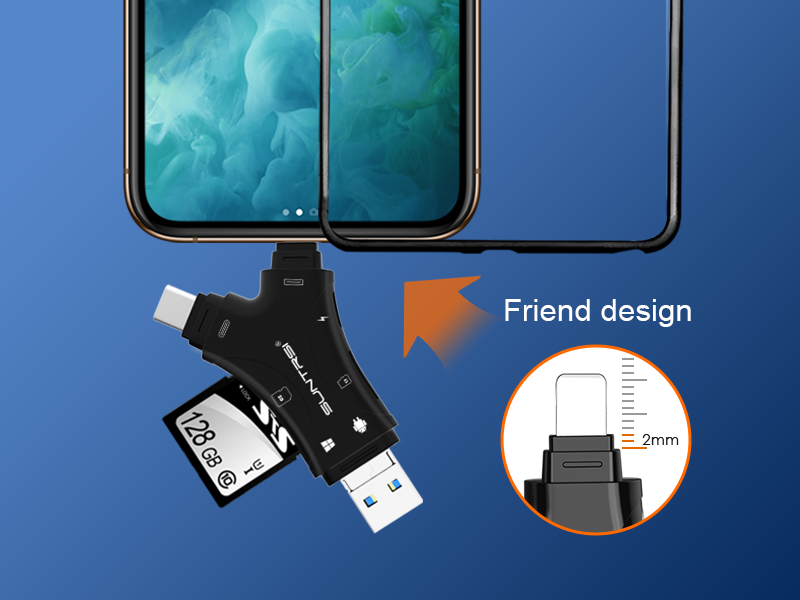
Figure 6: The card reader supports a wide range of SD and Micro SD card formats.
6. Appoġġjati File Formati
The card reader supports a variety of file formats for pictures, text, video, and music, allowing for broad media management.
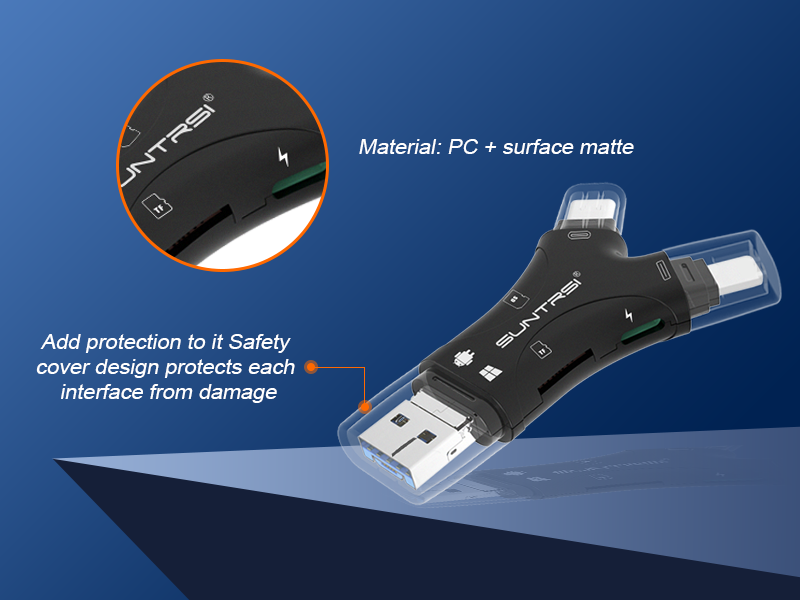
Figure 7: Supported file formats for various media types.
| Kategorija | Formati appoġġjati |
|---|---|
| Stampa | JPG, JPEG, PNG, BMP, GIF, TIFF, ICO, XBM, CUR, CR2, BNG, ORF, NEF, RAM, CRW, RAF, SR2, DNG, X3F, PEF, MEF, MRW, HEIC, HEIF |
| Test | TXT, HTML, C, JAVA, PAGES, NUMBERS, KEYNOTE, PDF, DOC, DOCX, XLS, XLSX, PPT, PPTX, RTF, XML, JSON, PLIST |
| Video | MP4, MOV, MAV, MKV, AVI, FLV, F4V, RMVB, WMV, VOB, 3GP, RM, MLV, MP2, MPE, MPG, WMAA, MPEG, M4V, PGPP, 3GPP2, WEBM, MTS, TS, TP, ASPASX, QT, DAT, OGV, OGG, VIV, VIVO, AVS, SWF, YUV264, V264, H264 |
| Mużika | MP3, CAF, WAV, M4A, AAC, AIF, AIFF, WMA |
| Lista tal-Posta | VCF |
7. Manutenzjoni
To ensure the longevity and optimal performance of your SUNTRSI Y-BD card reader, follow these maintenance guidelines:
- Żomm Nadif: Regularly clean the connectors and card slots with a soft, dry, lint-free cloth. Avoid using liquids or abrasive cleaners.
- Ipproteġi l-Konnetturi: Utilize the protective caps for the connectors when not in use to prevent dust and damage.
- Immaniġġja b'Kura: Avoid dropping the device or subjecting it to excessive force.
- Ħażna: Aħżen il-qarrej tal-kards f'post frisk u niexef 'il bogħod mix-xemx diretta u minn temperaturi estremi.
- Tajjeb Sikur: The connector base is designed to be 2mm longer than normal, ensuring a secure connection even with most phone cases. However, for bulkier cases, a connection issue might occur.

Figure 8: The extended connector design ensures a reliable connection with most phone cases.
8 Issolvi l-problemi
Kwistjonijiet Komuni u Soluzzjonijiet:
- Apparat Mhux Rikonoxxut:
- Ensure the card reader is fully inserted into your device's port.
- Check if your Android device has OTG function enabled in settings.
- Try connecting to a different port or device to rule out port-specific issues.
- SD/TF Card Not Detected:
- Ensure the memory card is inserted correctly and fully into its slot.
- Try using a different memory card to check if the issue is with the card itself.
- Iċċekkja li l-karta tal-memorja mhix bil-ħsara jew korrotta.
- Trasferiment tad-Data bil-mod:
- Ensure you are using a high-speed memory card (e.g., Class 10 or UHS-I/II).
- Agħlaq kwalunkwe applikazzjoni mhux meħtieġa li tkun qed taħdem fl-isfond fuq it-tagħmir tiegħek.
- For optimal speed, use USB 3.0 ports on compatible computers.
- iOS Device Not Charging:
- Ensure your iOS charging cable is securely connected to both the card reader's charging port and a power source.
- Iċċekkja li l-kejbil tal-iċċarġjar u l-adapter tal-enerġija jaħdmu.
9. Speċifikazzjonijiet
| Karatteristika | Dettall |
|---|---|
| Brand | SUNTRSI |
| Numru tal-Mudell | Y-BD |
| Teknoloġija tal-Konnettività | Micro USB, USB, USB Type C |
| Tip tal-Midja | SD, MikroSD (TF) |
| Karatteristika Speċjali | Plug & Play, Simultaneous Charging (for iOS) |
| Kompatibilità tas-Sistema Operattiva | Android (OTG), Mac OS, iOS 8.0+, Windows |
| Maximum Supported Capacity | 512GB |
| Piż tal-oġġett | 0.35 uqija |
| Dimensjonijiet tal-Prodott (LxWxH) | 2.3 x 1.5 x 0.4 pulzieri |
| Kulur | Iswed |
10. Garanzija u Appoġġ
SUNTRSI is committed to providing high-quality products and excellent customer service. For any product defects or issues, please contact our support team for assistance.
- Servizz tal-Klijent: We aim to provide a satisfactory solution within 24 hours for any product defects.
- Kuntatt: For support, please refer to the contact information provided with your product packaging or visit the official SUNTRSI websit.

Figure 9: SUNTRSI brand commitment to customer satisfaction.