
Introduzzjoni
The ASUS ProArt Z490-CREATOR 10G is an ATX content creation motherboard designed for Intel LGA 1200 processors. It features robust power delivery, high-speed connectivity options including Thunderbolt 3 Type-C, 10G LAN, and 2.5G Intel LAN, and multiple M.2 slots for storage. This manual provides essential information for setting up, operating, and maintaining your motherboard.
Setup
1. Spakkjar u Spezzjoni
Carefully remove the motherboard and its accessories from the packaging. Inspect all components for any signs of damage. Ensure all listed accessories are present.

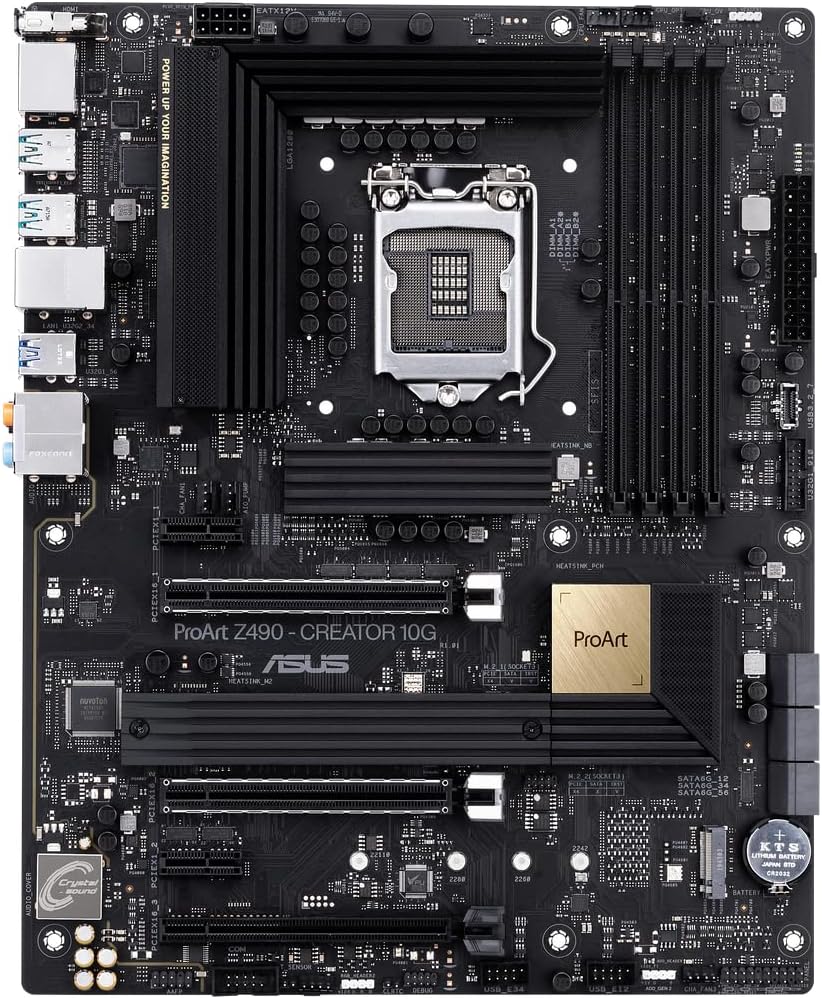
Immaġni: Minn fuq għal isfel view of the ASUS ProArt Z490-CREATOR 10G motherboard, showcasing the CPU socket, RAM slots, and PCIe slots.
2. It-Tqassim tal-Motherboard Fuqview
Familiarize yourself with the main components and connectors on the motherboard. Key areas include the CPU socket (LGA 1200), DDR4 memory slots, PCIe expansion slots, M.2 slots, SATA ports, and the rear I/O panel.
Immaġni: Angolata view of the motherboard, highlighting the heatsinks and various connectors.
3. Installazzjoni tas-CPU (LGA 1200)
- Iftaħ il-lieva tas-sokit tas-CPU u erfa' l-pjanċa tat-tagħbija.
- Carefully align the Intel 10th Gen Core processor with the socket, ensuring the golden triangle on the CPU matches the triangle on the socket.
- Poġġi s-CPU bil-mod fis-sokit. Tisforzahx.
- Agħlaq il-pjanċa tat-tagħbija u imbotta l-lieva 'l isfel sakemm tissakkar f'postha.
4. Installazzjoni tar-RAM (DDR4)
- Iftaħ il-klipps fuq iż-żewġt itruf tas-slots tal-memorja DDR4.
- Allinja l-modulu tal-memorja mas-slott, filwaqt li tiżgura li l-islott fuq il-modulu taqbel maċ-ċavetta fis-slott.
- Agħfas sew 'l isfel fuq iż-żewġt itruf tal-modulu tal-memorja sakemm il-klipps jidħlu f'posthom.
- For optimal performance, install memory modules in the recommended dual-channel configuration as per the motherboard manual.
5. Installazzjoni ta' Apparat tal-Ħażna
SSDs M.2
- Sib is-slots tal-M.2 fuq il-motherboard. Xi slots jistgħu jkunu mgħottija b'heatsinks.
- Neħħi l-vit M.2 u l-istandoff.
- Daħħal l-M.2 SSD fl-islott f'angolu ta' 30 grad.
- Imbotta l-SSD 'l isfel u waħħalha bil-vit M.2.
- Nota: M.2_1 can operate in PCIe or SATA mode. If M.2_1 is set to SATA mode, SATA2 port will be disabled. If M.2_2 is set to PCIe 4x mode, SATA5 and SATA6 ports will be disabled. Refer to the full manual for detailed configurations.
Drives SATA
- Qabbad tarf wieħed tal-kejbil tad-dejta SATA ma' port SATA fuq il-motherboard.
- Qabbad it-tarf l-ieħor tal-kejbil tad-dejta SATA mal-hard drive SATA jew SSD tiegħek.
- Qabbad kejbil tal-enerġija SATA mill-unità tal-provvista tal-enerġija (PSU) tiegħek mad-drajv.
6. Installazzjoni tal-Karta tal-Espansjoni
Karta Grafika
- Open the retention clip on the primary PCIe x16 slot.
- Align your graphics card with the slot and press down firmly until it seats correctly and the retention clip locks.
- Waħħal il-karta grafika max-chassis tiegħek bil-viti.
- Qabbad kwalunkwe kejbil tal-enerġija PCIe meħtieġ mill-PSU tiegħek mal-karta grafika.
HYPER 10G LAN Card
The motherboard includes a HYPER 10G LAN card. Install this card into an available PCIe slot. Note that populating the PCIEx16_3 slot may disable Thunderbolt 3 functionality. Consider installing the 10G card in the PCIEx16_2 slot if Thunderbolt 3 is critical for your workflow, understanding that your GPU might operate at x8 speed in the primary slot.

Image: The ASUS HYPER 10G LAN card, an accessory included with the motherboard.
7. Konnessjonijiet tal-Enerġija
- Qabbad il-konnettur tal-enerġija ATX ta' 24-pin mill-PSU tiegħek mal-motherboard.
- Qabbad il-konnettur(i) tal-enerġija tas-CPU ta' 8-pinnijiet (jew 4+4-pinnijiet) mill-PSU tiegħek mal-motherboard.
8. Konnessjonijiet tal-I/O tal-Pannell ta' Quddiem u ta' Wara
- Connect the front panel headers (power button, reset button, HDD LED, power LED) to the corresponding pins on the motherboard.
- Qabbad il-headers tal-USB u tal-awdjo tal-pannell ta' quddiem.
- Connect peripherals to the rear I/O panel ports, including USB devices, Ethernet cables, and audio devices.

Immaġni: Close-up view of the rear I/O panel, showing various USB ports, Ethernet ports, and audio jacks.
Istruzzjonijiet Operattivi
1. First Boot and BIOS/UEFI Access
Wara li tiġbor is-sistema tiegħek, ixgħelha. Agħfas il-buttuna DEL or F2 ċavetta waqt l-istartjar biex tidħol fl-utilità tas-setup tal-BIOS/UEFI.
2. Konfigurazzjoni tal-BIOS/UEFI
- Ordni tal-Ibbutjar: Configure your boot device priority to install your operating system.
- XMP Profile: If using high-speed RAM, enable the XMP (Extreme Memory Profile) for optimal memory performance. Attenzjoni: Enabling XMP with four RAM sticks may lead to system instability. It is generally more stable with two sticks.
- Intel Platform Trust Technology (PTT) / TPM: For Windows 11 compatibility, enable PTT in the BIOS. This functions as a firmware-based TPM 2.0. If using a discrete TPM module, ensure it is correctly installed and enabled.
- Grafika Integrata: If using a discrete graphics card and experiencing issues with NTFS formatted drives, consider disabling integrated graphics and enabling CSM (Compatibility Support Module) in the BIOS.
3. Installazzjoni tas-sewwieq
Wara li tinstalla s-sistema operattiva tiegħek, installa d-drajvers kollha meħtieġa mill-appoġġ tal-ASUS website or the included driver CD/USB. This includes chipset drivers, audio drivers, LAN drivers, and graphics drivers.
4. Ċentru tal-Ħallieq ta' ProArt
The ProArt Creator Hub is a centralized software utility for monitoring and managing ASUS ProArt series products. Install it to optimize your content creation workflows, manage system settings, and monitor performance.
Manutenzjoni
- Tneħħija tat-Trab: Regularly clean dust from your PC case and motherboard components using compressed air to prevent overheating.
- Aġġornamenti tal-BIOS: Iċċekkja l-appoġġ tal-ASUS perjodikament website for BIOS updates. BIOS updates can improve stability, compatibility, and performance. Follow the instructions provided by ASUS carefully when updating the BIOS.
- Aġġornamenti tas-sewwieq: Żomm id-drajvers tas-sistema tiegħek aġġornati biex tiżgura prestazzjoni ottimali u kompatibilità ma' softwer u ħardwer ġdid.
Issolvi l-problemi
- L-ebda Output tal-Wiri:
- Ensure your monitor is connected to the correct graphics output (either integrated graphics or discrete graphics card).
- If using a discrete graphics card, ensure it is fully seated and has all necessary power connections.
- Jekk qed tuża grafika integrata, kun żgur li s-CPU tiegħek jappoġġjaha.
- Instabbiltà / Ħabtiet tas-Sistema:
- Check RAM seating and configuration. If using four RAM sticks with XMP, try disabling XMP or using only two sticks.
- Kun żgur li l-cooler tas-CPU huwa installat sew u jagħmel kuntatt tajjeb.
- Iċċekkja li l-konnessjonijiet kollha tal-enerġija huma siguri.
- M.2 / SATA Port Conflicts:
- Refer to the "Storage Device Installation" section and the full motherboard manual regarding M.2 slot usage and its impact on SATA port availability.
- Thunderbolt 3 / 10G LAN Card Conflicts:
- If Thunderbolt 3 is not functioning with the 10G LAN card installed, check the BIOS setting for 'PCIE connection to USB4' and ensure it's configured correctly, or consider the PCIe slot placement as mentioned in the "Expansion Card Installation" section.
- Windows 11 TPM Compatibility:
- Ensure Intel PTT is enabled in the BIOS for TPM 2.0 functionality.
Speċifikazzjonijiet
| Karatteristika | Speċifikazzjoni |
|---|---|
| Brand | ASUS |
| Isem tal-Mudell | ProART Z490-CREATOR 10G |
| Socket tas-CPU | LGA 1200 |
| Proċessuri Kompatibbli | 10 Ġenerazzjoni Intel Core |
| Tip ta' Ċipset | Intel Z490 |
| Teknoloġija tal-Memorja RAM | DDR4 |
| Veloċità tal-Arloġġ tal-Memorja | 4700 MHz (Mass) |
| Ram Memory Maximum Size | 128 GB |
| Slots tal-Memorja Disponibbli | 4 |
| Portijiet SATA Totali | 6 |
| Portijiet USB totali | 9 (Rear I/O) + Front Panel Headers |
| Portijiet Thunderbolt | 2 x Thunderbolt 3 Type-C |
| LAN | 10G LAN Card, Onboard 2.5G Intel LAN |
| Interface tal-Kard Grafika | PCI Express |
| Total PCIe Ports | 16 (various slots) |
| Tip ta 'Konnettur tal-Enerġija Prinċipali | 24-Pin |
| Pjattaforma | Windows 10 (Compatible with Windows 11) |
| Piż tal-oġġett | 2.7 Liri |
Garanzija u Appoġġ
The ASUS ProArt Z490-CREATOR 10G motherboard comes with a 3-year warranty. For technical support, driver downloads, or further assistance, please visit the official ASUS support website. Always refer to the complete motherboard manual for detailed information and advanced configurations.