
HUAWEI B818-263
Manwal tal-Utent tar-Router HUAWEI B818-263 LTE
Model: B818-263 | Brand: HUAWEI
1. Prodott Aktarview
The HUAWEI B818-263 is an advanced LTE router designed to provide high-speed internet connectivity. It supports 4G+ networks, offering theoretical downlink speeds of up to 1.6 Gbps and uplink speeds of up to 150 Mbps. This device is equipped with 4x4 MIMO antenna technology and carrier aggregation for enhanced performance and stability.
The router features a sleek, minimalist design and provides multiple connectivity options, including wired Ethernet ports and dual-band Wi-Fi. It is an ideal solution for home and small office environments requiring reliable and fast wireless broadband.

Figura 1: Quddiem view of the HUAWEI B818-263 LTE Router, showing the HUAWEI logo and indicator lights for Tel, Status, LAN, WiFi, and Mode.
2. Kontenut tal-Pakkett
Qabel ma tibda, jekk jogħġbok ivverifika li l-oġġetti kollha huma preżenti fil-pakkett tiegħek:
- HUAWEI B818-263 LTE Router
- Adapter tal-Enerġija
- Flat LAN Cable
- Gwida Quick Start (Stampata)

Figure 2: The product packaging for the HUAWEI 4G Router 3 Prime (B818-263).
3. Gwida ta' Setup
3.1 Installazzjoni tal-Karta SIM
- Kun żgur li r-router huwa mitfi.
- Locate the micro SIM card slot at the bottom of the router.
- Insert your micro SIM card into the slot with the gold contacts facing down and the notched corner oriented correctly, until it clicks into place.
3.2 Konnessjoni tar-Router
- Konnessjoni tal-Enerġija: Connect the power adapter to the router's power port and then plug it into a wall outlet.
- Konnessjonijiet LAN: Use the provided LAN cable to connect your computer or other network devices to one of the two Gigabit RJ45 LAN ports on the rear of the router. One of these ports can also function as a WAN port for an external internet source.
- Konnessjoni USB: If desired, connect a USB storage device to the USB 2.0 port for network sharing.
- External Antennas (Optional): For improved signal reception, connect compatible external antennas to the two external antenna ports on the rear.
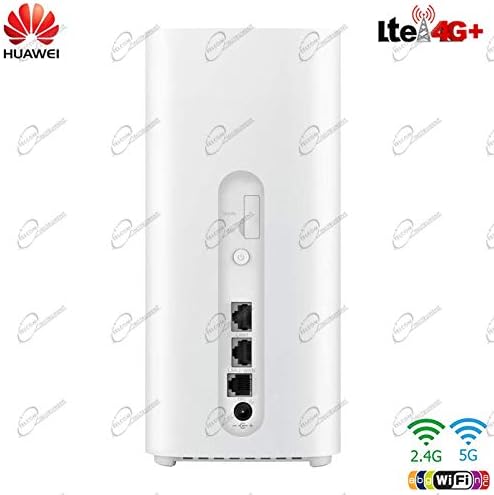
Figura 3: Wara view of the HUAWEI B818-263 LTE Router, highlighting the various ports and connections.
4. Istruzzjonijiet Operattivi
4.1 Powering On and Indicator Lights
After connecting the power, press the power button on the rear of the router. The indicator lights on the front panel will illuminate, providing status information:
- Qawwa: Jindika l-istatus tal-enerġija.
- Status: Jindika l-istatus tal-konnessjoni tan-netwerk.
- LAN: Jindika attività fuq il-portijiet tal-LAN.
- WiFi: Jindika l-istatus tal-Wi-Fi.
- Modalità: Jindika l-modalità operattiva attwali jew is-saħħa tas-sinjal.
4.2 Aċċess għall- Web Interface tal-Ġestjoni
Biex tikkonfigura settings avvanzati, aċċessa r-router web interface ta 'ġestjoni:
- Connect your computer to the router via Wi-Fi or an Ethernet cable.
- Iftaħ a web browser and enter the router's default IP address (usually 192.168.8.1 or 192.168.1.1) into the address bar.
- Enter the default username and password (found on the label at the bottom of the router or in the Quick Start Guide) to log in.
- Follow the on-screen instructions to complete the initial setup, including changing the default Wi-Fi name and password.
4.3 Konnettività tan-Netwerk
- Wi-Fi: The router supports 802.11ac dual-band Wi-Fi. Connect your wireless devices using the Wi-Fi name (SSID) and password provided on the router's label or configured during setup.
- Ethernet: Use the LAN ports to connect wired devices such as desktop computers, smart TVs, or gaming consoles for stable, high-speed connections.
- Qsim tal-USB: Aċċess files on a connected USB storage device from any device on your network via the router's file karatteristika tal-qsim.
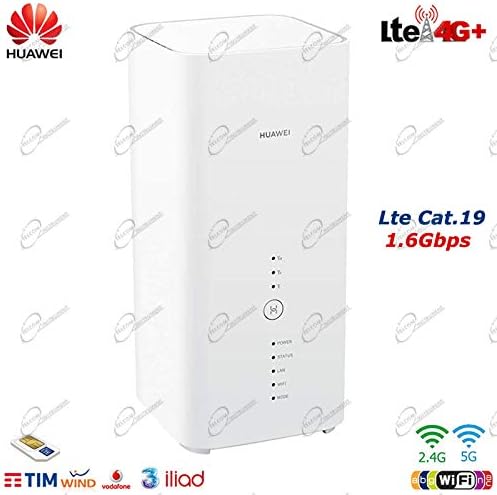
Figura 4: Angolat view of the HUAWEI B818-263, highlighting its high-speed LTE capabilities.
5. Manutenzjoni
To ensure optimal performance and longevity of your HUAWEI B818-263 router, follow these maintenance guidelines:
- Tindif: Regularly wipe the router with a soft, dry cloth. Avoid using liquid cleaners or aerosols.
- Ventilazzjoni: Ensure the router is placed in a well-ventilated area, away from direct sunlight and heat sources, to prevent overheating.
- Aġġornamenti tal-Firmware: Iċċekkja r-router perjodikament web management interface for available firmware updates. Keeping the firmware updated ensures the best performance, security, and compatibility.
- Jibda mill-ġdid: Jekk tesperjenza problemi bin-netwerk, ipprova erġa' ibda r-router billi taqla' l-adapter tal-enerġija għal 10 sekondi u mbagħad terġa' tqabbdu.
6 Issolvi l-problemi
Jekk tiltaqa' ma' problemi bir-router tiegħek, irreferi għall-kwistjonijiet u s-soluzzjonijiet komuni li ġejjin:
- Ebda Qawwa:
- Kun żgur li l-adapter tal-enerġija huwa konness sew mar-router u ma' sokit tal-enerġija li jaħdem.
- Check if the Power indicator light is on.
- Ebda Konnessjoni tal-Internet:
- Check the Status indicator light. If it's red or off, there might be an issue with the SIM card or network signal.
- Kun żgur li l-karta SIM hija mdaħħla sew u attiva.
- Verify your APN settings in the web interface ta 'ġestjoni.
- Try moving the router to a location with better cellular signal.
- Veloċità baxxa tal-Internet:
- Check the Mode indicator light for signal strength. More bars indicate better signal.
- Naqqas l-għadd ta' apparati konnessi jew attivitajiet li jużaw ħafna bandwidth.
- Kun żgur li l-firmware tar-router tiegħek huwa aġġornat.
- Consider using external antennas if signal strength is consistently low.
- Ma nistax naċċessa Web Interface ta' Ġestjoni:
- Kun żgur li t-tagħmir tiegħek huwa konness man-netwerk tar-router (Wi-Fi jew Ethernet).
- Verify you are entering the correct IP address (e.g., 192.168.8.1).
- Ipprova neħħi l-cache tal-browser tiegħek jew uża browser ieħor.
If problems persist, consult the official HUAWEI support resources or contact your service provider.
7. Speċifikazzjonijiet Tekniċi
| Karatteristika | Speċifikazzjoni |
|---|---|
| Brand | HUAWEI |
| Numru tal-Mudell | B818-263 (51060ELY) |
| Kulur | Abjad |
| Teknoloġija tal-Konnettività | Ethernet, Wireless (LTE/4G+, Wi-Fi) |
| Komunikazzjoni mingħajr fili Standard | 802.11ac |
| Frequency Class | Banda Doppja |
| Rata ta' Trasferiment tad-Dejta (Mass) | 1.6 Gbps (Downlink), 150 Mbps (Uplink) |
| LTE Frequency Bands Supported | B1, B3, B7, B8, B20, B28, B32, B38, B42 |
| Teknoloġija antenna | 4x4 MIMO, Carrier Aggregation |
| Portijiet | 2x Gigabit RJ45 LAN (one WAN capable), 1x USB 2.0, 2x External Antenna ports, 1x Micro SIM slot |
| Użu Rakkomandat | Dar |
8. Garanzija u Appoġġ
For warranty information, please refer to the warranty card included with your product or contact your point of purchase. HUAWEI provides customer support for its products. For technical assistance, troubleshooting beyond this manual, or service inquiries, please visit the official HUAWEI support webis-sit jew ikkuntattja l-linja diretta tas-servizz tal-klijenti tagħhom fir-reġjun tiegħek.
Note: Availability of spare parts and software updates may vary. Please check with the manufacturer for the latest information.