
Introduzzjoni
This manual provides essential information for setting up, operating, and maintaining your Lenovo G34w-10 34-inch WQHD Curved Gaming Monitor. Please read these instructions carefully before using your monitor to ensure optimal performance and safety.

Figura 1: Quddiem view of the Lenovo G34w-10 monitor.
X'hemm fil-Kaxxa
Iċċekkja li l-oġġetti kollha huma preżenti fl-imballaġġ:
- G34w-10 34 Inch WLED Ultra-Wide Curved Gaming Monitor
- Monitor Stand
- 1 x Kejbil tal-Enerġija
- 1 x Kejbil DP (1.8 m)
- Gwida ta 'Twaqqif Quick
Setup
1. Armar tal-Istand
Attach the monitor panel to the stand base. Ensure all connections are secure. The stand allows for adjustable tilt and lift to achieve an ergonomic viewing pożizzjoni.

Figura 2: Ġenb view tal-monitor li juri l-istand imwaħħal.
2. Konnessjoni ma' Kompjuter
Connect the monitor to your computer using the provided DisplayPort (DP) cable for optimal performance, including 144Hz refresh rate and AMD FreeSync. Alternatively, an HDMI cable can be used. Connect the power cable to the monitor and a power outlet.

Figura 3: Wara view tal-monitor li juri l-portijiet tad-dħul.
3. Immuntar VESA
The monitor is VESA mount compatible. To use a VESA mount, remove the original stand and attach the VESA-compatible mounting bracket (not included) to the designated holes on the back of the monitor.
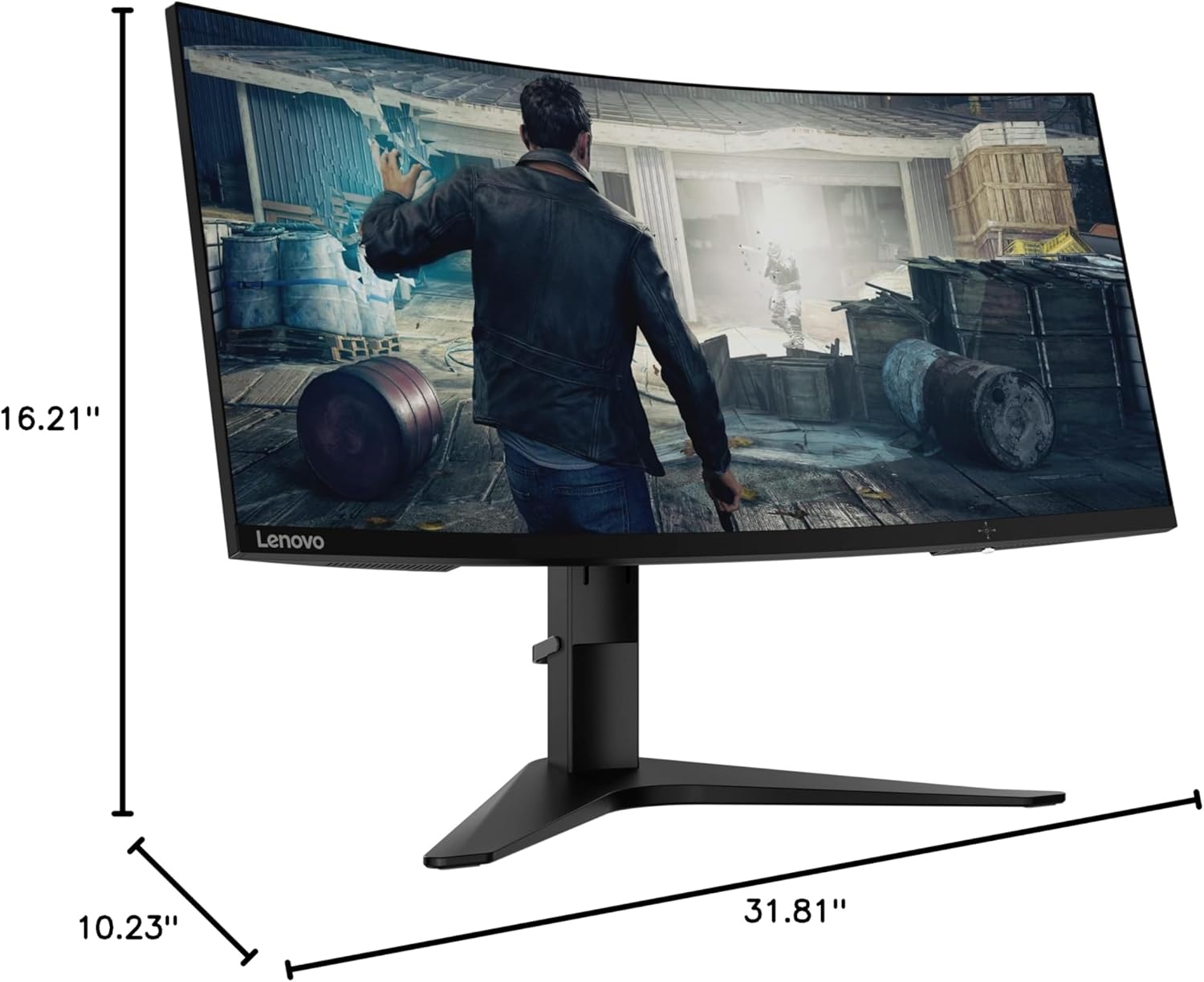
Figure 4: Monitor dimensions and VESA mounting points.
Istruzzjonijiet Operattivi
1. Power On/Off
Press the power button, typically located on the bottom right of the monitor, to turn the monitor on or off. The power button may also function as a navigation control for the On-Screen Display (OSD) menu.
2. Menu tal-Wiri fuq l-Iskrin (OSD).
Access the OSD menu to adjust various monitor settings. Use the navigation controls (often a joystick or set of buttons) to browse through options such as brightness, contrast, color temperature, input selection, and gaming features.
3. Display Settings
- Riżoluzzjoni: The native resolution is 3440 x 1440 (WQHD). Ensure your computer's display settings are configured to this resolution for the sharpest image.
- Rata ta' Aġġornar: This monitor supports up to 144Hz refresh rate. Adjust your graphics card settings to enable 144Hz for smoother motion in games and applications.
- AMD FreeSync: Enable AMD FreeSync in your monitor's OSD and graphics card control panel to synchronize the monitor's refresh rate with your GPU's frame rate, reducing screen tearing and stuttering.
- Dawl Blu Baxx: Activate the TÜV Rheinland Low Blue Light feature through the OSD menu to reduce eye strain during extended use.
Karatteristiċi Ewlenin
- Viżwali tal-isturdament: WQHD (Wide Quad HD) delivers a display resolution of 3440 x 1440 on a 21:9 ultra-wide 34-inch panel.
- Wiesgħa ViewIng Angolu: Viewing Angle (L/R) (CR>=10) is 178°/178°; Brightness is 350 cd/m².
- Unrestricted Gaming: AMD Radeon FreeSync technology combines with 144Hz refresh rate for smooth gameplay.
- Total Immersion: This 1500R curved gaming monitor creates a stunningly immersive experience that offers more realism and comfortable viewing.
- Exceptional Ergonomics: VESA wall mount ready; adjustable tilt and lift for perfect posture and a clear view.
- Protezzjoni tal-għajnejn: TÜV Rheinland Low Blue Light / TÜV Rheinland Flicker Free certified.

Figura 5: Minn fuq għal isfel view highlighting the monitor's 1500R curvature.
Manutenzjoni
Tindif tal-Monitor
Biex tnaddaf l-iskrin tal-monitor, imsaħ bil-mod b'ċarruta ratba u mingħajr suf. Għal marki persistenti, dampen the cloth with a small amount of water or a non-abrasive screen cleaner. Avoid using harsh chemicals or abrasive materials that could damage the screen surface. Ensure the monitor is powered off and unplugged before cleaning.
Kura Ġenerali
Keep the monitor in a well-ventilated area. Avoid exposing it to direct sunlight, excessive heat, or moisture. Do not block the ventilation openings on the monitor casing.
Issolvi l-problemi
- L-ebda Immaġni fuq l-Iskrin: Check if the monitor is powered on and the power cable is securely connected. Verify that the video cable (DP or HDMI) is firmly connected to both the monitor and your computer. Ensure the correct input source is selected in the OSD menu.
- L-Immaġni hija Ċajpra jew Distorta: Confirm that the display resolution on your computer is set to the monitor's native resolution (3440 x 1440). Check the video cable for damage or loose connections.
- Tiċrit jew Tfixkil tal-Iskrin: Ensure AMD FreeSync is enabled in both the monitor's OSD and your graphics card control panel. Verify that your graphics card drivers are up to date.
- Dead or Stuck Pixels: While rare, a small number of dead or stuck pixels may be present. If this significantly impacts your viewing experience, refer to the warranty information for potential remedies.
- Monitor Not Reaching 144Hz: Ensure you are using a DisplayPort cable and that your graphics card supports 144Hz at WQHD resolution. Check your computer's display settings to confirm the refresh rate is set to 144Hz.
Speċifikazzjonijiet
| Karatteristika | Speċifikazzjoni |
|---|---|
| Daqs tal-Wiri tal-Iskrin Permanenti | 34 Pulzier |
| Riżoluzzjoni tal-Iskrin | 3440x1440 (WQHD) |
| Riżoluzzjoni Massima tal-Iskrin | 3440 x 1440 Pixels |
| Serje | G34w-10 |
| Numru tal-Mudell tal-Oġġett | 66A1GCCBUS |
| Piż tal-oġġett | 17.85 liri |
| Dimensjonijiet tal-Prodott | 10.23 x 31.81 x 16.21 pulzieri |
| Kulur | Iswed |
| Manifattur | Lenovo |
| Proporzjon ta' l-aspett | 21:9 |
| Deskrizzjoni tal-wiċċ tal-iskrin | Tleqq |
| Riffriskar Rata | 144Hz |
| Kurvatura | 1500R |
| Teknoloġija ta' Sinkronizzazzjoni Adattiva | AMD FreeSync |
| Ergonomija | Adjustable Tilt (-5° to 22°), Lift (130 mm), VESA Mount Compatible |
Garanzija u Appoġġ
Għal informazzjoni dwar il-garanzija u appoġġ tekniku, jekk jogħġbok irreferi għad-dokumentazzjoni inkluża mal-prodott tiegħek jew żur is-sit uffiċjali tal-appoġġ ta' Lenovo. website. Keep your purchase receipt and product serial number handy when contacting support.