
Introduzzjoni
This manual provides essential information for the proper setup, operation, and maintenance of your Philips 346B1C Curved Monitor. This 34-inch WQHD (3440 x 1440) display features a 100 Hz refresh rate, 5ms response time, and a curved VA panel for an immersive viewing experience. Key features include USB-C docking, MultiView functionality, FreeSync technology, LowBlue Mode, and FlickerFree technology for enhanced user comfort and productivity.

Immaġni: Quddiem view of the Philips 346B1C curved monitor, showcasing its ultrawide display and key features like WQHD, USB-C Docking, and MultiView.
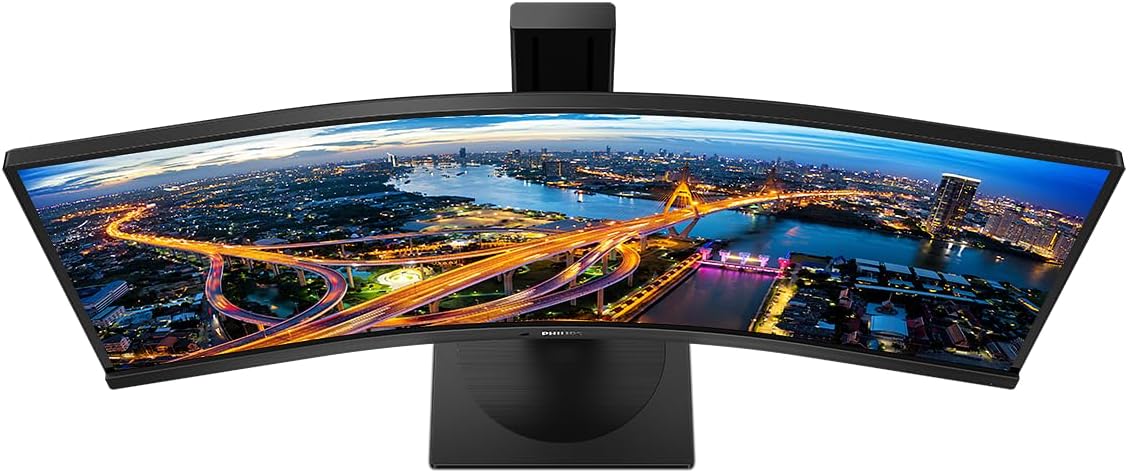
Immaġni: Minn fuq għal isfel view of the Philips 346B1C curved monitor, emphasizing the curvature of the screen.
X'hemm fil-Kaxxa
Ivverifika li l-komponenti kollha huma preżenti qabel ma tipproċedi bis-setup.
- Philips 346B1C Curved Monitor
- Stand tal-Monitor (Bażi u Għonq)
- Kejbil tal-Enerġija
- Cable HDMI
- DisplayPort Cable
- USB-C għal USB-C Cable
- USB-A to USB-B Cable (Upstream)
- Documentation (Quick Start Guide, User Manual CD)
Setup Istruzzjonijiet
1. Armar tal-Istand
- Poġġi l-monitor wiċċu 'l isfel fuq wiċċ artab u nadif biex tevita l-grif.
- Waħħal l-għonq tal-istand mal-pannell tal-monitor. Kun żgur li jikklikkja sew f'postu jew li jkun imwaħħal bil-viti jekk ikunu pprovduti.
- Waħħal il-bażi tal-istand mal-għonq tal-istand. Issikka l-vit jew il-viti tas-saba' mill-qiegħ tal-bażi.

Immaġni: Wara view of the Philips 346B1C monitor, showing the stand attachment point and VESA mounting holes.
2. Konnessjoni mal-Kompjuter Tiegħek
Qabbad il-monitor mal-kompjuter tiegħek billi tuża wieħed mill-metodi li ġejjin:
- Konnessjoni HDMI: Qabbad tarf wieħed tal-kejbil HDMI mal-port HDMI tal-monitor u t-tarf l-ieħor mal-output HDMI tal-kompjuter tiegħek.
- Konnessjoni DisplayPort: Connect one end of the DisplayPort cable to the monitor's DisplayPort and the other end to your computer's DisplayPort output.
- Konnessjoni USB-C: Connect one end of the USB-C cable to the monitor's USB-C port and the other end to your computer's USB-C port. This connection supports video, data, and power delivery (up to 90W) to your laptop.
For USB hub functionality, connect the USB-A to USB-B upstream cable from your computer to the monitor's USB-B upstream port.
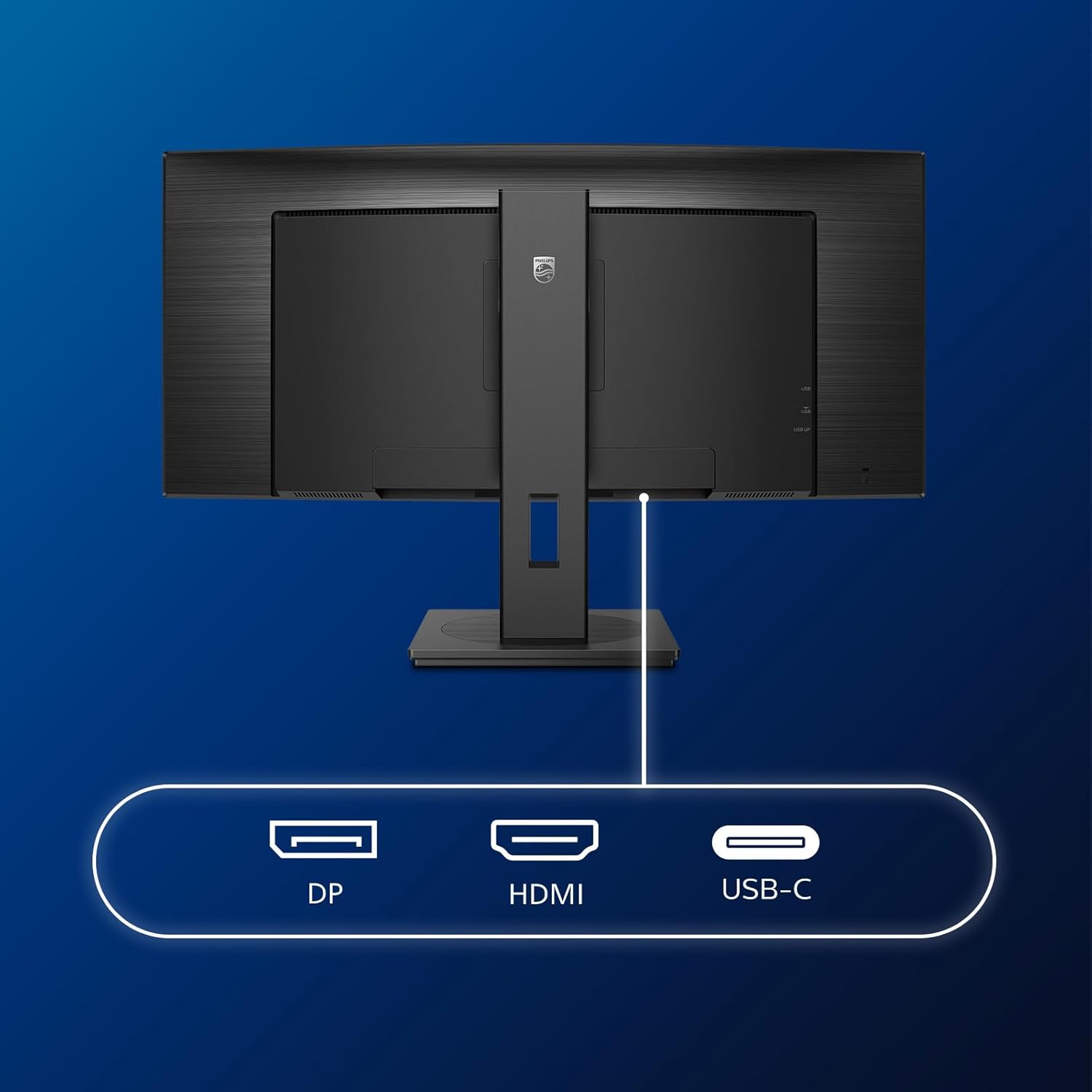
Immaġni: Dettaljata view of the monitor's input ports, including DisplayPort (DP), HDMI, and USB-C, for connecting to various devices.
3. Konnessjoni tal-Enerġija
Qabbad il-kejbil tal-enerġija mad-dħul tal-enerġija tal-monitor u mbagħad ma' sokit elettriku ertjat.
4. L-Ewwel Tixgħil
Press the power button located on the monitor to turn it on. The monitor should automatically detect the input signal. If not, use the On-Screen Display (OSD) menu to select the correct input source.
Istruzzjonijiet Operattivi
Menu tal-Wiri fuq l-Iskrin (OSD).
The OSD menu allows you to adjust various monitor settings. Use the joystick control located on the back or bottom of the monitor to navigate the menu.
- Luminożità/Kuntrast: Aġġusta l-luminanza u l-kuntrast ġenerali tad-displej.
- Settings tal-Kulur: Fine-tune color temperature, gamma, and color space.
- Agħżel l-Input: Manually switch between HDMI, DisplayPort, and USB-C inputs.
- Awdjo: Adjust volume or mute the built-in speakers.
- Modalità Stampa: Select from preset picture modes (e.g., Standard, Gaming, Text).
MultiView Funzjonalità
Il-MultiView feature allows you to connect and view content from two different sources simultaneously on the screen. Access this feature through the OSD menu to select Picture-by-Picture (PbP) or Picture-in-Picture (PiP) modes and configure input sources.
Docking USB-C
When connected via USB-C, the monitor acts as a docking station, providing video, data transfer through its integrated USB hub, and power delivery to charge your connected laptop (up to 90W).
SmartErgoBase and Adjustability
The monitor's SmartErgoBase allows for ergonomic adjustments including height, swivel, and tilt to optimize your viewkumdità.

Image: Illustrations demonstrating the monitor's adjustable features, including height adjustment, tilt, and swivel capabilities for ergonomic positioning.
Karatteristiċi tal-Kumdità tal-Għajnejn
- Modalità LowBlue: Reduces harmful shortwave blue light emissions to prevent eye strain. Activate this mode via the OSD menu.
- FlickerFree Technology: Regulates brightness and reduces flicker for more comfortable viewing. This feature is always active.
- PowerSensor & LightSensor: These sensors automatically adjust monitor brightness based on ambient light conditions and user presence, saving energy and reducing eye strain.
Manutenzjoni
Tindif tal-Monitor
- Dejjem aqla l-monitor qabel it-tindif.
- Uża ċarruta ratba u mingħajr ħelu dampMaħsul bl-ilma jew b'tindif tal-iskrin ħafif u mhux abrażiv.
- Tużax alkoħol, solventi, jew prodotti tat-tindif ibbażati fuq l-ammonja, għax dawn jistgħu jagħmlu ħsara lill-wiċċ tal-iskrin.
- Imsaħ l-iskrin bil-mod biex tneħħi t-trab u t-tbajja’.
- Naddaf il-monitor casinNaddaf b'ċarruta ratba u niexfa.
Kura Ġenerali
- Evita li tpoġġi oġġetti tqal fuq il-monitor jew il-kejbils tiegħu.
- Tesponix il-monitor għad-dawl tax-xemx dirett, sħana eċċessiva, jew kesħa estrema.
- Żgura ventilazzjoni xierqa madwar il-monitor.
Issolvi l-problemi
Jekk tiltaqa' ma' problemi bil-monitor tiegħek, irreferi għall-passi komuni li ġejjin għas-soluzzjoni tal-problemi:
| Problema | Kawża Possibbli | Soluzzjoni |
|---|---|---|
| L-ebda immaġni fuq l-iskrin | Kejbil tal-enerġija skonnettjat; Kejbil tal-vidjo skonnettjat; Sors ta' input mhux korrett magħżul. | Ensure power cable is securely connected; Check video cable connections (HDMI, DP, USB-C); Select correct input source via OSD menu. |
| L-immaġni hija mċajpra jew distorta | Riżoluzzjoni mhux korretta; Problema bis-sewwieq tal-grafika. | Set display resolution to 3440 x 1440; Update graphics card drivers. |
| L-ebda ħoss mill-kelliema | Volume muted or too low; Incorrect audio output selected on computer. | Adjust monitor volume via OSD; Check computer's audio output settings. |
| Il-portijiet tal-USB ma jaħdmux | Il-kejbil USB upstream mhux imqabbad. | Ensure the USB-A to USB-B upstream cable is connected from the monitor to your computer. |
For further assistance, please refer to the support section or contact Philips customer service.
Speċifikazzjonijiet
| Karatteristika | Dettall |
|---|---|
| Brand | Philips |
| Numru tal-Mudell | 346B1C |
| Daqs tal-Iskrin | 34 Pulzier (86 ċm) |
| Riżoluzzjoni | 3440 x 1440 (WQHD) |
| Proporzjon ta' l-aspett | 21:9 |
| Wiċċ tal-Iskrin | Panel VA mgħawweġ |
| Riffriskar Rata | 100 Hz |
| Ħin ta' Rispons | 5 Milliseconds (GtG) |
| Proporzjon ta' Kuntrast | 3000:1 (Tipiku) |
| Luminożità | 300 cd/m² |
| ViewIng Angolu | 178° (H) / 178° (V) |
| Konnettività | 1x HDMI 2.0, 1x DisplayPort 1.2, 1x USB-C 3.2 Gen 1 (upstream, power up to 90W), 1x USB-B (upstream), 4x USB 3.2 (downstream), RJ45 (Ethernet) |
| Sinkronizzazzjoni Adattiva | FreeSync |
| Kelliema Inkorporati | 2x 5W |
| Konsum tal-Enerġija | 5 Watts (Eco mode) |
| Piż | 7.8 Kilograms (with stand) |
Garanzija u Appoġġ
Informazzjoni dwar Garanzija
This Philips monitor comes with a Garanzija ta' 2 snin mill-manifattur. The specific terms and conditions of the warranty can be found in the detailed documentation provided with your product or on the official Philips support website. Your statutory rights as a consumer are not affected by this warranty.
Appoġġ għall-Klijent
For technical assistance, product inquiries, or warranty claims, please visit the official Philips support website or contact their customer service department. You may need your monitor's model number (346B1C) and serial number (found on the back of the monitor) when contacting support.
Appoġġ Philips Websit: www.philips.com/support