
ASUS PB278QV
ASUS 27" 1440P Professional Monitor (PB278QV) - User Manual
Model: PB278QV
1. Introduzzjoni
This user manual provides comprehensive instructions for the setup, operation, and maintenance of your ASUS 27" 1440P Professional Monitor (PB278QV). Designed for multitaskers, this monitor features a 27-inch WQHD (2560 x 1440) display, a 75Hz refresh rate, and a 5ms (GTG) response time. It incorporates ASUS exclusive functions to enhance productivity and ASUS Eye Care technology to minimize eye strain during prolonged use. With extensive connectivity options including DisplayPort, HDMI, and Dual-Link DVI, the PB278QV ensures broad compatibility and a smooth user experience.

Figura 1.1: Quddiem view of the ASUS PB278QV Professional Monitor, showcasing id-disinn eleganti u l-wiri kbir tiegħu.
2. Informazzjoni dwar is-Sigurtà
Jekk jogħġbok aqra l-istruzzjonijiet kollha bir-reqqa qabel ma tuża l-monitor. Żomm dan il-manwal għal referenza futura.
- Sors tal-Enerġija: Use only the power adapter supplied with your monitor. Ensure the power cord is properly grounded.
- Ventilazzjoni: Timblokkax il-fetħiet tal-ventilazzjoni. Ħalli biżżejjed spazju madwar il-monitor għal fluss tal-arja xieraq.
- Likwidu u Umdità: Żomm il-monitor 'il bogħod mil-likwidi. Tesponihx għax-xita jew għall-umdità.
- Tindif: Unplug the monitor before cleaning. Use a soft, dry cloth. Do not use liquid or aerosol cleaners.
- Pjazzament: Poġġi l-monitor fuq wiċċ stabbli u ċatt. Evita li tpoġġih fid-dawl tax-xemx dirett jew ħdejn sorsi ta’ sħana.
- Servizzi: Tippruvax tagħmel manutenzjoni tal-monitor int stess. Irreferi għal kull manutenzjoni għand persunal tas-servizz kwalifikat.
- Kura tal-għajnejn: Take regular breaks to reduce eye strain. Adjust screen brightness and contrast to comfortable levels.
3. Setup
3.1 Kontenut tal-Pakkett
Verify that all items are present in your package. If any item is missing or damaged, contact your retailer immediately.
- ASUS PB278QV Monitor
- Korda tal-Enerġija
- Cable HDMI
- DisplayPort Cable
- Dual-Link DVI Cable
- Gwida Quick Start
- Karta ta' Garanzija
3.2 L-Immuntar tal-Istand tal-Monitor
- Poġġi l-monitor b'wiċċu 'l isfel bir-reqqa fuq wiċċ artab u nadif biex tevita l-grif.
- Waħħal il-bażi tal-istand mal-għonq tal-istand, waqt li tiżgura li tikklikkja f'postha jew li tkun imwaħħla bil-vit provdut.
- Align the assembled stand with the mounting holes on the back of the monitor and secure it firmly.
3.3 Konnessjoni tal-Monitor
Connect the appropriate cables from your computer or video source to the monitor's input ports.
- Konnessjoni tal-Enerġija: Qabbad il-korda tal-enerġija mad-dħul tal-enerġija tal-monitor u mbagħad ma' sokit tal-enerġija.
- Video Input:
- DisplayPort: For optimal performance, connect a DisplayPort cable from your computer to the monitor's DisplayPort input.
- HDMI: Connect an HDMI cable from your computer to the monitor's HDMI input.
- DVI b'konnessjoni doppja: Connect a Dual-Link DVI cable from your computer to the monitor's DVI input.
- VGA: Connect a VGA cable from your computer to the monitor's VGA input.
- Awdjo (jekk applikabbli): If using an analog audio source, connect an audio cable from your computer's audio output to the monitor's audio input.
- USB (if applicable): Qabbad il-kejbil USB upstream mill-kompjuter tiegħek mal-port USB upstream tal-monitor biex tippermetti l-portijiet USB downstream tal-monitor.
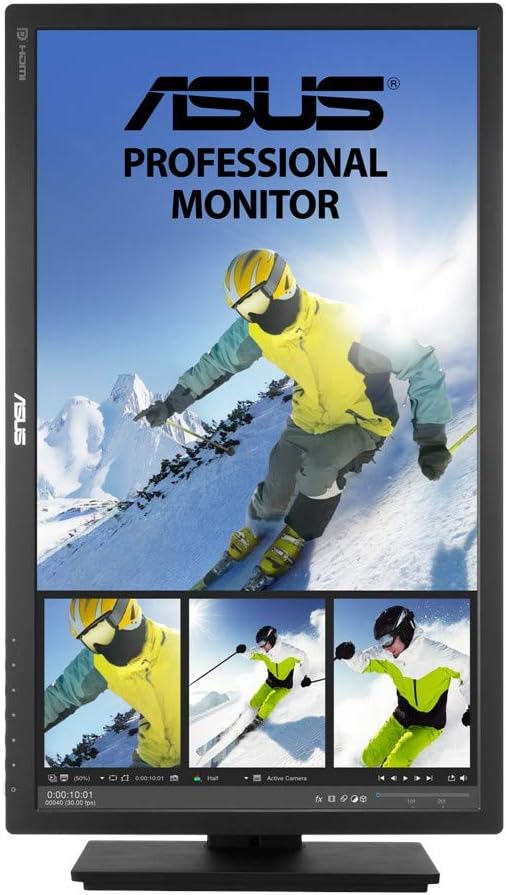
Figura 3.1: Wara view of the ASUS PB278QV monitor, highlighting the DisplayPort, HDMI, Dual-Link DVI, and VGA input ports.
4. It-tħaddim tal-Monitor
4.1 Power On/Off
Agħfas il-buttuna tal-qawwa li tinsab fuq quddiem jew fuq il-ġenb tal-monitor biex tixgħelu jew titfih. Id-dawl indikatur tal-qawwa jixgħel meta l-monitor ikun attiv.
4.2 Navigazzjoni tal-Menù tal-Wiri fuq l-Iskrin (OSD)
The monitor features an intuitive OSD menu for adjusting various settings. Use the physical buttons on the monitor's bezel to navigate and select options.
- Buttuna tal-menu: Agħfas biex tiftaħ il-menù tal-OSD.
- Buttuni tan-Navigazzjoni: Use the directional buttons (up/down/left/right) to move through menu options.
- Agħżel Buttuna: Agħfas biex tikkonferma għażla jew tidħol f'submenu.
- Buttuna tal-Ħruġ: Agħfas biex toħroġ mill-menù kurrenti jew terġa' lura għal-livell ta' qabel.
4.3 Karatteristiċi u Aġġustamenti Ewlenin
- Teknoloġija ta' Sinkronizzazzjoni Adattiva: Enables a smooth visual experience by synchronizing the monitor's refresh rate with your graphics card's frame rate, reducing screen tearing and stuttering.
- Teknoloġija tal-Kura tal-Għajnejn ASUS:
- Bla Flikkjar: Reduces screen flickering to minimize eye strain during extended viewing.
- Ultra-low Blue Light: Offers multiple blue light filter levels to protect your eyes from harmful blue light emissions.
- Quick Fit Function: Provides an on-screen overlay of actual size documents and photos, allowing you to preview them in their true size before printing.
- MultiFrame Management: Helps organize multiple windows on your desktop for improved productivity and screen usage.
- Aġġustamenti Ergonomiċi: The monitor stand allows for versatile positioning:
- Mejjel: Adjust the screen angle vertically.
- Dawwar: Rotate the screen horizontally on its base.
- Pivot: Dawwar l-iskrin 90 grad għall-modalità ritratt viewing.
- Aġġustament Għoli: Raise or lower the screen to your preferred viewing għoli.

Figure 4.1: The ASUS PB278QV monitor shown in portrait orientation, demonstrating its pivot capability for vertical content viewing.
5. Manutenzjoni
5.1 Tindif tal-Monitor
Regular cleaning helps maintain the monitor's appearance and performance.
- Skrin: Imsaħ l-iskrin bil-mod b'ċarruta ratba u mingħajr suf. Għal marki persistenti, nixxef bil-modampLaħlaħ id-drapp bl-ilma jew b'prodott speċjalizzat għat-tindif tal-iskrin (tisprejjax direttament fuq l-iskrin).
- Casing: Uża drapp artab u niexef biex timsaħ il-monitor casing. Evita prodotti tat-tindif jew solventi li joborxu.
- Qabel it-Tindif: Dejjem aqla’ l-monitor mill-plagg tal-elettriku qabel ma tnaddaf.
5.2 Ħażna
If storing the monitor for an extended period, ensure it is kept in a cool, dry place, away from direct sunlight and extreme temperatures. It is recommended to store it in its original packaging if possible.
6 Issolvi l-problemi
| Problema | Soluzzjoni Possibbli |
|---|---|
| L-ebda immaġni fuq l-iskrin |
|
| L-immaġni hija mċajpra jew distorta |
|
| Teptip tal-iskrin |
|
| L-ebda awdjo |
|
7. Speċifikazzjonijiet
| Karatteristika | Dettall |
|---|---|
| Brand | ASUS |
| Mudell | PB278QV |
| Daqs tal-Iskrin | 27 Pulzier |
| Riżoluzzjoni | WQHD (2560 x 1440) |
| Riffriskar Rata | 75Hz |
| Ħin ta' Rispons | 5ms (GTG) |
| Tip ta' Panel | IPS (Qlib fil-Pjan) |
| Proporzjon ta' l-aspett | 16:9 |
| Gamut tal-Kulur | 100% sRGB |
| ViewIng Angolu | 178° (H)/178° (V) |
| Konnettività | DisplayPort, HDMI, Dual-Link DVI, VGA |
| Portijiet USB | 1x USB 2.0, 1x USB 3.0 |
| Ergonomija | Inklinazzjoni, Dawwar, Pern, Aġġustament tal-Għoli |
| Karatteristiċi tal-Kura tal-Għajnejn | Flicker-Free, Ultra-low Blue Light |
| Piż | 17.16 liri |
| Dimensjonijiet (LxWxH) | 10 x 0.2 x 1 pulzieri |
8. Garanzija u Appoġġ
8.1 Informazzjoni dwar Garanzija
The ASUS PB278QV Professional Monitor typically comes with a Garanzija ta ’tliet snin across all series, covering manufacturing defects and hardware malfunctions under normal use. Please refer to the warranty card included in your package for specific terms and conditions, including coverage details and limitations. Keep your proof of purchase for warranty claims.
8.2 Appoġġ għall-Klijent
For technical assistance, troubleshooting, or service inquiries, please contact ASUS customer support.
- Appoġġ ASUS Websit: Żur l-appoġġ uffiċjali tal-ASUS website for drivers, FAQs, and online troubleshooting resources.
- Informazzjoni ta' Kuntatt: Irreferi għall-ASUS website or your product documentation for regional contact numbers and email support.
- Riżorsi onlajn: Esplora l- Ħanut tal-ASUS fuq Amazon for additional product information and related accessories.
Ask a question about this manual
Ask about setup, troubleshooting, compatibility, parts, safety, or missing instructions. Manuals+ will review the question and use this page’s manual context to help answer it.