
Introduzzjoni
This manual provides detailed instructions for the installation, operation, and maintenance of your Foscam D2EP IP Camera. The D2EP is a high-definition 2-megapixel outdoor security camera designed for reliable surveillance with features such as infrared night vision, smart motion detection, and wired connectivity. Please read this manual thoroughly before using the product to ensure correct setup and optimal performance.
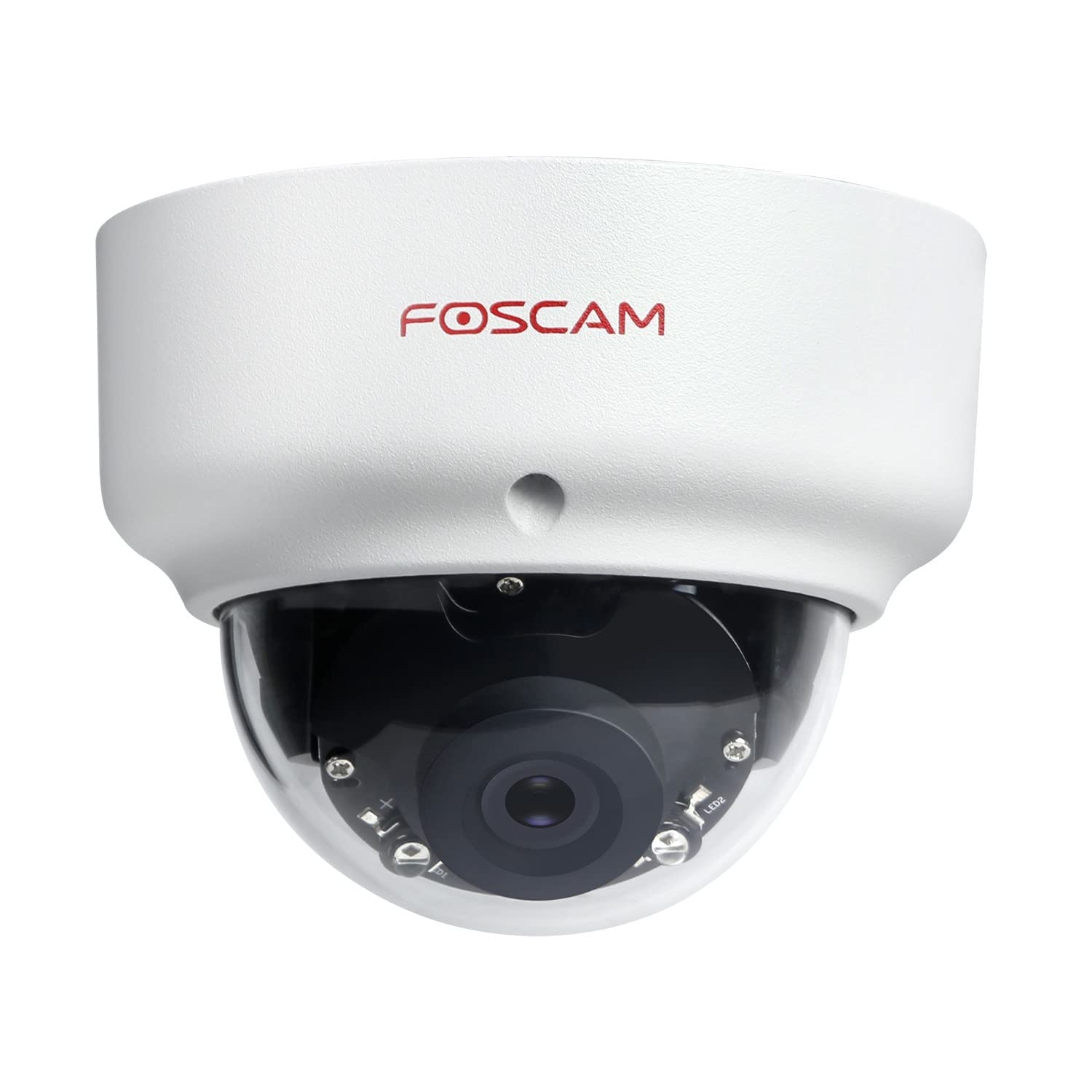
Image: The Foscam D2EP IP Camera, showcasing its compact, dome-shaped design suitable for outdoor environments.
1. Setup u Installazzjoni
1.1 Kontenut tal-Pakkett
Qabel tibda l-installazzjoni, jekk jogħġbok ivverifika li l-komponenti kollha huma preżenti fil-pakkett:
- Foscam D2EP IP Camera
- Viti tal-Immuntar u Plugs tal-Ħajt
- Cable Ethernet
- Adapter tal-Enerġija
- Gwida ta 'Installazzjoni Mgħaġġla

Image: Foscam D2EP IP Camera with its power and Ethernet cables, illustrating the main components included in the box.
1.2 Installazzjoni Fiżika
The Foscam D2EP camera is designed for outdoor use with an IP66 waterproof rating. Choose a suitable location that provides the desired viewing angle and is within reach of a power source and network connection.
- Post tal-Immuntar: Identify a secure mounting surface, such as a wall or ceiling, that offers a clear view taż-żona li tixtieq tissorvelja.
- Drill toqob: Use the provided mounting template (if included) or the camera base to mark and drill pilot holes for the mounting screws. Insert wall plugs if mounting on masonry.
- Kamera Sikura: Attach the camera base securely to the mounting surface using the provided screws.
- Aġġusta Angolu: Ħoll il-viti tal-aġġustament fuq il-korp tal-kamera biex tippożizzjona l-lenti għall-aħjar pożizzjoni viewing angle. Tighten the screws once the desired angle is achieved.

Image: Foscam D2EP IP Camera mounted under an outdoor patio roof, demonstrating a typical installation scenario for outdoor surveillance.
1.3 Konnessjoni tan-Netwerk u tal-Enerġija
- Qabbad il-Kejbil tal-Ethernet: Connect one end of the Ethernet cable to the camera's network port and the other end to your router or network switch.
- Qabbad l-Adapter tal-Enerġija: Plug the power adapter into the camera's power input and then into a suitable electrical outlet.
- Dawl Indikatur: Wait for the camera's indicator light to show a stable status, indicating it is powered on and connected to the network. Refer to the Quick Installation Guide for specific indicator light behaviors.
1.4 Konfigurazzjoni Inizjali
To access and configure your camera, download the Foscam app on your smartphone or use the Foscam client software on your computer.
- Download App/Software: Fittex għal "Foscam" in your app store (iOS/Android) or visit the official Foscam website for desktop software.
- Żid Kamera: Follow the in-app or software instructions to add your D2EP camera. This typically involves scanning a QR code on the camera or manually entering its UID.
- Issettja l-Password: For security, change the default password immediately upon first access.
- Issettjar tan-Netwerk: Configure any necessary network settings, such as static IP (if required by your network).
2. Istruzzjonijiet Operattivi
2.1 Ħaj View u Reġistrazzjoni
Once configured, you can access the live video feed from your Foscam D2EP camera through the Foscam app or desktop client.
- Live View: Agħżel il-kamera tiegħek mil-lista tal-apparati biex view the real-time 1080p HD video stream.
- Reġistrazzjoni manwali: Most Foscam applications allow you to manually start and stop video recordings directly from the live view interface.
- Snapshot: Aqbad stampi fissi mill-għalf live.
2.2 Sejbien tal-Moviment
The D2EP features smart motion detection to alert you to activity in the monitored area.
- Ippermetti d-Detezzjoni tal-Mozzjoni: Navigate to the camera settings in the Foscam app/software and enable motion detection.
- Configure Detection Area: Iddefinixxi żoni speċifiċi fil-kamera view where motion should be detected, ignoring irrelevant zones.
- Aġġusta s-Sensittività: Set the motion detection sensitivity to minimize false alarms while ensuring important events are captured.
- Settings ta' Twissija: Configure how you receive alerts (e.g., push notifications, email).
2.3 Viżjoni ta' Binhar u ta' Bil-Lejl
The camera automatically switches between day (color) and night (infrared black and white) vision modes based on ambient light conditions. The infrared LEDs provide clear vision up to 20 meters in low-light environments.
2.4 Amazon Alexa Compatibility
The Foscam D2EP camera is compatible with Amazon Alexa, allowing for voice control and integration into your smart home system. Refer to the Foscam website or Alexa app for detailed instructions on linking your Foscam account and controlling your camera via Alexa commands.
3. Manutenzjoni
3.1 Tindif tal-Kamera
Regularly clean the camera lens and housing to ensure optimal image quality and prevent debris buildup, especially for outdoor installations.
- Uża artab, damp cloth to wipe the camera body.
- Għal-lenti, uża drapp u soluzzjoni speċjalizzati għat-tindif tal-lentijiet biex tevita l-grif.
- Tużax kimiċi ħarxa jew materjali li joborxu.
3.2 Aġġornamenti tal-Firmware
Foscam regularly releases firmware updates to improve camera performance, add new features, and enhance security. It is recommended to keep your camera's firmware up to date.
- Check for updates through the Foscam app or desktop client.
- Follow the on-screen instructions carefully during the update process. Do not power off the camera during an update.
4 Issolvi l-problemi
4.1 Il-Kamera Mhux Qed Tikkonnettja man-Netwerk
- Iċċekkja Kejbils: Ensure the Ethernet cable is securely connected to both the camera and the router/switch.
- Qawwa: Verify the camera is powered on and the power adapter is working correctly.
- Status tar-Router: Confirm your router is functioning and providing network access.
- Kunflitt fl-Indirizz IP: If using a static IP, ensure it does not conflict with other devices on your network. Try DHCP first.
- Irrisettja l-Kamera: If issues persist, perform a factory reset (refer to the Quick Installation Guide for reset button location and procedure).
4.2 Kwalità Fqira tal-Immaġni
- Lenti Naddaf: Kun żgur li l-lenti tal-kamera hija nadifa u ħielsa mill-ħmieġ jew tbajja’.
- Dawl: Verify adequate lighting in the monitored area during the day.
- Viżjoni bil-lejl: In night mode, ensure there are no obstructions blocking the infrared LEDs.
- Settings tar-Riżoluzzjoni: Check that the camera's resolution is set to 1080p (2MP) in the app/software settings.
4.3 Is-Sejbien tal-Mozzjoni Mhux qed Jaħdem jew Hemm Wisq Allarmi Foloz
- Ippermetti l-Karatteristika: Confirm motion detection is enabled in the camera settings.
- Żona ta' sejbien: Adjust the detection zone to cover only relevant areas.
- Sensittività: Increase sensitivity if events are missed; decrease if there are too many false alarms (e.g., from moving trees, shadows).
- Skeda: Check if motion detection is scheduled to be active during the desired times.
5. Speċifikazzjonijiet
| Isem tal-Mudell | D2EP |
| Brand | Foscam |
| Riżoluzzjoni | 2 Megapixel (1080p) |
| Teknoloġija tal-Konnettività | Bil-fili |
| Użu Rakkomandat | Kamera tas-Sigurtà ta 'barra |
| Reżistenza għat-temp | IP66 Waterproof |
| Medda tal-Viżjoni Lejl | Sa 20 metri (Infra-aħmar) |
| Karatteristiċi Ewlenin | Motion Sensor, Day/Night Vision, Amazon Alexa Compatible |
6. Informazzjoni dwar Garanzija
The Foscam D2EP IP Camera comes with a garanzija ta 'sena from the date of purchase. This warranty covers manufacturing defects and ensures the product functions as described under normal use. Please retain your proof of purchase for warranty claims. For detailed warranty terms and conditions, please visit the official Foscam websit.
7. Appoġġ għall-Klijent
If you encounter any issues or have questions regarding your Foscam D2EP IP Camera that are not covered in this manual, please refer to the following resources:
- Uffiċjali Foscam Websit: Żur www.foscam.com for FAQs, support articles, and the latest firmware.
- Appoġġ Tekniku: Contact Foscam technical support directly via their webis-sit jew l-informazzjoni ta' kuntatt ipprovduta fl-imballaġġ tal-prodott tiegħek.