
1. Introduzzjoni
Thank you for choosing the Targus W620 Wireless Optical Mouse. This manual provides detailed instructions for setting up, operating, and maintaining your mouse to ensure optimal performance and longevity. The Targus W620 offers reliable 2.4 GHz wireless connectivity, a precise 1600 DPI optical sensor, and a compact design suitable for both office and mobile use.
2. Kontenut tal-Pakkett
Jekk jogħġbok iċċekkja l-pakkett għall-oġġetti li ġejjin:
- Targus W620 Wireless Optical Mouse
- Riċevitur USB
- 2 x Batteriji AAA
3. Prodott Aktarview
Familiarize yourself with the components of your Targus W620 Wireless Optical Mouse.
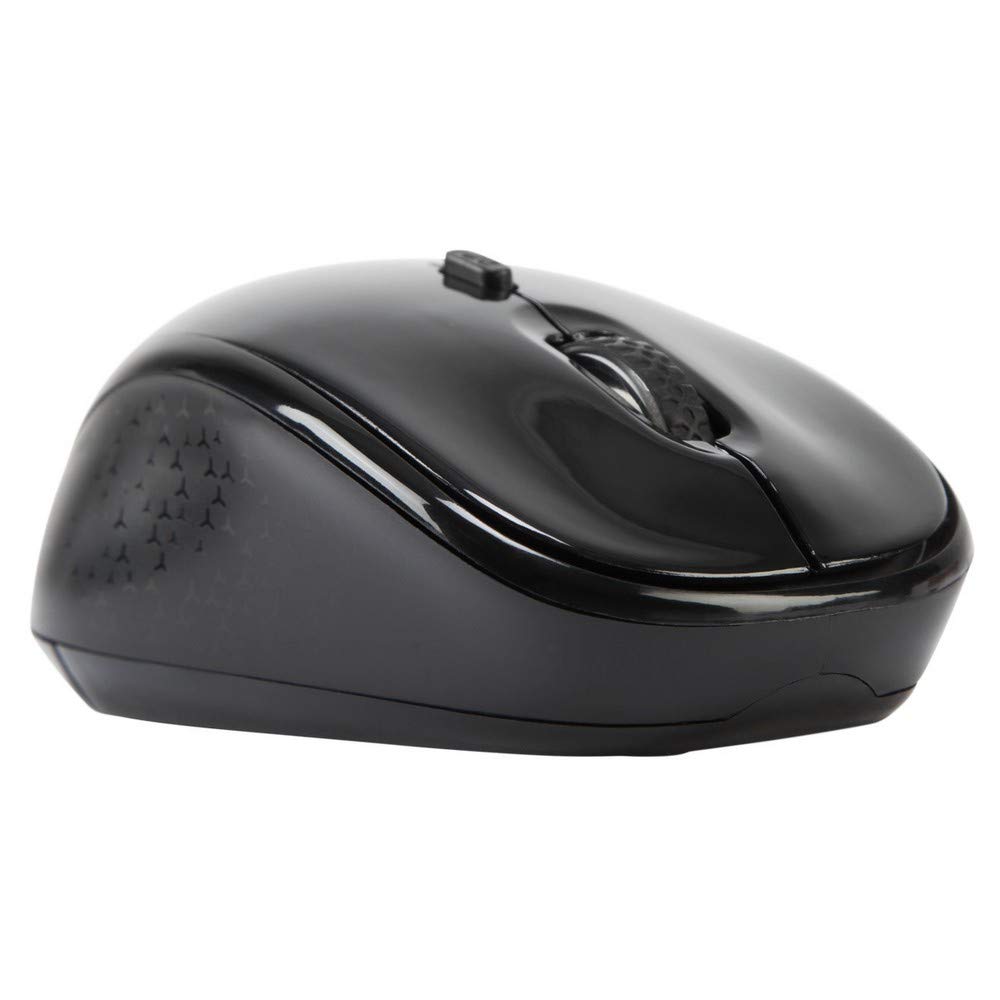
Stampa 3.1: Fuq view of the Targus W620 Wireless Optical Mouse. This image displays the primary buttons and scroll wheel.
- Buttuna tal-Ikklikkjar tax-Xellug: Funzjoni standard tal-ikklikkjar primarju.
- Buttuna tal-Ikklikkjar bil-Lemin: Funzjoni standard ta' klikk sekondarja.
- Scroll Wheel: Għal skrolljar vertikali u funzjoni ta' klikk tan-nofs.
- Buttuna DPI: Jaġġusta s-sensittività tal-maws (DPI).
- Sensor Ottiku: Located on the bottom, detects mouse movement.
- Kompartiment tal-batterija: Located on the bottom, holds two AAA batteries.
- Ħażna tar-Riċevitur USB: A dedicated slot on the bottom for storing the USB receiver when not in use.

Stampa 3.2: Qiegħ view of the mouse, highlighting the battery compartment and optical sensor.
4. Istruzzjonijiet ta' Setup
Follow these steps to set up your Targus W620 Wireless Optical Mouse:
- Installa Batteriji:
- Sib l-għatu tal-kompartiment tal-batterija fil-qiegħ tal-maws.
- Żerżaq l-għatu miftuħ.
- Daħħal iż-żewġ batteriji AAA, waqt li tiżgura l-polarità korretta (+/-).
- Agħlaq l-għatu tal-kompartiment tal-batterija sew.
- Qabbad ir-Riċevitur USB:
- The USB receiver is typically stored in a slot on the bottom of the mouse for transport. Gently remove it.
- Ipplaggja r-riċevitur USB f'port USB disponibbli fuq il-kompjuter tiegħek.

Stampa 4.1: The mouse with its USB receiver, ready for connection.
- Qawwa Mixgħul:
- There is no explicit power switch on this model; the mouse activates upon movement and connection.
- Il-kompjuter tiegħek għandu jiskopri u jinstalla awtomatikament id-drajvers meħtieġa. Dan jista' jieħu ftit mumenti.
- Once drivers are installed, the mouse is ready for use.
5. Istruzzjonijiet Operattivi
The Targus W620 Wireless Optical Mouse is designed for intuitive use. Here are its primary functions:
- Navigazzjoni Bażika: Mexxi l-maws fuq wiċċ ċatt biex tikkontrolla l-cursor fuq l-iskrin tiegħek.
- Ikklikkja Xellug: Uża għall-għażla ta' oġġetti, ftuħ files, jew l-attivazzjoni ta' funzjonijiet.
- Ikklikkja bil-lemin: Use for accessing context menus or secondary functions.
- Scroll Wheel: Rotate the wheel to scroll vertically through documents and web pages. Press the scroll wheel for a middle-click function, often used for opening links in new tabs or auto-scrolling.
- Aġġustament DPI: Press the DPI button (located behind the scroll wheel) to cycle through the available DPI settings (800, 1200, 1600 DPI). This changes the sensitivity of the mouse cursor. A higher DPI means the cursor moves further with less physical mouse movement.
6. Manutenzjoni
Proper maintenance ensures the longevity and performance of your mouse.
- Tindif: Uża drapp artab, niexef u mingħajr suf biex tnaddaf il-barra tal-maws. Għal ħmieġ iebes, nixxef ftit.ampLaħlaħ id-drapp bl-ilma. Evita li tuża kimiċi ħarxa jew prodotti tat-tindif li joborxu.
- Sensor Ottiku: Keep the optical sensor area on the bottom of the mouse clean and free from dust or debris to ensure accurate tracking.
- Sostituzzjoni tal-batterija: When the mouse performance degrades or stops responding, it is likely time to replace the batteries. Follow the steps in Section 4.1 to replace the two AAA batteries.
- Ħażna: When transporting or storing the mouse, always place the USB receiver back into its dedicated storage slot on the bottom of the mouse to prevent loss.
7 Issolvi l-problemi
If you encounter issues with your Targus W620 mouse, try the following solutions:
| Problema | Soluzzjoni Possibbli |
|---|---|
| Mouse not responding or cursor not moving. |
|
| Il-moviment tal-cursor huwa erratiku jew b'aqbiż. |
|
| DPI button not changing sensitivity. |
|
| Problemi bil-konnessjoni mingħajr fili. |
|
8. Speċifikazzjonijiet
| Brand | Targus |
| Numru tal-Mudell | AMW620AP |
| Teknoloġija tal-Konnettività | 2.4 GHz Wireless (Radio Frequency) |
| Teknoloġija ta 'Sejbien tal-Moviment | Optical (BlueTrace Technology) |
| Livelli DPI | 800 / 1200 / 1600 DPI (Aġġustabbli) |
| Numru ta' Buttuni | 4 (Left, Right, Scroll Wheel, DPI) |
| Orjentazzjoni tal-Idejn | Right (Comfortable for ambidextrous use) |
| Sors tal-Enerġija | 2 x Batteriji AAA (Inklużi) |
| Piż tal-oġġett | 26 Gramm |
| Kompatibilità tas-Sistema Operattiva | Linux, Windows XP (Compatible with modern Windows and macOS) |
| Pjattaforma tal-Ħardwer | Mac, PC |
| Kulur | Iswed |
9. Garanzija u Appoġġ
Informazzjoni dwar il-garanzija: The Targus W620 Wireless Optical Mouse comes with a Garanzija ta' 3 snin mill-manifattur mid-data tax-xiri. Din il-garanzija tkopri difetti fil-materjali u l-abbilità taħt użu normali. Jekk jogħġbok żomm il-prova tax-xiri tiegħek għal talbiet ta' garanzija.
Appoġġ għall-Klijent: For technical assistance, troubleshooting beyond this manual, or warranty inquiries, please visit the official Targus website or contact their customer support service. Refer to the contact information provided with your product packaging or on the Targus official websit.