
Introduzzjoni
This manual provides essential information for the safe and efficient use of your ASUS X441BA 14-inch laptop. It covers initial setup, basic operation, maintenance guidelines, troubleshooting common issues, and detailed product specifications. Please read this manual thoroughly before using your device.
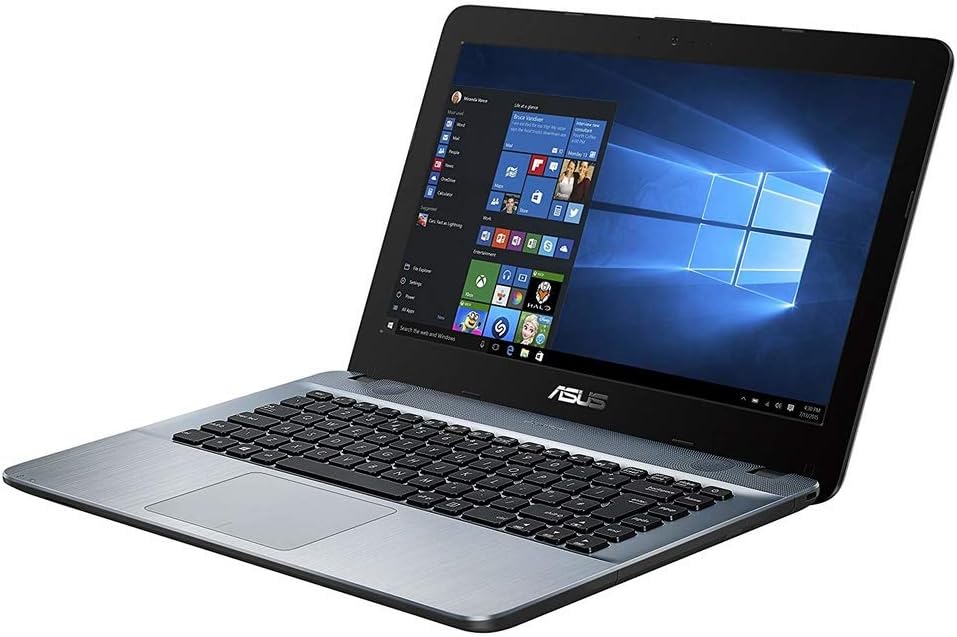
Image: The ASUS X441BA laptop, showcasinid-displej ta' 14 pulzieri u t-tqassim tat-tastiera tiegħu.
Setup
1. Spakkjar u Spezzjoni Inizjali
Carefully remove the laptop and all accessories from the packaging. Inspect for any signs of damage. If any components are missing or damaged, contact your retailer immediately.
2. Konnessjoni tal-Enerġija
Connect the AC adapter to the laptop's power input port, then plug the power cord into a wall outlet. The laptop can be used while charging. It is recommended to fully charge the battery before first use.
3. L-Ibbutjar Inizjali u s-Setup tal-Windows 10
Press the power button located on the top-right of the keyboard to turn on the laptop. Follow the on-screen instructions to complete the Windows 10 setup process, which includes selecting your language, region, and creating a user account.
4. Konnessjoni tan-Netwerk
- Wi-Fi: During Windows setup or afterward, click the network icon in the taskbar, select your desired Wi-Fi network, and enter the password.
- Ethernet: For a wired connection, plug an Ethernet cable into the RJ45 LAN port on the side of the laptop.
It-Tħaddim tal-Laptop Tiegħek
1. Ġestjoni tal-Enerġija
- Qawwa Mixgħul: Agħfas il-buttuna tal-qawwa.
- Itfi: Ikklikkja Ibda > Qawwa > Itfi.
- Modalità Sleep: Ikklikkja Ibda > Qawwa > Irqad to put the laptop into a low-power state.
- Ibda mill-ġdid: Ikklikkja Ibda > Qawwa > Ibda mill-ġdid.
2. Tastiera u Touchpad
The integrated keyboard provides a comfortable typing experience. The touchpad, located below the keyboard, allows for precise cursor control and supports multi-touch gestures for scrolling, zooming, and other functions. Refer to Windows settings for touchpad customization.
3. Konnessjoni ta' Displays Esterni
Your laptop features multiple ports for connecting external monitors:
- Port HDMI: Connects to modern displays, TVs, and projectors for high-definition video and audio.
- Port VGA: Connects to older monitors and projectors.
- Port USB 3.1 tat-Tip Ċ: May support video output with an appropriate adapter (sold separately).
After connecting, press Ċavetta tal-Windows + P to select your display mode (e.g., Duplicate, Extend, Second screen only).
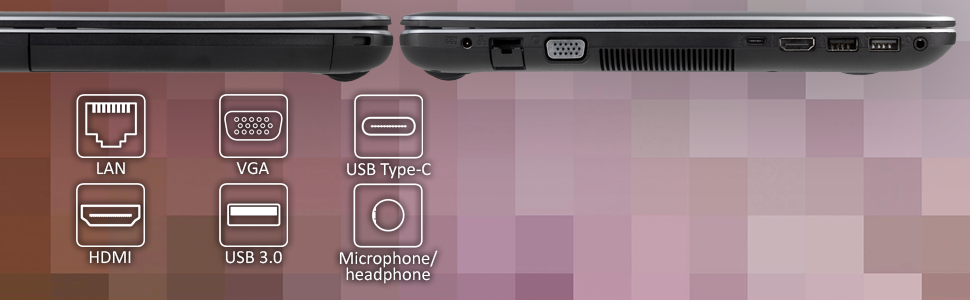
Immaġni: Ġenb view of the ASUS X441BA laptop, highlighting the available connectivity ports.
4. USB Ports and Peripherals
The laptop is equipped with various USB ports for connecting external devices:
- USB 3.0 (Type-A): Għal trasferiment ta' dejta b'veloċità għolja ma' apparati kompatibbli.
- USB 3.1 (Type-C): A reversible connector for newer devices, offering fast data transfer.
- USB 2.0: For standard peripherals like mice, keyboards, or printers.
5. Karatteristiċi tal-Awdjo
The laptop includes integrated speakers for audio playback. A combo audio jack is available for connecting headphones or an external microphone.
Manutenzjoni
1. Istruzzjonijiet għat-Tindif
- Skrin: Use a soft, lint-free microfiber cloth. For stubborn smudges, lightly dampen the cloth with water or a screen-specific cleaner. Avoid spraying liquids directly onto the screen.
- Chassis u Tastiera: Use a soft, dry cloth. A can of compressed air can be used to remove dust from between keyboard keys and vents.
- Ġenerali: Avoid abrasive cleaners, solvents, or harsh chemicals. Ensure the laptop is powered off and unplugged before cleaning.
2. Aġġornamenti tas-Software
Regularly check for and install Windows updates to ensure your operating system has the latest security patches, bug fixes, and performance improvements. Go to Ibda > Settings > Aġġornament u Sigurtà > Aġġornament tal-Windows.
3. Ġestjoni tal-Hard Drive
Your laptop is equipped with a 500GB HDD. To maintain optimal performance:
- Tindif tad-Diska: Periodically run the Disk Cleanup utility to remove temporary files u dejta oħra bla bżonn.
- Deframmentazzjoni: For HDDs, regular defragmentation can improve file access speeds. Fittex għal "Defragment and Optimize Drives" in Windows.
- Ġestjoni tal-Ħażna: Monitor your storage usage and delete large, unneeded files biex jillibera l-ispazju.
4. Kura tal-batterija
To prolong the lifespan of your laptop's integrated Lithium Ion battery:
- Evita li tesponi l-laptop għal temperaturi estremi.
- Do not frequently fully discharge the battery.
- Jekk se taħżen il-laptop għal perjodu estiż, kun żgur li l-batterija tkun iċċarġjata għal madwar 50-60%.
Issolvi l-problemi
This section addresses common issues you might encounter with your ASUS X441BA laptop.
1. Laptop is Slow or Unresponsive
- Iċċekkja l-Proċessi tal-Isfond: Iftaħ it-Task Manager (Ctrl+Shift+Esc) biex tidentifika u tagħlaq applikazzjonijiet li jużaw ħafna riżorsi.
- Free Up Disk Space: Ensure there is sufficient free space on your 500GB HDD. Run Disk Cleanup.
- Ibda mill-ġdid: Sempliċi bidu mill-ġdid spiss jista' jsolvi problemi temporanji ta' prestazzjoni.
- Aġġornamenti tas-Software: Kun żgur li l-Windows u s-sewwieqa huma aġġornati.
- Konsiderazzjonijiet tal-Hardware: The laptop comes with 4GB DDR4 RAM and a 500GB HDD. While suitable for basic tasks, heavy multitasking or demanding applications may benefit from a professional RAM upgrade (if supported) or replacing the HDD with a Solid State Drive (SSD).
2. Battery Not Charging or Draining Quickly
- AC Adapter Check: Ensure the AC adapter is securely connected to both the laptop and the power outlet. Try a different outlet.
- Issettjar tal-Enerġija: Adjust Windows power settings to optimize battery life. Go to Ibda > Settings > Sistema > Batterija.
- Saħħa tal-batterija: Over time, battery capacity naturally degrades. If the issue persists and the laptop is older, the battery may need service.
3. Unusual Noise (Fan or Internal)
- Ventilaturi Ċari: Ensure the laptop's ventilation openings are not blocked by dust or objects, which can cause the fan to work harder and louder.
- Temperatura: High CPU usage or hot environments can increase fan speed. Reduce workload or move to a cooler area.
- Persistent Noise: If the noise is unusual or persistent, it may indicate a hardware issue requiring professional inspection.
4. Connectivity Problems (Wi-Fi, Bluetooth)
- Irristartja l-Apparati: Restart your Wi-Fi router/modem and the laptop.
- Iċċekkja s-Sewwieqa: Ensure your wireless and Bluetooth drivers are up to date via Device Manager.
- Tqabbil Bluetooth: Għal apparati Bluetooth, kun żgur li jinsabu fil-modalità ta' tqabbil u fil-firxa tagħhom.
Speċifikazzjonijiet
Below are the key technical specifications for the ASUS X441BA laptop:
| Karatteristika | Speċifikazzjoni |
|---|---|
| Brand | ASUS |
| Isem tal-Mudell | X441BA |
| Daqs tal-Iskrin | 14 Pulzier |
| Riżoluzzjoni tal-Wiri | HD (1366x768) LED backlit |
| Proċessur | AMD A6-9225 (7th Gen), Dual-Core, 2.6 GHz (up to 3.0 GHz) |
| Grafika | AMD Radeon R4 Graphics |
| Memorja RAM | 4 GB DDR4-2400 SDRAM |
| Ħażna | 500 GB HDD (5400 RPM) |
| Sistema Operattiva | Windows 10 Home |
| Konnettività | 802.11b/g/n Wi-Fi, Bluetooth V4.0, Ethernet (RJ45) |
| Portijiet | 1x USB 3.0 Type-A, 1x USB 3.1 Type-C, 1x USB 2.0, 1x HDMI, 1x VGA, 1x COMBO audio jack, 1x RJ45 LAN |
| Batterija | 3-cell Lithium Ion, 45 Watt Hours |
| Piż | 3.9 Liri |
| Sena Mudell | 2019 |
Garanzija
Your ASUS X441BA laptop comes with a Garanzija limitata ta 'sena. Please refer to the warranty card included with your product for full terms and conditions, including coverage details and limitations. Keep your proof of purchase for warranty claims.
Appoġġ
For technical assistance, driver downloads, FAQs, and further support resources, please visit the official ASUS support website. You can typically find support by searching for your specific model number (X441BA) on the ASUS support portal.
For customer service inquiries, please refer to the contact information provided in your product packaging or on the ASUS official websit.