
1. Prodott Aktarview
The Jettom J1 is a 7-inch tablet designed for children, featuring a durable yellow casing. It operates on the Android system and includes dual cameras, Bluetooth connectivity, and 2G cellular support. This manual provides essential information for setting up, operating, maintaining, and troubleshooting your Jettom J1 tablet.
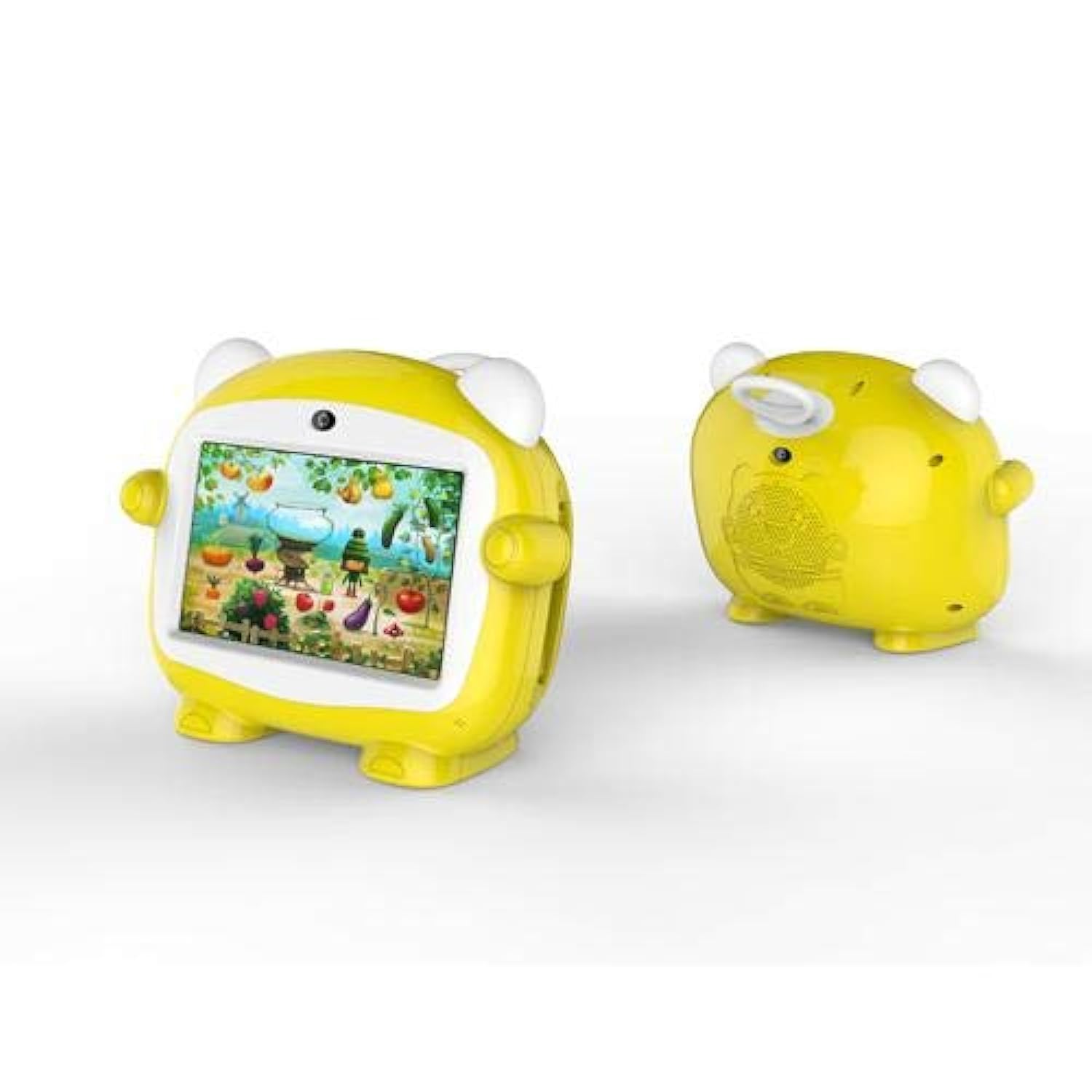
Figura 1: Quddiem view of the Jettom J1 Kids Tablet.
2. Setup Inizjali
2.1 Iċċarġjar tat-Tablet
Before first use, fully charge the tablet. Connect the provided charger to the tablet's charging port and plug it into a power outlet. The battery indicator on the screen will show charging status.
2.2 Tixgħel/Jitfi
- Biex Tixgħel: Press and hold the Power button located on the side of the tablet until the screen lights up.
- Biex Tifi: Press and hold the Power button, then select 'Power Off' from the options that appear on the screen.
2.3 Konfigurazzjoni Inizjali
Upon first startup, follow the on-screen prompts to configure basic settings:
- Agħżel il-lingwa preferuta tiegħek.
- Qabbad ma 'netwerk Wi-Fi.
- Issettja d-data u l-ħin.
- Sign in with a Google account (optional, but recommended for app downloads).
2.4 Inserting a SIM Card (for 2G Cellular)
The Jettom J1 supports a single 2G SIM card for cellular connectivity. Locate the SIM card slot, typically on the side or back of the device. Carefully insert the SIM card with the gold contacts facing down, ensuring it is correctly oriented. Refer to the diagram below for slot location.

Figura 2: Lura view of the Jettom J1 Kids Tablet, indicating potential SIM card slot area.
3. Istruzzjonijiet Operattivi
3.1 Navigazzjoni Bażika
The tablet features a capacitive touchscreen. Use the following gestures:
- Tektek: Biex tagħżel oġġett jew tiftaħ applikazzjoni.
- Swipe: Biex tiskrollja minn paġni jew menus.
- Oqros: Biex tkabbar jew tkabbar l-immaġnijiet jew web paġni.
3.2 Konnettività tal-Wi-Fi
Biex tikkonnettja ma' netwerk Wi-Fi:
- Mur fuq Settings > Netwerk u internet > Wi-Fi.
- Ixgħel il-Wi-Fi On.
- Agħżel in-netwerk mixtieq tiegħek mil-lista u daħħal il-password jekk tintalab.
3.3 Użu tal-Kameras
The tablet is equipped with a front (2MP) and rear (5MP) camera. Open the Camera application to take photos or record videos. You can switch between the front and rear cameras within the app interface.
3.4 Tqabbil tal-Bluetooth
Biex tqabbel ma 'apparat Bluetooth:
- Mur fuq Settings > Apparati konnessi > Bluetooth.
- Toggle Bluetooth On.
- The tablet will scan for available devices. Select the device you wish to pair with and confirm the pairing code if necessary.
4. Manutenzjoni
4.1 Tindif tat-Tablet
Use a soft, lint-free cloth to clean the screen and body of the tablet. Do not use abrasive cleaners or solvents, as these can damage the device. Avoid direct contact with liquids.
4.2 Kura tal-Batterija
- Evita li tesponi l-pillola għal temperaturi estremi.
- Tħallix il-batterija tiċċarġja kompletament ta' spiss.
- Uża biss il-ċarġer oriġinali jew dak kompatibbli ċċertifikat.
4.3 Aġġornamenti tas-Software
Iċċekkja perjodikament għal aġġornamenti tas-sistema biex tiżgura prestazzjoni u sigurtà ottimali. Mur fuq Settings > Sistema > Aġġornament tas-sistema biex tiċċekkja u tinstalla aġġornamenti disponibbli.
4.4 Ġestjoni tal-Ħażna
To manage the tablet's 4GB internal storage, go to Settings > Ħażna. You can clear cached data, uninstall unused apps, or move files to an external SD card (if supported and installed) to free up space.
5 Issolvi l-problemi
| Problema | Soluzzjoni |
|---|---|
| It-tablet ma jixgħelx | Kun żgur li l-batterija hija ċċarġjata. Qabbad il-ċarġer u erġa' pprova. Jekk ma jirrispondix, agħfas u żomm il-buttuna tal-qawwa għal 10-15-il sekonda biex terġa' tibda taħdem. |
| L-iskrin ma jirrispondix | Erġa' ibda t-tablet. Jekk il-problema tippersisti, kun żgur li l-iskrin ikun nadif u ħieles minn debris. |
| Ma tistax tikkonnettja mal-Wi-Fi | Check if Wi-Fi is enabled in Settings. Restart your Wi-Fi router. Ensure you are entering the correct password. |
| L-apps qed jiġġarraf jew jiffriżaw | Close and reopen the app. Clear the app's cache in Settings > Apps. Ensure the tablet has sufficient free storage space. |
| Prestazzjoni bil-mod | Agħlaq l-applikazzjonijiet mhux użati. Neħħi l-cache u l-applikazzjonijiet temporanji files. Consider a factory reset as a last resort (back up data first). |
6. Speċifikazzjonijiet
| Karatteristika | Dettall |
|---|---|
| Brand | Jettom |
| Numru tal-Mudell | J1 |
| Daqs tal-Iskrin | 7 pulzieri |
| Riżoluzzjoni tal-Wiri | 1024 x 600 |
| Tip ta 'Wiri | IPS LCD |
| Brand tal-proċessur | MediaTek |
| Veloċità tal-Proċessur | 1.3 GHz Quad-Core |
| Daqs RAM | 512 MB |
| Kapaċità tal-Ħżin | 4 GB |
| Riżoluzzjoni tal-Kamera ta 'wara | 5 Megapixel |
| Riżoluzzjoni tal-Kamera ta 'quddiem | 2 Megapixel |
| Sistema Operattiva | Android |
| Kapaċità tal-batterija | 2000 mAh |
| Konnettività bla fili | Bluetooth |
| Teknoloġija tan-Netwerk Ċellulari | 2G (Single SIM) |
| Kulur | Isfar |
| Karatteristika Speċjali | Kamera Doppju |
| Firxa ta' Età (Deskrizzjoni) | Tifel |
7. Garanzija u Appoġġ
Warranty information for the Jettom J1 tablet is typically provided at the point of purchase or within the product packaging. Please refer to these documents for details regarding coverage and terms.
For technical support, service, or inquiries regarding your product, please contact the seller or the manufacturer directly. Contact information can usually be found on the product packaging or the seller's websit.