
1. Introduzzjoni
Thank you for choosing the iggual QR Barcode Scanner. This device is designed for efficient and reliable scanning of both 1D and 2D barcodes, offering both manual and automatic scanning modes. It features an ergonomic design for comfortable use and broad compatibility with various operating systems. This manual provides essential information for setting up, operating, and maintaining your scanner.
Karatteristiċi ewlenin:
- Ergonomic design with a comfortable trigger button.
- Detects all common 1D and 2D barcodes, including QR codes.
- Supports manual and automatic scanning modes.
- Wired USB connectivity for reliable data transmission.
- Compatible with Windows XP/7/8/10, macOS, Linux, and Android.
2. Kontenut tal-Pakkett
Jekk jogħġbok iċċekkja l-kontenut tal-pakkett biex tiżgura li l-oġġetti kollha huma preżenti:
- iggual QR Barcode Scanner (Model IGG315651)
- Kejbil USB (Tip A)
- Scanner Stand (Optional, depending on package)

Figura 2.1: Package contents including the scanner, stand, and USB Type-A cable.
3. Prodott Aktarview
Familiarize yourself with the main components of your iggual barcode scanner:
- Tieqa tal-Iskennjar: Żona fejn jinqraw il-barcodes.
- Buttuna Trigger: Activates scanning in manual mode.
- Port USB: Biex tqabbad l-iskaner mal-kompjuter tiegħek.
- Indikatur LED: Provides visual feedback on scanning status.
- beeper: Provides audible feedback on scanning status.

Figura 3.1: The iggual barcode scanner with its optional stand, highlighting the LED indicator and beeper functionality.
4. Setup
4.1 Konnessjoni tal-Iskaner
- Connect the USB cable to the USB port on the scanner.
- Ipplaggja t-tarf l-ieħor tal-kejbil USB f'port USB disponibbli fuq il-kompjuter jew l-apparat ospitanti tiegħek.
- The scanner will typically be recognized automatically by your operating system as a standard HID keyboard device. No special drivers are usually required.
4.2 Kompatibilità tas-Sistema
The iggual QR Barcode Scanner is compatible with a wide range of operating systems:
- Windows XP / 7 / 8 / 10
- macOS
- Linux
- Android

Figura 4.1: Operating system compatibility for the iggual barcode scanner.
5. Istruzzjonijiet Operattivi
5.1 Modi ta' Skennjar
L-iskaner jappoġġja żewġ modi primarji ta' skennjar:
- Modalità Manwali: Press the trigger button to activate the scanner and read a barcode. Release the button after a successful scan.
- Modalità Awtomatika: The scanner continuously emits a scanning beam, reading barcodes as they are presented within its field of view without needing to press the trigger. Refer to the full product manual (if available from iggual.com) for instructions on switching between modes, usually done by scanning specific configuration barcodes.
5.2 Tipi ta' Barcode Appoġġjati
This scanner is capable of reading a wide range of 1D and 2D barcode symbologies, including:
- Kodiċijiet 2D: QR Code, Maxi Code, MicroPDF, PDF417
- Kodiċijiet 1D: Code 128, EAN-13, EAN-8, Code 39, UPC-A, UPC-E, Code 93, Interleaved 2 of 5, Codabar, MSI, RSS, etc.

Figura 5.1: Scanner capabilities including 200 scans/second, 2D scanning, and supported code types.
5.3 Proċedura ta' Skennjar
- Ensure the scanner is properly connected to your host device.
- Iftaħ applikazzjoni fejn trid li tidher id-dejta skenjata (eż. editur tat-test, spreadsheet, jew softwer tal-POS).
- Point the scanning window at the barcode you wish to read.
- If in manual mode, press and hold the trigger button. If in automatic mode, simply present the barcode.
- A successful scan will be indicated by a short beep and/or a flash of the LED indicator. The scanned data will appear in your active application.
- If the barcode is not read, adjust the distance and angle of the scanner relative to the barcode.
6. Manutenzjoni
6.1 Tindif
- Biex tnaddaf il-barra tal-iskaner, uża drapp artab u damp drapp.
- For the scanning window, use a lint-free cloth and a mild glass cleaner. Avoid abrasive materials or harsh chemicals that could scratch the surface.
- Ensure no liquid enters the scanner's housing.
6.2 Ħażna
When not in use, store the scanner in a cool, dry place, away from direct sunlight and extreme temperatures.
7 Issolvi l-problemi
| Problema | Kawża Possibbli | Soluzzjoni |
|---|---|---|
| L-iskaner mhux rikonoxxut mill-kompjuter. | Loose USB connection, faulty USB port, or cable issue. | Ensure USB cable is securely connected. Try a different USB port or cable. Restart the computer. |
| L-iskaner ma jaqrax il-barcodes. | Barcode damaged, incorrect scanning angle/distance, scanner in wrong mode, or dirty scanning window. | Check barcode integrity. Adjust scanning angle and distance. Ensure scanner is in the correct mode (manual/automatic). Clean the scanning window. |
| Id-dejta skennjata tidher ħażin. | Keyboard layout mismatch or corrupted data. | Ensure your computer's keyboard layout matches the scanner's default output (usually US English). If issues persist, consult the full product manual for advanced configuration. |
8. Speċifikazzjonijiet
| Karatteristika | Dettall |
|---|---|
| Mudell | IGG315651 |
| Dimensjonijiet (L x W x H) | 160 x 80 x 100 mm (6.3 x 3.15 x 3.94 pulzieri) |
| Piż | 120 g (0.26 lbs) |
| Scan Veloċità | 200 scans/sekonda |
| Sensor tal-Immaġni | 640(H) x 480(V), 256 Grayscale |
| Konnettività | Wired USB (Type-A) |
| Sors tal-Enerġija | Elettriku bil-wajer (imħaddem bil-USB) |
| Sistemi Operattivi | Windows XP/7/8/10, macOS, Linux, Android |
| Barcodes appoġġjati | 1D & 2D (QR, Maxi Code, MicroPDF, Code, PDF417, RSS, etc.) |
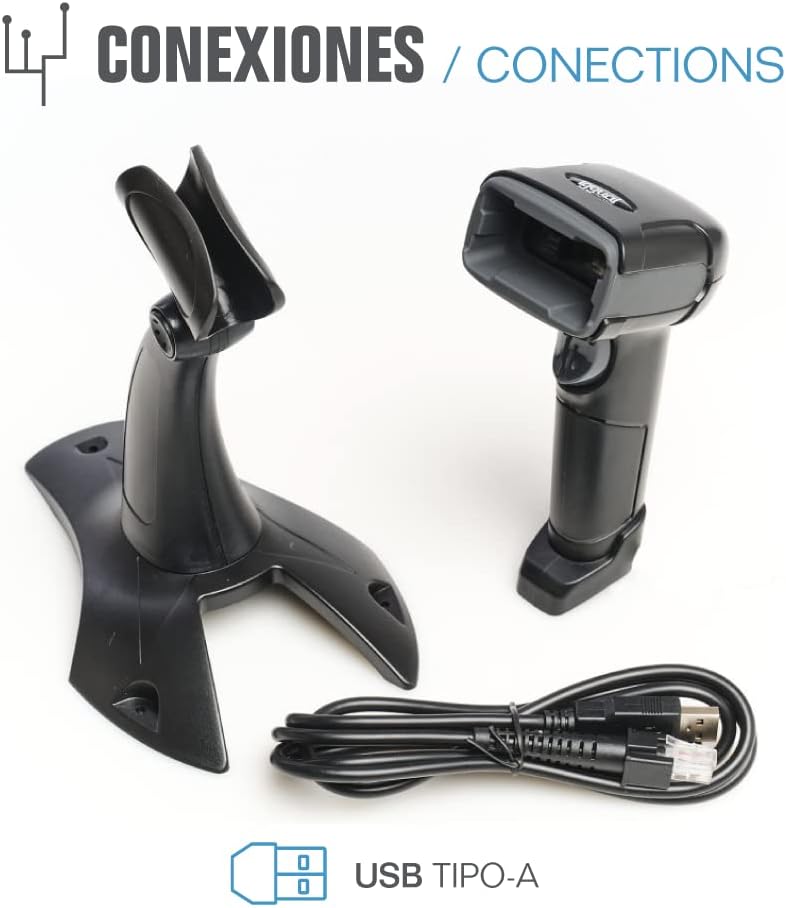
Figura 8.1: Physical dimensions of the iggual barcode scanner.
9. Garanzija u Appoġġ
For warranty information, technical support, or to download the complete product manual with advanced configuration options, please visit the official iggual webis-sit jew ikkuntattja lid-distributur lokali tiegħek.
Uffiċjali Websit: www.iggual.com