
Introduzzjoni
This manual provides instructions for the Insignia NS-PNKNUM19 Wired Numeric Keypad. This device is designed to enhance data entry for accounting functions and spreadsheet applications on both Mac and PC computers. It features a standard numeral arrangement and responsive keys for efficient operation.
Informazzjoni dwar is-Sigurtà
Please read these safety instructions carefully before using your new numeric keypad to prevent damage to the device or injury to yourself.
- Do not expose the keypad to water or excessive moisture.
- Evita temperaturi estremi.
- Do not attempt to disassemble or repair the keypad yourself. Refer all servicing to qualified personnel.
- Keep the keypad away from strong magnetic fields.
- Uża biss ma' apparati kompatibbli kif speċifikat f'dan il-manwal.
Kontenut tal-Pakkett
- Insignia NS-PNKNUM19 Wired Numeric Keypad
- Gwida ta' Setup Rapidu (mhux inkluża f'dan il-manwal diġitali)

Image: The Insignia NS-PNKNUM19 Wired Numeric Keypad shown in its retail packaging, highlighting the product and its simple design.
Karatteristiċi
- 19 Ċwievet: Offers a comfortable and complete numeric typing experience.
- Interface USB: Enables a simple wired connection to your computer.
- PC and Mac Compatible: Designed for use with both Windows and macOS operating systems.
- Plug-and-Play: L-ebda installazzjoni ta' sewwieq mhi meħtieġa għall-biċċa l-kbira tas-sistemi operattivi.
- Indikatur LED: An LED light indicates when the keypad is connected and active.
Setup
Setting up your Insignia NS-PNKNUM19 Wired Numeric Keypad is a straightforward process.
- Qabbad it-Tastiera: Locate an available USB port on your computer (PC or Mac). Plug the USB connector of the numeric keypad into the USB port.
- Rikonoxximent tas-Sistema: Your computer should automatically detect and install the necessary drivers. This is a plug-and-play device, so no manual driver installation is typically required.
- Ivverifika l-Konnessjoni: An LED indicator on the keypad will illuminate, confirming that the device is connected and ready for use.
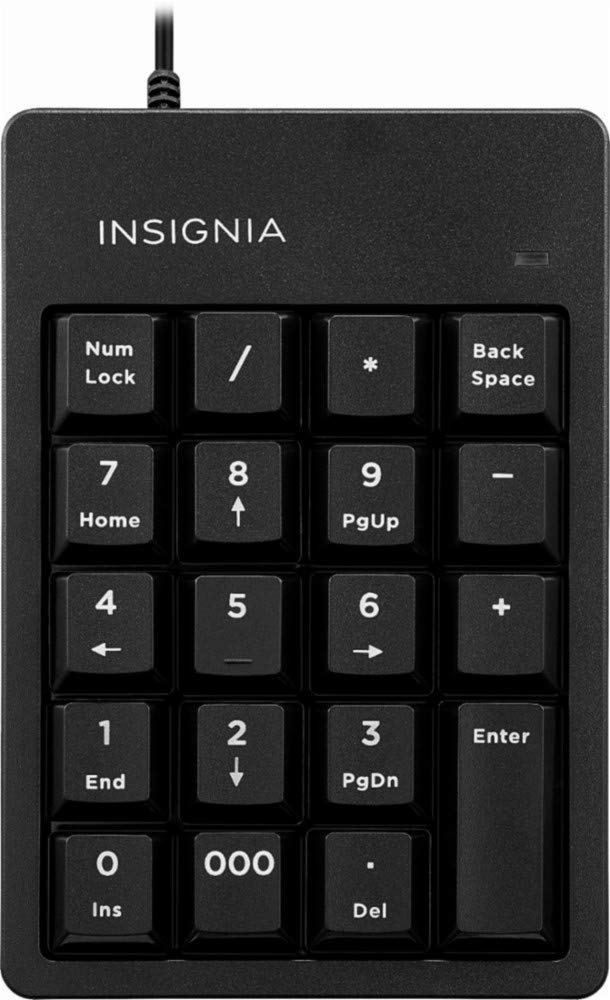
Image: The Insignia NS-PNKNUM19 Wired Numeric Keypad, showing its 19 keys and the attached USB cable ready for connection.
Istruzzjonijiet Operattivi
Once connected, the numeric keypad functions similarly to the numeric section of a full-sized keyboard.
- Input Numeriku: Press the number keys (0-9) to input numerical data.
- Arithmetic Operators: Use the +, -, *, and / keys for basic arithmetic operations.
- Punt Deċimali: The '.' key allows for decimal input.
- Daħħal Ċavetta: Functions as a standard Enter key.
- Num Lock: The "Num Lock" key toggles the numeric function of the keys. When Num Lock is active (indicated by the LED), the keys function as numbers. When Num Lock is off, some keys may perform alternative functions like Home, End, PgUp, PgDn, or arrow navigation, depending on the application.
- Spazju ta' Dahar: Deletes the character to the left of the cursor.
- Del (Delete): Deletes the character to the right of the cursor or selected text.
- 000 Ċavetta: Provides quick input for three zeros.
Manutenzjoni
To ensure the longevity and optimal performance of your numeric keypad, follow these simple maintenance guidelines:
- Tindif: Use a soft, dry, lint-free cloth to clean the surface of the keypad. For stubborn dirt, slightly dampen the cloth with water or a mild, non-abrasive cleaner. Avoid spraying liquids directly onto the keypad.
- Ħażna: When not in use, store the keypad in a clean, dry environment away from direct sunlight and extreme temperatures.
- Immaniġġjar: Avoid dropping the keypad or subjecting it to strong impacts, which can damage internal components.
Issolvi l-problemi
If you encounter issues with your Insignia NS-PNKNUM19 Wired Numeric Keypad, refer to the following common solutions:
| Problema | Soluzzjoni |
|---|---|
| Keypad is not recognized by the computer. |
|
| Keys are not responding or typing incorrect characters. |
|
| L-indikatur LED huwa mitfi. |
|
Speċifikazzjonijiet
| Numru tal-Mudell: | NS-PNKNUM19 |
| Ditta: | Insinji |
| Konnettività: | Wired USB (standard USB-A connector) |
| Numru ta' Ċwievet: | 19 |
| Kompatibilità: | PC, Mac |
| Kulur: | Iswed |
| Deskrizzjoni tat-Tastiera: | Ergonomiku |
| Dimensjonijiet (madwar): | 25.9 x 14.9 x 3.9 ċm (Dimensjonijiet tal-Pakkett) |
| Piż (madwar): | 156 g |
Garanzija u Appoġġ
Insignia products are manufactured to high quality standards. For specific warranty information, please refer to the warranty card included with your purchase or visit the official Insignia website. For technical support or customer service, please contact Insignia customer support through their official channels.
Manufacturer Contact Information: Peachtree City, GA 30269, US