
Introduzzjoni
This manual provides essential information for setting up, operating, maintaining, and troubleshooting your Lenovo ThinkCentre M720q Tiny Desktop Computer. Please read these instructions carefully before using your device.

Figure 1: Lenovo ThinkCentre M720q Tiny Desktop Computer - Front View
Setup Istruzzjonijiet
1. Spakkjar
Carefully remove the computer and all accessories from the packaging. Ensure the following items are present:
- Kompjuter tad-Desktop Żgħir Lenovo ThinkCentre M720q
- Adapter tal-Enerġija
- Dokumentazzjoni (dan il-manwal, informazzjoni dwar il-garanzija)
2. Konnessjoni Periferali
Connect your monitor, keyboard, and mouse to the appropriate ports on the computer.
- Wiri: Connect your monitor using a DisplayPort or HDMI cable. The system supports resolutions up to 3840x2160.
- Tastiera u maws: Connect USB keyboard and mouse to any available USB ports. The device features multiple USB 3.0 ports.
- Netwerk: For wired network access, connect an Ethernet cable to the RJ-45 port. For wireless, ensure your Wi-Fi network is available.
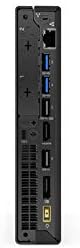
Figure 2: Rear ports of the ThinkCentre M720q, including display outputs and USB ports.

Figure 3: Front ports of the ThinkCentre M720q, including USB and audio jacks.
3. Konnessjoni tal-Enerġija
Connect the power adapter to the computer's power input, then plug the power cord into a wall outlet.
4. L-Ibbutjar Inizjali u s-Setup tas-Sistema Operattiva
Press the power button located on the front of the computer. The system will boot into Windows 10 Pro. Follow the on-screen instructions to complete the initial setup, including language selection, network connection, and user account creation.
Istruzzjonijiet Operattivi
Qawwa mixgħul/mitfi
- Biex Tixgħel: Agħfas il-buttuna tal-qawwa fuq il-pannell ta 'quddiem.
- Biex tagħlaq: Ikklikkja l-buttuna Start fil-Windows, imbagħad agħżel Power > Shut down.
- Biex terġa' tibda: Ikklikkja l-buttuna Start fil-Windows, imbagħad agħżel Power > Restart.
Konnettività tan-Netwerk
- Netwerk bil-fili: If an Ethernet cable is connected, the system should automatically detect the network.
- Netwerk bla Fili (Wi-Fi): The ThinkCentre M720q supports 802.11ac wireless. To connect, click the Wi-Fi icon in the system tray, select your network, and enter the password if prompted.
Użu ta 'Tagħmir USB
The computer is equipped with multiple USB 3.0 ports. Simply plug your USB devices (e.g., external hard drives, flash drives, printers) into any available USB port. Windows will typically install necessary drivers automatically.
Konfigurazzjoni tal-Wiri
The ThinkCentre M720q supports multiple displays. You can configure display settings (resolution, orientation, extended/duplicated desktop) through the Windows Display Settings. Right-click on the desktop and select "Display settings".
Manutenzjoni
Cleaning the Computer
- Always power off the computer and disconnect it from the power outlet before cleaning.
- Uża drapp ratba u mingħajr ħelu ftit dampimsaħ bl-ilma jew b'soluzzjoni ħafifa għat-tindif biex timsaħ l-uċuħ ta' barra.
- Tużax kimiċi ħarxa, prodotti tat-tindif li joborxu, jew solventi.
- Use compressed air to gently clear dust from vents and ports.
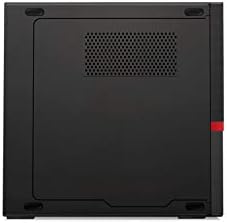
Figura 4: Fuq view of the ThinkCentre M720q, highlighting ventilation areas.
Aġġornamenti tas-Software
Regularly update your Windows operating system and drivers to ensure optimal performance and security. Windows Update can be accessed via Settings > Update & Security > Windows Update.
Issolvi l-problemi
If you encounter issues with your ThinkCentre M720q, refer to the following common solutions:
- Ebda Qawwa: Ensure the power adapter is securely connected to both the computer and a working electrical outlet. Try a different outlet.
- Ebda Display: Verify that the monitor is powered on and correctly connected to the computer. Check the input source on your monitor.
- Tnaqqis tas-Sistema: Close unnecessary applications. Check for background processes using Task Manager. Ensure sufficient free space on the SSD.
- Periferali Mhux Rilevat: Try connecting the peripheral to a different USB port. Ensure drivers are installed (if required).
- Kwistjonijiet ta' Konnettività tan-Netwerk: For wired connections, check the Ethernet cable. For Wi-Fi, ensure the network is available and you have the correct password. Restart your router if necessary.
For more complex issues, consult the Lenovo support websit jew ikkuntattja lis-servizz tal-konsumatur tagħhom.
Speċifikazzjonijiet
| Karatteristika | Dettall |
|---|---|
| Brand | Lenovo |
| Serje | ThinkCentre M720q |
| Numru tal-Mudell tal-Oġġett | ThinkCentre M720q |
| Sistema Operattiva | Windows 10 Pro |
| Proċessur | Intel Core i5 (1.7 GHz) |
| RAM | 8 GB DDR3 (Veloċità tal-Memorja ta' 2666 MHz) |
| Hard Drive | 256 GB SSD (Serial ATA-300 Interface) |
| Koproċessur tal-Grafika | Intel Turbo Boost Technology 2 |
| Deskrizzjoni tal-Kard Grafika | Integrata |
| Riżoluzzjoni Massima tal-Iskrin | 3840x2160 |
| Tip bla fili | 802.11ac |
| Numru ta 'USB 3.0 Ports | 3 |
| Piż tal-oġġett | 3 liri |
| Dimensjonijiet tal-Prodott (LxWxH) | 7 x 1.4 x 7.2 pulzieri |
| Kulur | Iswed |
Informazzjoni dwar Garanzija
For detailed warranty terms and conditions, please refer to the official Lenovo warranty documentation included with your product or visit the official Lenovo support websit. Il-kopertura tal-garanzija tipikament tinkludi difetti fil-materjali u x-xogħol għal perjodu speċifikat mid-data tax-xiri.
Appoġġ għall-Klijent
If you require technical assistance, have questions about your product, or need to report an issue, please contact Lenovo customer support through their official channels. You can find contact information and online resources on the official Lenovo websit.
Lenovo Official Websit: www.lenovo.com