
1. Introduzzjoni
This manual provides comprehensive instructions for the ASUS ZenBook Pro 15 UX580GE-XB74T laptop. It is designed to assist users in setting up, operating, maintaining, and troubleshooting their device. The ZenBook Pro 15 features a 15.6-inch UHD 4K touch display, an Intel Core i9-8950HK processor, NVIDIA GeForce GTX 1050 Ti graphics, 16GB DDR4 RAM, and a 512GB PCIe SSD. A key feature is the integrated ScreenPad, an interactive display that enhances multitasking and workflow efficiency.
2. Kontenut tal-Pakkett
Verify that all items are present in the package before proceeding with setup. If any item is missing or damaged, contact your retailer.
- ASUS ZenBook Pro 15 UX580GE-XB74T Laptop
- Adapter tal-Enerġija & Kurdun
- USB 3.0 to RJ45 Cable (Ethernet Adapter)
- Gwida għall-Utent (dan id-dokument)
- Karta ta' Garanzija
3. Prodott Aktarview
Familiarize yourself with the main components and features of your ASUS ZenBook Pro 15 laptop.
3.1 Laptop Exterior

Figura 3.1: Angolat view of the ASUS ZenBook Pro 15 laptop with the display open.
The laptop features a sleek design with a 15.6-inch display and a distinct ScreenPad below the keyboard.
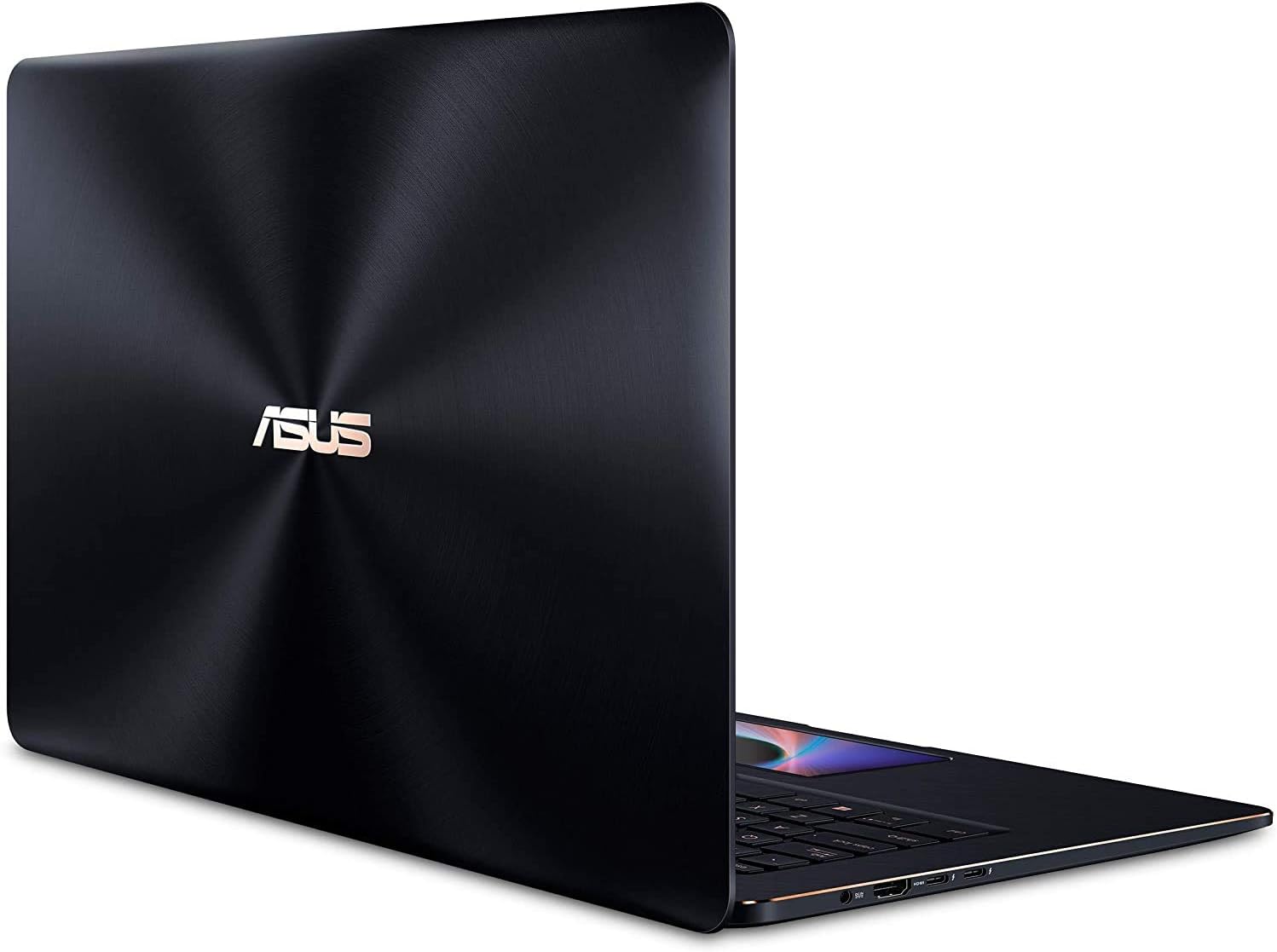
Figura 3.2: Wara view of the ASUS ZenBook Pro 15, showcasing the chassis design.
3.2 Keyboard and ScreenPad

Figura 3.3: Minn fuq għal isfel view of the keyboard and ScreenPad. The ScreenPad is located where a traditional touchpad would be.
The full-size keyboard includes a backlight for use in low-light conditions. The ScreenPad functions as both a traditional touchpad and a secondary interactive display.

Figure 3.4: The ScreenPad in action, showing various application shortcuts and controls.
3.3 Portijiet u Konnetturi

Figura 3.5: Dettaljat view of the laptop's side ports, including USB, HDMI, and power input.
- In-naħa tax-xellug: Power input (DC-IN), HDMI port, 2x USB-C (Thunderbolt 3 compatible) ports.
- In-naħa tal-lemin: Audio jack, MicroSD card reader, 2x USB 3.0 ports.
4. Setup
4.1 Konnessjoni tal-Adapter tal-Enerġija
- Qabbad il-korda tal-enerġija AC mal-AC adapter.
- Plug the DC output connector of the AC adapter into the laptop's power input port (DC-IN).
- Ipplaggja l-korda tal-enerġija AC f'iżbokk tal-ħajt.
Huwa rakkomandat li l-batterija tiġi ċċarġjata kompletament qabel l-ewwel użu.
4.2 Tixgħel Inizjali u Setup tal-Windows
- Iftaħ l-għatu tal-laptop.
- Agħfas il-buttuna tal-qawwa, li tipikament tinsab fin-naħa ta' fuq tal-lemin tat-tastiera.
- Follow the on-screen instructions to complete the Windows 10 Pro setup process. This includes selecting your region, language, accepting terms, and creating a user account.
5. Istruzzjonijiet Operattivi
5.1 Using the ScreenPad
The ScreenPad offers an interactive display experience. It can function as a traditional touchpad or as a secondary screen for various applications and shortcuts.
- Touchpad Mode: By default, the ScreenPad operates as a precision touchpad for cursor control.
- ScreenPad Mode: Tap the F6 key (or the dedicated ScreenPad key if present) to switch between touchpad mode and ScreenPad mode. In ScreenPad mode, you can launch applications, use quick access tools, or extend your main display onto the ScreenPad.
- Personalizzazzjoni: Access ScreenPad settings to customize shortcuts, application layouts, and display preferences.
5.2 Funzjonijiet tat-Tastiera
The keyboard includes function keys (F1-F12) that can be activated by pressing the 'Fn' key in combination with the desired function key. Common functions include:
- Kontroll tal-luminożità: Aġġusta l-luminożità tal-iskrin.
- Kontroll tal-Volum: Aġġusta l-volum tal-awdjo.
- Backlight tat-Tastiera: Toggle or adjust keyboard illumination.
- Bla fili mixgħul/mitfi: Enable or disable Wi-Fi and Bluetooth.
5.3 Touch Display Usage
The 15.6-inch UHD 4K display supports touch input. Use gestures similar to those on a smartphone or tablet for navigation, zooming, and interaction with applications.
5.4 Konnessjoni ta' Apparati Esterni
- Apparat USB: Connect USB peripherals (e.g., mouse, keyboard, external drives) to the USB 3.0 or USB-C ports.
- Display Estern: Use the HDMI port or a USB-C to DisplayPort/HDMI adapter to connect an external monitor.
- Netwerk: Use the provided USB 3.0 to RJ45 cable to connect to a wired Ethernet network.
- Wireless: The laptop supports dual-band Wi-Fi 5 (802.11ac) and Bluetooth for wireless connectivity. Ensure these are enabled in Windows settings.
6. Manutenzjoni
6.1 Tindif tal-Laptop
- Dejjem itfi l-laptop u skonnettja l-adapter tal-enerġija qabel ma tnaddaf.
- Uża drapp ratba u mingħajr ħelu ftit dampened with water or a specialized screen cleaner for the display. Avoid harsh chemicals.
- For the keyboard and chassis, use a soft, dry cloth. A can of compressed air can remove dust from crevices.
6.2 Kura tal-Batterija
- Evita li tesponi l-laptop għal temperaturi estremi.
- Għal lonġevità ottimali tal-batterija, evita li tiċċarġja l-batterija kompletament ta' spiss.
- Jekk se taħżen il-laptop għal perjodu estiż, kun żgur li l-batterija tkun iċċarġjata għal madwar 50-60%.
6.3 Aġġornamenti tas-Software
Regularly update your Windows operating system and ASUS drivers to ensure optimal performance, security, and compatibility. Check for updates through Windows Update and the ASUS support websit.
7 Issolvi l-problemi
Din it-taqsima tindirizza kwistjonijiet komuni li tista’ tiltaqa’ magħhom bil-laptop tiegħek.
- Il-laptop ma jixgħelx: Ensure the power adapter is securely connected and the wall outlet is functional. Try pressing and holding the power button for 15-20 seconds to perform a hard reset.
- L-iskrin huwa vojt: Check if the laptop is powered on. Adjust screen brightness using function keys. If an external monitor is connected, ensure it is properly configured.
- ScreenPad is unresponsive: Ensure the ScreenPad is in the correct mode (not touchpad mode). Restart the ScreenPad software or the laptop.
- Il-Wi-Fi jew il-Bluetooth mhux qed jaħdmu: Verify that wireless functions are enabled via function keys or Windows settings. Check device drivers in Device Manager.
- Is-sħana żejda: Ensure ventilation vents are clear of obstructions. Use the laptop on a hard, flat surface. Update drivers and check background processes.
For more detailed troubleshooting or issues not covered here, refer to the ASUS support webis-sit jew ikkuntattja lis-servizz tal-klijenti tal-ASUS.
8. Speċifikazzjonijiet
The following table outlines the technical specifications of the ASUS ZenBook Pro 15 UX580GE-XB74T.
| Karatteristika | Speċifikazzjoni |
|---|---|
| Isem tal-Mudell | ASUS ZenBook Pro 15 UX580GE-XB74T |
| Daqs tal-Wiri tal-Iskrin Permanenti | 15.6 Pulzier |
| Riżoluzzjoni Massima tal-Iskrin | 3840 x 2160 Pixel (UHD 4K) |
| Proċessur | Intel Core i9-8950HK (4.8 GHz) |
| RAM | 16 GB DDR4 (2400 MHz) |
| Hard Drive | 512 GB PCIe SSD |
| Koproċessur tal-Grafika | NVIDIA GeForce GTX 1050 Ti |
| Daqs tar-RAM tal-Karta tal-Grafika | 4 GB Dedikati |
| Tip bla fili | 802.11ac (Wi-Fi 5), Bluetooth |
| Numru ta 'USB 3.0 Ports | 2 |
| Portijiet USB-C | 2 (Thunderbolt 3 compatible) |
| Sistema Operattiva | Windows 10 Pro |
| Piż tal-oġġett | 5.5 liri |
| Dimensjonijiet tal-Prodott | 14.1 x 9.7 x 0.9 pulzieri |
| Kulur | Iswed |
| Karatteristika Speċjali | Backlit Keyboard, Touch Screen, ScreenPad |
9. Garanzija u Appoġġ
Your ASUS ZenBook Pro 15 UX580GE-XB74T laptop comes with a limited warranty. Please refer to the included Warranty Card for detailed terms and conditions, including coverage period and service procedures.
Għal appoġġ tekniku, downloads ta' sewwieqa, jew aktar assistenza, jekk jogħġbok żur is-sit uffiċjali tal-appoġġ tal-ASUS website or contact ASUS customer service directly. Contact information can typically be found on the ASUS webis-sit jew fid-dokumentazzjoni tal-garanzija tiegħek.