1. Introduzzjoni
Thank you for choosing the Gzunelic 9500 Lumens Android WiFi Projector. This projector is designed for home entertainment, offering a bright, high-definition viewing experience with versatile connectivity options. Featuring a native 1080p resolution, Android operating system, and wireless mirroring capabilities, it provides a comprehensive solution for your multimedia needs. This manual will guide you through the setup, operation, and maintenance of your new projector.
2. Informazzjoni dwar is-Sigurtà
- Kun żgur li l-ventilazzjoni madwar il-proġettazzjoni hija xierqa biex tevita li ssaħħan iżżejjed. Timblokkax il-fetħiet tal-ventilazzjoni.
- Uża biss l-adapter tal-enerġija li jiġi mal-proġettur.
- Evita li tħares direttament fil-lenti tal-proġekter meta l-lamp ikun mixgħul, għax id-dawl qawwi jista’ jikkawża ħsara lill-għajnejn.
- Do not place the projector on unstable surfaces.
- Żomm il-proġettazzjoni 'l bogħod mill-ilma jew likwidi oħra.
- Skonnettja l-proġettur waqt maltempati bis-sajjetti jew meta ma jintużax għal perjodi twal.
- Tippruvax issewwi l-proġettur int stess. Irreferi għal kull manutenzjoni f'idejn persunal kwalifikat.
3. X'hemm fil-Kaxxa
- Gzunelic 9500 Lumens Android WiFi Projector
- Kejbil tal-Enerġija
- Kontroll mill-bogħod
- Cable HDMI
- Kejbil VGA
- Manwal għall-Utent (dan id-dokument)
4. Prodott Aktarview
4.1 Komponenti Fiżiċi

Figura 4.1: Quddiem view of the Gzunelic Projector, highlighting the lens and ventilation.

Figura 4.2: Diversi views of the projector, including top, front, left, right, and back, showing its compact design.
The Gzunelic projector features a sleek design with a prominent lens at the front. It includes a robust cooling system with ventilation grilles on the sides and back to ensure stable operation.
4.2 Panel tal-Kontroll

Figura 4.3: Top-mounted control panel with navigation and function buttons.
The control panel is located on the top of the projector, providing easy access to essential functions. It includes directional buttons for navigation, an OK button for selection, a power button, and menu/return buttons.
4.3 Portijiet ta 'Input/Output

Figura 4.4: Wara view showing the comprehensive array of input and output ports.
The projector offers a wide range of connectivity options on its rear panel, including:
- Port VGA: For connecting to older computers or laptops.
- 2 x USB Ports: For connecting USB drives, external hard drives, mouse, or keyboard.
- 2 x HDMI Ports: For connecting modern devices like PCs, laptops, set-top boxes, gaming consoles (PS3/PS4/Xbox), and DVD players.
- Port Ethernet: Għal konnessjoni tal-internet bil-fili.
- Port AV: For connecting older video sources.
- Port tal-Awdjo ta' 3.5mm: Għall-konnessjoni ta' headphones jew kelliema esterni.
The projector also supports Wi-Fi for direct signal connection and Bluetooth for wireless audio output.
4.4 Aġġustament tal-Għoli

Figura 4.5: Adjustable foot for precise height and projection angle alignment.
An adjustable foot is located on the underside of the projector, allowing you to fine-tune the projection angle and height for optimal image alignment on your screen or wall.
5. Setup
- Pjazzament: Position the projector on a stable, flat surface. Ensure there is adequate space around the projector for ventilation. For ceiling mounting, use the four holes on the bottom of the unit.
- Konnessjoni tal-Enerġija: Qabbad il-kejbil tal-enerġija mad-dħul tal-enerġija tal-proġettazzjoni u mbagħad ma' sokit tal-enerġija.
- Qawwa Mixgħul: Agħfas il-buttuna tal-qawwa fuq il-proġekter jew il-kontroll mill-bogħod biex tixgħel l-apparat.
- Aġġusta l-Għoli: Use the adjustable foot at the front of the projector to raise or lower the front of the unit, aligning the projected image with your screen.
- Aġġustament tal-Focus: Rotate the focus ring around the lens until the projected image appears sharp and clear.
- Korrezzjoni Keystone: Adjust the keystone correction dial (if available) to correct any trapezoidal distortion in the image, ensuring a rectangular projection.
6. Istruzzjonijiet Operattivi
6.1 Operazzjoni Bażika
- Power On/Off: Press the power button once to turn on. Press and hold the power button for a few seconds to initiate shutdown.
- Navigazzjoni: Use the directional buttons on the control panel or remote to navigate through menus. Press 'OK' to select.
- Għażla tas-Sors: From the main menu, select "Signal Source" to choose your input (HDMI, VGA, AV, etc.).
6.2 Apparat li jgħaqqad
The projector supports various wired and wireless connections:
- HDMI/VGA/AV: Connect your PC, laptop, gaming console, or DVD player using the respective cables to the corresponding ports on the projector.
- USB: Insert a USB flash drive or external hard disk into a USB port to play media files directly. You can also connect a USB mouse or keyboard for easier navigation within the Android OS.
- Ethernet: Connect an Ethernet cable to the port for a stable wired internet connection.
- Wi-Fi: Navigate to the projector's settings menu to connect to your wireless network.
- Bluetooth: To connect a Bluetooth speaker, go to the settings menu, enable Bluetooth, and pair with your speaker. If using a wired external speaker, connect it via the 3.5mm audio port and set the sound output to "line out" in the Android settings.
6.3 Android OS and Wireless Mirroring
Figura 6.1: The Android OS home screen displaying available applications.
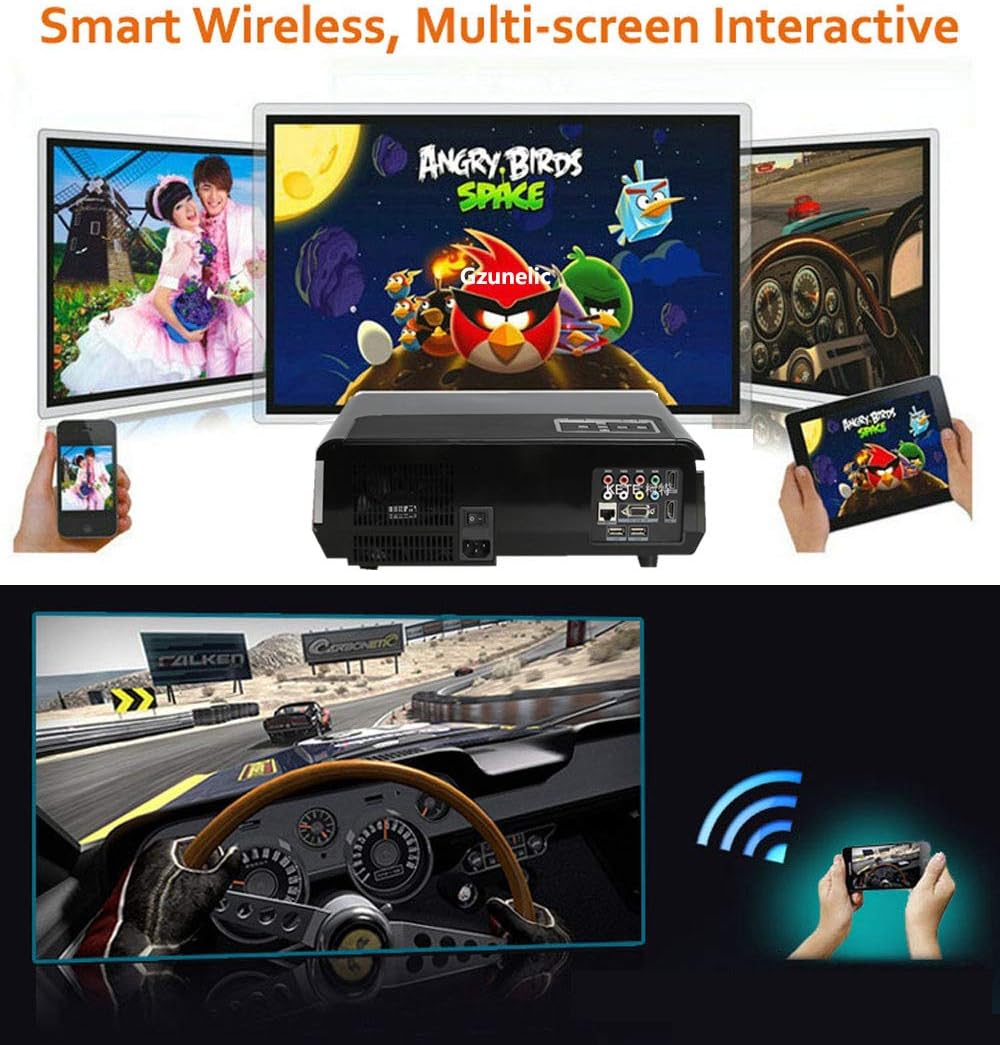
Figura 6.2: Illustration of wireless mirroring from smartphones and tablets to the projector.
The projector runs on an Android operating system, allowing direct access to online content, shopping, and games. You can navigate using the remote control or by connecting a USB mouse/keyboard.
- Screen Mirroring (Airplay/Miracast): On the projector's Android home page, locate and click the "Screening Assistant" app. Follow the on-screen instructions to connect your phone via Airplay (for iOS devices) or Miracast (for Android devices). Ensure both your phone and the projector are connected to the same Wi-Fi network.
- Apps installati minn qabel: Access apps like YouTube, Aptoide TV, and WPS Office directly from the home screen for various entertainment and productivity functions.
6.4 Vidjo ta' Dimostrazzjoni tal-Prodott
Vidjo 6.3: A brief demonstration video showcasing the Gzunelic projector in operation. This video provides a visual overview of the projector's capabilities and image quality.
7. Manutenzjoni
- Tindif tal-Lenti: Uża drapp artab u mingħajr suf iddisinjat speċifikament għal lentijiet ottiċi biex timsaħ bil-mod il-lenti tal-proġettazzjoni. Evita li tuża prodotti tat-tindif jew drappijiet li jobrox li jistgħu jigrif il-lenti.
- Tindif ta' barra: Imsaħ il-barra tal-proġettazzjoni b'ċarruta ratba u niexfa. Għal ħmieġ iebes, neħħi ftit.amp Jista' jintuża drapp, iżda kun żgur li ma tidħolx umdità fl-apparat.
- Ventilazzjoni: Regularly check and clean the ventilation openings to prevent dust buildup, which can impede airflow and cause overheating. Use a soft brush or compressed air to clear dust.
- Ħażna: When not in use for extended periods, store the projector in a cool, dry place, ideally in its original packaging or a protective case, to prevent dust accumulation and physical damage.
8 Issolvi l-problemi
| Problema | Kawża Possibbli | Soluzzjoni |
|---|---|---|
| L-ebda immaġni pproġettata | Power not connected; Incorrect input source; Device not powered on. | Check power cable and outlet; Select correct input source (HDMI, VGA, AV); Ensure connected device is on. |
| Immaġini mċajpra | Out of focus; Incorrect keystone adjustment; Projector too close/far from screen. | Adjust focus ring; Adjust keystone correction; Reposition projector for optimal distance. |
| L-ebda ħoss | Volume too low/muted; Incorrect audio output setting; External speaker not connected/paired. | Increase volume, unmute; Check audio settings (e.g., set to "line out" for wired external speakers); Ensure Bluetooth speaker is paired. |
| Il-mirroring mingħajr fili mhux qed jaħdem | Not on same Wi-Fi network; "Screening Assistant" not active. | Ensure both devices are on the same Wi-Fi network; Open "Screening Assistant" app on projector and follow instructions. |
| Projector turns on by itself | Possible software glitch or power issue. | Unplug the projector from the wall to fully power cycle it. If the issue persists, contact customer support. |
9. Speċifikazzjonijiet
| Brand | Gzunelic |
| Numru tal-Mudell | led86+W |
| Luminożità | 9500 lumens LED light utilization efficiency |
| Riżoluzzjoni Nattiva | 1920 x 1080 (Full HD), supports 2K/4K (limited to 100Mbps, 60Hz) |
| Proporzjon ta' Kuntrast | 10000:1 |
| Sistema Operattiva | Android OS |
| Teknoloġija tal-Konnettività | Ethernet, Wireless (Wi-Fi), Bluetooth, 2x HDMI, 2x USB, AV, VGA, 3.5mm Audio |
| Dimensjonijiet tal-Prodott | 13.77 x 10.82 x 5.51 pulzieri |
| Piż tal-oġġett | 8.5 liri |
| Djagonali tal-Iskrin Viżibbli | Up to 300 inches / 762 cm |
10. Garanzija u Appoġġ
Gzunelic offers comprehensive support for your projector:
- Politika ta' Ritorn: 6 Months Return for Full Payment Refund.
- Politika ta' Sostituzzjoni: 1 Year Free Replacement.
- Servizz ta' Tiswija: 3 Years Repair service available at our repair center in LA, United States.
- Appoġġ Tekniku: Appoġġ tekniku professjonali tul il-ħajja.
For any problems or questions, please feel free to contact us. We aim to reply within 24 hours.