
Xerox C505/X
Manwal tal-Utent tal-MFP bil-Lejżer bil-Kulur Xerox VersaLink C505/X
Model: C505/X
1. Introduzzjoni
This manual provides detailed instructions for the setup, operation, and maintenance of your Xerox VersaLink C505/X Color Laser Multifunction Printer. The C505/X is designed for efficient performance in fast-paced work environments, offering print, copy, scan, and fax functionalities.
Key features include a customizable 7-inch color touchscreen for intuitive control, mobile and cloud connectivity, and robust security measures.
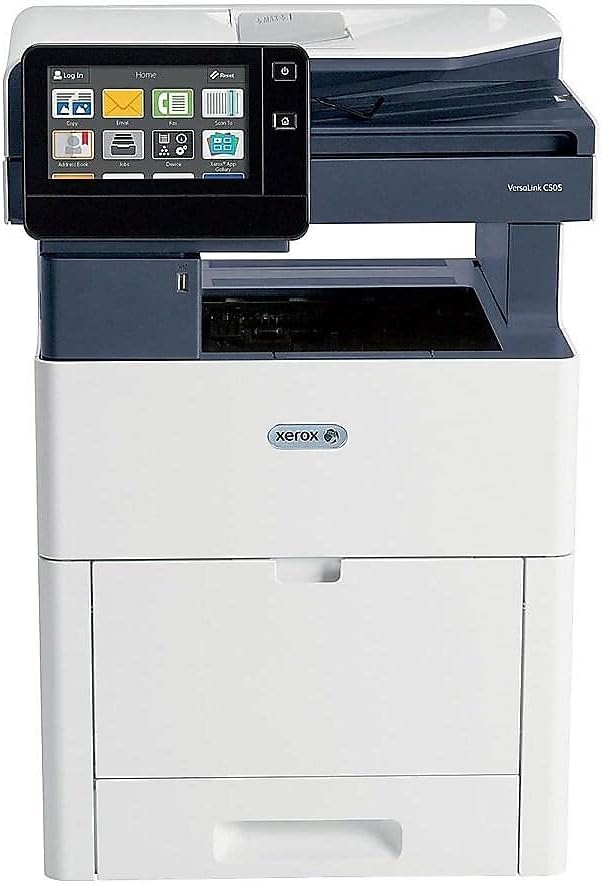
Figura 1: Quddiem view of the Xerox VersaLink C505/X Multifunction Printer.
2. Setup
2.1 Żpakkjar u Spezzjoni Inizjali
Carefully remove the printer from its packaging. Verify that all components listed below are present and undamaged:
- Xerox VersaLink C505 Color MFP
- Starter capacity toner cartridges (one each of cyan, magenta, yellow: 2,400 capacity; black: 5,000 capacity)
- CD ta' softwer u dokumentazzjoni
- Gwida għall-Installazzjoni
- Quick User Guides
- Korda tal-Enerġija
2.2 Konnessjoni tal-Enerġija
- Poġġi l-istampatur fuq wiċċ stabbli u livellat.
- Connect the provided power cord to the printer's power input and then to a grounded electrical outlet.
- Do not power on the device until all other connections are made.
2.3 Installazzjoni tal-Kartriġ tat-Toner
Install the starter toner cartridges into their respective slots. Refer to the Quick User Guides for specific instructions on opening the toner access panel and inserting cartridges.

Figure 2: Toner cartridge access panel open, showing toner installation.
2.4 Konnessjoni tan-Netwerk u tal-USB
The printer supports both Ethernet and USB connectivity.
- Ethernet: Qabbad kejbil Ethernet mill-port Ethernet tal-istampatur mar-router jew is-swiċċ tan-netwerk tiegħek.
- USB: Connect a USB cable from the printer's USB port to your computer.
2.5 Installazzjoni tas-Softwer
Insert the provided software and documentation CD into your computer's CD/DVD drive. Follow the on-screen instructions to install the necessary drivers and utilities. Alternatively, visit the official Xerox support websit għall-aħħar sewwieqa.
3. It-Tħaddim tal-Printer
3.1 Interface tat-touchscreen
The 7-inch color touchscreen provides access to all printer functions. Navigate through menus by tapping and swiping, similar to a smartphone. The home screen displays icons for various functions such as Print, Copy, Scan, and Fax.

Figure 3: Close-up of the 7-inch color touchscreen control panel.
3.2 Stampar
Biex tipprintja dokumenti:
- Kun żgur li l-istampatur huwa konness mal-kompjuter jew man-netwerk tiegħek.
- Open the document on your computer and select the print option.
- Choose the Xerox VersaLink C505/X from the list of available printers.
- Adjust print settings (e.g., color/monochrome, duplex printing, paper size) as needed. The printer supports up to 43 ppm color and 45 ppm monochrome, with automatic duplexing.
- Ikkonferma x-xogħol tal-istampar.
3.3 Ikkupjar
Biex tagħmel kopji:
- Poġġi d-dokument oriġinali fuq il-ħġieġa tal-iskaner jew fl-alimentatur awtomatiku tad-dokumenti (ADF).
- On the touchscreen, tap the "Copy" icon.
- Select desired settings such as number of copies, color/black and white, and two-sided copying. The maximum copy speed is 45 ppm (black & white) with resolutions up to 1200 x 2400 dpi.
- Agħfas il-buttuna "Ibda".
3.4 Skennjar
To scan documents:
- Poġġi d-dokument fuq il-ħġieġa tal-iskaner jew fl-ADF.
- On the touchscreen, tap the "Scan" icon.
- Choose the scan destination (e.g., email, network folder, USB drive) and adjust scan settings.
- Agħfas il-buttuna "Ibda".
3.5 Faxing
Biex tibgħat faks:
- Poġġi d-dokument fuq il-ħġieġa tal-iskaner jew fl-ADF.
- On the touchscreen, tap the "Fax" icon.
- Daħħal in-numru tal-faks tar-riċevitur.
- Aġġusta kwalunkwe settings tal-faks meħtieġa.
- Agħfas il-buttuna "Ibda".
3.6 Konnettività Mobbli u tal-Cloud
The VersaLink C505/X offers out-of-the-box connectivity to cloud services like Google Drive, Microsoft OneDrive, and DropBox. Additional options are available through the Xerox App Gallery, allowing for flexible workflow integration.
4. Manutenzjoni
4.1 Sostituzzjoni tal-Iskrataċ tat-Toner
When a toner cartridge is low or empty, the printer's display will indicate which cartridge needs replacement. Always use genuine Xerox toner cartridges for optimal performance and print quality.
- Open the front access panel of the printer.
- Neħħi l-iskartoċċ tat-toner vojt bir-reqqa billi tiġbdu dritt 'il barra.
- Iftaħ il-kartriġ il-ġdid tat-toner mill-pakkett u ħawdu bil-mod biex tqassam it-toner.
- Daħħal il-kartriġ il-ġdid fl-islott korrispondenti sakemm tikklikkja f'postu.
- Close the front access panel.
4.2 Tindif
Tindif regolari jgħin biex tinżamm il-kwalità tal-istampar u jtawwal il-ħajja tal-istampatur tiegħek.
- Barra: Imsaħ l-uċuħ ta 'barra b'artab, damp, drapp mingħajr ħelu.
- Ħġieġ tal-iskaner: Use a soft cloth moistened with glass cleaner to clean the scanner glass. Ensure no residue remains.
- Komponenti Interni: Refer to the detailed user manual on the software and documentation CD for instructions on cleaning internal components, such as the print heads or rollers, if necessary.
5 Issolvi l-problemi
This section addresses common issues you might encounter with your Xerox VersaLink C505/X. For more complex problems, consult the full user manual or contact support.
5.1 Ġammijiet tal-karti
If a paper jam occurs, the touchscreen will display an error message indicating the location of the jam. Follow the on-screen instructions to clear the jammed paper. Always pull paper in the direction of the paper path to avoid tearing.
5.2 Kwistjonijiet ta' Kwalità tal-Istampar
If printouts show streaks, faded areas, or incorrect colors:
- Iċċekkja l-livelli tat-toner u ibdel kwalunkwe kartuċċa baxxa.
- Kun żgur li qed tuża karta xierqa għax-xogħol tal-istampar tiegħek.
- Agħmel dijanjostika tal-kwalità tal-istampar mill-pannell tal-kontroll tal-istampatur.
- Clean the print heads or other internal components as instructed in the detailed manual.
5.3 Problemi ta' Konnettività
If the printer is not communicating with your computer or network:
- Verify that all cables (power, USB, Ethernet) are securely connected.
- Erġa' ibda l-istampatur u l-kompjuter/router tiegħek.
- Check network settings on the printer's touchscreen.
- Ensure the correct printer drivers are installed on your computer.
6. Speċifikazzjonijiet
| Karatteristika | Dettall |
|---|---|
| Isem tal-Mudell | Xerox C505/X VersaLink |
| Funzjonijiet | Stampa, Kopja, Skennja, Fax |
| Teknoloġija tal-Istampar | Laser tal-Kulur |
| Veloċità Massima tal-Istampar (Monokromu) | 45 ppm |
| Veloċità Massima tal-Istampar (Kulur) | 43 ppm |
| Riżoluzzjoni Massima tal-Istampar (Iswed u Abjad) | 2400 dpi |
| Riżoluzzjoni Massima tal-Istampar (Kulur) | 1200 x 2400 dpi |
| Stampar Duplex | Awtomatiku |
| Tip ta' Skaner | Dokument |
| Veloċità Massima tal-Kopja (Iswed u Abjad) | 45 ppm |
| Max Copy Resolution (Color) | Sa 1200 x 2400 dpi |
| Metodu ta' Kontroll | App, Touch (7-inch display) |
| Konnettività | USB-Ethernet |
| Kapaċità Massima tal-Folja tal-Input | 3250 folja |
| Trejs Standard | 2 (550 Sheet Tray, 150 Sheet Multi Purpose Tray) |
| Daqsijiet tal-Midja appoġġjati | Letter (8.5 x 11 inches), Legal (8.5 x 14 inches) |
| Tip ta' linka | Toner (Black, Cyan, Magenta, Yellow) |
| Kapaċità tal-Ħżin tal-Memorja | 4096 MB |
| Dimensjonijiet tal-Prodott | 26"D x 23"W x 31"H |
| Piż tal-oġġett | 77.2 liri |
| Wattage | 600 watt |
7. Garanzija u Appoġġ
7.1 Garanzija tal-Prodott
The Xerox VersaLink C505/X Color Laser MFP comes with a standard one-year full warranty from the date of purchase. This warranty covers defects in materials and workmanship under normal use. For detailed terms and conditions, please refer to the warranty documentation included with your product or visit the official Xerox websit.
7.2 Appoġġ għall-Klijent
For technical assistance, troubleshooting, or service requests, please contact Xerox customer support. Support contact information can be found on the Xerox webis-sit jew fid-dokumentazzjoni pprovduta mal-istampatur tiegħek.
Riżorsi onlajn: Visit the official Xerox support website for FAQs, driver downloads, and additional user guides.
Ask a question about this manual
Ask about setup, troubleshooting, compatibility, parts, safety, or missing instructions. Manuals+ will review the question and use this page’s manual context to help answer it.