
1. Introduzzjoni
This manual provides essential information for the safe and efficient operation of your Xerox AltaLink C8030 Multifunction Printer. Please read these instructions carefully before using the device and retain them for future reference. This device integrates printing, scanning, copying, and faxing capabilities to support various office tasks.
2. Informazzjoni dwar is-Sigurtà
Always follow basic safety precautions to reduce the risk of fire, electric shock, and injury. Ensure the device is connected to a grounded power outlet. Do not block ventilation openings. Keep the device away from water and excessive humidity. Refer to the safety labels on the product for specific warnings.
3. Prodott Aktarview
The Xerox AltaLink C8030 is a color multifunction printer designed for high-volume office environments. It features a 10-inch touchscreen for intuitive navigation and control. Key capabilities include:
- Print Speed: Up to 30 pages per minute (ppm) for both color and monochrome.
- Copy Resolution: 600 x 600 DPI.
- Memory: 8 GB RAM, 1 GB RAM, 250 GB HDD.
- Connectivity: NFC, Wireless, USB.
- Paper Supply: Multiple trays including 2 x 520-sheet trays, a 2,000-sheet high-capacity tandem tray, and a 100-sheet bypass tray.
- Features: Single Pass DADF, Data Security, Job Accounting, PostScript Kit, Network Scanning, Server Fax, iFax, Standard Output Tray, Office Finisher LX.
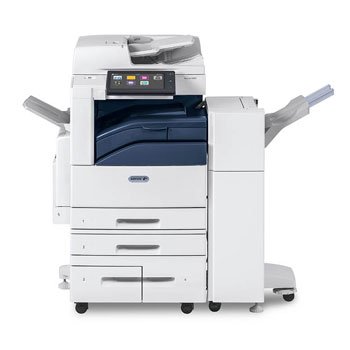
Immaġni: Quddiem view of the Xerox AltaLink C8030 multifunction printer, showing its various paper trays and the integrated touchscreen control panel.
4. Setup
4.1 Spakkjar u Tqegħid
- Neħħi b'attenzjoni l-istampatur mill-ippakkjar tiegħu.
- Poġġi l-istampatur fuq wiċċ stabbli u livellat b'ventilazzjoni adegwata.
- Ensure sufficient space around the printer for maintenance and paper loading.
4.2 Konnessjoni tal-Enerġija
- Qabbad il-korda tal-enerġija mal-istampatur u mbagħad ma' sokit elettriku ertjat.
- Agħfas il-buttuna tal-qawwa biex tixgħel l-apparat.
4.3 Tagħbija tal-Karta
- Open the desired paper tray (e.g., Tray 1, Tray 2, or Bypass Tray).
- Aġġusta l-gwidi tal-karti biex jaqblu mad-daqs tal-karta.
- Għabba l-munzell tal-karti, waqt li tiżgura li ma jaqbiżx il-linja massima tal-mili.
- Agħlaq it-trej tal-karta sew.
4.4 Konnessjoni tan-Netwerk u tal-USB
- Netwerk: Connect an Ethernet cable to the printer's network port and to your network router/switch. Configure network settings via the touchscreen if necessary.
- Wireless: Access the network settings on the touchscreen, select your Wi-Fi network, and enter the password.
- USB: Connect a USB cable from your computer to the printer's USB port for direct connection.
5. Istruzzjonijiet Operattivi
5.1 Stampar
- Mill-kompjuter jew mit-tagħmir mobbli tiegħek, iftaħ id-dokument li tixtieq tipprintja.
- Agħżel 'Stampa' mill-menù tal-applikazzjoni.
- Choose the Xerox AltaLink C8030 as your printer.
- Adjust print settings (e.g., number of copies, color/monochrome, paper size) as needed.
- Ikklikkja fuq 'Ipprintja'.
5.2 Skennjar
- Place your document face-down on the scanner glass or face-up in the Automatic Document Feeder (ADF).
- Fuq it-touchscreen tal-istampatur, agħżel il-funzjoni 'Scan'.
- Choose your scan destination (e.g., email, network folder, USB drive).
- Configure scan settings (e.g., resolution, file format, color mode).
- Agħfas 'Start' biex tibda tiskennja.
5.3 Ikkupjar
- Poġġi d-dokument tiegħek fuq il-ħġieġa tal-iskaner jew fl-ADF.
- On the touchscreen, select the 'Copy' function.
- Enter the desired number of copies.
- Adjust copy settings (e.g., enlargement/reduction, 2-sided, color/monochrome).
- Agħfas 'Start' biex tibda tikkopja.
5.4 Faxing
- Poġġi d-dokument tiegħek fuq il-ħġieġa tal-iskaner jew fl-ADF.
- On the touchscreen, select the 'Fax' function.
- Daħħal in-numru tal-faks tar-riċevitur.
- Configure fax settings (e.g., resolution, delayed send).
- Press 'Start' to send the fax.
6. Manutenzjoni
6.1 Sostituzzjoni tal-Iskrataċ tat-Toner
- Iftaħ il-qoxra ta' quddiem tal-istampatur.
- Identify the empty toner cartridge.
- Grasp the handle and pull the cartridge out.
- Iftaħ il-kartriġ tat-toner il-ġdid mill-pakkett u ħawdu bil-mod.
- Insert the new cartridge until it clicks into place.
- Agħlaq il-qoxra ta' quddiem.
6.2 Tindif tal-Ħġieġ tal-Iskaner
- Itfi l-istampatur u aqla l-korda tad-dawl.
- Iftaħ il-qoxra tal-iskaner.
- Wipe the scanner glass with a soft, lint-free cloth dampened with a mild glass cleaner.
- Ensure the glass is dry before closing the cover and restoring power.
7 Issolvi l-problemi
7.1 Ġammijiet tal-karti
- Follow the on-screen instructions to locate and clear the paper jam.
- Open all accessible covers and trays to check for jammed paper.
- Gently pull the paper in the direction of the paper path.
7.2 Kwistjonijiet ta' Kwalità tal-Istampar
- Check toner levels and replace cartridges if low.
- Agħmel tindif jew kalibrazzjoni tar-ras tal-istampar mill-menu tal-manutenzjoni tal-istampatur.
- Ensure you are using appropriate paper types for your print job.
7.3 Problemi ta' Konnettività
- Verify all cables (Ethernet, USB) are securely connected.
- For wireless connections, check Wi-Fi signal strength and network settings.
- Restart the printer, router, and computer/device.
8. Speċifikazzjonijiet
| Karatteristika | Speċifikazzjoni |
|---|---|
| Brand | Xerox |
| Isem tal-Mudell | AltaLink C8030 |
| Teknoloġija tal-Istampar | Laser |
| Output Printer | Kulur |
| Veloċità Massima tal-Istampar (Monokromu) | 30 ppm |
| Veloċità Massima tal-Kopja (Iswed u Abjad) | 30 ppm |
| Teknoloġija tal-Konnettività | NFC, Mingħajr Fili |
| Piż tal-oġġett | 349 Liri |
| Metodu ta' Kontroll | Remote, Touch |
| Apparati Kompatibbli | PC |
| GTIN / UPC | 095205880151 |
9. Garanzija u Appoġġ
For warranty information, please refer to the documentation included with your product or visit the official Xerox website. For technical support, driver downloads, or service requests, please contact Xerox customer support through their official channels. Keep your product's serial number and purchase date readily available when contacting support.
Riżorsi onlajn: Uffiċjali ta' Xerox Websit


