
Introduzzjoni
The NEC E436 is a 43-inch direct-lit, commercial-grade LED backlit display designed for various applications including education, corporate environments, and digital signage. This display features LED backlighting for reduced power consumption, a thinner profile, and lighter weight. It offers Full HD resolution for clear image quality and includes an integrated ATSC/NTSC tuner and built-in speakers for broadcast capabilities. Additionally, the E436 incorporates a USB player for displaying video, audio, or JPEG image files.
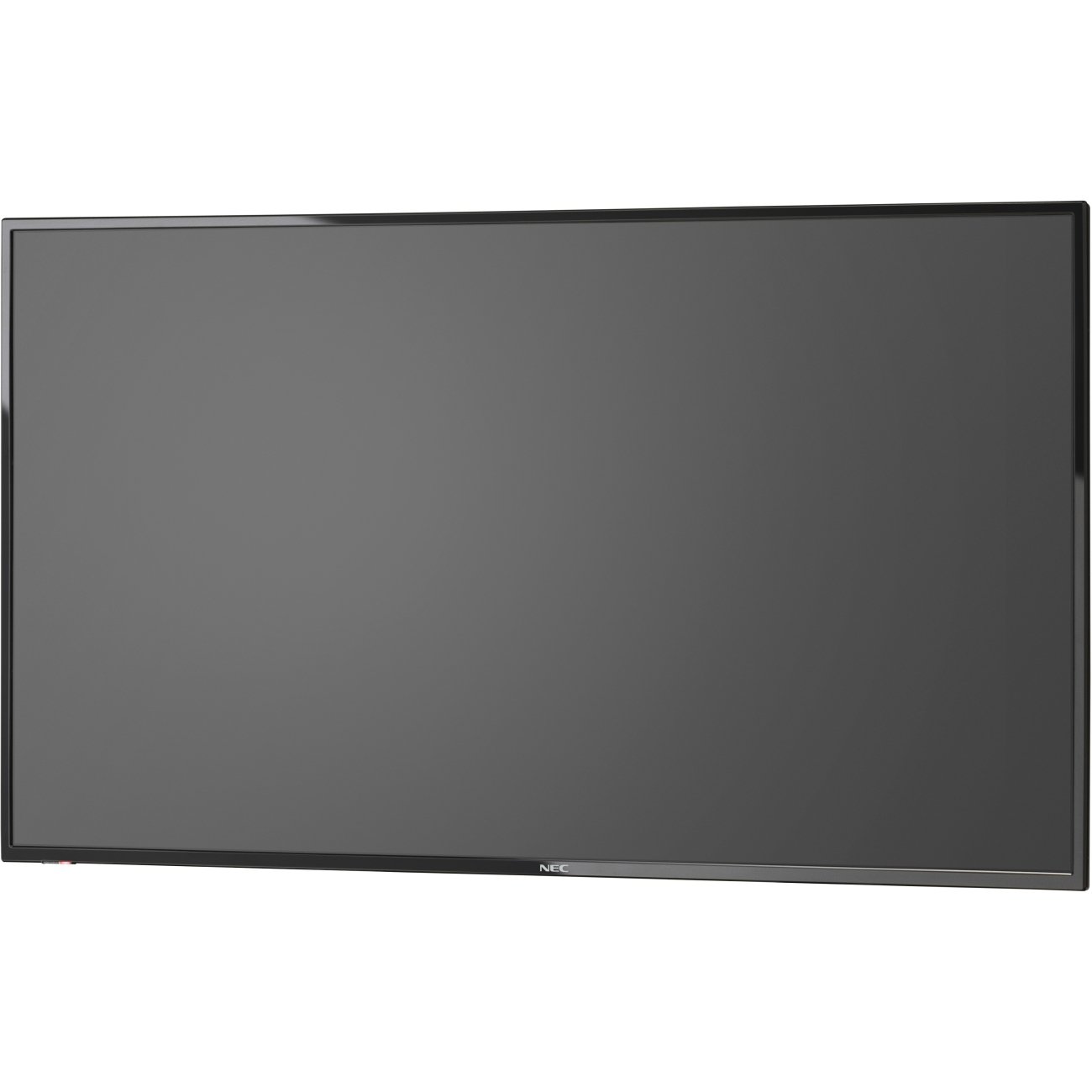
Stampa 1: Quddiem view of the NEC E436 43-inch LED Backlit Display with its stand, showcasing a vibrant beach landscape on the screen.
Setup
1. Unpacking the Display
Carefully remove the display and all components from the packaging. Ensure all items listed below are present:
- NEC E436 43" LED Backlit Display
- Korda tal-Enerġija
- Kontroll mill-bogħod (jekk inkluż)
- Manwal għall-Utent (dan id-dokument)
- Komponenti tal-istand (jekk applikabbli)
2. Installazzjoni Fiżika
The display can be installed using its included stand or mounted on a VESA-compatible wall mount or stand.
Stand Assembly (if applicable)
- Place the display face down on a soft, clean surface to prevent screen damage.
- Attach the stand base to the display using the provided screws. Ensure it is securely fastened.
- Carefully lift the display and place it on a stable, level surface.
Immuntar tal-Ħajt VESA
The NEC E436 supports VESA 200 x 200mm mounting. Use M6 x 16mm screws for attachment. Consult your wall mount's instructions for proper installation. Ensure the mounting surface can support the display's weight (approximately 20 pounds).
3. Kejbils tal-Konnessjoni
Connect the necessary cables to the display's input ports.
- Cable tal-Enerġija: Qabbad il-korda tal-enerġija mad-dħul tal-enerġija tad-displej u mbagħad ma' sokit elettriku ertjat.
- Cable HDMI: For video and audio input from a source device (e.g., computer, media player), connect an HDMI cable to the display's HDMI port and the source device's HDMI output.
- Apparat USB: To use the integrated multimedia player, insert a USB flash drive containing your media files into the display's USB port.
- Antenna/Kejbil: To utilize the integrated ATSC/NTSC tuner, connect an antenna or cable TV feed to the RF input port.
4. L-Ewwel Tixgħil
After connecting all cables, press the power button on the display or remote control to turn on the unit. Follow any on-screen prompts for initial setup, such as language selection or channel scanning for the integrated tuner.
Istruzzjonijiet Operattivi
1. Kontrolli Bażiċi
The display can be controlled using the buttons on the unit itself or via the remote control.
- Qawwa: Ixgħel jew itfi l-wiri.
- Input/Sors: Selects the desired input source (HDMI, TV, USB).
- Volum 'il fuq/Niżżel: Adjusts the audio output level from the built-in 10W speakers.
- Menu: Jaċċessa l-menù tal-wiri fuq l-iskrin (OSD) għal settings avvanzati.
- Buttuni tan-Navigazzjoni: Użat biex tinnaviga fl-għażliet tal-menù.
- OK/Daħħal: Jikkonferma l-għażliet fil-menù.
2. Using the Integrated Tuner
To watch broadcast television, ensure an antenna or cable feed is connected to the RF input.
- Agħfas il- Input/Sors button and select "TV".
- Access the menu and navigate to the "Channel" or "Setup" section.
- Select "Auto Scan" or "Channel Search" to find available channels.
- Once scanning is complete, use the Channel Up/Down buttons to browse channels.
3. Using the USB Multimedia Player
The integrated USB player allows playback of video, audio, and JPEG image files direttament minn mezz ta ' ħażna USB.
- Insert a USB flash drive containing your media files into the display's USB port.
- Agħfas il- Input/Sors button and select "USB".
- The display will typically open a file browser. Navigate to your desired media file (video, audio, or image).
- Agħżel il- file biex tibda daqq.
- Use the remote control for playback functions such as play, pause, stop, next, and previous.
4. L-aġġustament tas-Settings tal-Wiri
Access the OSD menu to customize picture, sound, and other display settings.
- Settings tal-Istampa: Adjust brightness, contrast, color, sharpness, and picture mode (e.g., Standard, Dynamic, Movie).
- Settings tal-ħoss: Adjust bass, treble, balance, and sound mode.
- Settings tal-ħin: Set the current time, sleep timer, or auto power-off.
- Issettjar tas-Sistema: General display options, including language, factory reset, and software updates.
Manutenzjoni
1. Tindif tal-Display
To maintain optimal picture quality, clean the display regularly.
- Skrin: Imsaħ l-iskrin bil-mod b'ċarruta ratba u mingħajr suf. Għal marki persistenti, nixxef bil-modampNaddaf id-drapp bl-ilma jew b'prodott speċjalizzat għat-tindif tal-iskrin. M'għandekx roxx il-likwidu direttament fuq l-iskrin.
- Kabinett: Wipe the display's frame and back with a soft, dry cloth.
- Attenzjoni: Always unplug the display from the power outlet before cleaning. Avoid using abrasive cleaners, waxes, or solvents.
2. Kura Ġenerali
- Evita li tpoġġi d-displej fid-dawl tax-xemx dirett jew ħdejn sorsi ta’ sħana.
- Kun żgur li jkun hemm ventilazzjoni adegwata madwar id-displej biex tevita li jisħon iżżejjed.
- Protect the display from moisture and extreme temperatures.
- Twaqqafx il-fetħiet tal-ventilazzjoni.
Issolvi l-problemi
Qabel ma tikkuntattja l-appoġġ, ipprova s-soluzzjonijiet li ġejjin għal problemi komuni:
| Problema | Soluzzjoni Possibbli |
|---|---|
| Ebda qawwa |
|
| L-ebda sinjal/L-ebda stampa |
|
| L-istampa hija distorta jew mhux ċara |
|
| L-ebda ħoss |
|
Speċifikazzjonijiet
| Karatteristika | Dettall |
|---|---|
| Brand | NEC |
| Numru tal-Mudell | E436 |
| Daqs tal-Iskrin | 43 Pulzier |
| Tip ta 'Wiri | LED Backlit |
| Riżoluzzjoni | Full HD (1920 x 1080) |
| Proporzjon ta' l-aspett | 16:9 |
| Riffriskar Rata | 60 Hz |
| Ħin ta' Rispons | 8 Millisekondi |
| Proporzjon ta' Kuntrast | 2000:1 |
| Konnettività | 1x HDMI, 1x USB (USB 3.0) |
| Tuner Integrat | ATSC / NTSC |
| Awdjo | Spikers 10W inkorporati |
| Tip ta 'Immuntar | VESA 200 x 200mm (M6 x 16mm) |
| Piż tal-oġġett | 20 Liri |
Garanzija u Appoġġ
Informazzjoni dwar Garanzija
The NEC E436 display comes with a garanzija ta 'sena. This warranty covers defects in materials and workmanship under normal use. Please retain your proof of purchase for warranty claims. For specific terms and conditions, refer to the warranty card included with your product or visit the official NEC websit.
Appoġġ għall-Klijent
For technical assistance, troubleshooting beyond this manual, or warranty service, please contact NEC customer support. Contact details can typically be found on the official NEC websit jew fid-dokumentazzjoni pprovduta max-xiri tiegħek.
When contacting support, please have your model number (E436) and serial number ready.