
1. Introduzzjoni
This user manual provides detailed instructions for the safe and efficient operation of your Xerox VersaLink B405/DN Monochrome Multifunction Printer. It covers initial setup, daily use, routine maintenance, and troubleshooting common issues. Please read this manual thoroughly before using the device to ensure optimal performance and longevity.

Figura 1.1: Quddiem view of the Xerox VersaLink B405/DN Multifunction Printer.
2. Informazzjoni dwar is-Sigurtà
Osserva l-prekawzjonijiet ta' sigurtà li ġejjin biex tevita korrimenti u ħsara lill-istampatur:
- Dejjem qabbad il-printer ma' sokit tal-elettriku ertjat.
- Twaqqafx il-fetħiet tal-ventilazzjoni.
- Żomm il-printer 'il bogħod mill-ilma jew minn umdità eċċessiva.
- Uża biss il-wajers tal-enerġija u l-aċċessorji speċifikati.
- Tippruvax tagħmel manutenzjoni tal-istampatur int stess; irreferi għal kull manutenzjoni f'idejn persunal kwalifikat.
3. Kontenut tal-Pakkett
Ivverifika li l-oġġetti kollha huma preżenti fil-pakkett:
- Xerox VersaLink B405 Multifunction Printer
- Standard Capacity Toner Cartridge (5900 capacity)
- CD ta' softwer u dokumentazzjoni
- Gwida għall-installazzjoni
- Gwida għall-użu mgħaġġel
- Korda tal-enerġija
- Korda tal-fax
4. Setup
4.1 Spakkjar u Tqegħid
Carefully remove the printer from its packaging. Place the printer on a stable, level surface with adequate ventilation. Ensure sufficient space around the device for operation and maintenance.
4.2 Konnessjoni tal-Enerġija
Connect the provided power cord to the printer's power inlet and then to a grounded electrical outlet.
4.3 Konnessjoni tan-Netwerk
Connect an Ethernet cable from your network router or switch to the Ethernet port on the rear of the printer. This printer uses an Ethernet hardware interface for network connectivity.
4.4 Installazzjoni tas-Softwer
Insert the software and documentation CD into your computer's CD-ROM drive. Follow the on-screen instructions to install the printer drivers and utility software. Alternatively, visit the official Xerox support websit biex tniżżel l-aħħar sewwieqa.
4.5 Tagħbija tal-Karta
Open the paper tray located at the front of the printer. Adjust the paper guides to fit the size of your paper. Load the paper stack, ensuring it does not exceed the maximum fill line. The printer supports various print media including plain paper, envelopes, and labels, with a maximum media size of 8.5 x 14 inches.

Figura 4.1: Quddiem view showing the paper trays for loading media.
4.6 Installazzjoni tal-Kartriġ tat-Toner
If the toner cartridge is not pre-installed, open the front access panel of the printer. Carefully insert the standard capacity toner cartridge into its designated slot until it clicks into place. Close the access panel.
5. Istruzzjonijiet Operattivi
The VersaLink B405/DN features an intuitive control panel for managing various functions.
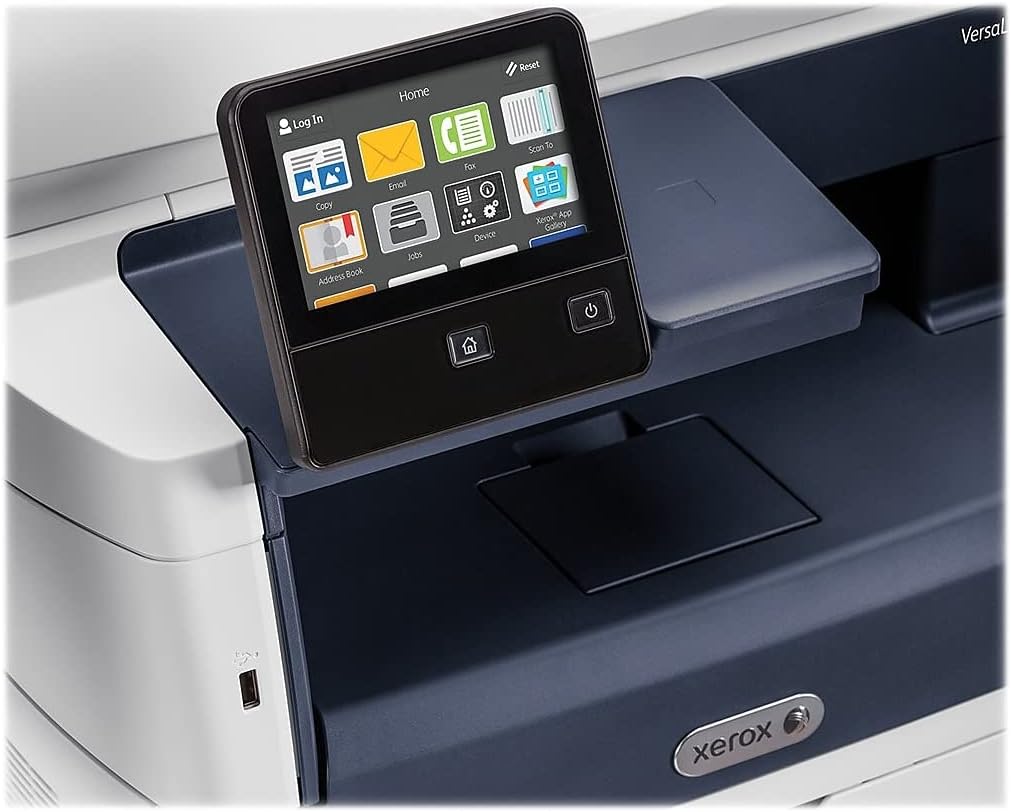
Figure 5.1: The touch-screen control panel for printer operation.
5.1 Stampar
To print a document from your computer, select the Xerox VersaLink B405/DN from your printer list. Adjust print settings such as paper size, orientation, and duplex printing (automatic dual-sided printing is supported) as needed. Confirm the print job.
5.2 Ikkupjar
Place your document face-up in the Automatic Document Feeder (ADF) or face-down on the scanner glass. On the control panel, select the 'Copy' function. Adjust settings like number of copies, lightness/darkness, and two-sided copying. Press the 'Start' button to begin copying.

Figure 5.2: Paper loaded in the Automatic Document Feeder for copying or scanning multiple pages.
5.3 Skennjar
Place your document in the ADF or on the scanner glass. On the control panel, select the 'Scan' function. Choose your desired scan destination (e.g., Scan to Email, Scan to Network, Scan to USB). Configure scan settings such as resolution and file format. Press 'Start' to initiate the scan.

Figure 5.3: The scanner lid open, showing the flatbed for scanning single pages or delicate documents.
5.4 Faxing
Connect the provided fax cord to the printer's fax port and a telephone wall jack. Place your document in the ADF or on the scanner glass. On the control panel, select the 'Fax' function. Enter the recipient's fax number and press 'Start'.
6. Manutenzjoni
6.1 Sostituzzjoni tat-Toner
When the printer indicates low toner, order a replacement Xerox toner cartridge. Open the front access panel, remove the old cartridge by pulling it out, and insert the new cartridge until it locks into place. Close the panel.
6.2 Tindif
Naddaf regolarment il-barra tal-istampatur b'ċarruta ratba u nadifa.amp drapp. Għall-ħġieġ tal-iskaner, uża drapp li ma jħallix suf u prodott tat-tindif tal-ħġieġ li ma jobrox. Evita li tisprejja t-tindif direttament fuq il-ħġieġ.
6.3 Tneħħija tal-Karta Imblukkata
If a paper jam occurs, the control panel will display instructions. Open the indicated access covers and carefully remove any jammed paper, pulling in the direction of the paper path. Ensure all paper fragments are removed before closing the covers.
7 Issolvi l-problemi
Din it-taqsima tindirizza kwistjonijiet komuni li tista' tiltaqa' magħhom:
- Il-Printer Mhux Qed Jirrispondi: Check power connections, network cable, and ensure the printer is online. Restart both the printer and your computer.
- Kwalità Fqira tal-Istampar: Check toner levels. Perform a print quality diagnostic from the printer's control panel or software. Clean the print heads if necessary (refer to the printer's internal menu).
- Ġammijiet tal-karti: Follow the instructions on the control panel to locate and clear the jam. Ensure paper is loaded correctly and not creased or damaged.
- Kwistjonijiet ta' Skanjar: Verify network connectivity. Ensure the scanner glass and ADF are clean. Check scan settings on the control panel.
For more complex issues, consult the full documentation on the provided CD or the Xerox support websit.
8. Speċifikazzjonijiet
| Karatteristika | Speċifikazzjoni |
|---|---|
| Dimensjonijiet tal-Prodott | 19.5"D x 19.5"W x 21.7"H |
| Piż tal-oġġett | 48 liri |
| Daqs Massimu tal-Midja | 8.5 x 14 pulzier |
| Kapaċità Massima tal-Folja tal-Input | 2350 folja |
| Riżoluzzjoni Massima tal-Istampar bl-Iswed u l-Abjad | 1200 x 1200 dpi |
| Veloċità Max Stampa Monokroma | 47 ppm |
| Veloċità Massima tal-Kopja (Iswed u Abjad) | 6.2 seconds (first copy out) |
| Stampar fuq żewġ naħat | Awtomatiku |
| Interface tal-Ħardwer | Ethernet, USB |
| Kapaċità tal-Ħżin tal-Memorja | 2 GB |
| Għadd tal-proċessur | 2 |
| Tip ta' linka tal-printer | Toner |
| Tip ta' Skaner | Document (ADF and Flatbed) |
9. Garanzija u Appoġġ
The Xerox VersaLink B405/DN Monochrome Multifunction Printer comes with a standard one-year warranty. For warranty claims, technical support, or service inquiries, please contact Xerox customer support directly. Refer to the official Xerox website or the documentation included with your product for contact details and further support resources.