
Introduzzjoni
This manual provides detailed instructions for setting up, operating, and maintaining your ASUS RT-AC58U AC1300 Dual Band Gigabit Wireless Router. Please read this guide thoroughly to ensure proper installation and optimal performance of your device.
The ASUS RT-AC58U is designed to deliver high-speed Wi-Fi connectivity with advanced features such as MU-MIMO technology, parental controls, and a versatile USB 3.0 port for enhanced network performance and management.
X'hemm fil-Kaxxa
Ivverifika li l-oġġetti kollha huma preżenti fil-pakkett tal-prodott tiegħek:
- ASUS RT-AC58U AC1300 Dual Band Gigabit Wireless Router
- Adapter tal-Enerġija
- Cable Ethernet
- Gwida Quick Start
- Karta ta' Garanzija
- Manwal għall-Utent (dan id-dokument)
- Software Drivers CD (if applicable)
Prodott Overview
The ASUS RT-AC58U router features a sleek design with four external antennas for improved Wi-Fi range and stability. It supports dual-band Wi-Fi (2.4 GHz and 5 GHz) and includes multiple ports for wired connections and USB devices.
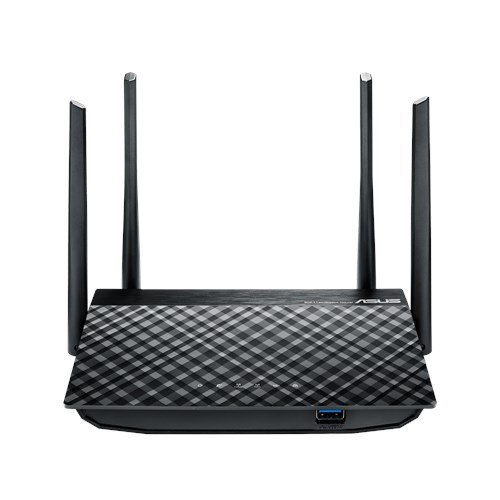
Figura 1: Quddiem view of the ASUS RT-AC58U Router, showcasing its four external antennas and patterned top surface.
Karatteristiċi ewlenin:
- AC1300 Dual Band Wi-Fi: Simultaneous 2.4 GHz and 5 GHz bands for combined speeds up to 1300 Mbps.
- Teknoloġija MU-MIMO: Enables multiple devices to connect at full Wi-Fi speed simultaneously.
- Proċessur Qawwi: Equipped with a Qualcomm IPQ4018 (717 MHz, 4 cores) SOC and 128MB memory for efficient multi-device performance.
- Improved Wi-Fi Range: Four external antennas with AiRadar beamforming technology enhance signal coverage.
- Multi-purpose USB 3.0 Port: Offers 10x faster data transfers than USB 2.0 for file sharing and printer connections.
- Kontrolli tal-Ġenituri: Monitor and filter internet activities for family and children.
- Portijiet Gigabit Ethernet: Ensures fast wired connections for devices like PCs and gaming consoles.

Figure 2: Illustration highlighting the powerful processor of the ASUS RT-AC58U, contributing to higher network speeds.
Portijiet u Indikaturi:
Familiarize yourself with the ports and LED indicators on your router for easy setup and monitoring.
- Port tal-Enerġija: Tqabbad mal-adapter tal-enerġija.
- Port WAN: Jikkonnettja mal-modem tiegħek għal aċċess għall-internet.
- Portijiet LAN (x4): Connects to wired devices like computers, gaming consoles, or smart TVs.
- Port USB 3.0: For connecting external storage devices or printers.
- Buttuna WPS: For quick and secure connection to Wi-Fi devices.
- Buttuna Irrisettja: Biex tirrestawra s-settings default tal-fabbrika.
- Indikaturi LED: Provide status updates for power, internet, Wi-Fi bands, LAN ports, and USB activity.
Setup
Follow these steps to set up your ASUS RT-AC58U router:
- Iftaħ ir-Router mill-pakkett: Remove the router and all accessories from the box.
- Pożizzjona r-Router: Place the router in a central location to maximize Wi-Fi coverage. Avoid placing it near obstructions or other electronic devices that may cause interference.
- Qabbad l-antenni: Ensure the four external antennas are securely attached and oriented vertically for optimal signal.
- Qabbad mal-Enerġija: Plug the power adapter into the router's power port and then into an electrical outlet. Wait for the power LED to light up.
- Qabbad mal-Modem: Connect one end of the provided Ethernet cable to the WAN port (usually blue) on your router and the other end to your modem's Ethernet port. Ensure your modem is powered on and connected to the internet.
- Connect a Device (Optional): For initial configuration, you can connect a computer to one of the router's LAN ports (yellow) using another Ethernet cable. Alternatively, you can connect wirelessly using the default Wi-Fi network name (SSID) and password found on the router's label.
- Aċċess għall- Web Interface: Iftaħ a web browser on your connected device and navigate to
router.asus.comor192.168.1.1. Follow the on-screen instructions of the ASUS Web GUI to complete the internet setup wizard, set up your Wi-Fi network name and password, and configure an administrator password for the router.
Tħaddim tar-Router
Once set up, your ASUS RT-AC58U router provides a robust network for your home or office. Here's how to utilize its key features:
Dual Band Wi-Fi (2.4 GHz and 5 GHz):
The router broadcasts two separate Wi-Fi networks. The 2.4 GHz band offers wider coverage and better penetration through walls, suitable for general browsing and devices further away. The 5 GHz band provides faster speeds and less interference, ideal for bandwidth-intensive tasks like 4K video streaming and online gaming, especially for devices closer to the router.

Figure 3: Demonstrates multiple users enjoying full Wi-Fi speeds simultaneously, thanks to the router's multi-device performance capabilities.
Teknoloġija MU-MIMO:
Multi-User, Multiple-Input, Multiple-Output (MU-MIMO) technology allows the router to communicate with multiple compatible devices simultaneously, rather than sequentially. This significantly improves network efficiency and speed, especially in environments with many connected devices.
Kontrolli tal-Ġenituri:
Aċċessa r-router web interface to configure parental control settings. You can set schedules for internet access, block specific websites or applications, and monitor internet usage for connected devices. This helps create a safer online environment for your family.
USB 3.0 Port Functionality:
The USB 3.0 port allows you to connect various devices:
- Ħażna tan-Netwerk (NAS): Connect an external hard drive or USB flash drive to create network-attached storage, allowing all connected devices to access files.
- Kondiviżjoni tal-Printer: Qabbad printer USB mar-router biex ikun aċċessibbli għall-apparati kollha fuq in-netwerk tiegħek.
- 3G/4G USB Dongle Support: Use a compatible 3G/4G USB dongle as a primary or backup internet connection.
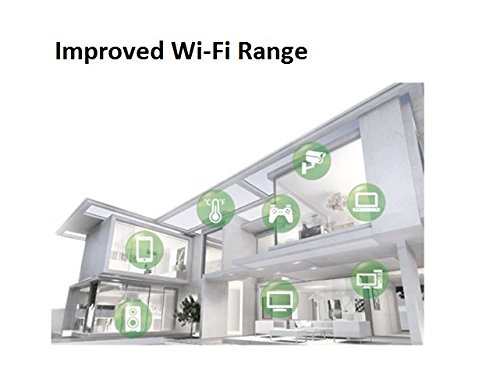
Figure 4: The ASUS RT-AC58U router connected to a Reliance Jio 4G dongle, demonstrating its capability to share mobile broadband internet across the network.
Manutenzjoni
Regular maintenance ensures the longevity and optimal performance of your router:
- Aġġornamenti tal-Firmware: Iċċekkja u installa regolarment l-aħħar aġġornamenti tal-firmware mill-appoġġ tal-ASUS webis-sit jew permezz tar-router web interface. L-aġġornamenti tal-firmware spiss jinkludu titjib fil-prestazzjoni, irqajja tas-sigurtà, u karatteristiċi ġodda.
- Ir-Restartjar tar-Router: Jekk tesperjenza problemi bin-netwerk, ipprova erġa' ibda r-router billi taqla' l-adapter tal-enerġija għal 10 sekondi u mbagħad terġa' tqabbdu.
- Irrisettjar tal-Fabbrika: In case of persistent issues or if you forget your administrator password, you can perform a factory reset. Locate the Reset button (often a small pinhole) on the router, press and hold it for about 5-10 seconds until the power LED blinks, then release. This will restore all settings to their factory defaults, requiring you to reconfigure the router.
- Tindif Fiżiku: Keep the router free from dust by gently wiping it with a soft, dry cloth. Ensure ventilation openings are not blocked.
Issolvi l-problemi
This section addresses common issues you might encounter with your ASUS RT-AC58U router.
Ebda Konnessjoni tal-Internet:
- Iċċekkja jekk l-LED tal-WAN fuq ir-router hux mixgħul. Jekk le, kun żgur li l-kejbil Ethernet mill-modem tiegħek huwa konness sew mal-port WAN tar-router.
- Ivverifika li l-modem tiegħek qed jaħdem sew u għandu konnessjoni tal-internet attiva.
- Erġa' ibda kemm il-modem kif ukoll ir-router tiegħek.
- Aċċessa r-router web interface and check the internet connection status. Run the setup wizard again if necessary.
Poor Wi-Fi Signal or Range:
- Ensure the router is placed centrally and away from large metal objects, concrete walls, or other electronic devices that can cause interference.
- Adjust the orientation of the external antennas.
- Note that the 5 GHz band offers higher speeds but has a shorter range and less penetration than the 2.4 GHz band. Consider connecting devices further away to the 2.4 GHz network.
- Update the router's firmware to the latest version.

Figure 5: An architectural diagram illustrating how the router's improved Wi-Fi range covers various rooms and floors within a home.
Slow Data Transfer Rates (Wired or Wireless):
- Ensure you are using Gigabit Ethernet cables (Cat5e or Cat6) for wired connections to fully utilize the router's Gigabit ports.
- For wireless connections, ensure your devices support 802.11ac and are connected to the 5 GHz band for optimal speed.
- Check for background applications or devices consuming significant bandwidth.
- Perform a speed test to verify your internet service provider's speed.
Apparat USB Mhux Rikonoxxut:
- Ensure the USB device is properly formatted (e.g., NTFS, FAT32) and compatible with the router.
- Try connecting the USB device to a different port or restarting the router.
- Iċċekkja r-router web interface for USB application settings and ensure the USB device is enabled.
Speċifikazzjonijiet
| Karatteristika | Dettall |
|---|---|
| Brand | ASUS |
| Isem tal-Mudell | Asus AC1300 |
| Numru tal-Mudell | RT-AC58U |
| Standard Wireless | 802.11ac |
| Klassi ta' Banda ta' Frekwenza | Doppju Banda (2.4 GHz, 5 GHz) |
| Rata ta' Trasferiment tad-Data | Up to 1300 Mbps (AC1300) |
| Tip ta' Antenna | Esterni (4 antenni) |
| Numru ta' Portijiet | 4 x LAN, 1 x WAN, 1 x USB 3.0 |
| Teknoloġija tal-Konnettività | Ethernet, Wi-Fi |
| Metodu ta' Kontroll | App, Web Interface |
| Appoġġ OS | Windows 10/8.1/8/7, Mac OS X 10.1/10.4/10.5/10.6/10.7/10.8 |
| Provvista tal-Enerġija | AC Input: 110V~240V (50~60Hz), DC Output: 12 V with max. 1.5 A current |
| Piż tal-oġġett | 762 Gramm |
| UPC | 889349375334 |
Garanzija u Appoġġ
Your ASUS RT-AC58U router comes with a manufacturer's warranty. Please refer to the included Warranty Card for specific terms and conditions, including warranty period and coverage details.
For technical support, driver downloads, firmware updates, and additional resources, please visit the official ASUS support websit. Tista' ssib ukoll FAQs u gwidi għas-soluzzjoni tal-problemi hemmhekk.
Appoġġ ASUS Websit: https://www.asus.com/support/
Vidjo tal-Prodott Fuqview
Vidjo 1: Ħarsa fil-qosorview of the ASUS RT-AC58U AC1300 Dual Band Gigabit Wireless Router's key features and benefits.