
Introduzzjoni
This manual provides instructions for the proper setup, operation, and maintenance of your Targus W600 Wireless Optical Mouse. Please read this manual thoroughly before using the device to ensure optimal performance and longevity.
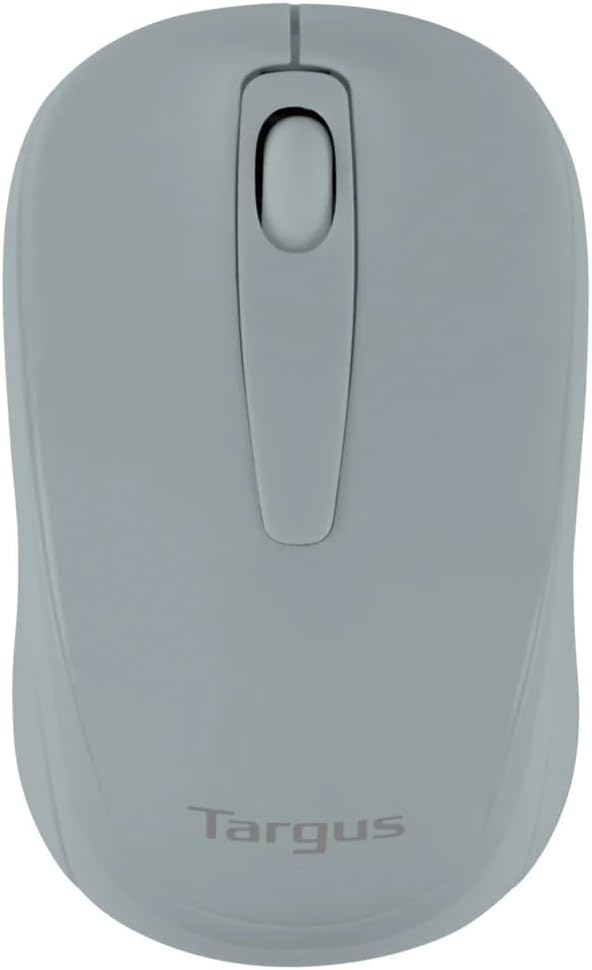
Figure 1: Targus W600 Wireless Optical Mouse (Quarry Gray)
Kontenut tal-Pakkett
Kun żgur li l-oġġetti kollha huma preżenti fil-pakkett:
- Targus W600 Wireless Optical Mouse
- Riċevitur USB
- Manwal għall-Utent (dan id-dokument)
Note: 1 AA battery is required and sold separately.
Karatteristiċi tal-Prodott
- 2.4 GHz Wireless Technology for reliable connection
- 1600 DPI Optical Sensor for precise tracking
- Disinn ergonomiku għal użu komdu
- Kompatibbli mas-sistemi operattivi Windows u Mac
- Integrated USB receiver storage compartment
Setup
1. Installazzjoni tal-batterija
- Turn the mouse over to locate the battery compartment cover.
- Gently slide the cover off.
- Daħħal batterija AA waħda (1), waqt li tiżgura l-polarità korretta (+/-).
- Ibdel l-għatu tal-kompartiment tal-batterija.
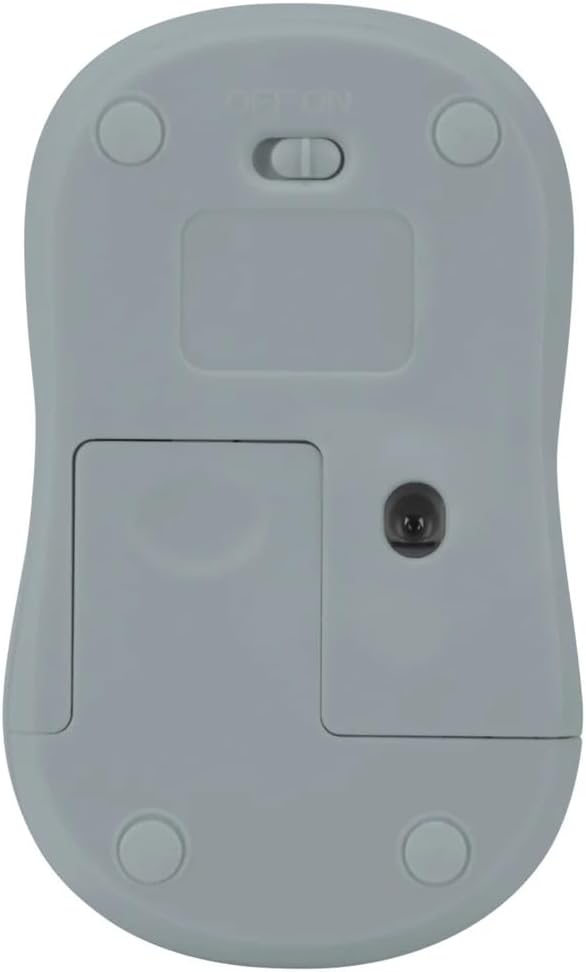
Figura 2: Qiegħ view of the mouse with battery compartment and power switch.
2. Konnessjoni tar-Riċevitur USB
- Locate the USB receiver, typically stored inside the mouse's battery compartment or a dedicated slot.
- Ipplaggja r-riċevitur USB f'port USB disponibbli fuq il-kompjuter tiegħek.
- Il-kompjuter tiegħek għandu jiskopri u jinstalla awtomatikament id-drajvers meħtieġa. Dan jista' jieħu ftit mumenti.
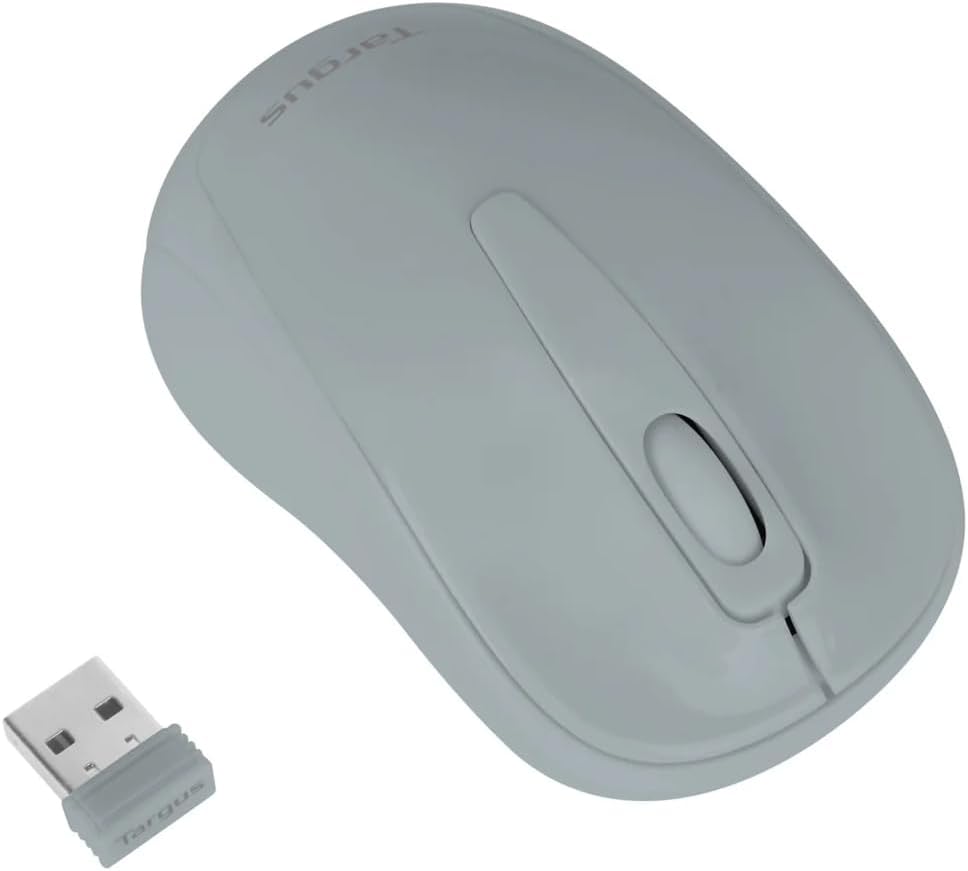
Figure 3: Targus W600 mouse and its USB receiver.

Figure 4: USB receiver plugged into a laptop, with the mouse nearby.
3. Tixgħel il-Maws
On the bottom of the mouse, slide the ON/OFF switch to the "ON" position. The mouse is now ready for use.
Tħaddim tal-Maws
The Targus W600 Wireless Optical Mouse functions like a standard 3-button mouse. It features a left button, a right button, and a scroll wheel that also acts as a middle button.
- Ikklikkja Xellug: Primary action, selection, opening items.
- Ikklikkja bil-lemin: Jiftaħ menus kuntestwali.
- Scroll Wheel: Skrollja dokumenti u web pages vertically. Pressing the scroll wheel acts as a middle click, often used for opening links in new tabs or specific application functions.
The 1600 DPI optical sensor provides smooth and accurate cursor control on most surfaces. For best performance, use on a mouse pad or a non-reflective, uniform surface.
Manutenzjoni
Tindif
Biex tnaddaf il-maws tiegħek, imsaħ il-wiċċ bil-mod b'ċarruta ratba u damp cloth. Avoid using harsh chemicals or abrasive cleaners, as these can damage the finish or internal components. Ensure no liquid enters the mouse.
Sostituzzjoni tal-batterija
When the mouse performance degrades or stops responding, it may be time to replace the battery. Follow the steps outlined in the "Installing the Battery" section to replace the AA battery. Dispose of used batteries responsibly according to local regulations.
Issolvi l-problemi
| Problema | Soluzzjoni |
|---|---|
| Il-ġurdien ma jirrispondix |
|
| Moviment erratiku tal-cursor |
|
| Firxa qasira mingħajr fili |
|
Speċifikazzjonijiet
| Numru tal-Mudell | AMW60006AP-55 |
| Konnettività | 2.4 GHz Wireless (Riċevitur USB) |
| Teknoloġija tas-Sensers | Ottiċi |
| DPI | 1600 DPI |
| Numru ta' Buttuni | 3 (Left, Right, Scroll Wheel/Middle Click) |
| Sors tal-Enerġija | 1 x Batterija AA (mhux inklużi) |
| Sistemi Operattivi Kompatibbli | Windows, Mac |
Nota: L-ispeċifikazzjonijiet huma soġġetti għal bidla mingħajr avviż.
Garanzija u Appoġġ
For warranty information and technical support, please refer to the official Targus webis-sit jew ikkuntattja s-servizz tal-konsumatur tagħhom. Żomm l-irċevuta tax-xiri tiegħek bħala prova tax-xiri għal talbiet ta' garanzija.
Targus Official Websit: www.targus.com