
1. Introduzzjoni
This manual provides essential information for the safe and efficient operation of your Argox OX-330 Barcode Monochrome Printer. Please read this manual thoroughly before using the printer and retain it for future reference. The Argox OX-330 is designed for direct thermal and thermal transfer printing, offering a resolution of 203 dpi for clear and precise label output.
2. Informazzjoni dwar is-Sigurtà
- Provvista tal-Enerġija: Use only the power adapter supplied with the printer. Ensure the power outlet matches the voltage rekwiżiti.
- Pjazzament: Place the printer on a stable, level surface. Avoid locations with excessive dust, humidity, or direct sunlight.
- Ventilazzjoni: Do not block ventilation openings. Ensure adequate airflow around the printer.
- Immaniġġjar: Evita li tmiss ir-ras tal-istampar immedjatament wara l-istampar, għax tista' tkun sħuna.
- Tindif: Disconnect the power cord before cleaning the printer. Use a soft, dry cloth. Do not use liquid or aerosol cleaners.
- Tiswijiet: Do not attempt to repair the printer yourself. Refer all servicing to qualified service personnel.
3. Prodott Aktarview
The Argox OX-330 is a compact desktop thermal label printer capable of both direct thermal and thermal transfer printing. It features 8MB DRAM (5MB user available) and 4MB Flash ROM (2MB user available) for efficient data processing and storage.
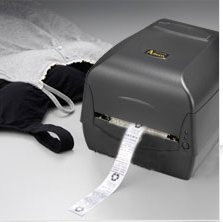
Figura 3.1: Argox OX-330 Barcode Monochrome Printer. This image shows the printer actively producing a label, demonstrating its primary function.
Komponenti Ewlenin:
- Kap tal-Istampa: Responsible for transferring the image onto the label.
- Media Guides: Ensure proper alignment of labels.
- Panel tal-Kontroll: Includes buttons and indicator lights for printer status and basic operations.
- Port tal-Enerġija: Għall-konnessjoni tal-adapter tal-enerġija.
- Portijiet tad-Data: For connecting to a computer (e.g., USB, Wi-Fi).
- Media Compartment: Where label rolls and ribbons (for thermal transfer) are loaded.
4. Setup
4.1 Disimballaġġ
- Oħroġ il-printer u l-aċċessorji kollha mill-imballaġġ bir-reqqa.
- Verify that all components listed in the package contents are present.
- Remove any protective films or packing materials from the printer.
4.2 Qawwa tal-Konnessjoni
- Qabbad l-adapter tal-enerġija mal-port tal-enerġija tal-istampatur.
- Ipplaggja l-korda tad-dawl fi żbokk elettriku adattat.
- Do not power on the printer until all other connections are made.
4.3 Konnessjoni ma 'Kompjuter
The Argox OX-330 supports Wi-Fi connectivity for seamless integration with your PC.
- Konnessjoni Wi-Fi: Refer to the separate Wi-Fi setup guide for detailed instructions on connecting your printer to a wireless network. This typically involves installing the printer driver and utility software on your PC.
- USB Connection (if applicable): If using a USB cable, connect one end to the printer and the other to an available USB port on your PC.
4.4 Loading Labels and Ribbon
The OX-330 supports both Direct Thermal and Thermal Transfer printing methods. The loading procedure varies slightly depending on the method.
- Iftaħ l-għatu ta' fuq tal-istampatur.
- Adjust the media guides to the width of your label roll.
- Place the label roll onto the media spindle, ensuring the labels feed correctly.
- Għal Trasferiment termiku printing, also load the ribbon according to the diagrams inside the printer's media compartment. Ensure the ribbon is taut and correctly threaded.
- Agħlaq il-qoxra ta 'fuq.
5. Istruzzjonijiet Operattivi
5.1 Tixgħel/Jitfi
- Biex Tixgħel: Press the power button located on the printer. The indicator light will illuminate.
- Biex Tifi: Agħfas u żomm il-buttuna tal-qawwa sakemm il-printer jintefa.
5.2 Installazzjoni tas-Sewwieq u s-Softwer
Before printing, install the appropriate printer drivers and label design software on your PC. These are typically provided on a CD with the printer or available for download from the Argox official websit. Segwi l-istruzzjonijiet fuq l-iskrin għall-installazzjoni.
5.3 L-Istampar ta' Tikketta
- Ensure the printer is powered on and connected to your PC (via Wi-Fi or USB).
- Open your label design software or application from which you wish to print.
- Oħloq jew iftaħ id-disinn tat-tikketta tiegħek.
- Go to the 'Print' option in your software.
- Select the Argox OX-330 as your printer.
- Configure print settings such as label size, print quantity, and printing method (Direct Thermal or Thermal Transfer) if applicable. The printer supports a resolution of 203 dpi.
- Click 'Print'. The printer will begin printing your labels.
6. Manutenzjoni
Regular maintenance ensures optimal performance and extends the life of your Argox OX-330 printer.
6.1 Tindif tar-Ras tal-Istampar
The print head is a critical component and should be cleaned regularly, especially if print quality degrades.
- Itfi l-istampatur u skonnettja l-korda tal-enerġija.
- Iftaħ l-għatu ta' fuq biex taċċessa r-ras tal-istampar.
- Using a lint-free cloth moistened with isopropyl alcohol (99% pure), gently wipe the print head surface.
- Ħalli r-ras tal-istampar tinxef kompletament qabel ma tagħlaq l-għatu u terġa' tikkonnettja l-enerġija.
6.2 Tindif Ġenerali
- Imsaħ il-parti ta' barra tal-istampatur b'ċarruta ratba u niexfa.
- Use a soft brush or compressed air to remove dust and debris from inside the media compartment.
7 Issolvi l-problemi
This section addresses common issues you might encounter with your Argox OX-330 printer.
7.1 Ebda Qawwa
- Kun żgur li l-korda tal-enerġija hija konnessa sew kemm mal-istampatur kif ukoll mas-sokit elettriku.
- Ivverifika li s-sokit tal-enerġija jaħdem billi tqabbad apparat ieħor.
7.2 Kwalità tal-Istampar Fqira
- Naddaf ir-ras tal-istampar kif deskritt fit-Taqsima 6.1.
- Ensure you are using the correct type of labels for your printing method (Direct Thermal or Thermal Transfer).
- Check if the ribbon (for thermal transfer) is correctly loaded and not depleted.
- Adjust print darkness settings in your printer driver.
7.3 Il-Printer Mhux Jirrispondi
- Check the connection between the printer and your PC (Wi-Fi or USB).
- Erġa' ibda kemm il-printer kif ukoll il-kompjuter tiegħek.
- Ensure the correct printer driver is installed and updated.
- Check the printer's status indicator lights for error messages.
7.4 Labels Not Feeding Correctly
- Kun żgur li t-tikketti huma mgħobbija b'mod korrett u li l-gwidi tal-midja huma aġġustati għall-wisa' tat-tikketta.
- Iċċekkja għal xi ostakli fil-mogħdija tal-midja.
- Calibrate the printer for the label size if necessary (refer to printer utility software).
8. Speċifikazzjonijiet
| Karatteristika | Speċifikazzjoni |
|---|---|
| Brand | Argox |
| Isem tal-Mudell | OX-330 |
| Teknoloġija tal-Istampar | Thermal (Direct Thermal & Thermal Transfer) |
| Riżoluzzjoni tal-Istampar | 203 dpi |
| Output Printer | Monokromu |
| Teknoloġija tal-Konnettività | Wi-Fi |
| Memorja | 8MB DRAM (5MB user available), 4MB Flash ROM (2MB user available) |
| Apparati Kompatibbli | PC |
| Tip ta' Midja tal-Istampar | Tikketti |
| Piż tal-oġġett | 1800 Gramm |
| Dimensjonijiet tal-Prodott (P x W x H) | 16D x 6W x 10H Ċentimetri |
| Karatteristika Speċjali | Kompatt |
| Stampar fuq żewġ naħat | Iva |
| Duplex | Awtomatiku |
9. Garanzija u Appoġġ
9.1 Informazzjoni dwar Garanzija
The Argox OX-330 Barcode Monochrome Printer comes with a garanzija ta 'sena from the date of purchase. This warranty covers manufacturing defects under normal use. It does not cover damage caused by misuse, accidents, unauthorized repairs, or consumables.
9.2 Appoġġ Tekniku
For technical assistance, troubleshooting beyond this manual, or warranty claims, please contact Argox customer support. Refer to the Argox official website or your purchase documentation for contact details and support resources.