Introduzzjoni
This manual provides essential instructions for the safe and effective use of your Coby CVG-02-RC Virtual Reality Goggles. Please read this manual thoroughly before using the device and retain it for future reference.
The Coby CVG-02-RC transforms your smartphone into a 3D virtual reality headset, offering an immersive experience for compatible VR applications and content. It features adjustable optics and comes with a wireless remote control for enhanced interaction.
Informazzjoni dwar is-Sigurtà
- Do not use the VR goggles while operating a vehicle or machinery, or in situations requiring full attention to your surroundings.
- Take frequent breaks during use to prevent eye strain, dizziness, or discomfort. If you experience any discomfort, discontinue use immediately.
- Ensure your surroundings are clear of obstacles to avoid injury while immersed in virtual reality.
- Keep the device away from direct sunlight, high temperatures, and moisture.
- Tippruvax tiżżarma jew timmodifika l-apparat. Dan jannulla l-garanzija u jista' jikkawża ħsara.
- This device is not suitable for children under 13 years of age. Adult supervision is recommended for younger users.
Kontenut tal-Pakkett
Ivverifika li l-oġġetti kollha huma preżenti fil-pakkett:
- Coby CVG-02-RC Virtual Reality Goggles
- Kontroll mill-bogħod mingħajr fili
- Manwal għall-Utent (dan id-dokument)
Prodott Overview
Familiarize yourself with the components of your Coby VR Goggles.
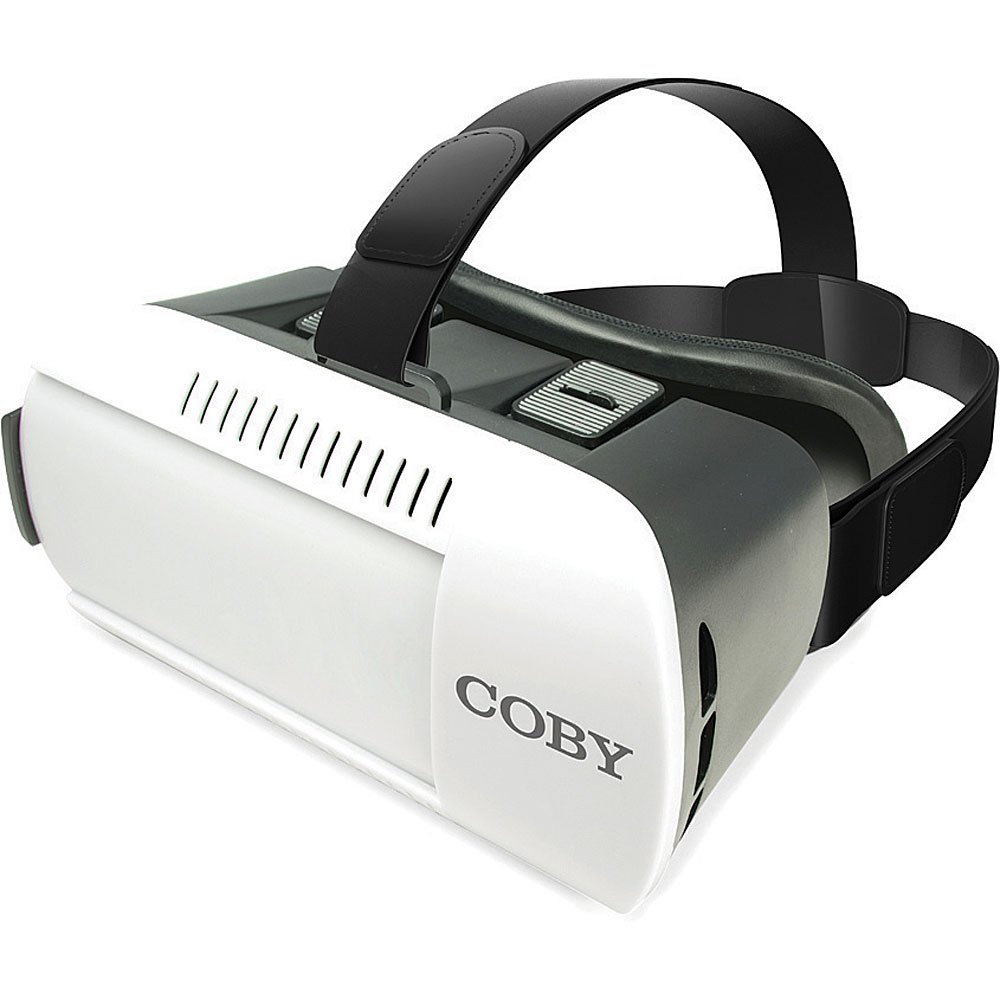
Figura 1: Quddiem view of the Coby CVG-02-RC Virtual Reality Goggles. This image shows the main body of the goggles, including the adjustable head strap, the padded face cushion, and the lenses visible from the user's perspective. The top features adjustment sliders for lens positioning.
Goggles Components:
- Ċinga tar-ras aġġustabbli: Secures the goggles to your head.
- Padded Face Cushion: Provides comfort and blocks external light.
- Spherical Lenses: Provide the 3D virtual reality view.
- Lens Adjustment Dials/Sliders: Located on top, these allow for focus and interpupillary distance (IPD) adjustments.
- Smartphone Tray/Compartment: Front section where the smartphone is inserted.
Kontroll mill-bogħod mingħajr fili:
The remote control typically includes buttons for navigation, selection, and volume, enhancing interaction within VR applications. Refer to the remote's specific instructions for detailed button functions.
Setup
1. Daħħal l-Ismartphone Tiegħek
- Open the front cover of the VR goggles. This usually involves unlatching or sliding the front panel.
- Place your smartphone into the designated tray or holder. Ensure the phone is centered and securely held. The screen should face the lenses.
- Agħlaq il-qoxra ta' quddiem sew.
- Nota: The goggles are compatible with smartphones up to 6 inches in screen size.
2. Adjusting the Head Straps
- Place the goggles on your head.
- Adjust the side and top straps to achieve a comfortable and secure fit. The goggles should feel snug but not overly tight, and the image should be centered in your vision.
3. Pairing the Wireless Remote Control
- Kun żgur li l-Bluetooth tal-ismartphone tiegħek huwa attivat.
- Turn on the wireless remote control (refer to the remote's specific instructions for power on/off).
- On your smartphone, search for available Bluetooth devices.
- Select the remote control from the list (e.g., "VR-Remote" or similar) to pair.
- Once paired, the remote can be used to navigate within VR applications.
4. Downloading VR Applications
For the best experience, download virtual reality applications from your smartphone's app store:
- Għal apparati iOS: Żur il- Apple App Store and search for "VR games," "3D split screen," or "virtual reality."
- Għal apparati Android: Żur il- Google Play Store and search for "VR games," "3D split screen," or "virtual reality."
Many VR apps are designed for split-screen viewing, which is necessary for these goggles.
Operazzjoni
Using the VR Goggles
- Launch a VR application on your smartphone. The screen should display a split-screen view.
- Insert your smartphone into the goggles as described in the "Setup" section.
- Put on the goggles and adjust the head straps for comfort.
- Use the lens adjustment dials/sliders on the top of the goggles to achieve a clear and focused image. Adjust both the focus (distance from lenses to screen) and the interpupillary distance (IPD - distance between the centers of the lenses) until the image is sharp and comfortable for both eyes.
- Use the wireless remote control to interact with the VR application.
Adjusting Lenses
The Coby CVG-02-RC features adjustable dual optics to optimize your viewesperjenza:
- Aġġustament tal-Focus: Slide the dials on the top of the goggles forward or backward to adjust the clarity of the image. This compensates for different vision needs.
- Aġġustament IPD (Distanza Interpupillari): Slide the dials left or right to adjust the distance between the lenses. This aligns the lenses with your eyes for a single, clear 3D image.

Figura 2: Fuq view of the Coby CVG-02-RC Virtual Reality Goggles, highlighting the lens adjustment sliders. These sliders allow users to fine-tune the focus and interpupillary distance for optimal viewkumdità u ċarezza.
Manutenzjoni
- Tindif tal-Lentijiet: Use a soft, dry microfiber cloth specifically designed for optical lenses. Do not use abrasive cleaners or paper towels.
- Cleaning Goggles Body: Imsaħ il-barra b'ċarruta ratba u ħafifaamp drapp. Evita li tidħol l-umdità fi kwalunkwe fetħa.
- Ħażna: Store the goggles in a cool, dry place away from direct sunlight and dust. Use the original packaging or a protective case if available.
- Padded Cushion: The foam padding can be gently wiped with a damp cloth and mild soap if necessary. Ensure it is completely dry before use.
Issolvi l-problemi
| Problema | Kawża Possibbli | Soluzzjoni |
|---|---|---|
| L-immaġni hija mċajpra jew mhux iffukata. | Incorrect lens adjustment. | Adjust the focus and IPD dials/sliders on top of the goggles until the image is clear. |
| Double vision or eye strain. | Incorrect IPD adjustment; phone not centered. | Adjust the IPD dials to match your eye distance. Ensure your smartphone is perfectly centered in the tray. Take a break. |
| Il-kontroll remot mhux qed jikkonnettja. | Bluetooth not enabled; remote not powered on; remote not paired. | Ensure Bluetooth is on your phone. Power on the remote. Re-pair the remote via your phone's Bluetooth settings. Check remote battery. |
| No 3D effect or distorted image. | App not designed for VR; phone not properly seated. | Ensure the app displays a split-screen VR view. Re-seat your smartphone securely and centered in the goggles. |
| Tisħin żejjed tal-ismartphone. | Extended use of demanding VR apps. | Remove the phone from the goggles and allow it to cool down. Reduce usage time for demanding applications. |
Speċifikazzjonijiet
- Mudell: CVG-02-RC
- Qasam ta View (FOV): 98-99 Grad
- Tip ta' Lenti: High Transparency Spherical Lens
- Kompatibilità ta 'Smartphone: Up to 6 inches screen size (iOS/Android)
- Connectivity (Remote): Bluetooth
- Dimensjonijiet tal-Prodott: 13 x 14 x 20 pulzieri (approssimattiv, skont id-dejta tal-prodott)
- Piż tal-oġġett: 1.2 liri (approssimattiv, skont id-dejta tal-prodott)
- Manifattur: Coby
Garanzija u Appoġġ
Għal informazzjoni dwar il-garanzija u appoġġ tekniku, jekk jogħġbok irreferi għall-karta tal-garanzija inkluża mal-prodott tiegħek jew żur is-sit uffiċjali ta' Coby. websit. Żomm l-irċevuta tax-xiri tiegħek bħala prova tax-xiri.
Għal aktar assistenza, tista' tikkuntattja lis-servizz tal-klijenti ta' Coby permezz tal-kanali uffiċjali tagħhom.