
1. Introduzzjoni
Dan il-manwal jipprovdi struzzjonijiet dettaljati għall-installazzjoni, il-konfigurazzjoni, u t-tħaddim tar-Router Wireless Gigabit Dual-Band TOTOLINK A3002RU-V2 tiegħek. L-A3002RU-V2 huwa ddisinjat biex jipprovdi konnettività mingħajr fili b'veloċità għolja u prestazzjoni robusta tan-netwerk għad-djar u l-uffiċċji. Jikkonforma mal-aħħar standards IEEE 802.11ac Wave 2, u jappoġġja tħaddim simultanju dual-band (2.4 GHz u 5 GHz) għal veloċità Wi-Fi kkombinata sa 1167 Mbps. Mgħammar b'portijiet WAN u LAN gigabit sħaħ, jiżgura konnessjonijiet bil-fili veloċi, filwaqt li l-port USB 2.0 multifunzjonali tiegħu joffri kapaċitajiet versatili bħal funzjonijiet FTP, Samba, u server DLNA, kif ukoll iċċarġjar tal-apparat.
2. Kontenut tal-Pakkett
Jekk jogħġbok ivverifika li l-oġġetti kollha huma preżenti fil-pakkett tiegħek. Jekk xi oġġett huwa nieqes jew bil-ħsara, ikkuntattja lill-bejjiegħ tiegħek għall-għajnuna.
- Router bla fili TOTOLINK A3002RU-V2
- Adapter tal-Enerġija
- Kejbil tal-Ethernet (RJ-45)
- Gwida ta 'Installazzjoni Mgħaġġla
3. Prodott Aktarview
Iffamiljarizza ruħek mal-komponenti fiżiċi tar-router TOTOLINK A3002RU-V2 tiegħek.

Figura 3.1: Quddiem u fuq view tar-router TOTOLINK A3002RU-V2, li juri l-erba' antenni esterni u d-disinn tal-ventilazzjoni.

Figura 3.2: Il-pannell ta' wara tar-router TOTOLINK A3002RU-V2, li juri s-swiċċ tal-enerġija, l-input DC, il-buttuna Reset, il-port USB 2.0, il-port WAN, u erba' portijiet LAN.
3.1. Portijiet u Buttuni
- Swiċċ mixgħul/mitfi: Jixgħel u jixgħel ir-router.
- DC Fi: Jikkonnettja mal-adapter tal-enerġija pprovdut.
- Buttuna RST (Irrisettjar): Agħfas u żomm għal madwar 5-10 sekondi biex tirrestawra s-settings awtomatiċi tal-fabbrika.
- Port USB 2.0: Għall-konnessjoni ta' apparati tal-ħażna USB biex tippermetti funzjonijiet ta' server FTP, Samba, jew DLNA, jew għall-iċċarġjar ta' apparati kompatibbli.
- Port WAN (Isfar): Jikkonnettja man-netwerk tal-modem jew tal-fornitur tas-servizz tal-internet tiegħek.
- Portijiet LAN (Oranġjo): Jikkonnettja ma' apparati bil-fili bħal kompjuters, televiżjonijiet intelliġenti, jew consoles tal-logħob.
4. Setup
4.1. Konnessjoni tal-Ħardwer
- Itfi: Kun żgur li l-modem u r-router tiegħek huma mitfija.
- Qabbad il-Modem mar-Router: Qabbad tarf wieħed tal-kejbil Ethernet mal-port LAN tal-modem tiegħek u t-tarf l-ieħor mal- WAN Port (isfar) tar-router TOTOLINK A3002RU-V2.
- Qabbad l-Enerġija: Qabbad l-adapter tal-enerġija mal-port DC In tar-router u waħħalha f'sokit tal-enerġija.
- Qawwa Mixgħul: Ixgħel il-modem tiegħek l-ewwel, imbagħad ixgħel ir-router TOTOLINK A3002RU-V2 billi tuża s-swiċċ On/Off. Stenna sakemm id-dwal indikatur jistabbilizzaw ruħhom, tipikament jindikaw konnessjoni b'suċċess.
- Qabbad l-Apparati (Mhux obbligatorju): Għal konnessjonijiet bil-fili, qabbad il-kompjuter tiegħek jew apparati oħra tan-netwerk ma' kwalunkwe wieħed mill- LAN Portijiet (oranġjo) bl-użu ta' kejbils Ethernet.
4.2. Konfigurazzjoni Inizjali (Web interface)
Biex tikkonfigura r-router tiegħek, ser ikollok bżonn taċċessa r-router tiegħu webinterface ta 'ġestjoni bbażata fuq.
- Qabbad mar-router: Qabbad il-kompjuter tiegħek mar-router jew permezz ta' kejbil Ethernet ma' port LAN jew mingħajr fili billi tuża l-isem tan-netwerk Wi-Fi (SSID) u l-password default li jinsabu fuq it-tikketta tar-router.
- Miftuħa Web Browser: Tnedija a web brawżer (eż., Chrome, Firefox, Edge).
- Aċċess għall-Paġna tal-Login: Fil-bar tal-indirizz, ittajpja
http://192.168.1.1(jew l-indirizz IP speċifikat fuq it-tikketta tar-router) u agħfas Enter. - Idħol: Daħħal l-isem tal-utent u l-password awtomatiċi. Dawn tipikament ikunu
admingħat-tnejn, iżda ara t-tikketta tar-router jew il-gwida għall-installazzjoni rapida għall-kredenzjali eżatti. - Segwi l-Wizard tas-Setup: Malli tidħol b'suċċess, x'aktarx li tiġi ggwidat permezz ta' Quick Setup Wizard biex tikkonfigura t-tip ta' konnessjoni tal-internet tiegħek, l-isem tan-netwerk Wi-Fi (SSID), u l-password. Huwa rakkomandat ħafna li tbiddel il-password default tal-Wi-Fi u l-password tal-login tar-router għas-sigurtà.
5. Istruzzjonijiet Operattivi
5.1. Konfigurazzjoni tan-Netwerk Wireless
L-A3002RU-V2 jopera fuq żewġ meded ta' frekwenza simultanjament:
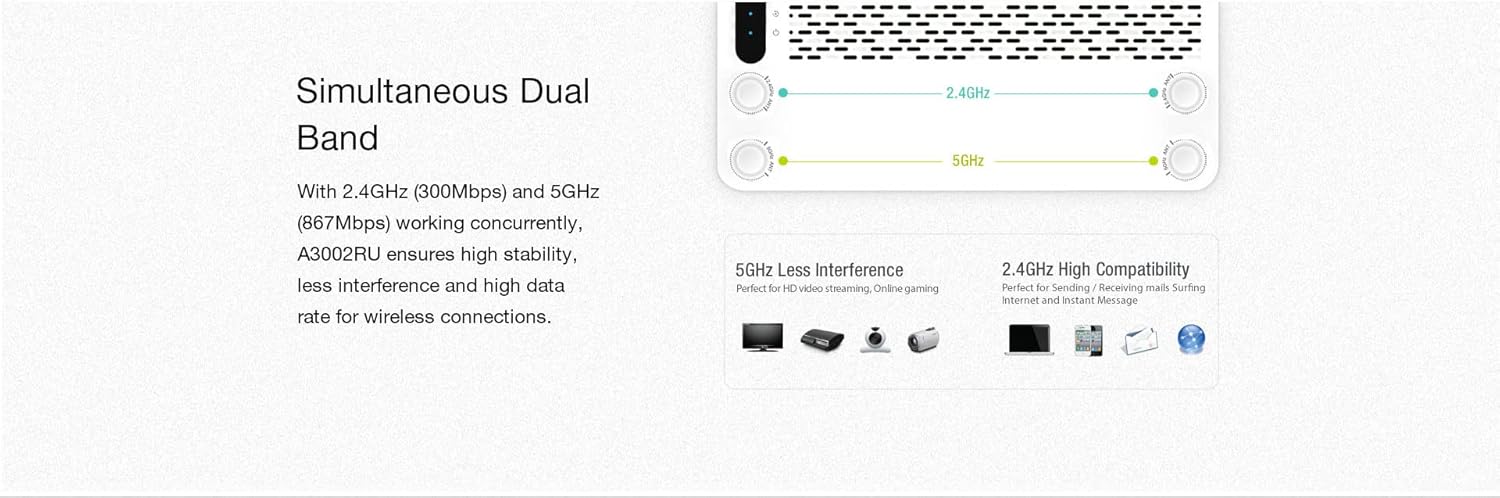
Figura 5.1: Illustrazzjoni tal-kapaċità dual-band simultanja tar-router, li turi 2.4GHz għal kopertura usa' u 5GHz għal veloċità ogħla u inqas interferenza.
- Banda ta' 2.4 GHz: Joffri kopertura usa' u penetrazzjoni aħjar minn ġol-ħitan, adattat għall-użu ġenerali tal-internet, browsing, u konnessjoni ta' apparati aktar 'il bogħod.
- Banda ta' 5 GHz: Jipprovdi veloċitajiet aktar mgħaġġla u inqas interferenza, ideali għal attivitajiet li jużaw ħafna bandwidth bħal streaming ta' vidjow HD, logħob online, u konnessjoni ta' apparati eqreb lejn ir-router.
Tista' tikkonfigura SSIDs u passwords separati għal kull band jew tuża SSID wieħed bil-band steering attivat (jekk disponibbli fil-firmware tiegħek) permezz tar-router. web l-interfaċċja taħt it-taqsima tas-Settings tal-Wireless.
5.2. Port USB 2.0 Multifunzjonali
Il-port USB 2.0 fuq il-pannell ta' wara joffri diversi funzjonalitajiet meta apparat tal-ħażna USB (eż. flash drive, hard drive estern) ikun imqabbad.

Figura 5.2: Rappreżentazzjoni viżwali tal-kapaċitajiet tal-port USB 2.0, inklużi server FTP, server Samba, server DLNA, u ċċarġjar USB.
- Server FTP: Jippermettilek aċċess files fuq l-apparat tal-ħażna USB konness minn kullimkien fuq l-internet (jeħtieġ konfigurazzjoni u port forwarding xierqa).
- Server Samba (Kondiviżjoni tan-Netwerk): Jippermetti lill-utenti tan-netwerk lokali jaċċessaw u jaqsmu files fuq l-apparat tal-ħażna USB konness.
- Server tad-DLNA: Jippermetti lill-plejers tal-midja kompatibbli (eż., smart TVs, consoles tal-logħob) li jxandru kontenut multimedjali (ritratti, mużika, vidjows) direttament mill-apparat tal-ħażna USB konness.
- Iċċarġjar USB: Il-port jista' jintuża wkoll biex jiċċarġja smartphones jew tablets kompatibbli.
Dawn il-karatteristiċi jistgħu jiġu kkonfigurati u ġestiti permezz tar-router web interfaċċja, tipikament tinstab taħt is-settings ta' 'Applikazzjoni USB' jew 'Kondiviżjoni tal-Ħażna'.
6. Manutenzjoni
6.1. Aġġornament tal-Firmware
L-aġġornament regolari tal-firmware tar-router jista' jtejjeb il-prestazzjoni, iżid karatteristiċi ġodda, u jsaħħaħ is-sigurtà. Żur it-TOTOLINK uffiċjali websit għall-aħħar verżjoni tal-firmware għall-mudell A3002RU-V2 tiegħek. Il-proċess ta' aġġornament tipikament jitwettaq permezz tar-router web l-interfaċċja taħt 'Għodod tas-Sistemi' jew 'Aġġornament tal-Firmware'. Segwi l-istruzzjonijiet ipprovduti mal-firmware file bir-reqqa.
6.2. Irrisettja l-Fabbrika
Ir-reset tal-fabbrika jreġġa' lura s-settings kollha tar-router għall-valuri default tagħhom. Dan jista' jkun utli biex issolvi problemi persistenti jew meta tipprepara biex tittrasferixxi s-sjieda tar-router. Biex twettaq reset tal-fabbrika:
- Bir-router mixgħul, sib il- RST buttuna fuq il-pannell ta’ wara.
- Uża klipp tal-karti jew oġġett irqiq biex tagħfas u żżomm il- RST Agħfas il-buttuna għal madwar 5-10 sekondi sakemm id-dwal indikatur jteptep.
- Itlaq il-buttuna u stenna li r-router jerġa' jibda. Is-settings kollha se jiġu rrisettjati.
7 Issolvi l-problemi
Din it-taqsima tindirizza kwistjonijiet komuni li tista' tiltaqa' magħhom bir-router tiegħek.
- Ebda Aċċess għall-Internet:
- Iċċekkja jekk l-LED tal-port WAN hux mixgħul. Jekk le, kun żgur li l-kejbil Ethernet mill-modem tiegħek huwa konness sew.
- Iċċekkja li l-modem tiegħek qed jaħdem sew.
- Idħol fil-router's web l-interfaċċja u ċċekkja l-istatus tal-WAN. Kun żgur li s-settings tal-konnessjoni tal-internet tiegħek (eż., PPPoE, IP Dinamiku) huma kkonfigurati b'mod korrett.
- Erġa' ibda kemm il-modem kif ukoll ir-router tiegħek.
- Ma tistax tikkonnettja mal-Wi-Fi:
- Kun żgur li l-LED tal-Wi-Fi fuq ir-router ikun mixgħul.
- Ivverifika li qed tagħżel l-isem korrett tan-netwerk Wi-Fi (SSID) u li qed iddaħħal il-password korretta.
- Ersaq eqreb lejn ir-router biex tiċċekkja jekk hemmx problemi bis-saħħa tas-sinjal.
- Ibda mill-ġdid ir-router.
- Veloċità baxxa tal-Wi-Fi:
- Kun żgur li t-tagħmir tiegħek huwa konness mal-medda ta' 5 GHz għal veloċità ottimali, speċjalment għal użu fuq distanza qasira.
- Naqqas l-interferenza billi tpoġġi r-router 'il bogħod minn apparati elettroniċi oħra (microwaves, telefowns mingħajr fili).
- Ikkunsidra li tbiddel il-kanal tal-Wi-Fi fis-settings tar-router biex tevita konġestjoni man-netwerks tal-ġirien.
- Iċċekkja għal aġġornamenti tal-firmware.
- Insejt il-Password tal-Login tar-Router:
- Agħmel reset tal-fabbrika (ara t-Taqsima 6.2) biex terġa' lura għall-kredenzjali tal-login default. Innota li dan se jħassar is-settings tad-dwana kollha tiegħek.
8. Speċifikazzjonijiet
Hawn taħt jinsabu l-ispeċifikazzjonijiet tekniċi għar-Router Wireless Gigabit Dual-Band TOTOLINK A3002RU-V2.
| Karatteristika | Deskrizzjoni |
|---|---|
| Brand | TOTOLINK |
| Isem tal-Mudell | A3002RU-V2 |
| Standard Wireless | IEEE 802.11ac Mewġa 2, 802.11a/b/g/n |
| Banda ta' Frekwenza | Doppju Banda (2.4 GHz u 5 GHz) |
| Veloċità Wi-Fi | Sa 1167 Mbps (300 Mbps @ 2.4 GHz, 867 Mbps @ 5 GHz) |
| Antenni | 4 x Antenni Omni-direzzjonali |
| Port WAN | 1 x 10/100/1000 Mbps Gigabit Ethernet |
| Portijiet tal-LAN | 4 x 10/100/1000 Mbps Gigabit Ethernet |
| Port USB | 1 x USB 2.0 (għal FTP, Samba, server DLNA, iċċarġjar) |
| Teknoloġija tal-Konnettività | Ethernet, Wi-Fi |
| Apparati Kompatibbli | Laptop, Smartphone, Tablet |
| Kulur | Iswed |
| Sistema Operattiva | RouterOS (ibbażat fuq il-firmware) |
| Provvista tal-Enerġija | Adapter tal-Enerġija Esterna |
9. Garanzija u Appoġġ
Għal informazzjoni dwar il-garanzija u appoġġ tekniku, jekk jogħġbok irreferi għall-karta tal-garanzija inkluża mal-prodott tiegħek jew żur is-sit uffiċjali ta' TOTOLINK websit. Ir-riżorsi ta’ appoġġ tipikament jinkludu FAQs, gwidi għas-soluzzjoni tal-problemi, u informazzjoni ta’ kuntatt għas-servizz tal-konsumatur.