
1. Introduzzjoni
The Zelotes T80 Ergonomic Wired Gaming Mouse is designed for comfortable use, particularly for individuals with larger hands. It features adjustable DPI settings, multiple buttons for enhanced control, and dynamic LED lighting to complement your gaming and computing environment. This manual provides instructions for setup, operation, maintenance, and troubleshooting.

Immaġni: Ġenb view of the Zelotes T80 mouse, highlighting its ergonomic design and blue LED accents.
2. Kontenut tal-Pakkett
Please ensure that your package contains the following items:
- Zelotes T80 Ergonomic Wired Gaming Mouse
- Manwal għall-Utent (dan id-dokument)
3. Istruzzjonijiet ta' Setup
3.1. Konnessjoni tal-Maws
The Zelotes T80 mouse is a plug-and-play device, meaning no additional software or drivers are typically required for basic functionality on most operating systems.
- Sib port USB disponibbli fuq il-kompjuter tiegħek.
- Connect the USB cable of the Zelotes T80 mouse firmly into the USB port.
- Your operating system will automatically detect the mouse and install the necessary generic drivers. This process may take a few moments.
- Once successfully connected, the mouse's LED lights will illuminate, indicating it is powered on and ready for use.
4. Istruzzjonijiet Operattivi
4.1. Funzjonijiet tal-buttuna
The Zelotes T80 mouse is equipped with 7 buttons, each serving a specific purpose to enhance your control. Refer to the image below for button identification.
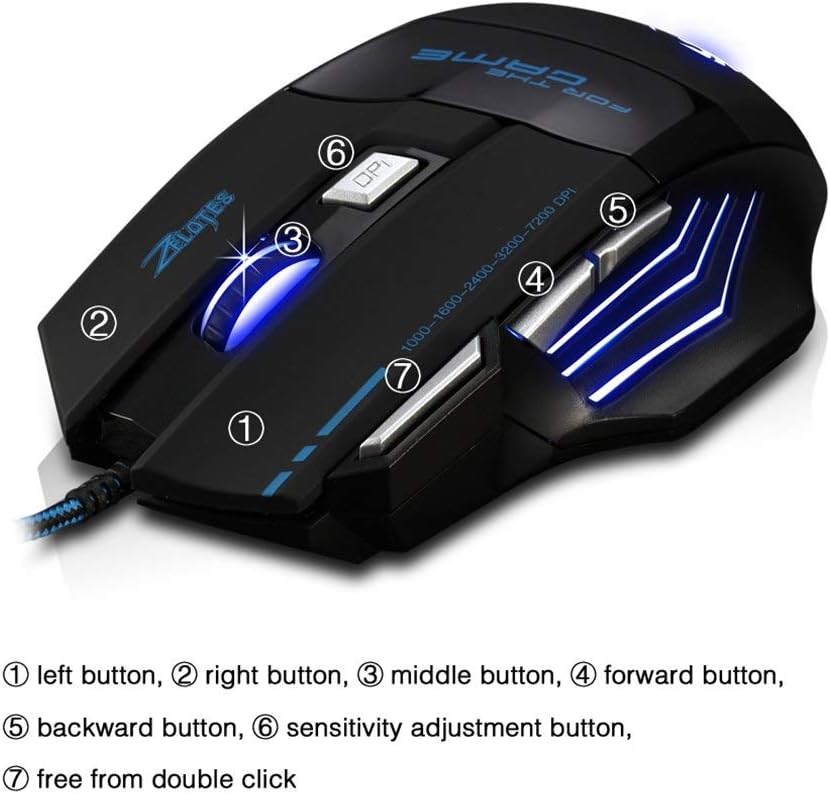
Image: Labeled diagram of the Zelotes T80 mouse buttons.
- 1. Buttuna tax-Xellug: Performs the standard left-click action.
- 2. Buttuna tal-Lemin: Performs the standard right-click action.
- 3. Buttuna tan-Nofs (Rota tal-Iskrolljar): Allows for scrolling up and down. Pressing the scroll wheel performs a middle-click action.
- 4. Buttuna 'l Quddiem: Jinnaviga 'l quddiem ġewwa web browsers jew file esploraturi.
- 5. Backward Button: Jinnaviga lura ġewwa web browsers jew file esploraturi.
- 6. Sensitivity Adjustment Button (DPI Button): Cycles through the available DPI settings.
- 7. Double Click Button: Executes a double-click action with a single press.
4.2. Aġġustament tad-DPI
The Zelotes T80 mouse allows for on-the-fly adjustment of its DPI (Dots Per Inch) sensitivity. This feature enables you to quickly change cursor speed to suit different tasks, such as precise aiming in games or fast navigation across multiple monitors.
- Agħfas il- Sensitivity Adjustment Button (6), located behind the scroll wheel, to cycle through the preset DPI levels.
- The available DPI settings are typically 1000, 1600, 2400, 3200, and 7200 DPI.
- Each DPI level may be indicated by a change in the mouse's LED lighting color or pattern, providing visual feedback for the current setting.
4.3. LED Dawl
The Zelotes T80 mouse features dynamic LED lighting that enhances its aesthetic appeal. The lighting typically cycles through a spectrum of colors or changes color to reflect the current DPI setting.
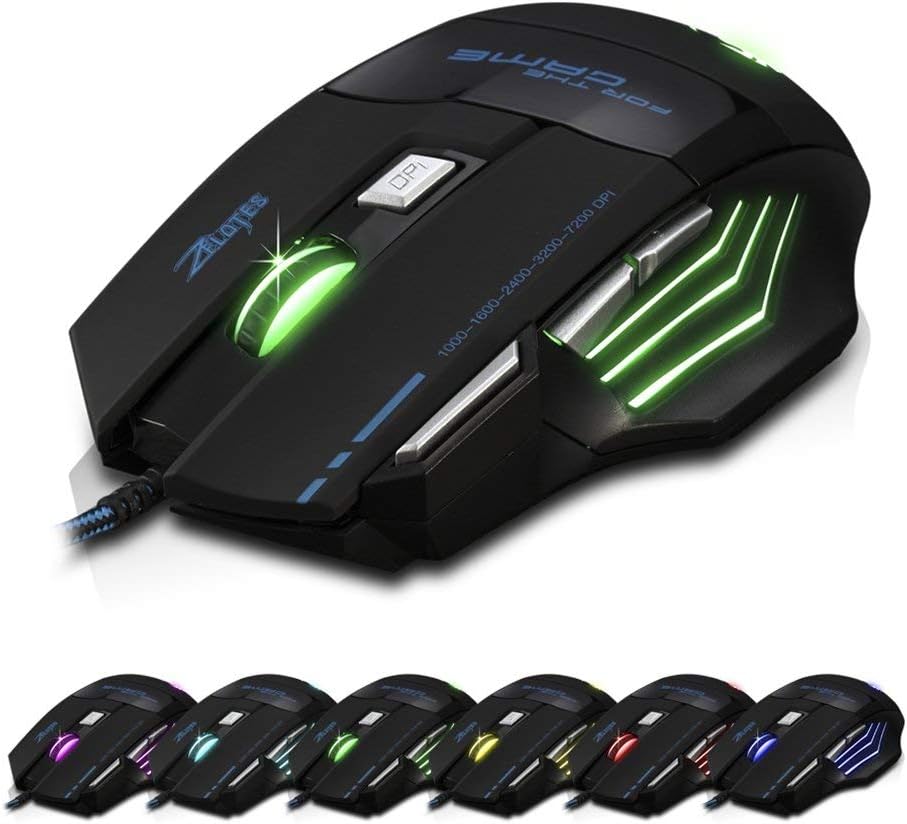
Image: Zelotes T80 mouse showcasing its multi-color LED lighting options.
Please note that specific controls for customizing or turning off the LED lighting (e.g., holding the DPI button for 2 seconds or holding the Forward button for 2 seconds) may not be universally functional or available without dedicated software. The default behavior is generally a continuous cycling color pattern.
5. Manutenzjoni
Proper maintenance ensures the longevity and optimal performance of your Zelotes T80 mouse.
- Tindif tal-wiċċ: Use a soft, dry, lint-free cloth to gently wipe the exterior of the mouse. Avoid using harsh chemicals, abrasive cleaners, or solvents, as these can damage the finish.
- Tindif tas-Sensor Ottiku: Periodically clean the optical sensor located on the underside of the mouse. Use a cotton swab lightly dampened with rubbing alcohol to remove any dust or debris that may interfere with tracking accuracy. Ensure the sensor is dry before use.
- Kundizzjonijiet Ambjentali: Do not expose the mouse to extreme temperatures, direct sunlight, or high humidity. Keep it away from liquids.
- Immaniġġjar: Avoid dropping the mouse or subjecting it to strong impacts, which can damage internal components.
6 Issolvi l-problemi
If you encounter issues with your Zelotes T80 mouse, refer to the following common problems and solutions:
6.1. Il-Maws Ma Jirrispondix
- Iċċekkja l-Konnessjoni tal-USB: Ensure the USB cable is securely plugged into a functional USB port on your computer.
- Ipprova Port USB ieħor: Connect the mouse to a different USB port on your computer.
- Ibda mill-ġdid il-Kompjuter: Ir-ristartjar tas-sistema spiss jista' jsolvi l-problemi ta' konnettività.
- Test fuq Kompjuter Ieħor: If possible, test the mouse on a different computer to determine if the issue lies with the mouse or your computer's setup.
6.2. Cursor Movement is Erratic or Inaccurate
- Sensor Ottiku Nadif: Dust or debris on the optical sensor can cause tracking problems. Clean the sensor as described in the Maintenance section.
- Mouse Surface: Ensure you are using the mouse on a suitable, non-reflective, and non-transparent surface, such as a mouse pad.
- Adjust DPI: Experiment with different DPI settings using the Sensitivity Adjustment Button (6) to find the optimal sensitivity for your usage.
6.3. LED Lights Are Not Working
- Ivverifika l-Enerġija: Ensure the mouse is properly connected and receiving power. If the mouse functions but the lights do not, it may indicate a specific LED component issue.
- No Software Control: As mentioned, direct control over LED patterns or on/off functionality may not be available without specific software.
6.4. Il-Buttuni Ma Jirrispondux
- Iċċekkja għal Ostruzzjonijiet: Ensure there are no physical obstructions preventing the buttons from being pressed fully.
- Re-connect Mouse: Disconnect and reconnect the mouse to refresh its connection.
- Kompatibilità tal-Applikazzjoni: Some side buttons (e.g., Forward/Backward) may require specific applications or browser focus to function as intended.
7. Speċifikazzjonijiet
| Karatteristika | Speċifikazzjoni |
|---|---|
| Mudell | T80 |
| Brand | Zelotes (Manufactured by Granvela) |
| Konnettività | USB bil-fili |
| Tip tas-Sensor | Ottiċi |
| Livelli DPI | 1000, 1600, 2400, 3200, 7200 (Adjustable) |
| Buttuni | 7 (Left, Right, Middle, Forward, Backward, DPI, Double Click) |
| Kompatibilità tas-Sistema Operattiva | Windows 10 (and generally compatible with other Windows versions, macOS, Linux) |
| Dimensjonijiet (LxWxH) | 5.12 x 5.12 x 3.15 pulzieri (130 x 130 x 80 mm) |
| Piż | 4.6 uqija (madwar 130g) |
| Tip ta' Cable | Braided USB Cable |
| Karatteristiċi Speċjali | Ergonomic design for large hands, LED backlighting |
8. Garanzija u Appoġġ
For detailed warranty information, technical support, or service inquiries regarding your Zelotes T80 mouse, please refer to the official website of the retailer or manufacturer where the product was purchased. It is recommended to retain your purchase receipt as proof of purchase for any warranty claims.