
1. Matulview
The HDWR HD-PS6C is a versatile 2-in-1 device that combines the functionality of a wireless barcode reader and a data collector. This integrated solution significantly enhances daily work comfort and convenience, making tasks easier and more efficient. It is designed for various applications requiring efficient 1D barcode scanning and data storage, such as inventory management, retail, and logistics.
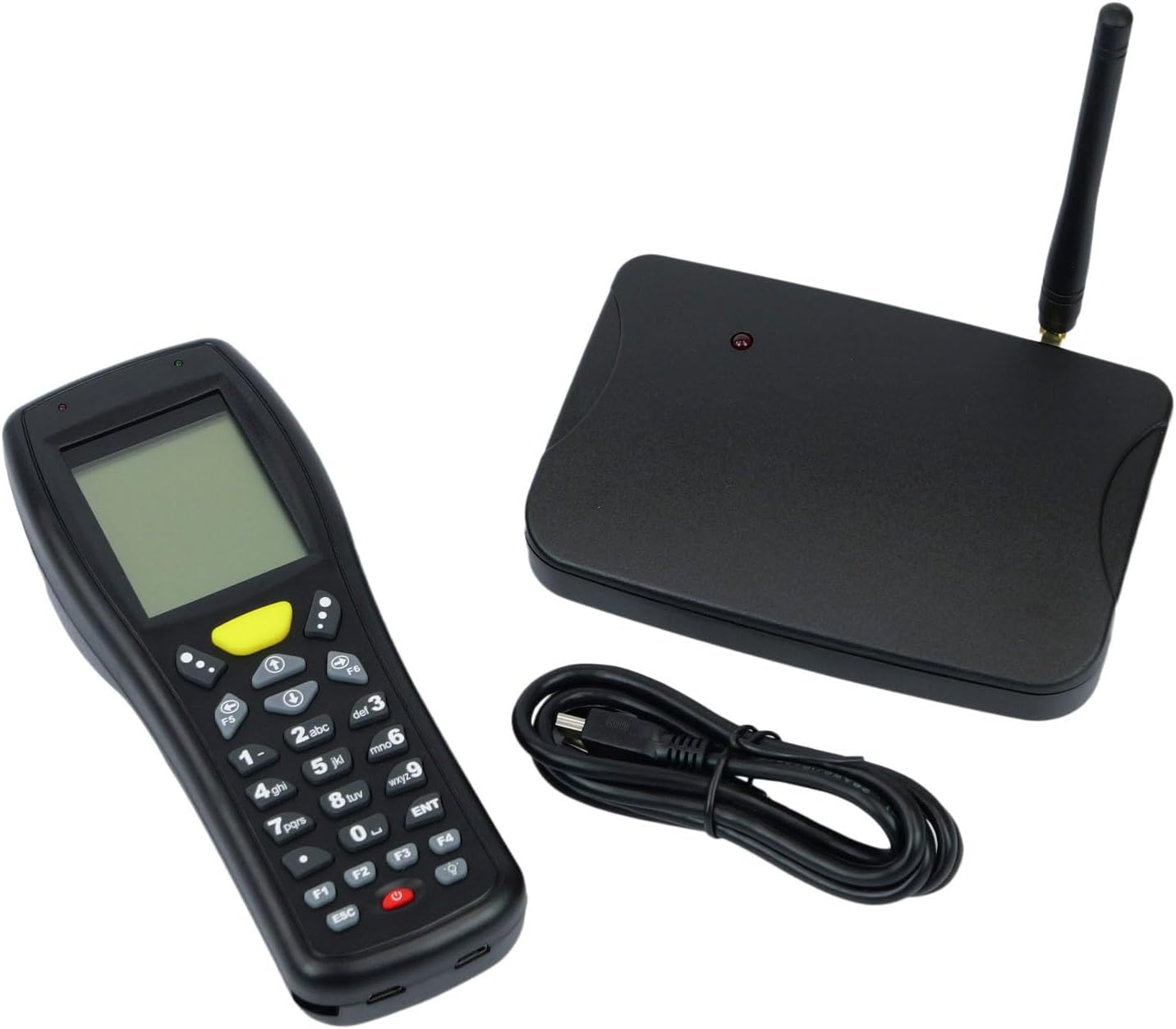
Image: The HDWR HD-PS6C wireless data collector shown with its wireless receiver and USB cable, illustrating the complete package.
2. Karatteristiċi ewlenin
- Two-in-One Functionality: Combines a wireless barcode reader and a data collector in a single device.
- Interface faċli għall-utent: Equipped with a clear screen and a practical keyboard for easy navigation and manual data entry, especially for damaged or unclear codes.
- Modalità Inventarju: Allows storage of up to 50,000 scanned codes in its integrated memory, ideal for extensive inventory tasks.
- Kompatibilità tal-barcode 1D: Supports a wide range of 1D barcode types including EAN13, EAN8, Code 39, Code 93, Code 128, Interleaved 2 of 5 (IT25), Codabar, UPCA, UPCE, and more.
- Appoġġ wiesa' tas-sistema operattiva: Compatible with Windows XP/7/8/8.1/10, Android, and iOS operating systems.

Image: The HD-PS6C highlighting its dual functionality as a data collector and barcode scanner.

Immaġni: Close-up view of the integrated laser barcode scanner, capable of reading 1D codes.

Image: Visual representation of the wireless USB receiver, 50,000 code internal memory, and the clear screen with keyboard for easy navigation.
3. Gwida ta' Setup
3.1. Kontenut tal-Pakkett
Qabel tibda, kun żgur li l-oġġetti kollha huma preżenti fil-pakkett:
- HDWR HD-PS6C Wireless Data Collector
- Riċevitur USB mingħajr fili
- Cable USB
- 2 Batteriji AA (inklużi)
3.2. Installazzjoni tal-batterija
- Locate the battery compartment on the back of the HD-PS6C device.
- Iftaħ l-għatu tal-kompartiment tal-batterija.
- Daħħal iż-żewġ batteriji AA, waqt li tiżgura l-polarità korretta (+/-).
- Agħlaq l-għatu tal-kompartiment tal-batterija sew.
3.3. Konnessjoni tar-Riċevitur Wireless
- Plug the wireless USB receiver into an available USB port on your computer or host device.
- The system should automatically detect and install the necessary drivers. If not, refer to the Troubleshooting section.
3.4. L-Ewwel Tixgħil
- Press and hold the power button (usually red) on the HD-PS6C until the screen illuminates.
- The device will boot up and display the main menu or a default mode.
Vidjo: Overview of the HDWR HD-PS6C, showcasing its design, features, and how it sits on its charging/communication base. This video provides a visual introduction to the product.
4. Istruzzjonijiet Operattivi
4.1. Navigazzjoni Bażika
- Use the arrow keys (up, down, left, right) to navigate through menu options on the screen.
- Press the 'ENT' (Enter) key to select an option or confirm an action.
- Press the 'ESC' key to go back to the previous menu or cancel an operation.
- The numeric keypad can be used for manual data input.

Immaġni: Quddiem view of the HDWR HD-PS6C, clearly showing the screen and the full alphanumeric keypad for navigation and data entry.
4.2. Modalità Inventarju
In Inventory Mode, the device stores scanned barcodes in its internal memory for later transfer.
- From the main menu, select 'Inventory Mode' (or similar option).
- Point the scanner window at a 1D barcode and press the scan button (often a large yellow button or a trigger).
- The scanned code will appear on the screen and be stored in memory.
- Repeat for all items. The device can store up to 50,000 codes.
4.3. Skennjar tal-Barcode
The HD-PS6C is designed to read various 1D barcodes:
- EAN13, EAN8
- Code 39, Code 93, Code 128
- Interleaved 2 of 5 (IT25)
- Codabar
- UPCA, UPCE
- And other standard 1D codes.
Ensure the barcode is clean and well-lit for optimal scanning performance.
4.4. Manual Data Entry
If a barcode is damaged or unreadable, you can manually enter the code:
- Navigate to the manual entry option within the device's menu.
- Use the numeric and alphanumeric keys on the keypad to type the barcode.
- Press 'ENT' to confirm and save the entry.
4.5. Trasferiment tad-Data
To transfer collected data to your computer:
- Connect the HD-PS6C to your computer using the provided USB cable.
- On the device, select the 'Data Transfer' or 'Upload' option.
- Follow the on-screen prompts or software instructions on your computer to complete the transfer. Data is typically transferred as a text file.
5. Manutenzjoni
5.1. Tindif
- Imsaħ l-apparat b'ċarruta ratba u niexfa.
- Għal ħmieġ iebsa, uża ftit damp ċarruta b'sapun ħafif, imbagħad imsaħ niexef immedjatament.
- Tużax kimiċi ħarxa, solventi, jew prodotti tat-tindif li joborxu.
- Keep the scanner window clean and free of dust or smudges for accurate scanning.
5.2. Kura tal-batterija
- Replace batteries when the low battery indicator appears on the screen.
- Jekk l-apparat ma jkunx se jintuża għal perjodu twil ta' żmien, neħħi l-batteriji biex tevita t-tnixxija.
- Armi batteriji użati skont ir-regolamenti lokali.
6 Issolvi l-problemi
| Problema | Kawża Possibbli | Soluzzjoni |
|---|---|---|
| L-apparat ma jixgħelx. | Batteriji baxxi jew mejta; batteriji installati ħażin. | Replace batteries with new ones; ensure batteries are installed with correct polarity. |
| Ma nistax niskennja l-barcodes. | Barcode is damaged or unclear; scanner window is dirty; incorrect scanning mode. | Try scanning a different barcode; clean the scanner window; ensure the device is in the correct scanning mode. Use manual entry if necessary. |
| Data transfer fails or device not recognized by PC. | Missing or incorrect drivers; loose USB connection; incompatible OS. | Ensure the wireless receiver is properly connected; try a different USB port or cable. For Windows, check Device Manager for driver issues. If drivers are missing, search for 'HDWR HD-PS6C drivers' online. Verify your OS is supported (Windows XP/7/8/8.1/10, Android, iOS). |
| L-iskrin huwa vojt jew ma jirrispondix. | Apparat iffriżat; batterija baxxa. | Try restarting the device by holding the power button. If unresponsive, remove and reinsert batteries. Check battery level. |
7. Speċifikazzjonijiet Tekniċi
| Karatteristika | Dettall |
|---|---|
| Numru tal-Mudell | HDPS6C |
| Brand | HDWR |
| Teknoloġija tal-Konnettività | USB (Wireless 2.4G via receiver) |
| Sors tal-Enerġija | Imħaddem bil-batterija (2 batteriji AA inklużi) |
| Apparati Kompatibbli | Kompjuter desktop |
| Vol Operattivtage | 5 Volts |
| Temperatura massima tal-ħażna | 50 Grad Celsius |
| Piż tal-oġġett | 349 Gramm |
| Pajjiż ta' Oriġini | Iċ-Ċina |
8. Garanzija u Appoġġ
The HDWR HD-PS6C comes with a garanzija ta 'sena mid-data tax-xiri. Din il-garanzija tkopri difetti fil-manifattura u malfunzjonamenti taħt kundizzjonijiet ta' użu normali.
For technical support, warranty claims, or further assistance, please contact HDWR customer service through your retailer or the official HDWR website. Please have your purchase receipt and product model number (HDPS6C) ready when contacting support.