
1. Introduzzjoni
This manual provides essential information for the safe and efficient use of your InFocus IF195a Touch Pad. Please read this manual thoroughly before operating the device and retain it for future reference.
2. Informazzjoni dwar is-Sigurtà
- Tesponix l-apparat għal temperaturi estremi, dawl tax-xemx dirett, jew umdità għolja.
- Evita li twaqqa’ jew tissuġġetta l-apparat għal impatti qawwija.
- Use only the charger provided or approved by InFocus.
- Tippruvax tiżżarma jew issewwi l-apparat int stess. Irreferi għal kull manutenzjoni f'idejn persunal kwalifikat.
- Żomm l-apparat 'il bogħod mill-ilma u likwidi oħra.
- Armi l-apparat u l-batterija tiegħu b'mod responsabbli skont ir-regolamenti lokali.
3. Prodott Aktarview
The InFocus IF195a is a 20-inch Android-powered touch pad designed for interactive use. Familiarize yourself with its components.
3.1 Quddiem View

Figura 1: Quddiem view of the InFocus IF195a Touch Pad. This image shows the large 20-inch display with the Android operating system interface, including various app icons and the Google search bar. The device features a sleek bezel around the screen.
- Wiri: 20-inch multi-touch screen.
- Kamera ta' quddiem: Located at the top center bezel.
- Mikrofonu: Integrat għal input tal-vuċi.
3.2 Ġenb View u l-Portijiet
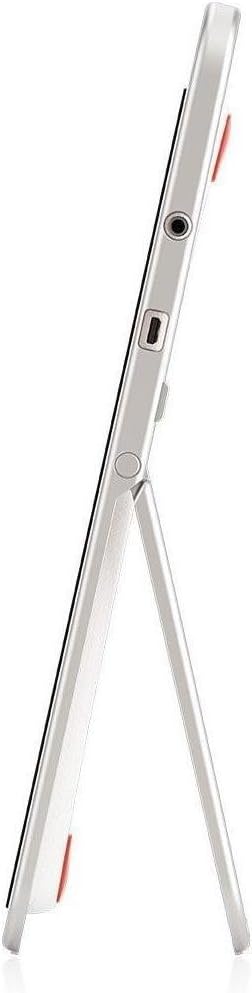
Figura 2: Ġenb view of the InFocus IF195a Touch Pad. This image highlights the device's slim profile and the integrated kickstand, which allows for upright positioning. Visible ports include a headphone jack and a USB port.
- Buttuna tal-Qawwa: Used to turn the device on/off or put it to sleep.
- Buttuni tal-Volum: Aġġusta l-output tal-awdjo tal-apparat.
- Jack tal-headphone (3.5mm): Għall-konnessjoni ta 'apparati awdjo esterni.
- Port mikro-USB: Għall-iċċarġjar u t-trasferiment tad-dejta.
- Stand Integrat: Allows the device to stand upright.
4. Setup
4.1 Il-Ftuħ tal-Kaxxa u l-Iċċarġjar Inizjali
- Carefully remove the InFocus IF195a Touch Pad and all accessories from the packaging.
- Connect the provided power adapter to the Micro-USB port on the device and plug it into a power outlet. Allow the device to charge fully before first use. The charging indicator will typically show a full battery when complete.
4.2 Tixgħel/Jitfi
- Biex Tixgħel: Press and hold the Power button until the InFocus logo appears on the screen.
- Biex Tifi: Press and hold the Power button until a power-off menu appears. Select "Power off" and confirm.
- Biex Torqod/Tqum: Agħfas fil-qosor il-buttuna tal-Enerġija biex tpoġġi l-apparat fil-modalità sleep jew biex tqajmu.
4.3 Wizard tas-Setup Inizjali
Malli tixgħel l-apparat għall-ewwel darba, dan jiggwidak permezz ta' proċess inizjali ta' setup:
- Għażla tal-Lingwa: Agħżel il-lingwa ppreferuta tiegħek.
- Konnessjoni Wi-Fi: Select your Wi-Fi network from the list and enter the password. A stable internet connection is required for many features.
- Kont Google: Sign in with an existing Google account or create a new one. This is necessary to download apps from the Google Play Store and access Google services.
- Data u Ħin: Set the correct date and time or allow the device to set it automatically via the network.
- Settings ta' Privatezza: Review u aġġusta s-settings tal-privatezza kif mixtieq.
5. It-tħaddim tal-Apparat
5.1 Ġesti Touch
- Tektek: Touch the screen once to select an item or open an application.
- Tmiss u Żomm: Press and hold an item to access contextual menus or drag items.
- Swipe: Drag your finger across the screen to scroll through lists or switch between home screens.
- Agħfas biex Tiżżumja: Use two fingers to zoom in or out on images, maps, or web paġni.
5.2 Skrin tad-Dar u Navigazzjoni
- Buttuna tad-dar: Jirritornak għall-iskrin prinċipali tad-dar.
- Buttuna Lura: Returns to the previous screen or closes the current application.
- Buttuna Apps riċenti: Displays a list of recently used applications for quick switching.
- Panel tan-Notifika: Skrolla 'l isfel minn fuq nett tal-iskrin biex taċċessa n-notifiki u s-settings rapidi.
5.3 Installazzjoni u Ġestjoni tal-Applikazzjonijiet
- Google Play Store: Open the "Play Store" app to browse and download applications. A Google account is required.
- Installazzjoni ta' Apps: Select an app and tap "Install." Follow on-screen prompts for permissions.
- Id-diżinstallazzjoni tal-Apps: Mur fuq Settings > Applikazzjonijiet, select the desired app, and tap "Uninstall." Alternatively, touch and hold an app icon on the home screen and drag it to the "Uninstall" option (if available).
5.4 Konnessjoni ma' Apparati Esterni
- Headphones: Ipplaggja headphones ta '3.5mm fil-jack tal-headphones.
- Apparat USB: Connect compatible USB devices (e.g., flash drives, keyboards) to the Micro-USB port using an appropriate adapter if necessary. The device supports USB On-The-Go (OTG).
6. Manutenzjoni
6.1 Tindif tal-Apparat
- Uża drapp ratba u mingħajr lint biex tnaddaf l-iskrin u l-korp tal-apparat.
- Għal marki iebsa, d ftitampLaħlaħ id-drapp bl-ilma jew b'prodott tat-tindif tal-iskrin iddisinjat speċifikament għall-elettronika.
- Evita li tuża kimiċi ħarxa, prodotti tat-tindif li joborxu, jew sprejs tal-ajrusol.
6.2 Kura tal-Batterija
- Biex ittawwal il-ħajja tal-batterija, evita li tiċċarġja kompletament il-batterija ta' spiss.
- Tħallix l-apparat imqabbad mal-ċarġer għal perjodi twal wara li jkun iċċarġjat kompletament.
- Store the device in a cool, dry place if not used for a long time, with the battery charged to about 50%.
6.3 Aġġornamenti tas-Software
Iċċekkja perjodikament għal aġġornamenti tas-softwer biex tiżgura prestazzjoni u sigurtà ottimali. Mur fuq Settings > About tablet > System updates to check for and install available updates. Ensure your device is connected to Wi-Fi and has sufficient battery charge before starting an update.
7 Issolvi l-problemi
| Problema | Soluzzjoni Possibbli |
|---|---|
| L-apparat mhux se jixgħel. | Ensure the device is charged. Connect the charger and wait a few minutes before attempting to power on again. If unresponsive, perform a hard reset by holding the power button for 10-15 seconds. |
| Problemi bil-konnessjoni tal-Wi-Fi. | Iċċekkja jekk il-Wi-Fi huwiex attivat fis-settings. Erġa' ibda r-router Wi-Fi tiegħek. Insieh in-netwerk u erġa' qabbad. Kun żgur li tinsab fil-firxa tas-sinjal Wi-Fi. |
| L-applikazzjonijiet qed jiġġarraf jew jiffriżaw. | Close and restart the application. Clear the app's cache (Settings > Apps > [Isem tal-App] > Ħażna > Neħħi l-cache). Jekk il-problema tippersisti, iddiżinstalla u erġa' installa l-app. |
| L-iskrin ma jirrispondix. | Restart the device. Ensure the screen is clean and free of debris. If the issue continues, contact support. |
| Prestazzjoni bil-mod. | Close unnecessary background applications. Clear cache for frequently used apps. Check available storage (Settings > Ħażna) and free up space if needed. Consider a factory reset as a last resort. |
7.1 Irrisettja l-Fabbrika
Ir-risettjar tal-fabbrika se jħassar id-dejta kollha mit-tagħmir tiegħek u jirrestawrah għas-settings oriġinali tal-fabbrika. Agħmel backup tad-dejta importanti kollha qabel ma tipproċedi.
- Mur fuq Settings > Backup & reset > Factory data reset.
- Read the warning message carefully.
- Tap "Reset tablet" and then "Erase everything" to confirm.
- L-apparat jerġa' jibda u jibda l-proċess ta' reset.
8. Speċifikazzjonijiet Tekniċi
| Karatteristika | Speċifikazzjoni |
|---|---|
| Mudell | IF195a |
| Brand | InFocus |
| Daqs tal-Wiri | 20 Pulzier |
| Riżoluzzjoni Massima | 1600 x 900 |
| Proċessur | ARM Cortex-A15 Quad-Core 1.8 GHz |
| Kapaċità RAM | 2 GB |
| Kapaċità tal-Ħżin | 16 GB |
| Sistema Operattiva | Android 4.4 KitKat |
| Riżoluzzjoni tal-Kamera ta 'wara | 5 MP |
| Dimensjonijiet (L x W x H) | 61.6 x 47 x 8.6 ċm |
| Piż | 3.7 kg |
| Kulur | Griż |
9. Garanzija u Appoġġ
For warranty information, please refer to the warranty card included with your product or visit the official InFocus website. For technical support, product registration, or service inquiries, please contact InFocus customer service through their official channels.
Please note that warranty terms may vary by region and retailer. Keep your proof of purchase for warranty claims.