
1. Prodott Aktarview
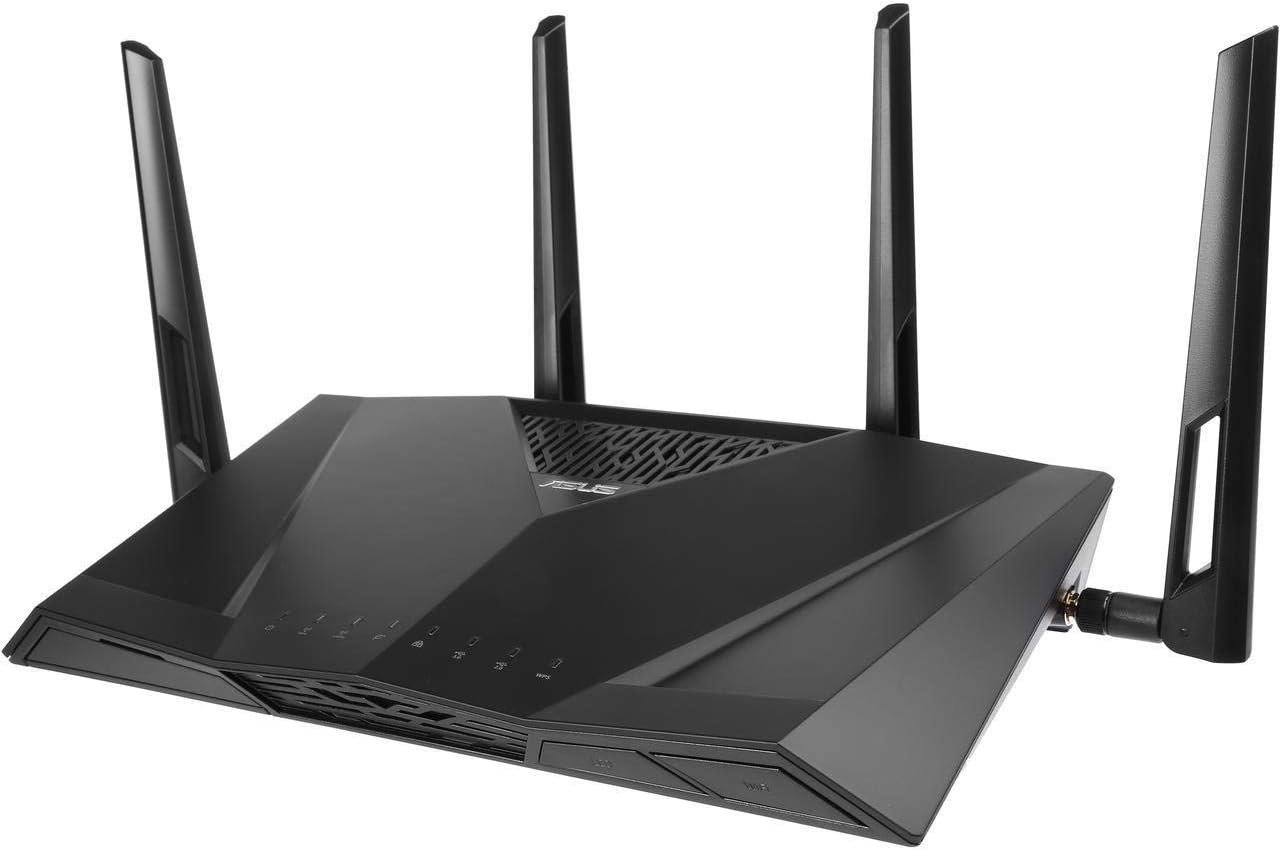
The ASUS AC3100 WiFi Router (RT-AC3100) is a high-performance dual-band wireless internet router designed to enhance network speed and coverage. It integrates advanced technologies to provide a stable and secure internet experience for multiple devices.
Karatteristiċi ewlenin:
- Ultra-fast 802.11ac Wi-Fi: Combined dual-band data rate of 3167 Mbps for low latency online gaming, smooth 4K streaming, and fast file-sharing.
- Broadcom NitroQAM Technology: Boosts 5 GHz data rates up to 2167 Mbps and 2.4 GHz up to 1000 Mbps.
- Dual-band 4x4 MIMO Antenna Design: Features AiRadar universal beamforming for extensive wireless signal coverage.
- 1.4 GHz Dual-core Processor: Improves USB and WAN/LAN speed for efficient data handling.
- Aggregazzjoni tal-Link: Supports close to 2 Gbps wired transmission for faster access speed across multiple devices.
- Teknoloġija MU-MIMO: Provides multiple capacity Wi-Fi for simultaneous connections without slowdowns.
- AiProtection with Trend Micro: Offers advanced security features to protect your network.
- Kontrolli tal-Ġenituri: Allows monitoring and restriction of web activity for a safer online environment.
- AiMesh Supported: Compatible with other ASUS routers to create a powerful and flexible whole-home Wi-Fi network.
Stampi tal-Prodott:


2. Gwida ta' Setup
Follow these steps to set up your ASUS AC3100 WiFi Router for optimal performance.
2.1 Unboxing and Initial Connections
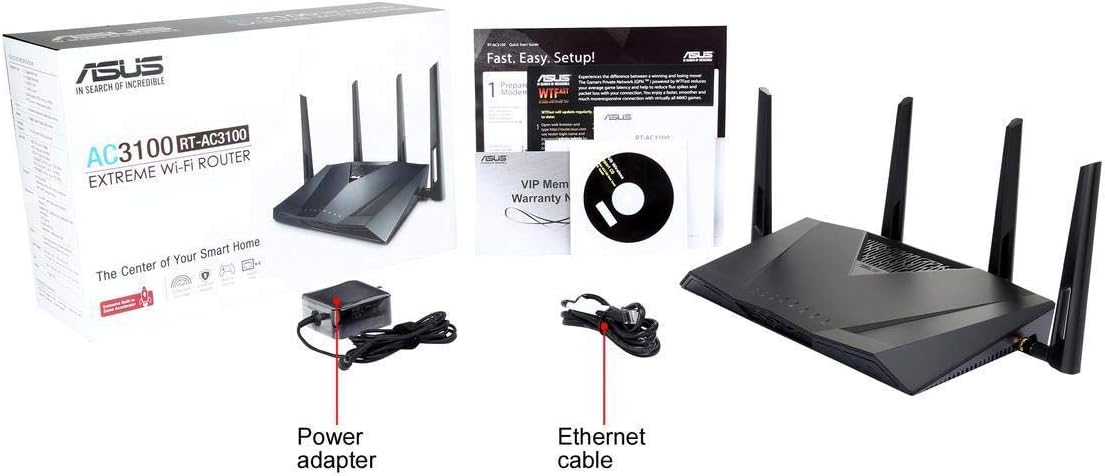
- Ippakkja: Carefully remove the router, power adapter, Ethernet cable, and documentation from the box.
- Pożizzjona r-Router: Poġġi r-router f'post ċentrali fid-dar tiegħek, 'il bogħod minn ostakli u apparati elettroniċi oħra li jistgħu jikkawżaw interferenza.
- Qabbad l-antenni: Ensure all external antennas are securely attached and oriented for best signal coverage.
- Qabbad mal-Modem: Connect one end of the provided Ethernet cable to the WAN port (usually blue) on the router and the other end to your modem's LAN port.
- Qawwa Mixgħul: Connect the power adapter to the router's DC-in port and plug it into a power outlet. Press the power button if available.
2.2 Power Cycling Your Modem (If Applicable)
If you are replacing an existing router, it is recommended to power cycle your modem to ensure it properly recognizes the new router.
- Unplug your modem from its power source.
- Stenna għal mill-inqas 60 sekondi.
- Plug your modem back into the power source and wait for it to fully boot up (usually indicated by stable lights).
2.3 Konfigurazzjoni tar-router
The ASUS Router App provides an easy-to-use interface for quick setup and management.
- Download the ASUS Router App: Fittex għal 'ASUS Router' in your device's app store (Google Play Store or Apple App Store) and install it.
- Ibda l-App: Open the ASUS Router App and follow the on-screen instructions to set up your network, including Wi-Fi name (SSID) and password.
- Alternattiva Web Setup tal-Interface: If you prefer, you can connect a computer to one of the router's LAN ports via Ethernet cable or wirelessly to the default Wi-Fi network (details usually on a sticker on the router). Open a web browser u naviga għal
router.asus.comor192.168.1.1to access the setup wizard.
Setup Video:
Dan il-filmat jipprovdi viżwali fuqview of the ASUS RT-AC3100 router, including its physical features and port layout, which can assist with the initial setup process.
3. Istruzzjonijiet Operattivi
Once your router is set up, you can begin utilizing its advanced features to optimize your home network.
Wi-Fi b'Doppju Banda 3.1
- The router operates on two frequency bands: 2.4 GHz and 5 GHz.
- The 2.4 GHz band offers wider coverage and better penetration through walls, suitable for general internet use and older devices.
- The 5 GHz band provides faster speeds and lower interference, ideal for bandwidth-intensive tasks like 4K streaming and online gaming.
- For optimal performance, connect newer devices to the 5 GHz band and older/less demanding devices to the 2.4 GHz band.
3.2 AiProtection with Trend Micro
- AiProtection provides commercial-grade network security to protect all connected devices from internet threats.
- Access AiProtection settings via the ASUS Router App or web interface to enable features like malicious site blocking, vulnerability protection, and infected device prevention.
3.3 Kontrolli tal-Ġenituri
- Manage internet access for family members by setting time limits, blocking specific websites or applications, and filtering content.
- Configure parental control rules through the ASUS Router App or web interface.
3.4 AiMesh
- If you have other AiMesh-compatible ASUS routers, you can create a seamless whole-home Wi-Fi system.
- Follow the instructions in the ASUS Router App to add AiMesh nodes and expand your Wi-Fi coverage.
4. Manutenzjoni
Regular maintenance ensures your router operates efficiently and securely.
4.1 Aġġornamenti tal-Firmware
- Periodically check for and install firmware updates via the ASUS Router App or web interface. L-aġġornamenti tal-firmware spiss jinkludu titjib fil-prestazzjoni, irqajja tas-sigurtà, u karatteristiċi ġodda.
4.2 Pożizzjonament Ottimali
- Ensure the router is placed in an open area, free from physical obstructions like large furniture or walls.
- Avoid placing the router near other electronic devices that emit electromagnetic interference, such as microwaves, cordless phones, or Bluetooth devices.
- Elevate the router if possible to improve signal dispersion.
4.3 Tindif
- Gently clean the router's exterior with a soft, dry cloth. Avoid using liquid cleaners or abrasive materials.
- Kun żgur li l-islots tal-ventilazzjoni huma ħielsa mit-trab u l-fdalijiet biex tevita li jisħnu żżejjed.
5 Issolvi l-problemi
If you encounter issues with your router, try the following troubleshooting steps.
5.1 Ebda Konnessjoni tal-Internet
- Iċċekkja Kejbils: Ensure all Ethernet cables are securely connected to the correct ports on both the router and the modem.
- Ċiklu tal-Enerġija: Unplug the power from your modem and router, wait 30 seconds, then plug the modem back in. Once the modem is fully online, plug the router back in.
- Iċċekkja l-Istatus tal-Modem: Verify that your modem's indicator lights show a stable internet connection. If not, contact your Internet Service Provider (ISP).
5.2 Veloċitajiet Baxxi tal-Wi-Fi
- Pożizzjonament tar-Router: Relocate the router to a more central and open area, away from obstructions and interference sources.
- Għażla tal-Banda: Ensure high-bandwidth devices are connected to the 5 GHz band.
- Interferenza: USB 3.0 devices can cause interference on the 2.4 GHz band. If experiencing issues, try moving USB 3.0 devices away from the router or using shielded cables.
- Aġġornament tal-Firmware: Kun żgur li l-firmware tar-router tiegħek huwa aġġornat.
5.3 Wi-Fi Disconnections
- Qawwa tas-Sinjal: Check the Wi-Fi signal strength on your devices. If weak, consider repositioning the router or adding an AiMesh node.
- Interferenza tal-Kanal: Use the ASUS Router App to analyze Wi-Fi channels and select a less congested channel for your 2.4 GHz and 5 GHz networks.
5.4 Irrisettja l-Fabbrika
If other troubleshooting steps fail, you may need to perform a factory reset. This will revert all settings to their default values.
- With the router powered on, press and hold the Reset button (usually a small pinhole) on the back of the router for about 5-10 seconds until the power LED blinks.
- Release the button and wait for the router to restart. You will then need to reconfigure the router using the ASUS Router App or web interface.
6. Speċifikazzjonijiet
| Karatteristika | Speċifikazzjoni |
|---|---|
| Brand | ASUS |
| Isem tal-Mudell | RT-AC3100 |
| Tip bla fili | 802.11a, 802.11ac, 802.11b, 802.11g, 802.11n |
| Klassi ta' Banda ta' Frekwenza | Doppju-Band |
| Rata tad-Data Magħquda | 3167 Mbps (2167 Mbps on 5 GHz, 1000 Mbps on 2.4 GHz) |
| Proċessur | 1.4GHz Dual Core |
| RAM | 512 MB |
| Daqs tal-Memorja Flash | 128 MB |
| Numru ta 'USB 3.0 Ports | 1 |
| Numru ta 'USB 2.0 Ports | 1 |
| Sistema Operattiva | ASUSWRT |
| Piż tal-oġġett | 5.39 liri |
| Dimensjonijiet tal-Prodott | 15.9 x 10.2 x 5.1 pulzieri |
7. Garanzija u Appoġġ
ASUS provides support for its products to ensure customer satisfaction.
7.1 Informazzjoni dwar Garanzija
Specific warranty details for the ASUS AC3100 WiFi Router are typically provided with the product documentation or can be found on the official ASUS website. Please refer to the 'VIP Member Warranty Notice' included in your product packaging for registration and full terms.
7.2 Appoġġ Tekniku
For technical assistance, product registration, or further information, please visit the official ASUS support website or contact their customer service. The ASUS Router App also provides support features and diagnostic tools.
Ċaħda Legali: Actual data throughput and Wi-Fi coverage will vary from network conditions and environmental factors, including the volume of network traffic, building material and construction, and network overhead, resulting in lower actual data throughput and wireless coverage.