
Prodott Overview
The ASUS AC3100 WiFi Gaming Router (RT-AC88U) is a dual-band Gigabit router designed for high-performance networking. It offers a combined throughput of 3100 Mbps, supporting smooth 4K/UHD video playback and online gaming. Key features include MU-MIMO technology, AI Protection for network security, link aggregation, and Smart Connect for optimized band selection. This router operates on IEEE 802.11a/b/g/n/ac standards, utilizing Beamforming technology and 1024-QAM for high data rates across 20/40/80 MHz bandwidths. Connectivity options include 1 WAN port, 8 LAN ports (RJ45 for Gigabits BaseT), 1 USB 2.0 port, and 1 USB 3.0 port.
Kontenut tal-Pakkett
The ASUS RT-AC88U package includes the following items:
- Router
- Adapter tal-Enerġija
- Karta ta' Garanzija
- Gwida Quick Start
- Cable Ethernet
- 4 Antenni Esterni
Karatteristiċi Ewlenin
- High-Speed Wireless: 1024-QAM technology provides 80% faster 5 GHz speeds (up to 2100 Mbps) and 66% faster 2.4 GHz speeds (up to 1000 Mbps).
- Kopertura Estiża: 4-transmit, 4-receive (4T4R) antenna design offers 33% greater 2.4 GHz coverage, reaching up to 5000 square feet.
- Konnettività estensiva: Features 8 Gigabit LAN ports for simultaneous connection of multiple Ethernet-compatible devices.
- Proċessur Qawwi: Equipped with a 1.4 GHz dual-core processor for faster USB data transfers (over 100 MB/s) and router download/upload speeds (WAN-LAN throughput up to 1.8 Gbps).
- Smart Connect: Automatically selects the best available band for your devices.
- Protezzjoni tal-AI: Powered by Trend Micro, ensures network safety with automatic vulnerability detection, malicious site blocking, and parental controls. Supports VPN client (PPTP, L2TP, OpenVPN).
- Kompatibbli mal-AiMesh: Supports ASUS AiMesh for creating a flexible, seamless whole-home Wi-Fi system.
Fiżiku Overview

Figura 1: Quddiem View of ASUS RT-AC88U Router. This image displays the front of the router with its four external antennas extended. The top surface features a textured design and the ASUS logo. LED indicators for power, Wi-Fi bands, LAN activity, and USB ports are visible on the front edge.

Figura 2: Wara View of ASUS RT-AC88U Router Ports. This image shows the rear panel of the router, highlighting its connectivity options. From left to right, it includes a power input, power button, USB 3.0 port, USB 2.0 port, WPS button, Reset button, 8 Gigabit LAN ports, and 1 Gigabit WAN port. The external antennas are connected on either side.
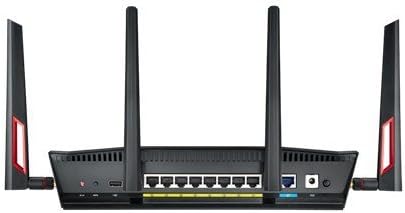
Figure 3: ASUS RT-AC88U Router Technical Specifications. This image provides a detailed breakdown of the router's technical specifications, including processor, memory, Wi-Fi technology, operating frequency, encryption, firewall & access control, management features, WAN connection types, utilities, and available ports.
Gwida ta' Setup
Follow these steps to set up your ASUS RT-AC88U router for the first time:
- Qabbad l-antenni: Attach the four external antennas to the connectors on the rear and sides of the router.
- Qabbad il-Modem: Connect your modem's Ethernet cable to the blue WAN port on the rear of the RT-AC88U router.
- Qabbad il-Kompjuter: Connect your computer to any of the yellow LAN ports on the router using an Ethernet cable.
- Qawwa Mixgħul: Ipplaggja l-adapter tal-enerġija fil-port DC-IN tar-router u mbagħad f'sokit tal-enerġija. Agħfas il-buttuna tal-enerġija biex tixgħel ir-router.
- Ivverifika l-LEDs: Wait for the LED indicators on the front of the router to stabilize. The power, 2.4 GHz Wi-Fi, 5 GHz Wi-Fi, WAN, and LAN LEDs should be illuminated.
- Wizard tas-Setup tal-Aċċess: Iftaħ a web browser fuq il-kompjuter konness tiegħek u naviga lejn http://router.asus.com. Follow the on-screen instructions of the Quick Internet Setup (QIS) wizard.
- Ikkonfigura l-Wi-Fi: Set your desired Wi-Fi network names (SSIDs) and passwords for both 2.4 GHz and 5 GHz bands. Ensure passwords are at least 8 characters long for security.
- Set Router Login: Change the default router login username and password to prevent unauthorized access.
Video: How to setup ASUS WiFi Router via Quick Internet Setup. This video provides a visual guide on connecting your modem, router, and computer, and then using the Quick Internet Setup wizard to configure your ASUS router.
Istruzzjonijiet Operattivi
The ASUS RT-AC88U offers various functionalities to optimize your network experience. Access these settings via the router's web interface (http://router.asus.com) or the ASUS Router mobile app.
QoS Adattiva (Kwalità tas-Servizz)
Adaptive QoS prioritizes network traffic for specific applications and tasks. This ensures smooth performance for gaming, media streaming, VoIP, web surfing, and file transfers. You can enable Adaptive QoS and select a priority mode (e.g., Gaming, Media Streaming, Web Surfing) or customize priorities for different traffic types.
AiProtection
AiProtection, powered by Trend Micro, provides commercial-grade network security. It includes features like malicious site blocking, vulnerability protection, and parental controls to keep your network safe and manage internet usage for family members.
VPN Server/Client
The router supports VPN server (PPTP, OpenVPN) and VPN client functionalities. This allows you to securely access your home network from outside or route your network traffic through a VPN service.
Video: ASUS Instant Guard - Makes free WiFi secure wherever you are. This video demonstrates how to use the Instant Guard feature to secure your Wi-Fi connection when using public networks, by creating a VPN tunnel back to your home router.
Manutenzjoni
Aġġornamenti tal-Firmware
Regularly updating your router's firmware is crucial for optimal performance, security, and access to new features. You can check for and install firmware updates through the router's web l-interfaċċja jew l-app ASUS Router.
Video: How to update the firmware of ASUS WiFi Router. This video guides you through the process of updating your ASUS router's firmware to ensure it has the latest features and security patches.
Ir-restawr għall-Settings Default
If you encounter persistent issues or wish to reconfigure your router from scratch, you can restore it to its factory default settings. This will erase all custom configurations.
Video: How to restore the ASUS router to default setting. This video demonstrates the steps to perform a factory reset on your ASUS router.
Issolvi l-problemi
If you experience issues with your ASUS RT-AC88U router, consider the following common troubleshooting steps:
- Ebda Konnessjoni tal-Internet:
- Check all cable connections (WAN, LAN, power).
- Ibda mill-ġdid il-modem u r-router tiegħek.
- Verify your ISP account settings in the router's web interface.
- Aġġorna l-firmware tar-router għall-aħħar verżjoni.
- Veloċità baxxa tal-Wi-Fi:
- Ensure your devices support 802.11ac for optimal performance.
- Adjust router placement to minimize interference and maximize signal strength.
- Utilize Adaptive QoS to prioritize critical traffic.
- Check for channel interference using the router's Wi-Fi Analyzer tool (if available).
- Ma nistax naċċessa s-Settings tar-Router:
- Ensure your computer is directly connected to the router via Ethernet.
- Ipprova aċċessa http://router.asus.com or the default IP address (e.g., 192.168.1.1).
- Neħħi l-cache u l-cookies tal-browser tiegħek.
- Perform a factory reset if you've forgotten the login credentials (note: this will erase all settings).
Video: [Troubleshooting] Fix Internet Connection on ASUS Router. This video provides guidance on resolving common internet connectivity issues with your ASUS router.
Video: How to improve WiFi signal. This video offers tips and techniques to enhance the Wi-Fi signal strength and coverage of your ASUS router.
Video: How to enter the ASUS Router Setting page. This video demonstrates how to access the web-based configuration interface of your ASUS router.
Speċifikazzjonijiet Tekniċi
| Brand | ASUS |
| Isem tal-Mudell | AC3100 Dual Band Gigabit WiFi Gaming Router (RT-AC88U) |
| Numru tal-Mudell tal-Oġġett | RT-AC88U |
| Tip bla fili | 802.11ac |
| Klassi ta' Banda ta' Frekwenza | Doppju Banda (2.4 GHz, 5 GHz) |
| Numru ta 'USB 2.0 Ports | 1 |
| Numru ta 'USB 3.0 Ports | 1 |
| Portijiet tal-LAN | 8 x Gigabit LAN (RJ45) |
| Portijiet WAN | 1 x Gigabit WAN (RJ45) |
| Proċessur | 1.4GHz Dual Core |
| Kompatibilità tas-Sistema Operattiva | Windows 10, Windows 8, Windows 7, Mac OS X 10.6/10.7/10.8 |
| Piż tal-oġġett | 2.6 liri |
| Dimensjonijiet tal-Prodott (LxWxH) | 30 x 6.5 x 18.8 pulzieri |
| Kulur | Iswed |
| Karatteristiċi Speċjali | WPS, QoS, Beamforming, Alexa Compatible, Parental Control, Guest Mode, LED Indicator, Access Point Mode |
Garanzija u Appoġġ
For warranty information and technical support, please refer to the Warranty Card included in your product package or visit the official ASUS support websit. Tista’ ssib ukoll riżorsi addizzjonali u FAQs online.
Ċaħda Legali: Actual data throughput and Wi-Fi coverage may vary due to network conditions and environmental factors, including network traffic volume, building materials, construction, and network overhead. These factors can result in lower actual data throughput and wireless coverage than advertised.