
1. Introduzzjoni
Grazzi tax-xiriasing the ELECOM M-XGM10DBBK Wireless 5-Button BlueLED Mouse. This mouse is designed for comfort and precision, featuring an ergonomic shape that fits naturally in your hand and BlueLED technology for reliable tracking on various surfaces. This manual provides essential information for proper setup, operation, and maintenance of your device.
2. Prodott Aktarview
The M-XGM10DBBK mouse is part of the "EX-G" series, known for its ergonomic design and comfortable grip. It features five buttons, including dedicated back and forward buttons, to enhance productivity.
Karatteristiċi ewlenin:
- Disinn Ergonomiku: Shaped to fit the hand for ultimate grip comfort.
- BlueLED Sensor: Provides precise tracking on a wide range of surfaces, including glass and fabric.
- 5-Button Functionality: Includes left, right, scroll wheel, and dedicated back/forward buttons.
- Konnessjoni bla fili 2.4GHz: Offers a stable connection with a range of approximately 10 meters (3 meters on steel desks).
- Buttuni Personalizzabbli: Button functions can be re-assigned using the free "ELECOM Mouse Assistant" software (Windows/Mac only).
- Indikatur tal-batterija: A lamp indicates remaining battery life.
Komponenti:
Familiarize yourself with the mouse components:

Figura 2.1: Fuq view of the mouse, highlighting the main buttons.
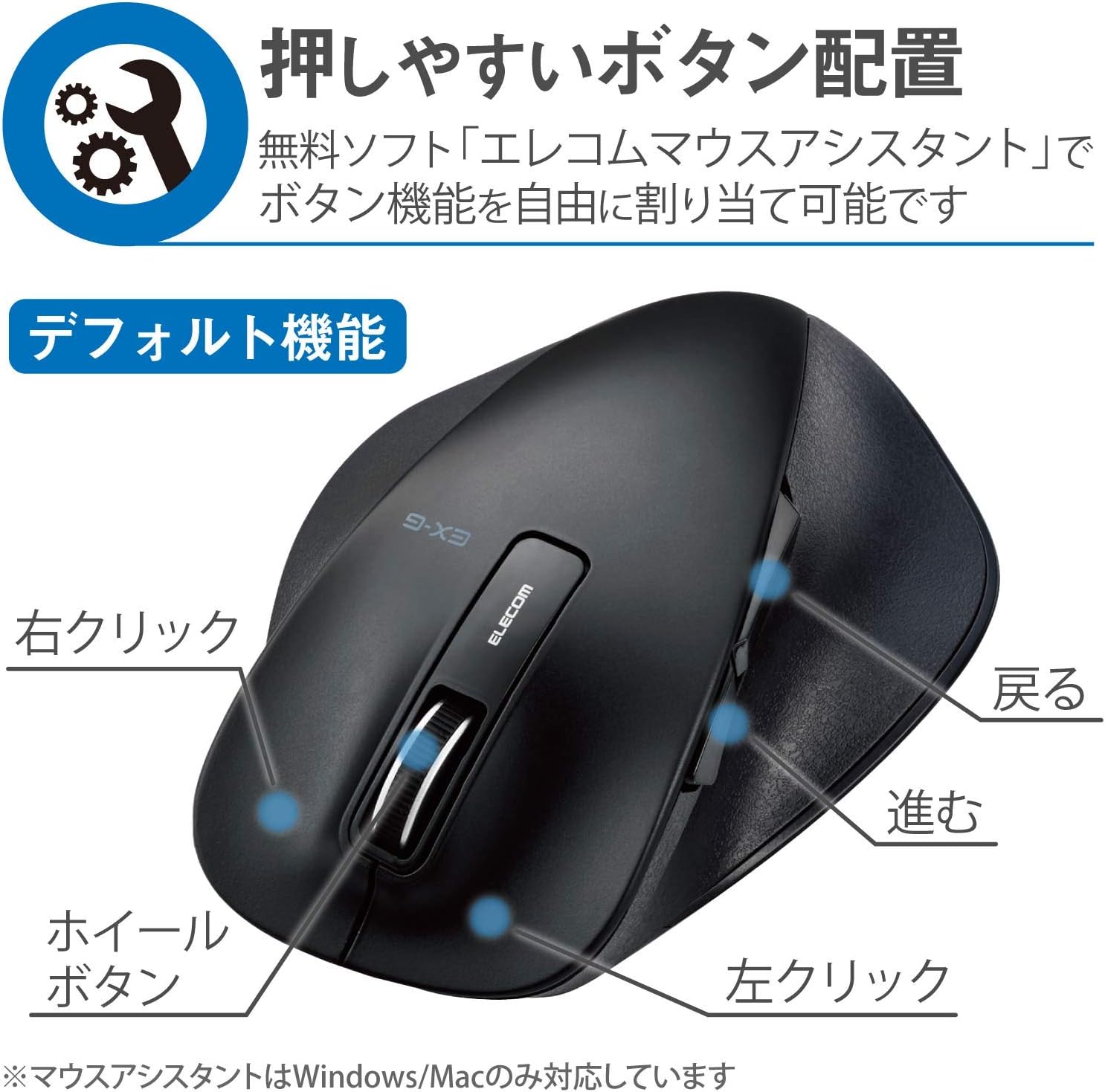
Figura 2.2: Ġenb view of the mouse, showing the back and forward buttons.
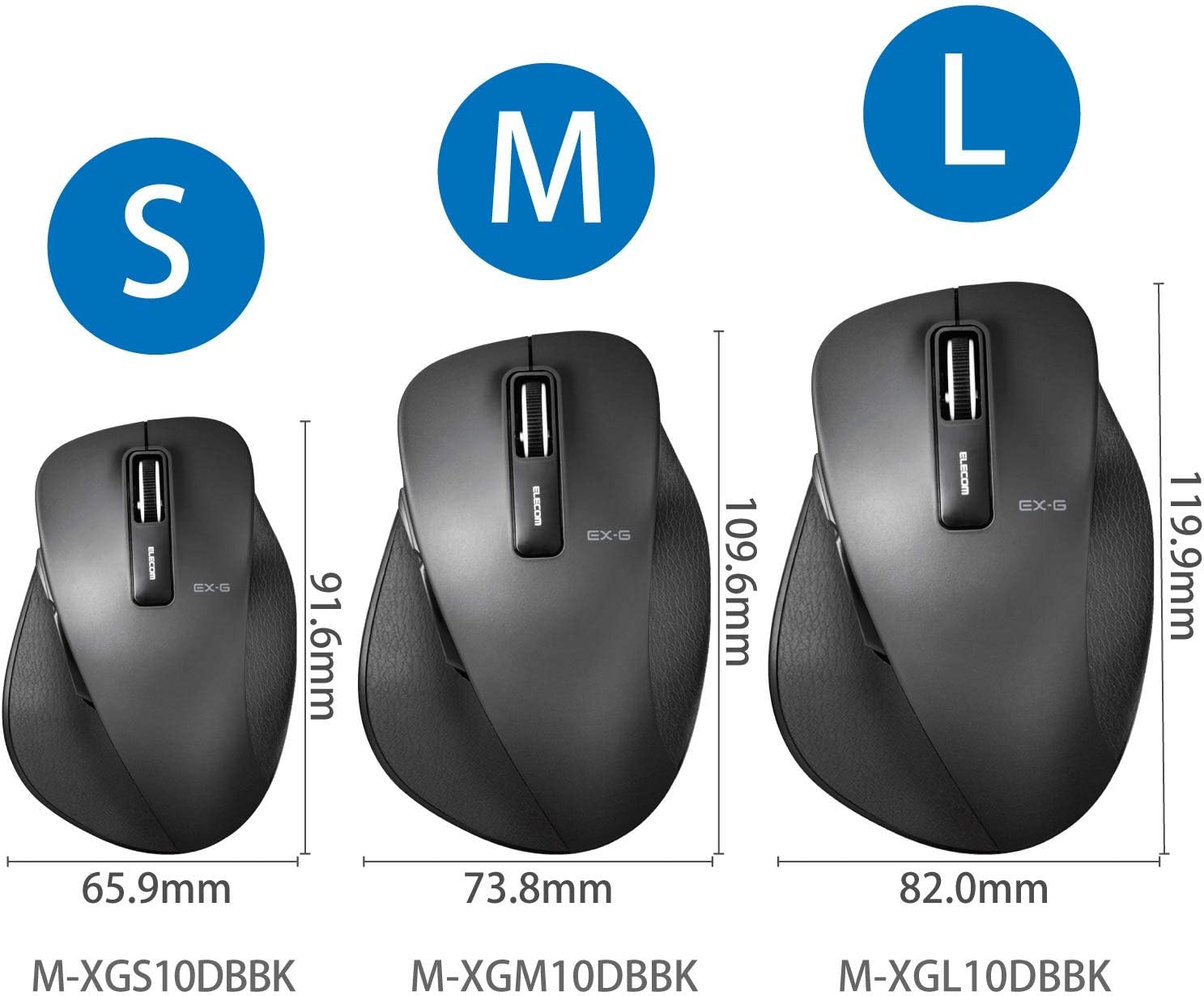
Figure 2.3: Size comparison of EX-G mice (S, M, L). The M-XGM10DBBK is the M size.

Figura 2.4: Qiegħ view of the mouse, indicating the optical sensor, power switch, and receiver storage compartment.

Figure 2.5: Illustration of the durable Omron switches used for the left and right click buttons.
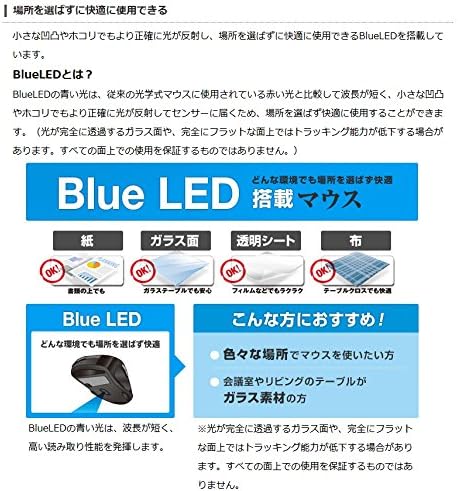
Figure 2.6: Explanation of BlueLED technology, demonstrating its versatility on different surfaces. Note: Tracking performance may decrease on completely transparent or perfectly flat surfaces.

Figure 2.7: Details on 2.4GHz wireless, battery indicator, and 2000 DPI resolution for smooth operation.

Figure 2.8: The ELECOM M-XGM10DBBK mouse is certified to work with Chromebooks.
3. Setup
3.1 Installazzjoni tal-batterija
- Locate the battery cover on the bottom of the mouse.
- Żerżaq l-għatu miftuħ.
- Insert one AA alkaline, manganese, or nickel-metal hydride battery, ensuring correct polarity (+/-).
- Agħlaq l-għatu tal-batterija sew.
3.2 Konnessjoni tar-riċevitur
- Neħħi r-riċevitur USB mill-kompartiment tal-ħażna tiegħu fil-qiegħ tal-maws.
- Ipplaggja r-riċevitur USB f'port USB-A disponibbli fuq il-kompjuter tiegħek.
- Il-kompjuter tiegħek għandu jiskopri u jinstalla awtomatikament id-drajvers meħtieġa. Dan jista' jieħu ftit mumenti.
3.3 Tixgħel
- Slide the power switch on the bottom of the mouse to the "ON" position.
- Il-maws issa huwa lest għall-użu.
4. Istruzzjonijiet Operattivi
4.1 Funzjonijiet Bażiċi
- Ikklikkja Xellug: Għażla u attivazzjoni primarja.
- Ikklikkja bil-lemin: Jiftaħ menus tal-kuntest.
- Scroll Wheel: Skrollja dokumenti u web pages vertically. Can also be clicked for middle-click functionality.
4.2 Back/Forward Buttons
The dedicated back and forward buttons located on the side of the mouse allow for quick navigation in web browsers u file esploraturi.
- Agħfas il- Lura button to go to the previous page or folder.
- Agħfas il- Quddiem button to go to the next page or folder.
4.3 Customizing Buttons (ELECOM Mouse Assistant)
For advanced customization, download the free "ELECOM Mouse Assistant" software from the official ELECOM website. This software allows you to re-assign functions to the mouse buttons according to your preferences. Please note that this software is compatible with Windows and macOS only.
5. Manutenzjoni
5.1 Tindif
To maintain optimal performance and hygiene, regularly clean your mouse:
- Turn off the mouse using the power switch.
- Uża drapp artab u niexef biex timsaħ il-wiċċ tal-maws.
- Għal ħmieġ iebes, neħħi ftitampNaddaf id-drapp bl-ilma jew b'soluzzjoni ħafifa tat-tindif, imbagħad nixxef immedjatament.
- Evita li tuża kimiċi ħarxa, sustanzi li joborxu, jew solventi.
- Gently clean the optical sensor area on the bottom of the mouse with a cotton swab if tracking issues occur.
5.2 Sostituzzjoni tal-batterija
Meta l-indikatur tal-batterija lamp flashes or the mouse performance degrades, replace the battery:
- Itfi l-maws.
- Iftaħ l-għatu tal-batterija.
- Neħħi l-batterija l-qadima u armiha skont ir-regolamenti lokali.
- Insert a new AA battery, ensuring correct polarity.
- Close the battery cover and turn the mouse back on.
6 Issolvi l-problemi
Jekk tiltaqa' ma' problemi bil-maws tiegħek, irreferi għall-problemi u s-soluzzjonijiet komuni li ġejjin:
| Problema | Kawża Possibbli | Soluzzjoni |
|---|---|---|
| Il-ġurdien ma jirrispondix | Low battery; Power switch off; Receiver not connected; Receiver interference. | Replace battery; Turn power switch ON; Ensure receiver is firmly plugged in; Try a different USB port; Move closer to the receiver. |
| Moviment erratiku tal-cursor | Sensor ottiku maħmuġ; Wiċċ mhux adattat; Interferenza. | Clean optical sensor; Use on a suitable mouse pad or surface; Reduce interference from other wireless devices. |
| Buttuni li ma jaħdmux | Kunflitt tas-softwer; Kwistjoni tas-sewwieq. | Restart computer; Reinstall mouse drivers; Check for conflicting software. |
| Kwistjonijiet ta' konnessjoni bla fili | Distance too far; Obstructions; Interference. | Ensure mouse is within range (10m); Remove obstructions between mouse and receiver; Avoid using near other 2.4GHz devices. |
7. Speċifikazzjonijiet
| Karatteristika | Dettall |
|---|---|
| Numru tal-Mudell | M-XGM10DBBK |
| Metodu ta' Konnessjoni | Wireless 2.4GHz (Riċevitur USB-A) |
| Tip tas-Sensor | BlueLED Optical |
| Buttuni | 5 buttons (Left, Right, Scroll Wheel, Back, Forward) |
| Riżoluzzjoni | 2000 DPI |
| Dimensjonijiet (W x D x H) | 73.8 x 109.6 x 40.8 mm (M Size) |
| Piż | Madwar 151.95 g (inkluża l-batterija) |
| Sors tal-Enerġija | 1 x AA battery (Alkaline, Manganese, or Ni-MH) |
| Ħajja Stima tal-Batterija | Approx. 722 days (based on typical usage) |
| OS kompatibbli | Windows 11, 10, RT8.1, 8.1, 7, Vista; macOS High Sierra 10.13, OS X 10.10; Chrome OS |
| Kulur | Iswed |
8. Garanzija u Appoġġ
8.1 Informazzjoni dwar Garanzija
Dan il-prodott jiġi ma 'a 6-il xahar garanzija mid-data tax-xiri. Jekk jogħġbok żomm il-prova tax-xiri tiegħek għal talbiet ta' garanzija. Il-garanzija tkopri difetti fil-manifattura taħt użu normali. Ma tkoprix ħsara kkawżata minn użu ħażin, inċidenti, modifiki mhux awtorizzati, jew xedd u kedd normali.
8.2 Appoġġ għall-Klijent
For technical assistance, troubleshooting, or warranty inquiries, please visit the official ELECOM website or contact ELECOM customer support. Contact details can typically be found on the ELECOM websit taħt it-taqsima 'Appoġġ' jew 'Ikkuntattjana'.