
1. Introduzzjoni
This manual provides essential instructions for setting up, operating, maintaining, and troubleshooting your Lenovo Ideacentre 300s Slim Desktop. Please read this manual thoroughly before using your new computer.
The Lenovo Ideacentre 300s is a compact desktop PC designed for everyday computing tasks, featuring an Intel Core i5-4460s processor, 8 GB DDR3 RAM, and a 1 TB HDD, running Windows 10.
2. X'hemm fil-Kaxxa
Iċċekkja li l-oġġetti kollha huma preżenti fl-imballaġġ:
- Lenovo Ideacentre 300s Slim Desktop Unit
- Tastiera
- Ġurdien
- Kejbil tal-Enerġija
- Dokumentazzjoni (Manwal tal-Utent, Informazzjoni dwar il-Garanzija)

Immaġni: Quddiem view of the Lenovo Ideacentre 300s Slim Desktop, accompanied by a wired keyboard and mouse, illustrating the typical contents of the package.
3. Gwida ta' Setup
Follow these steps to set up your Lenovo Ideacentre 300s Slim Desktop:
3.1 Spakkjar u Tqegħid
- Oħroġ bir-reqqa d-desktop u l-aċċessorji kollha mill-imballaġġ.
- Place the desktop on a stable, flat surface with adequate ventilation. Ensure no vents are blocked.
3.2 Konnessjoni tal-Periferali
Refer to the rear panel image below for port identification.
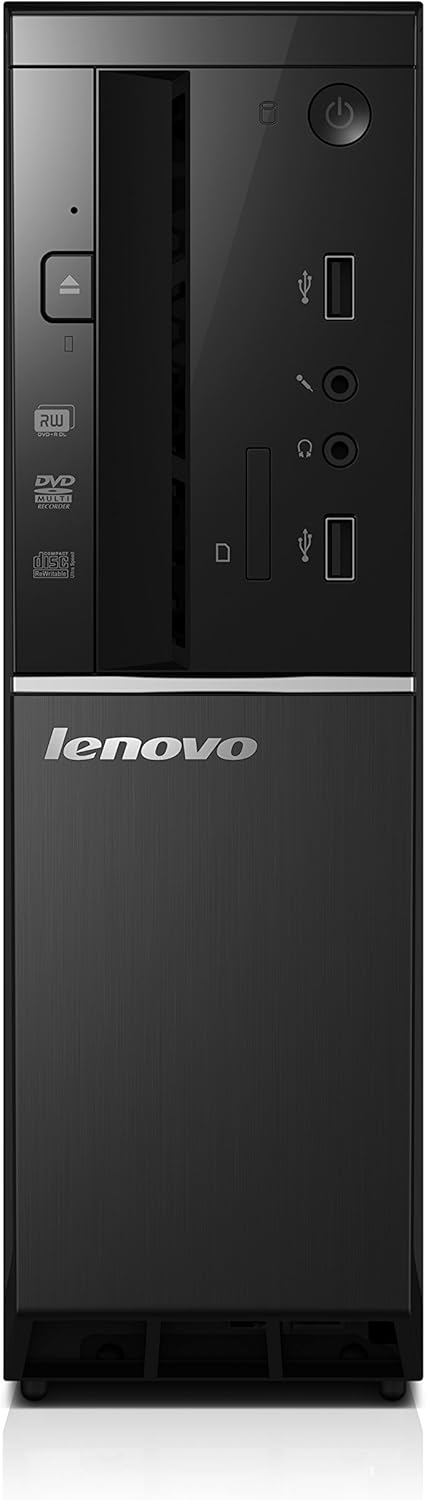
Image: Rear panel of the Lenovo Ideacentre 300s Slim Desktop, highlighting various ports including USB, HDMI, VGA, Ethernet, and audio jacks.
- Qabbad il-Monitor: Connect your monitor to the desktop using an HDMI or VGA cable. If your monitor has both, HDMI is recommended for better quality.
- Qabbad it-Tastiera u l-Maws: Plug the keyboard and mouse into the available USB ports on the rear or front of the desktop.
- Qabbad in-Netwerk (Mhux obbligatorju): For a wired internet connection, connect an Ethernet cable from your router or modem to the Ethernet port on the rear panel. For wireless, ensure your Wi-Fi network is available during initial setup.
- Qabbad Awdjo (Mhux obbligatorju): If using external speakers or headphones, connect them to the appropriate audio jacks on the rear or front panel.
3.3 Konnessjoni tal-Enerġija
- Plug the power cable into the power connector on the rear of the desktop.
- Ipplaggja t-tarf l-ieħor tal-kejbil tal-enerġija f'sokit elettriku ertjat.
4. Istruzzjonijiet Operattivi
4.1 Tixgħel/Jitfi
- Biex Tixgħel: Press the power button located on the front panel of the desktop. The power indicator light will illuminate.
- Biex Tifi: In Windows 10, click the Ibda buttuna, imbagħad agħżel Qawwa > Itfi. Do not unplug the computer directly without proper shutdown to prevent data loss.
- Ibda mill-ġdid: In Windows 10, click the Ibda buttuna, imbagħad agħżel Qawwa > Ibda mill-ġdid.
- Irqad: In Windows 10, click the Ibda buttuna, imbagħad agħżel Qawwa > Irqad.

Immaġni: Quddiem view of the Lenovo Ideacentre 300s Slim Desktop, showing the power button, optical drive, and front USB/audio ports.
4.2 Konfigurazzjoni Inizjali tal-Windows 10
Upon first power-on, Windows 10 will guide you through an initial setup process. This includes:
- Għażla tar-reġjun u l-lingwa tiegħek.
- Connecting to a Wi-Fi network (if not using wired Ethernet).
- Aċċettazzjoni tal-ftehim tal-liċenzja.
- Il-ħolqien ta' kont tal-utent jew id-dħul b'kont tal-Microsoft.
- Setting privacy options.
Segwi l-istruzzjonijiet fuq l-iskrin biex tlesti s-setup.
4.3 L-Użu tad-Drive Ottiku
The desktop includes a DVD-RW optical drive. To use it:
- Press the eject button on the front of the optical drive to open the tray.
- Place a CD or DVD onto the tray with the label side facing up.
- Imbotta t-trej bil-mod lura fid-drajv sakemm jinstema' ikklikkjar biex jingħalaq.
- Windows will typically auto-play the disc or prompt you for action.
5. Manutenzjoni
Proper maintenance ensures the longevity and optimal performance of your desktop.
5.1 Tindif
- Always power off and unplug the desktop before cleaning.
- Uża drapp ratba u mingħajr ħelu ftit dampened with water or a mild, non-abrasive cleaner to wipe exterior surfaces.
- Do not spray liquids directly onto the desktop.
- Use compressed air to clear dust from vents and ports periodically.
5.2 Aġġornamenti tas-Software
- Regularly check for and install Windows updates to ensure security and performance. Go to Ibda > Settings > Aġġornament u Sigurtà > Aġġornament tal-Windows.
- Keep your drivers updated. Lenovo provides driver updates on their official support websit.
5.3 Backup tad-Dejta
Regularly back up your important data to an external drive or cloud storage to prevent data loss in case of hardware failure.
6 Issolvi l-problemi
Din it-taqsima tindirizza kwistjonijiet komuni li tista’ tiltaqa’ magħhom.
6.1 Ebda Qawwa
- Kun żgur li l-kejbil tal-enerġija huwa konness sew kemm mad-desktop kif ukoll mas-sokit tal-elettriku.
- Ivverifika li s-sokit elettriku jaħdem billi tqabbad apparat ieħor.
- Iċċekkja jekk il-fann tal-unità tal-provvista tal-enerġija (PSU) hux qed idur jew jekk hemmx xi dwal indikatur mixgħula.
6.2 L-ebda Wiri fuq il-Monitor
- Ensure the monitor is powered on and its power indicator light is active.
- Check that the video cable (HDMI or VGA) is securely connected to both the desktop and the monitor.
- Try a different video cable or monitor if available to isolate the issue.
- Kun żgur li s-sors tad-dħul korrett huwa magħżul fuq il-monitor tiegħek.
6.3 Internet Connectivity Issues
- Konnessjoni bil-fili: Iċċekkja jekk il-kejbil tal-Ethernet huwiex imqabbad sew. Ivverifika li r-router/modem tiegħek qed jaħdem sew.
- Konnessjoni bla fili: Kun żgur li l-Wi-Fi huwa attivat fis-settings tal-Windows. Iċċekkja jekk intix konness man-netwerk korrett u jekk daħħaltx il-password b'mod korrett. Erġa' ibda r-router/modem tiegħek.
- Mexxi l-Windows Network Troubleshooter (Ibda > Settings > Netwerk u Internet > Status > Network troubleshooter).
6.4 Tnaqqis jew Iffriżar tas-Sistema
- Agħlaq l-applikazzjonijiet bla bżonn li jkunu qed jaħdmu fl-isfond.
- Check Task Manager (Ctrl+Shift+Esc) for processes consuming high CPU, memory, or disk usage.
- Ensure your system has enough free disk space.
- Run a full system scan with antivirus software.
- Ibda mill-ġdid il-kompjuter.
7. Speċifikazzjonijiet
Key technical specifications for the Lenovo Ideacentre 300s Slim Desktop (Model 90F10000US):
| Karatteristika | Speċifikazzjoni |
|---|---|
| Proċessur | Intel Core i5-4460s (2.9 GHz, up to 3.4 GHz) |
| RAM | 8 GB DDR3 (1600 MHz) |
| Ħażna | 1 TB SATA HDD (7200 RPM) |
| Grafika | Grafika Intel HD (Integrata) |
| Sistema Operattiva | Windows 10 |
| Konnettività bla fili | 802.11ac Wi-Fi |
| Portijiet USB | 4x USB 2.0, 2x USB 3.0 |
| Outputs tal-Vidjo | hdmi, vga |
| Drive ottiku | DVD-RW |
| Dimensjonijiet (LxWxH) | 11.69 x 13.23 x 3.62 pulzieri |
| Piż | 9.09 liri |
8. Garanzija u Appoġġ
8.1 Garanzija tal-Prodott
Your Lenovo Ideacentre 300s Slim Desktop comes with a standard manufacturer's warranty. Please refer to the warranty card included in your product packaging for specific terms, conditions, and duration of coverage. Keep your proof of purchase for warranty claims.
8.2 Appoġġ Tekniku
Għal assistenza teknika, downloads ta' sewwieqa, jew aktar appoġġ, jekk jogħġbok żur is-sit uffiċjali tal-appoġġ ta' Lenovo websit:
You may need your product's serial number, which can typically be found on a label on the desktop chassis.