
OWC OWCTB2DOCK12P
OWC Thunderbolt 2 Dock User Manual
Model: OWCTB2DOCK12P
Introduzzjoni
The OWC Thunderbolt 2 Dock is a versatile connectivity solution designed to expand the port options of your computer. It provides a wide array of ports including USB 3.0, Thunderbolt 2, FireWire 800, HDMI, Gigabit Ethernet, and audio input/output, streamlining your workspace by connecting all your peripherals through a single Thunderbolt cable.
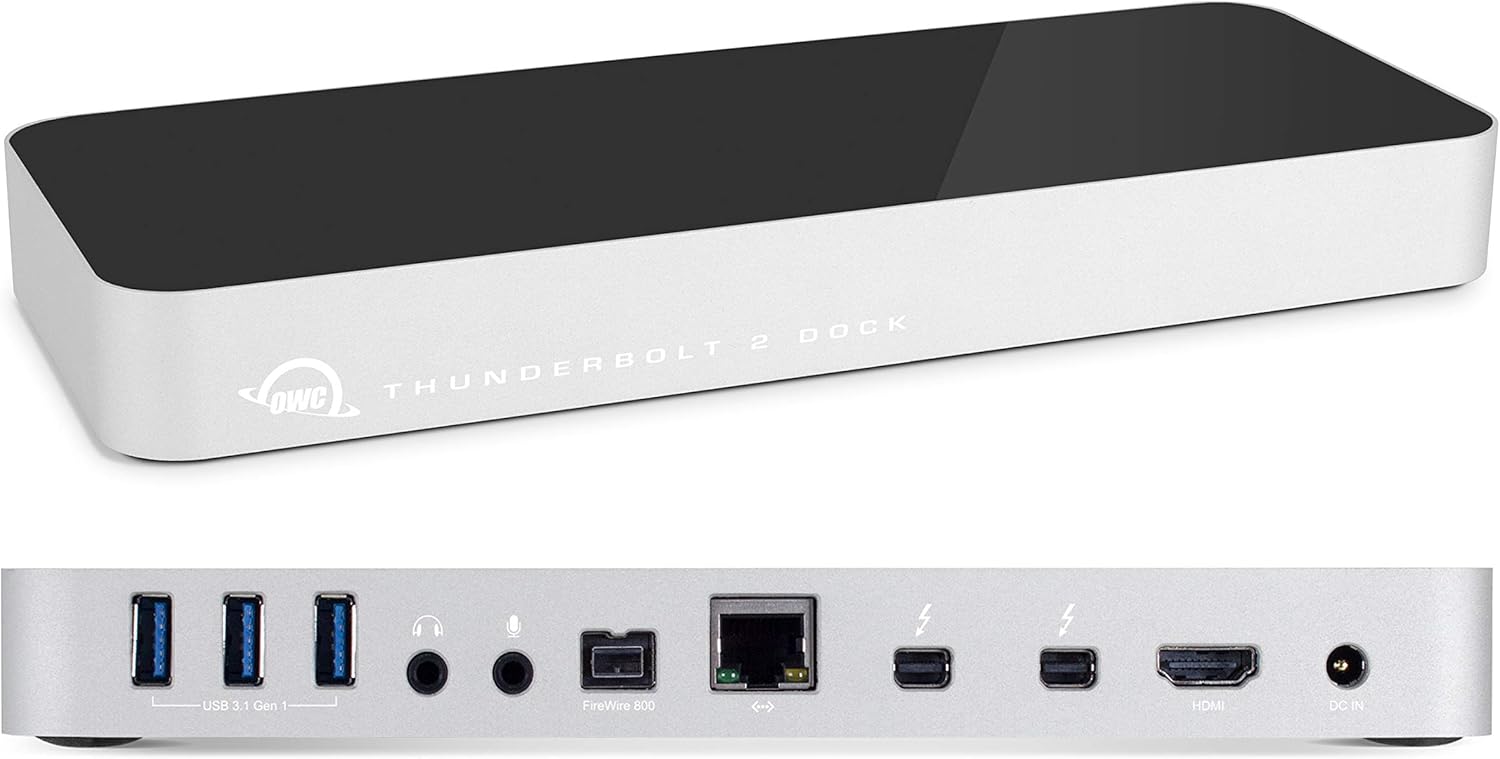
Figure 1: OWC Thunderbolt 2 Dock - Top and Rear View
Karatteristiċi Ewlenin
- 5 USB 3.0 Ports (3 Standard & Two 1.5A High-Powered)
- 2 Thunderbolt Ports
- 3.5mm Mono Audio Input
- 3.5mm Output Awdjo Stereo
- 1 FireWire 800 Port
- Port Ethernet Gigabit
- HDMI Port for display connectivity
Gwida ta' Setup
Kontenut tal-Pakkett
- OWC Thunderbolt 2 Dock
- Adapter tal-Enerġija
- Kejbil tal-Enerġija
Tqabbad il-Baċir
Follow these steps to connect your OWC Thunderbolt 2 Dock and begin using it:
- Qabbad l-Enerġija: Plug the power adapter into the DC IN port on the rear of the dock and then into a wall outlet. The power LED on the front of the dock will illuminate, indicating it is ready for use.
- Ikkonnettja l-Periferali: Connect your USB devices (keyboard, mouse, external drives) to the USB 3.0 ports. Connect audio devices to the 3.5mm audio input/output jacks. If you have a FireWire 800 device, connect it to the FireWire 800 port. Connect your network cable to the Gigabit Ethernet port.
- Qabbad id-Displays: Connect your primary display to the HDMI port. If you are using a Thunderbolt display or daisy-chaining another Thunderbolt device, connect it to one of the Thunderbolt 2 ports.
- Qabbad mal-Kompjuter: Use a Thunderbolt cable (not included) to connect one of the Thunderbolt 2 ports on the dock to a Thunderbolt port on your computer.

Figure 2: Rear Ports of OWC Thunderbolt 2 Dock

Figure 3: Side Ports of OWC Thunderbolt 2 Dock
Installazzjoni tas-sewwieq
For optimal performance and compatibility, especially with certain devices like iPads for charging, ensure your computer's operating system is up to date. OWC may provide specific drivers or firmware updates on their official support website. Check their website for the latest downloads relevant to your operating system.
Tħaddim tal-Baċir
Użu Ġenerali
Once connected, the OWC Thunderbolt 2 Dock acts as a central hub for all your connected devices. Your computer will automatically recognize the peripherals connected to the dock. You can connect and disconnect USB devices while the dock is powered on (hot-plugging).
Uri Konnessjonijiet
The dock supports one HDMI display directly. For dual display setups, one display must be connected via HDMI and the second via a Thunderbolt port (using a Mini DisplayPort compatible cable or adapter), or by daisy-chaining another Thunderbolt display. Ensure your computer's graphics card supports the desired display configuration.
Manutenzjoni u Kura
- Tindif: Use a soft, dry, lint-free cloth to clean the exterior of the dock. Avoid abrasive cleaners, solvents, or aerosol sprays.
- Ambjent: Operate the dock in a well-ventilated area. Avoid exposing it to extreme temperatures, humidity, or direct sunlight.
- Ġestjoni tal-Kejbil: Ensure all cables are neatly organized and not under strain to prevent damage to the ports or cables.
- Ċiklu tal-Enerġija: If you experience minor issues, try disconnecting the power adapter from the dock for 10-15 seconds, then reconnecting it.
Issolvi l-problemi
If you encounter issues with your OWC Thunderbolt 2 Dock, refer to the following common problems and solutions:
- No Power / Dock Not Turning On:
- Kun żgur li l-adapter tal-enerġija huwa konness sew kemm mad-dock kif ukoll ma' sokit tal-enerġija li jaħdem.
- Iċċekkja jekk is-sokit tal-enerġija hux qed jaħdem billi tqabbad apparat ieħor.
- Connected Devices Not Recognized:
- Verify that the Thunderbolt cable is securely connected between the dock and your computer.
- Try connecting the problematic device directly to your computer to confirm it is working.
- Restart your computer and power cycle the dock.
- Ensure your computer's operating system and Thunderbolt drivers are up to date.
- Display Issues (No Signal, Flickering):
- Check all display cables (HDMI, Mini DisplayPort) for secure connections.
- Ensure your display is set to the correct input source.
- Try a different display cable or port on the dock/computer if available.
- Adjust display settings on your computer (resolution, refresh rate).
- Skonnettjar Intermittenti:
- Ensure the Thunderbolt cable is of high quality and securely connected.
- Avoid placing the dock in areas with poor ventilation, as overheating can cause instability.
- Reduce the number of high-power devices connected simultaneously if experiencing issues.
Speċifikazzjonijiet Tekniċi
| Karatteristika | Speċifikazzjoni |
|---|---|
| Brand | OWC |
| Numru tal-Mudell | OWCTB2DOCK12P |
| Kompatibilità tas-Sistema Operattiva | Windows 10, macOS |
| Piż tal-oġġett | 2.6 liri |
| Dimensjonijiet tal-Prodott (LxWxH) | 12.6 x 5.3 x 3.7 pulzieri |
| Kulur | Abjad, Iswed |
| Voltage | 12 Volts |
| Interface tal-Ħardwer | FireWire 800, USB 3.0 |
| Karatteristika Speċjali | Portabbli |
| Apparati Kompatibbli | USB C (with adapter), Mac |
Garanzija u Appoġġ
OWC products are designed for reliability and performance. For specific warranty details, please refer to the warranty information included with your product packaging or visit the official OWC websit.
For additional support, including FAQs, drivers, and contact information, please visit the OWC support page. You can also refer to the official user guide PDF for more detailed instructions:
Ask a question about this manual
Ask about setup, troubleshooting, compatibility, parts, safety, or missing instructions. Manuals+ will review the question and use this page’s manual context to help answer it.